
Guide to Using the Quiz Feature in SweetProcess
Welcome to our step-by-step guide on leveraging the Quiz feature in SweetProcess, crafted with your needs and feedback at heart. Whether you're looking to ensure your team grasps the essentials of your SOPs, policies, or procedures, or you aim to bolster knowledge retention and compliance, this guide has got you covered.
-
1Creating your Quiz
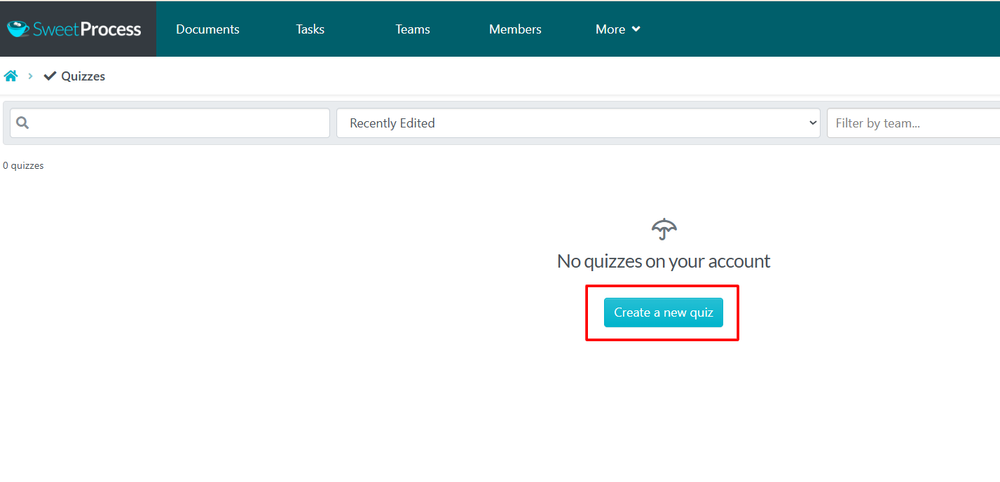
- From your main SweetProcess dashboard, navigate to the Quizzes section. In the top right-hand corner, click the Create Quiz button.
-
2Title and Team AssignmentOnce you click create, you will be prompted to set the foundation for your quiz:
- Quiz Title: Enter a clear, descriptive name for the quiz.
- Add to Teams: Select the specific teams that need to take this quiz. This ensures the right people are notified (Optional)
- Click Continue to move to the question editor.

-
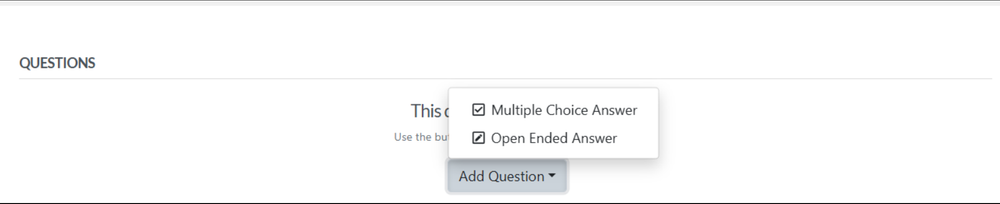
3Build Your QuestionsNow you can add the actual content. Click the Add Question dropdown to choose between two formats:
- Multiple Choice Answer: Best for testing specific knowledge with set options.
- Open Ended Answer: Best for qualitative feedback or complex explanations.
-
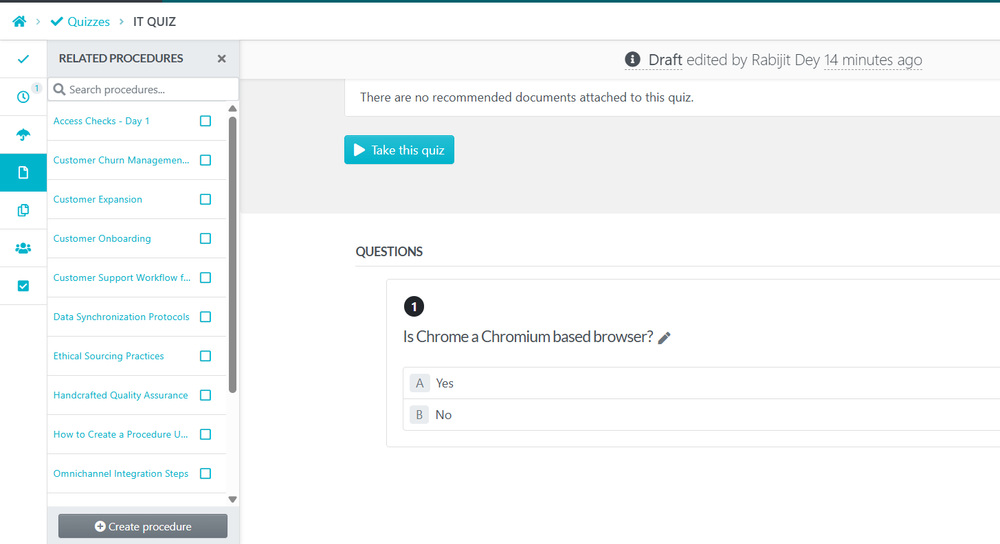
4Finalizing and AssigningA key part of the SweetProcess workflow is ensuring that knowledge is tied directly to your documentation. Once a quiz is created, it can be related to the following:
- Policies: Link a quiz to a policy to ensure employees have read and understood the high-level rules and guidelines.
- Procedures: Attach a quiz to a specific procedure. This requires employees to pass the quiz to prove they know how to execute the task correctly before it is marked as "Completed."
- Team Assignments: As noted in Step 2, you can assign the quiz to entire teams to manage training requirements at scale.
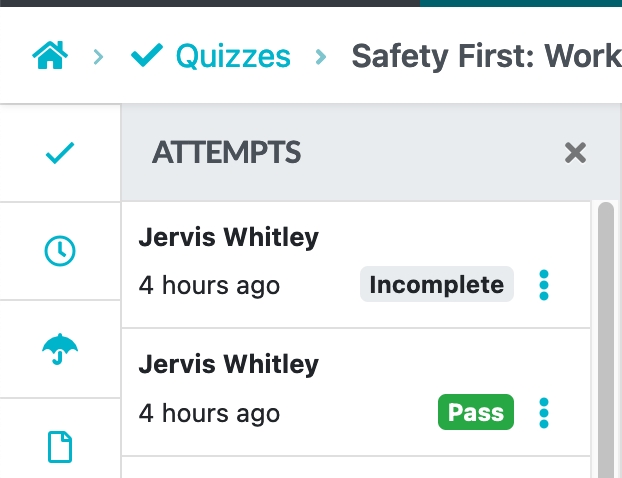
- Track Progress: You’ll be able to see which team members have completed the quiz and who might need a follow-up.
-
5Managing your QuizAs the quiz author, you have exclusive rights to view answers and edit the quiz, ensuring the integrity and confidentiality of the assessment.
-
6Distributing the QuizAdd the quiz to a team, making it accessible to relevant team members. This encourages collective learning and fosters a culture of continuous improvement.
When visiting the quiz, your team members will see an option to take the quiz: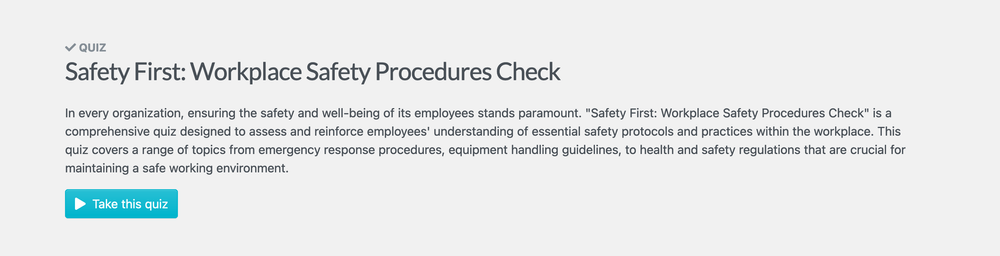
-
7Best PracticesAlign Quizzes with Procedures, Policies, and Processes
Regularly update quizzes to reflect changes in procedures, policies, and processes. This keeps the content relevant and ensures employees are up-to-date with the latest procedures.
Onboarding & Compliance
Incorporate quizzes at various stages of employee onboarding to verify understanding of critical information. This not only aids in compliance but also in reducing errors and enhancing operational efficiency.
Designing Questions with Combined Correct Answers
Our quiz software allows for a single correct answer per question, but you can creatively design questions to cover scenarios requiring recognition of multiple items as correct. For example, include options such as 'A & B' or 'All of the Above' to indicate multiple items that are correct as part of the same choice. This approach maintains flexibility and clarity in testing knowledge, as shown below.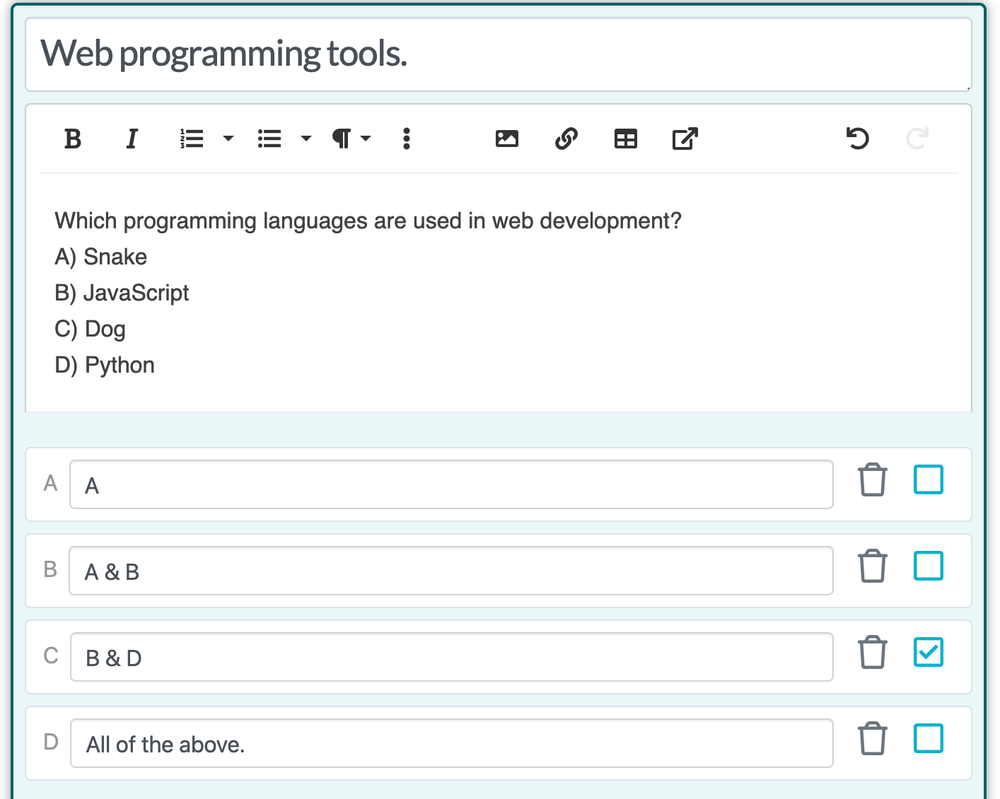
Did this answer your question?
If you still have a question, we’re here to help. Contact us