
Getting Working With Children Records (WWC)
This tutorial guides you through accessing Working With Children records in Employment Hero. It ensures you understand how to navigate the correct portals and retrieve necessary compliance information efficiently.
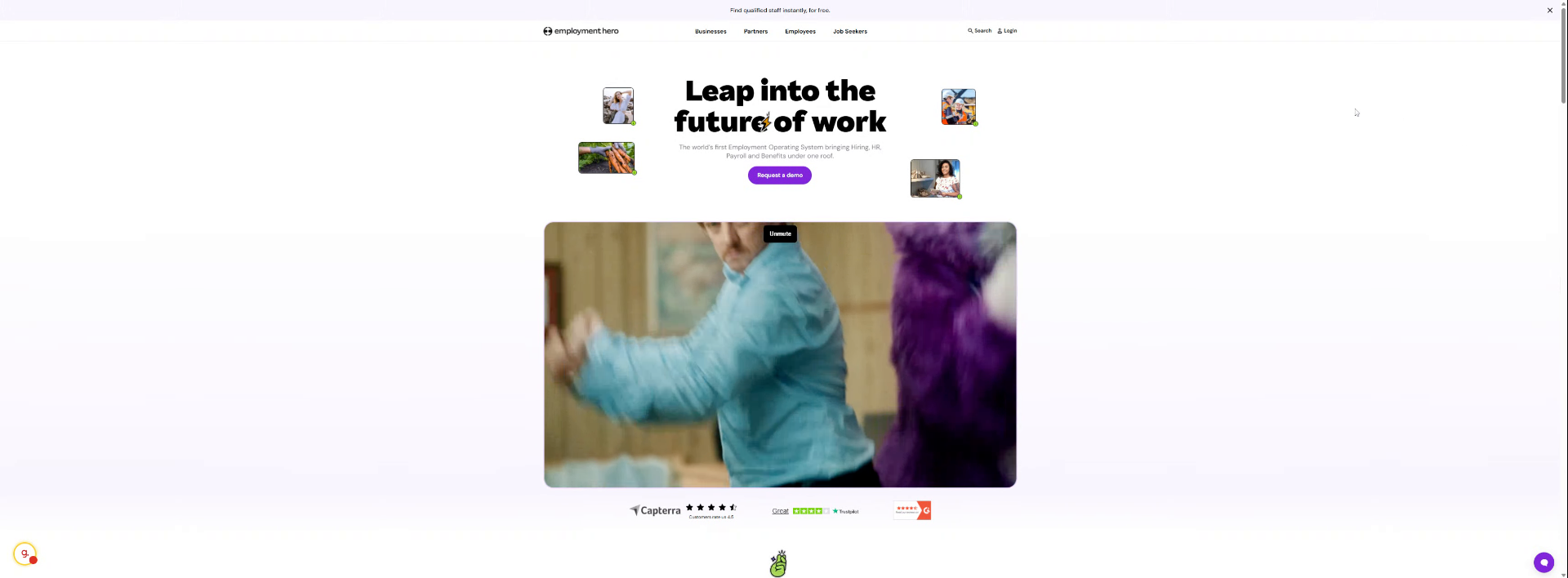
Go to employmenthero.com
1. Introduce Accessing Working With Children Records
Hi. I'm gonna show you how to get Working with Children records. I just want to start from the beginning of how you get into employment hero because you've got to be careful, which which version you're in.
2. Click Login Button
Click the Login button to begin accessing your Employment Hero account securely.

3. Navigate to Business HR Login
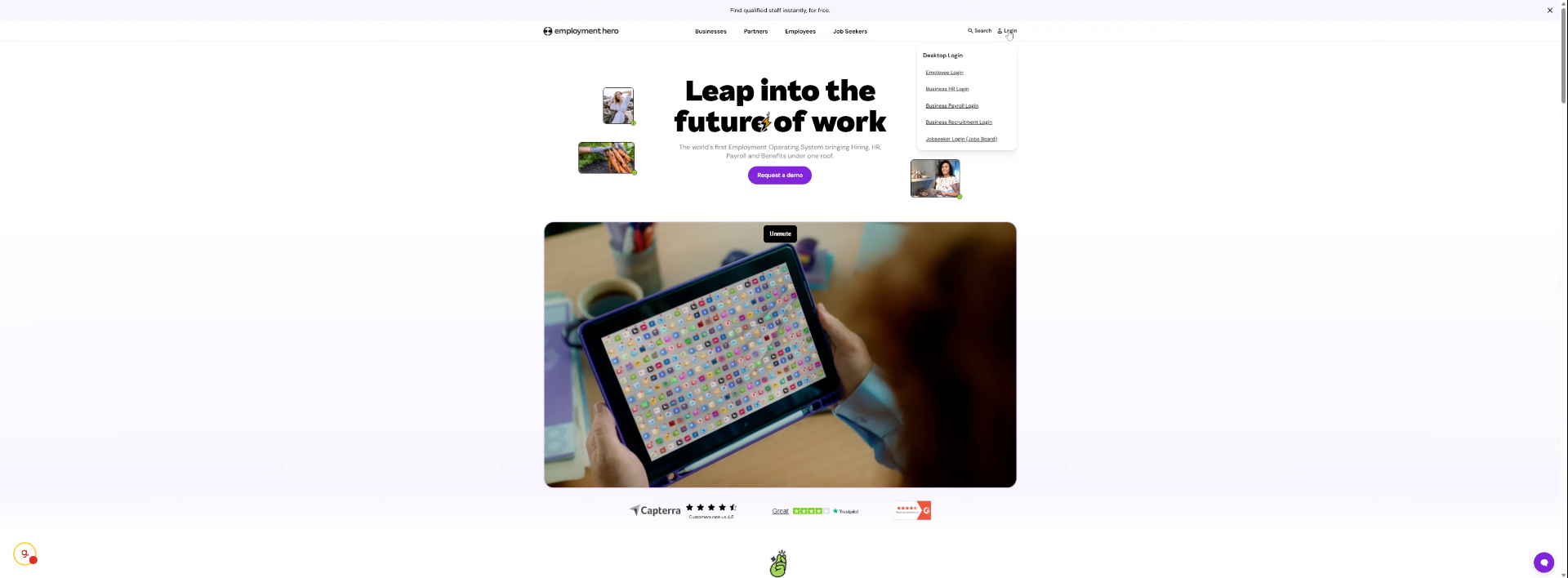
Go into login. Go to an employment business HR login, but your individual personal one, but that one in particular. login
4. Select Business HR Login Option
Click the Business HR Login option to proceed to the correct HR portal.

5. Confirm Business HR Login Selection
Click Business HR Login again to confirm your selection and continue.

6. Switch to Secure Employment Hero URL
Switch to secure.employmenthero.com to ensure you are on the official and secure Employment Hero site.

7. Click Link to Secure Site
Click here to navigate to the secure Employment Hero login page.

8. Access Employee List by Location
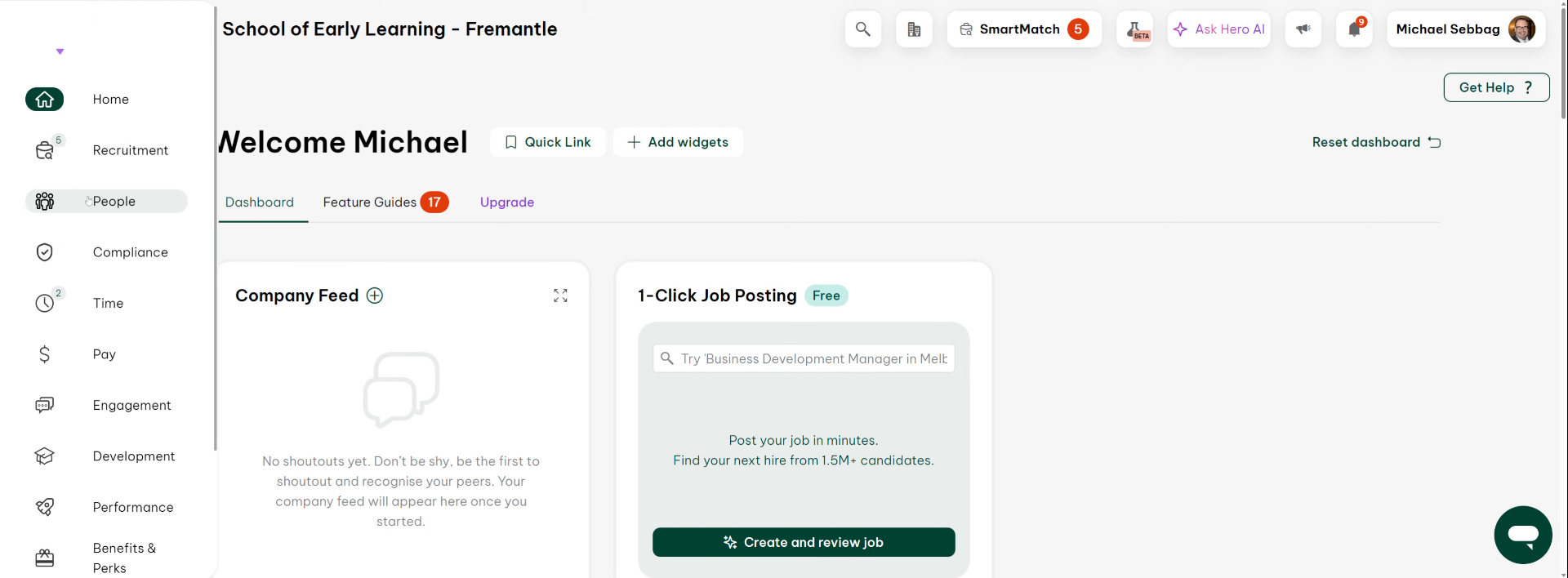
You need to go the people the find all the employees in that in that group. So if it's in Fremantle it's in Perth
9. Select Example Employee for Demonstration
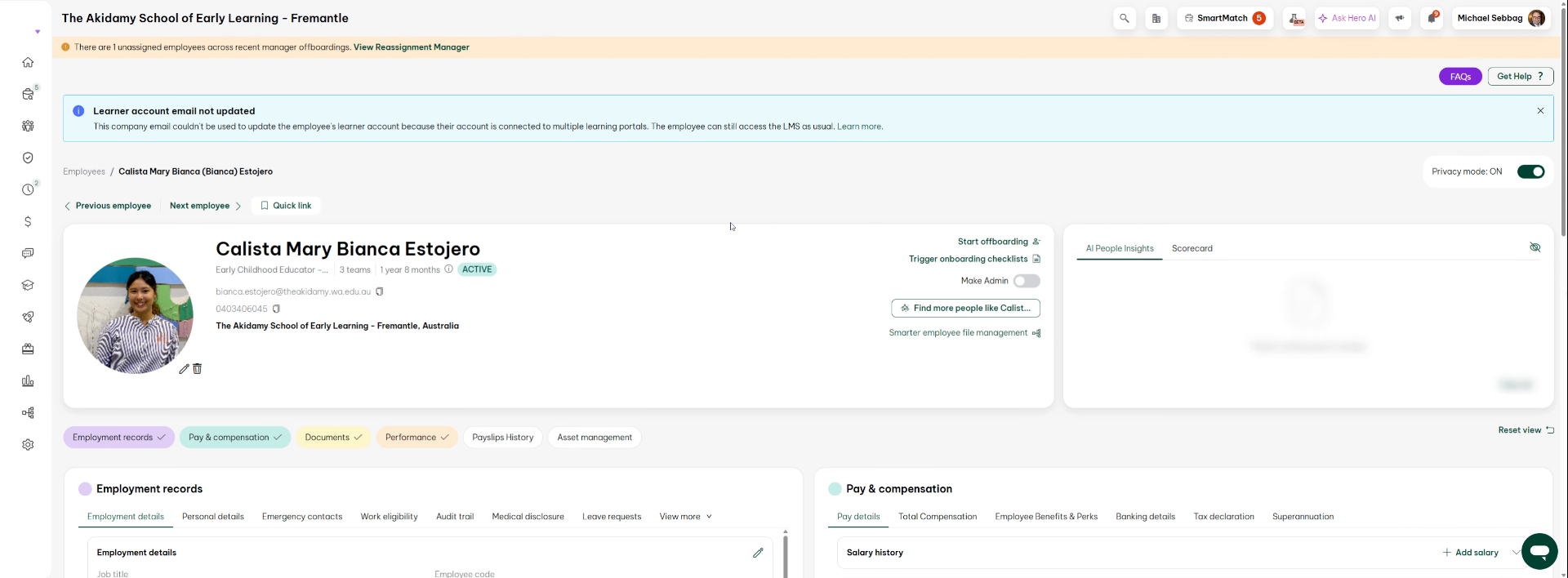
You need to get the employment list. Okay. Okay, so I'm just picking as an example Bianca's okay.
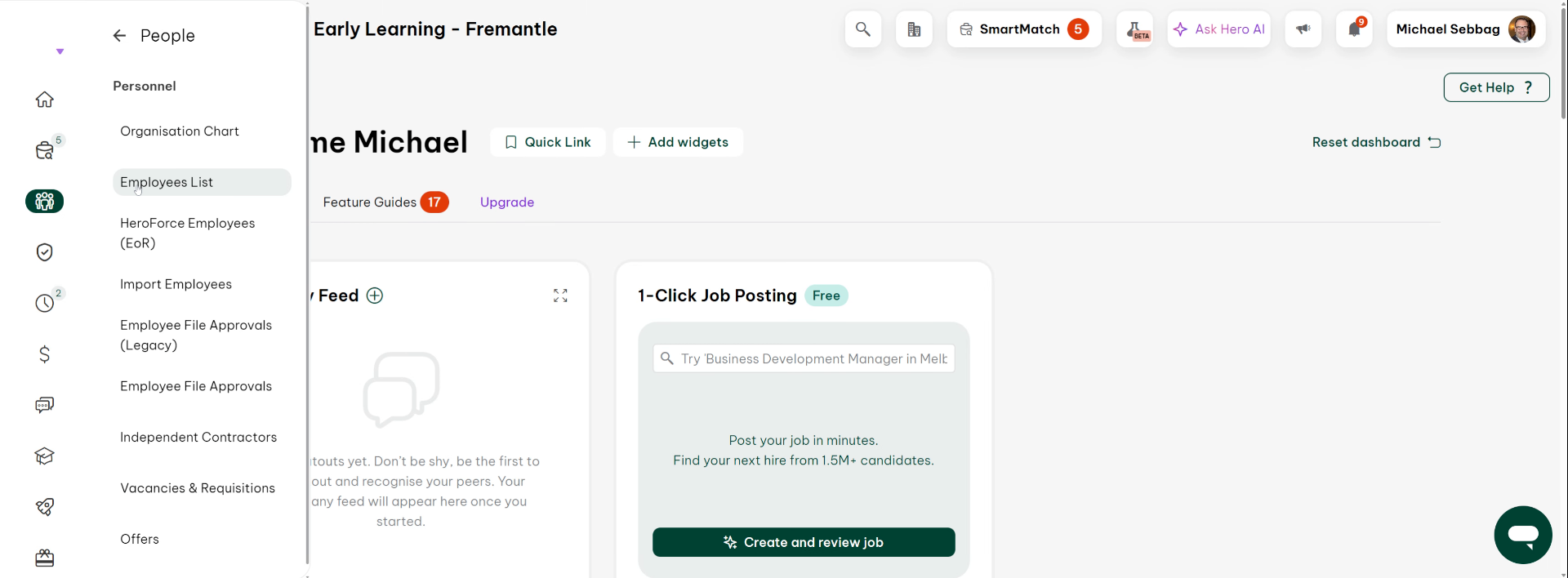
10. Choose Employee Profile
Click the employee's name to open their profile and view details.
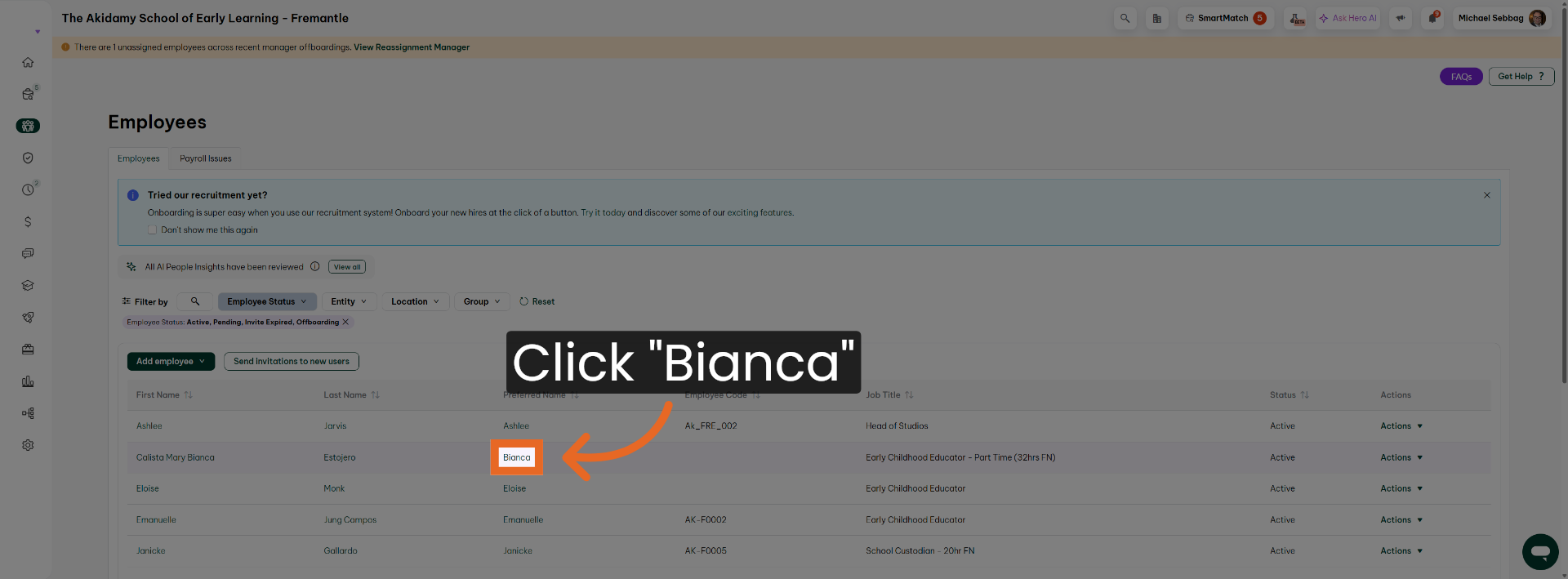
11. Open Employee Details Section
Click here to access detailed information about the selected employee.
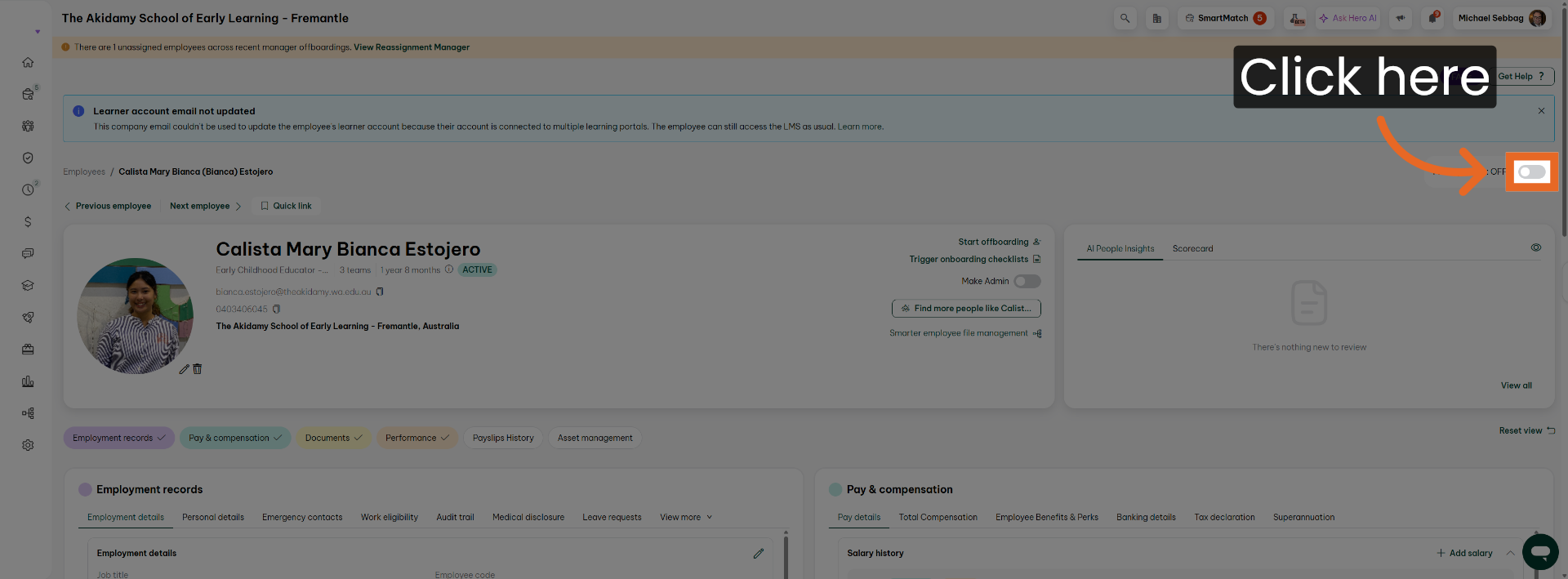
12. Enter Search Term to Filter Records
Fill on to filter the records and find relevant information quickly.
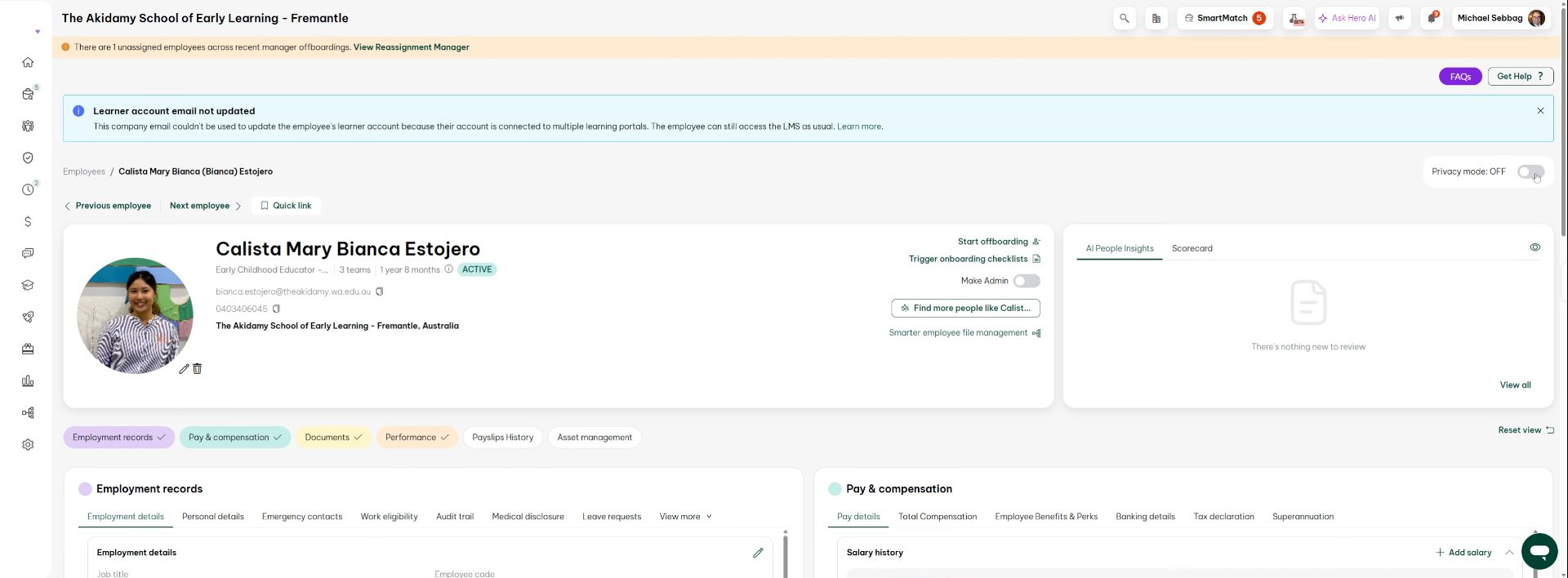
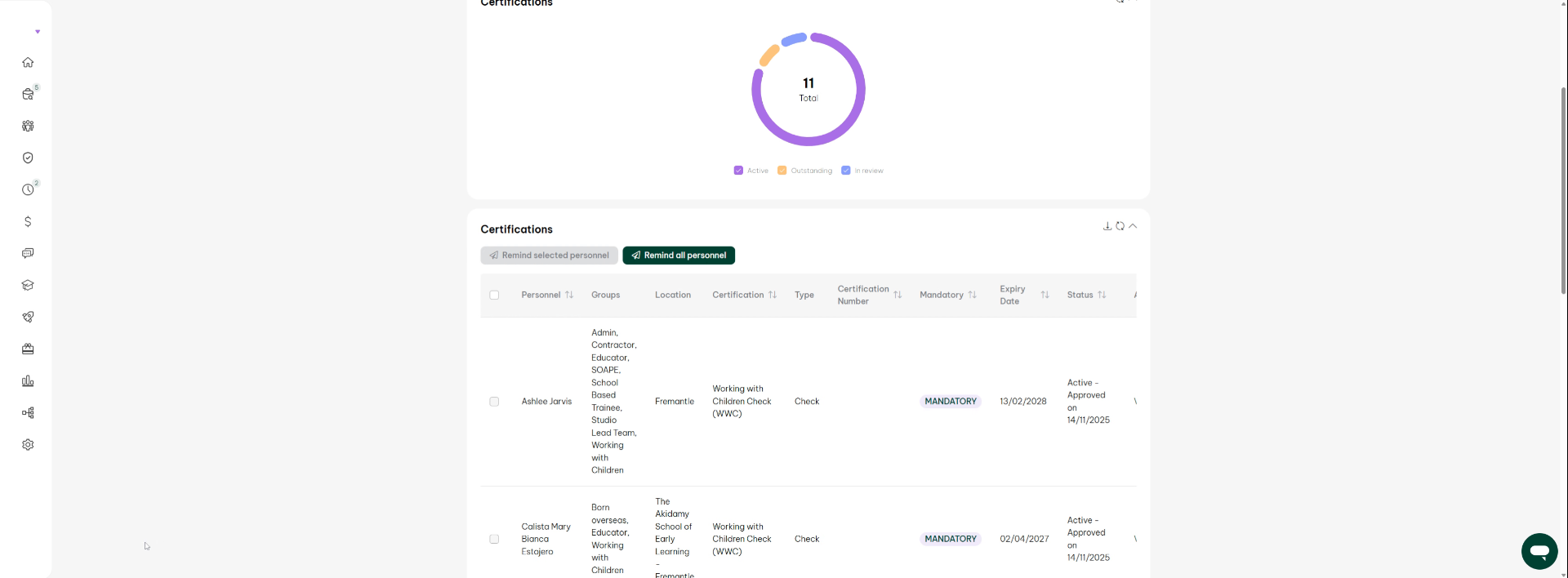
13. Review General Employee Records
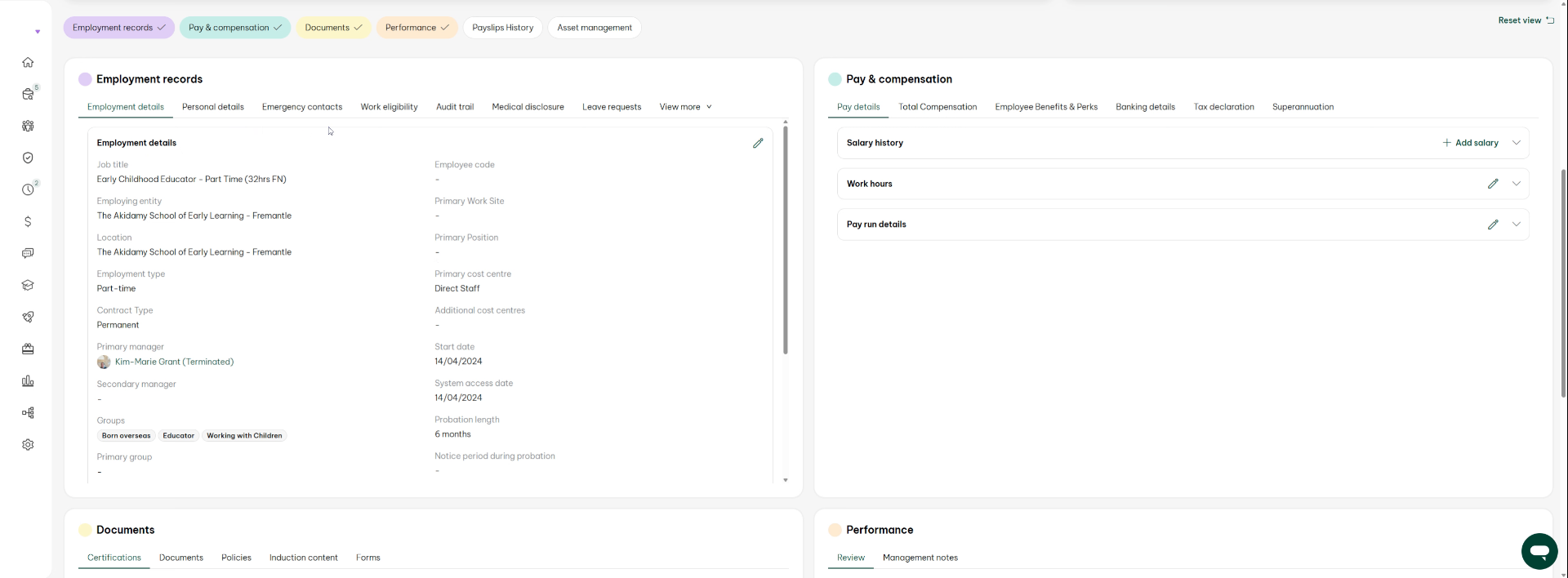
So what you can see in here is a list of general things that you know all employees have that will be including.
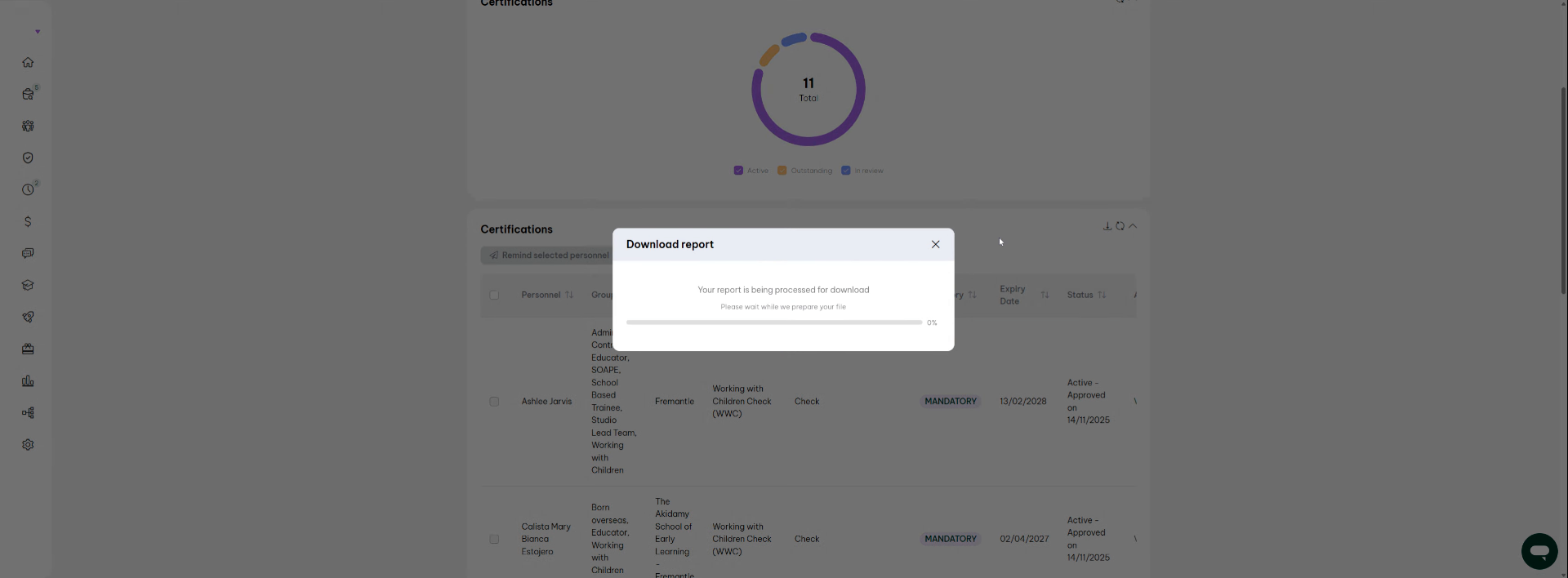
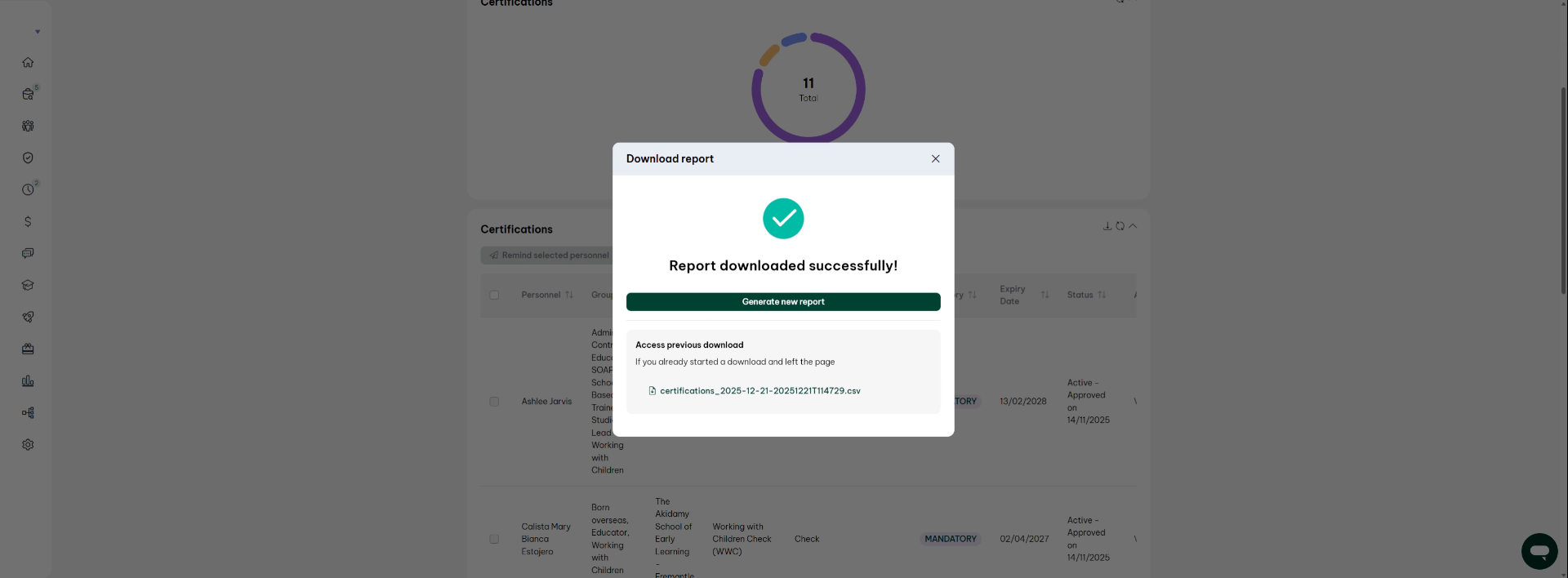
14. Identify Certifications Section
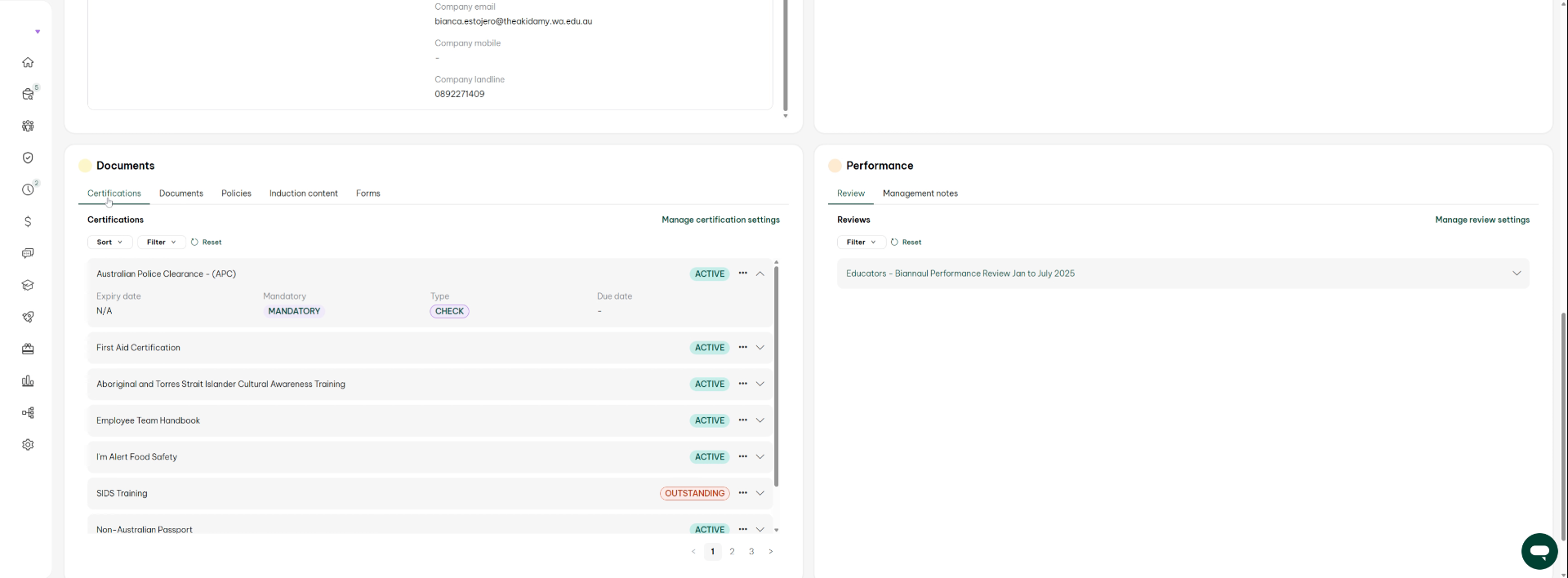
The general records okay, but what you're looking for? For this is certifications, okay.
15. Locate Working With Children Certification
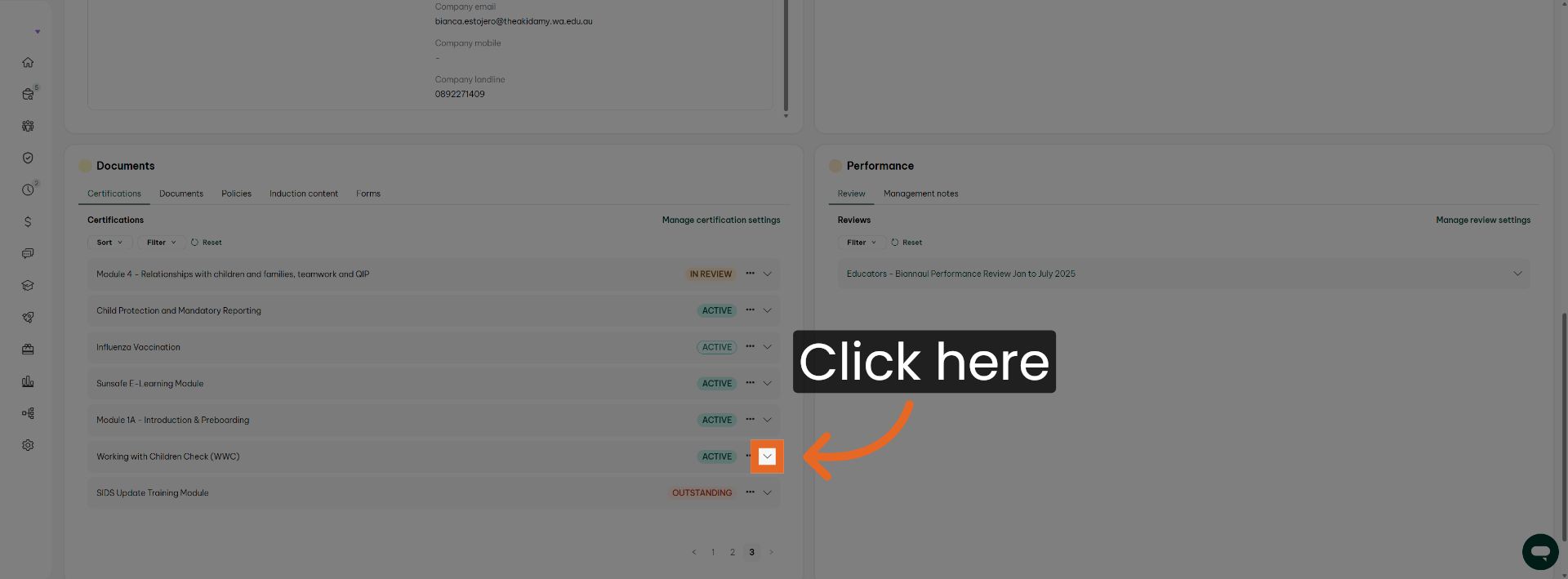
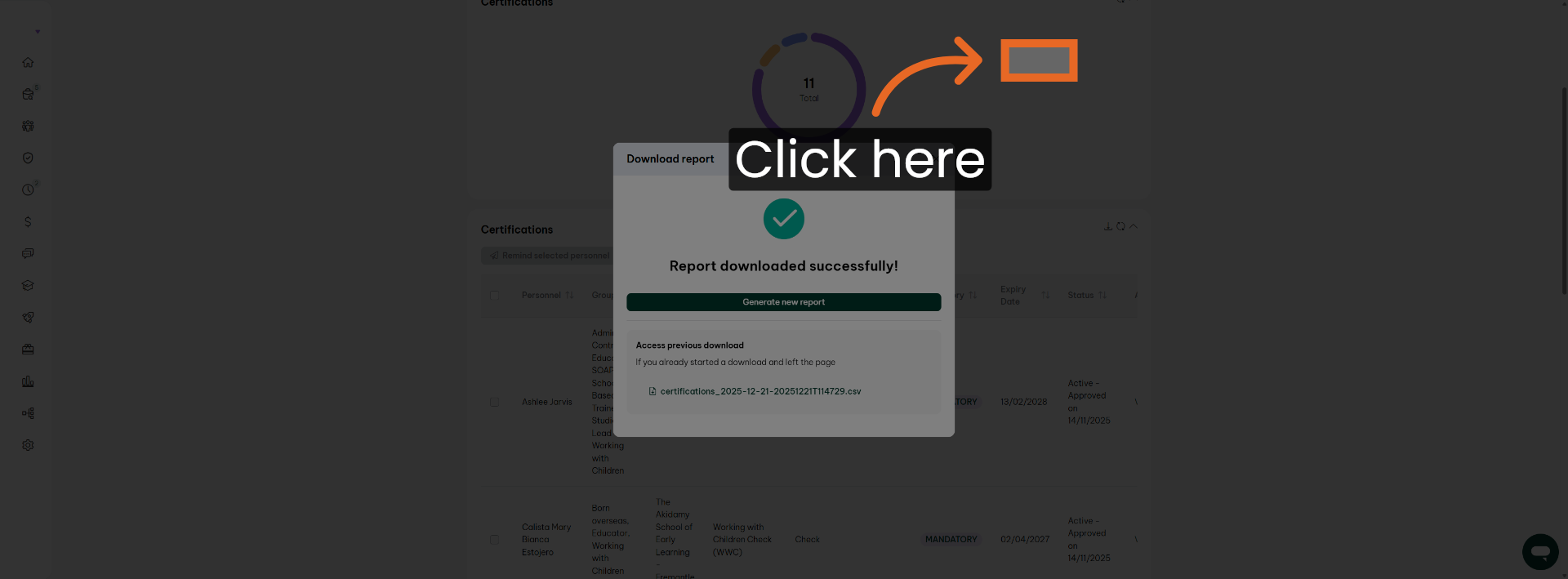
So in a certifications what you'll see in here is looking at you know you're looking for the working with children whether you're looking for anything else like police current is everything. It's all here, right, so working with children's Cup
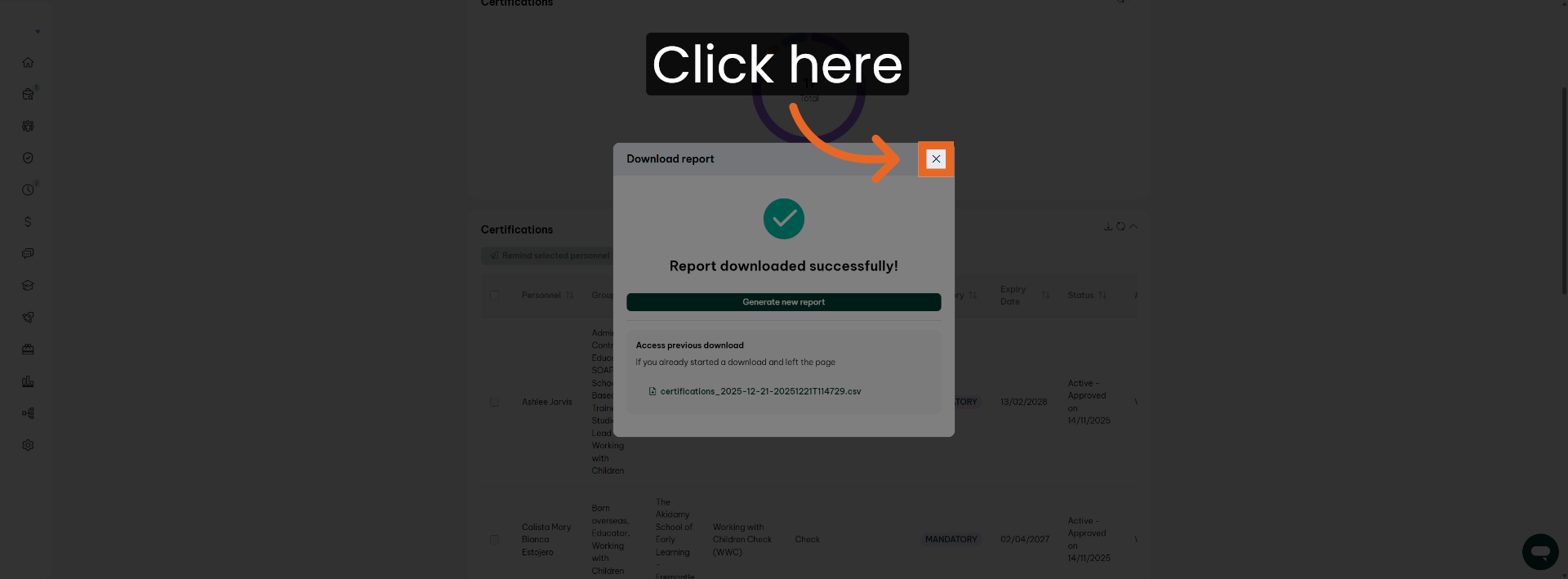
16. Access Certification Details
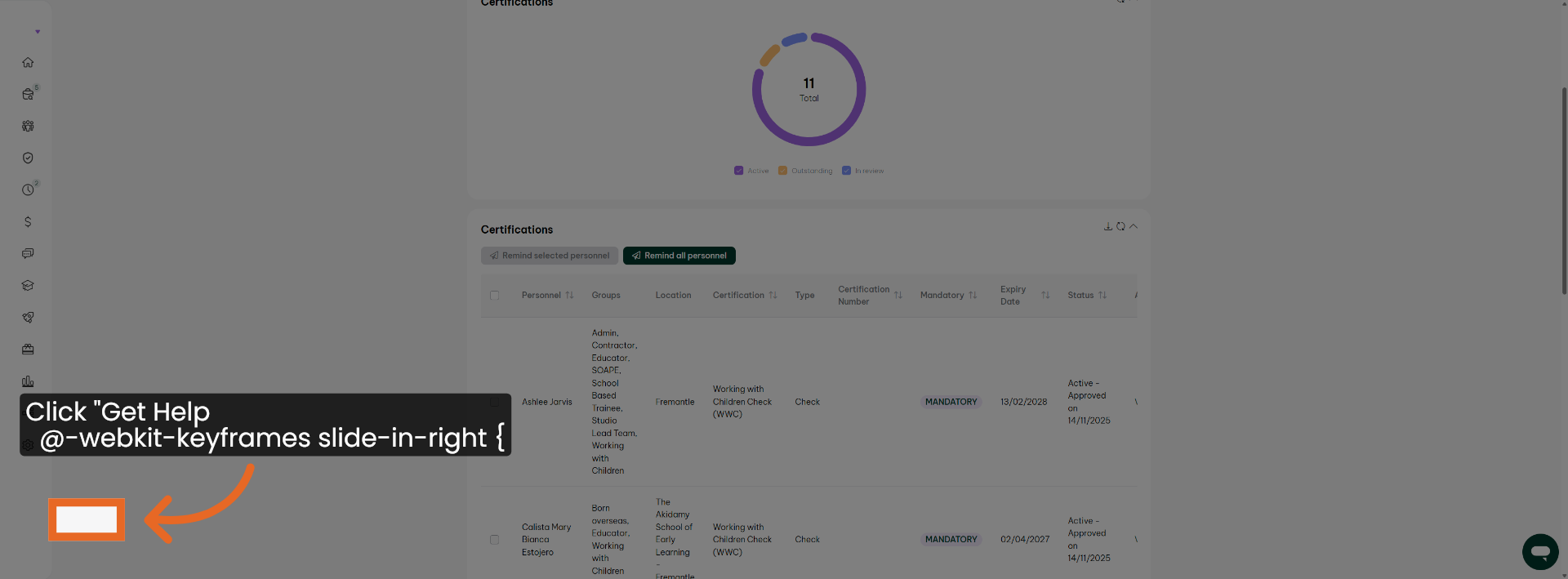
Click here to view the specific certification details for the employee.
17. Open Certification Document
Click here to open the certification document for review.
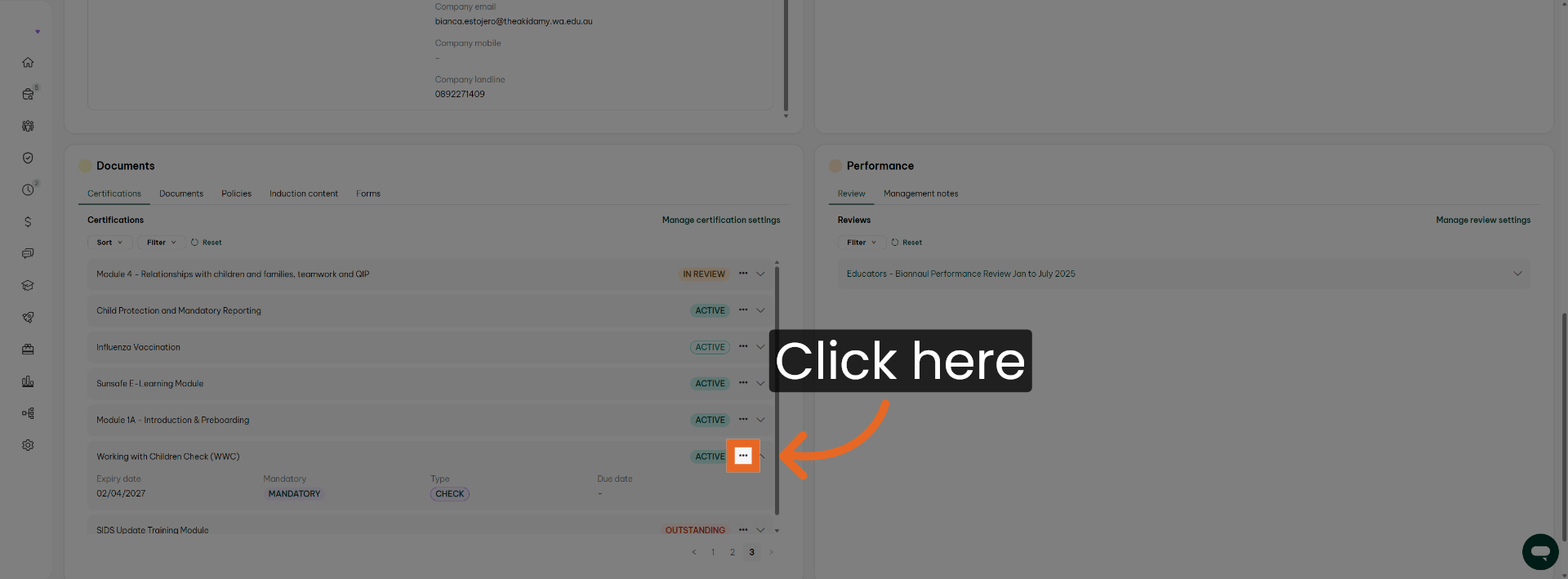
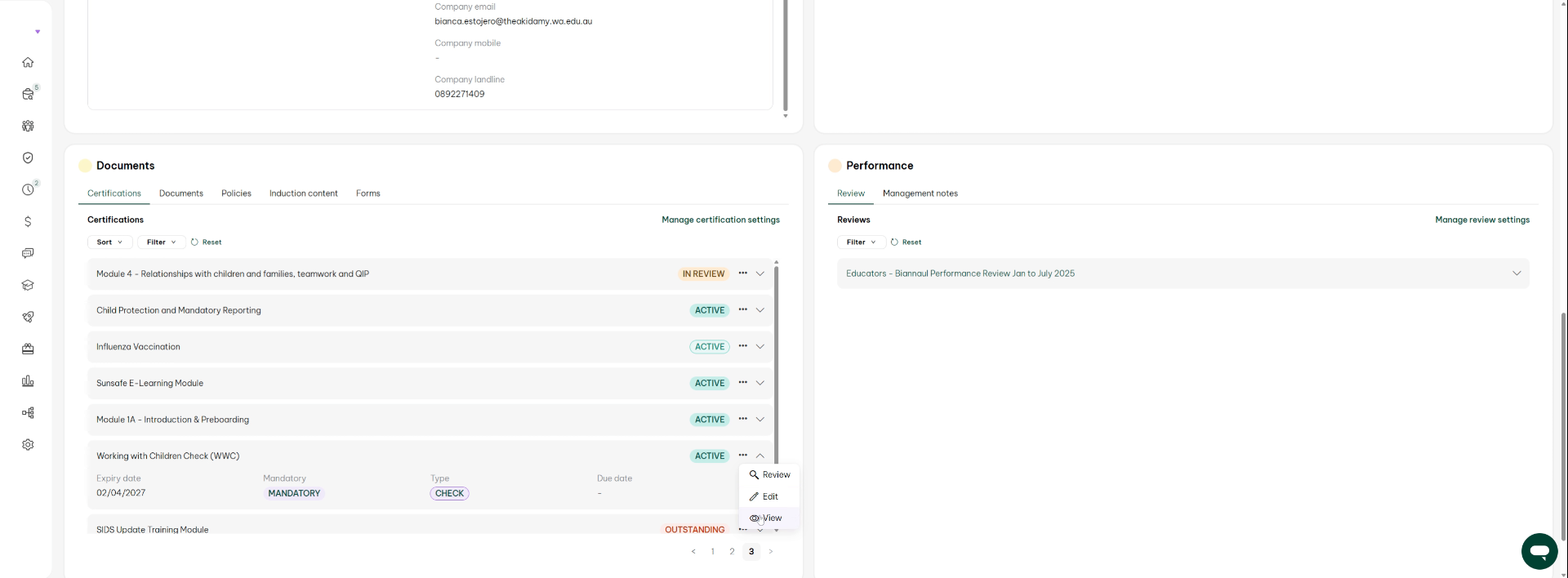
18. View Certification Information
you go view
19. Download Certification Document
And then what you can do is download it the information is here, but when when somebody comes to check on ordered it, they will probably want to see the father filed down loads.
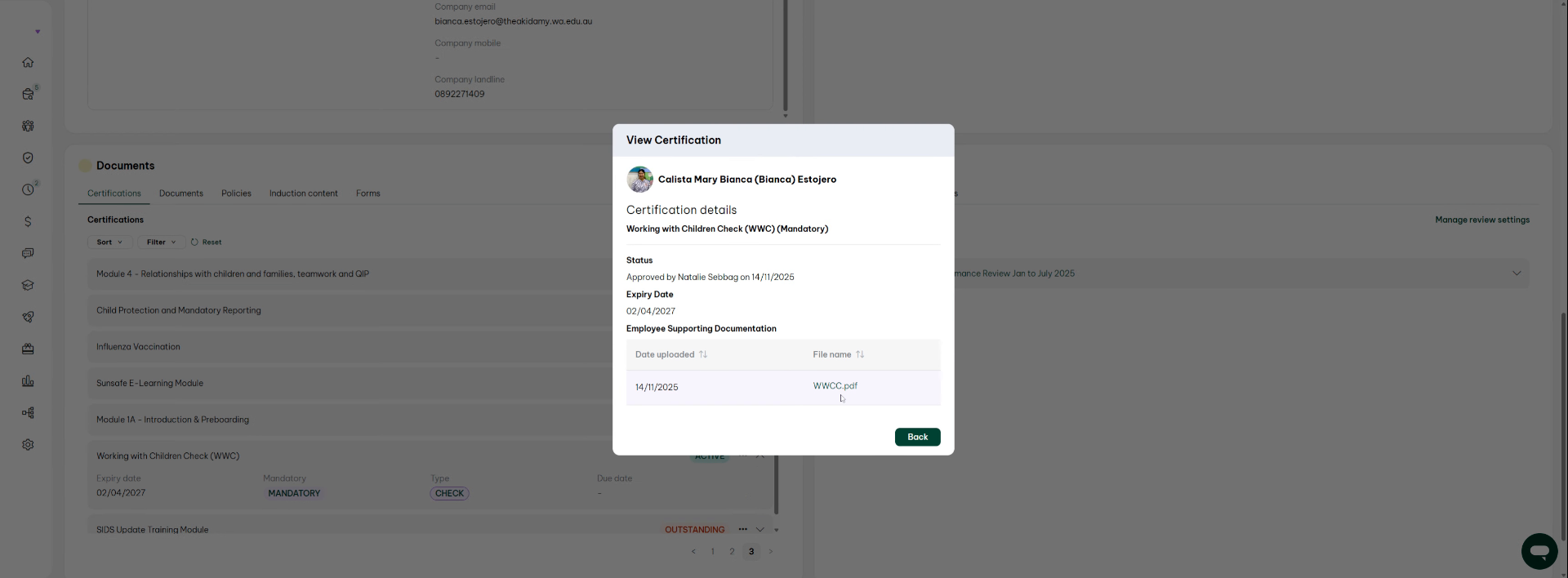
20. Provide Certification Documents When Requested
and you need to then provide them.
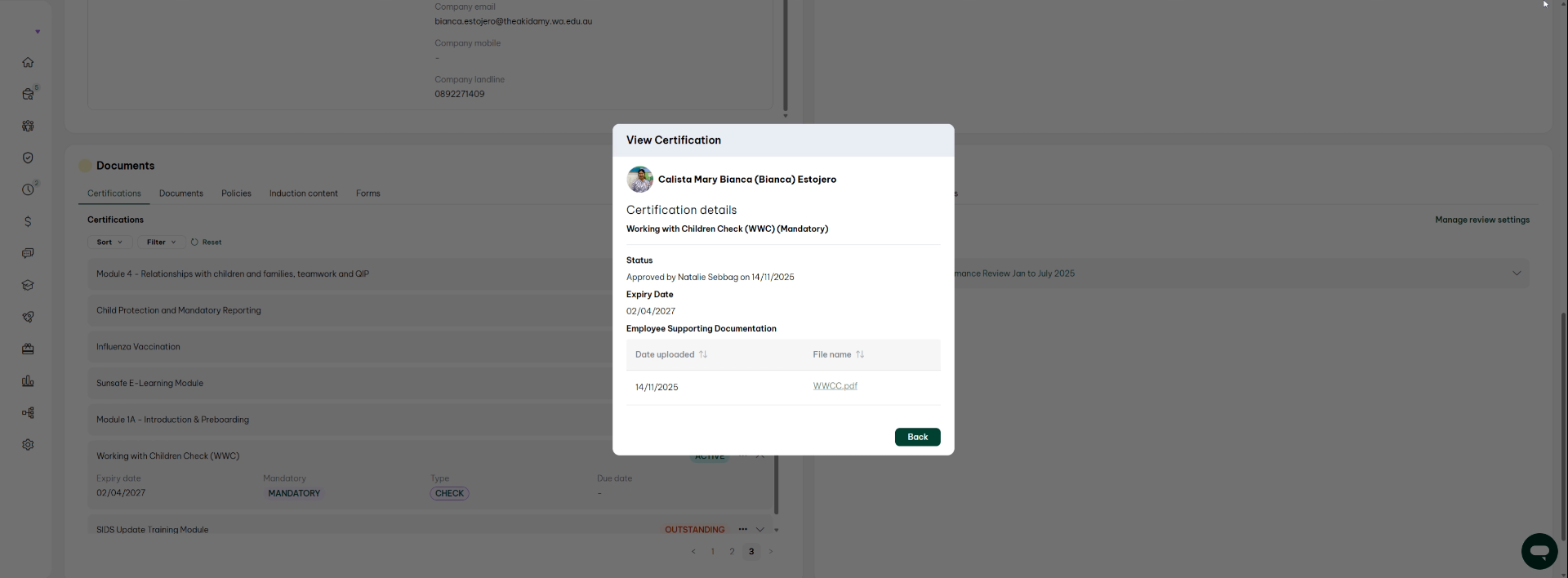
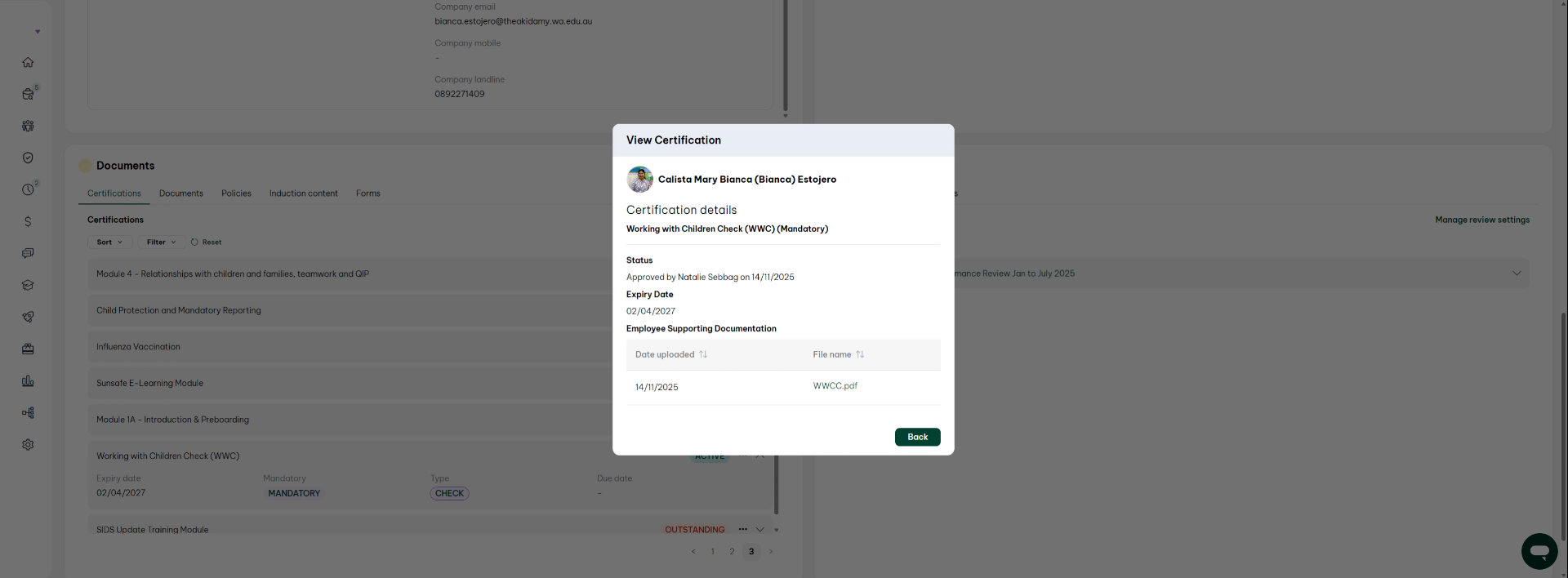
21. Note Certification Expiry Example
There's an example right. Let's be anchors. Okay expires on the second of April 2227 right? so
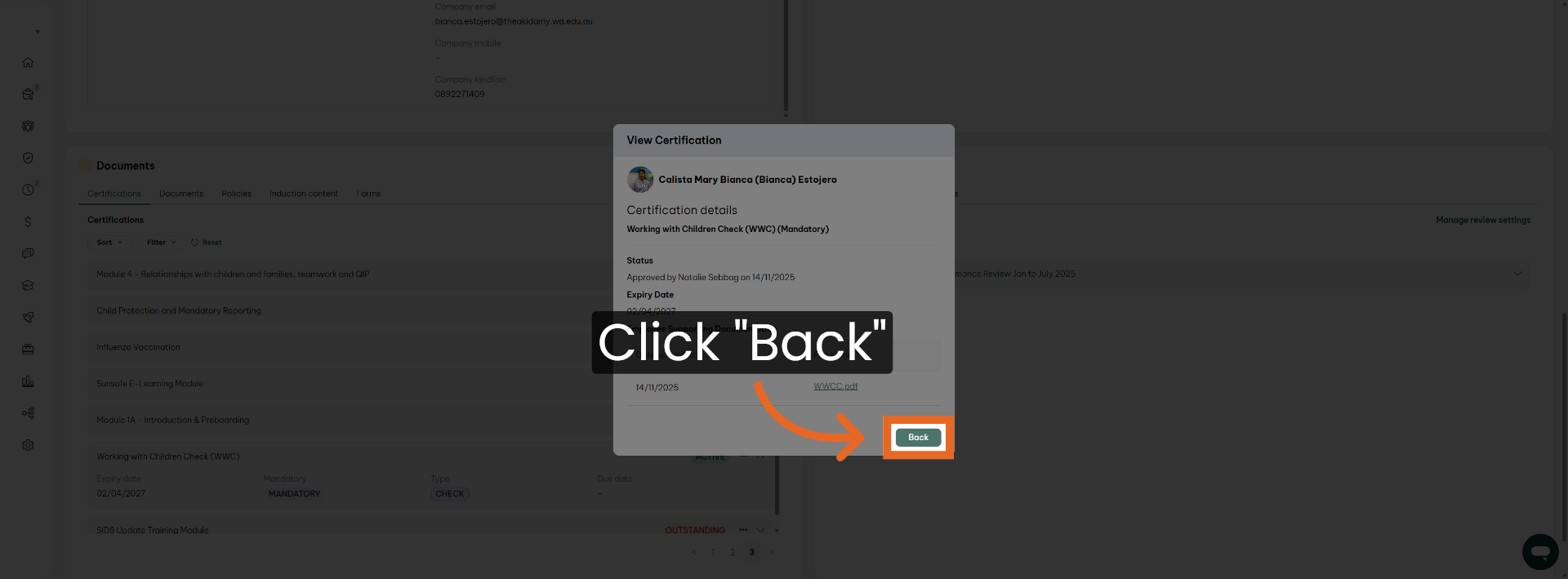
22. Return to Previous Screen
Click Back to return to the previous screen and continue navigation.
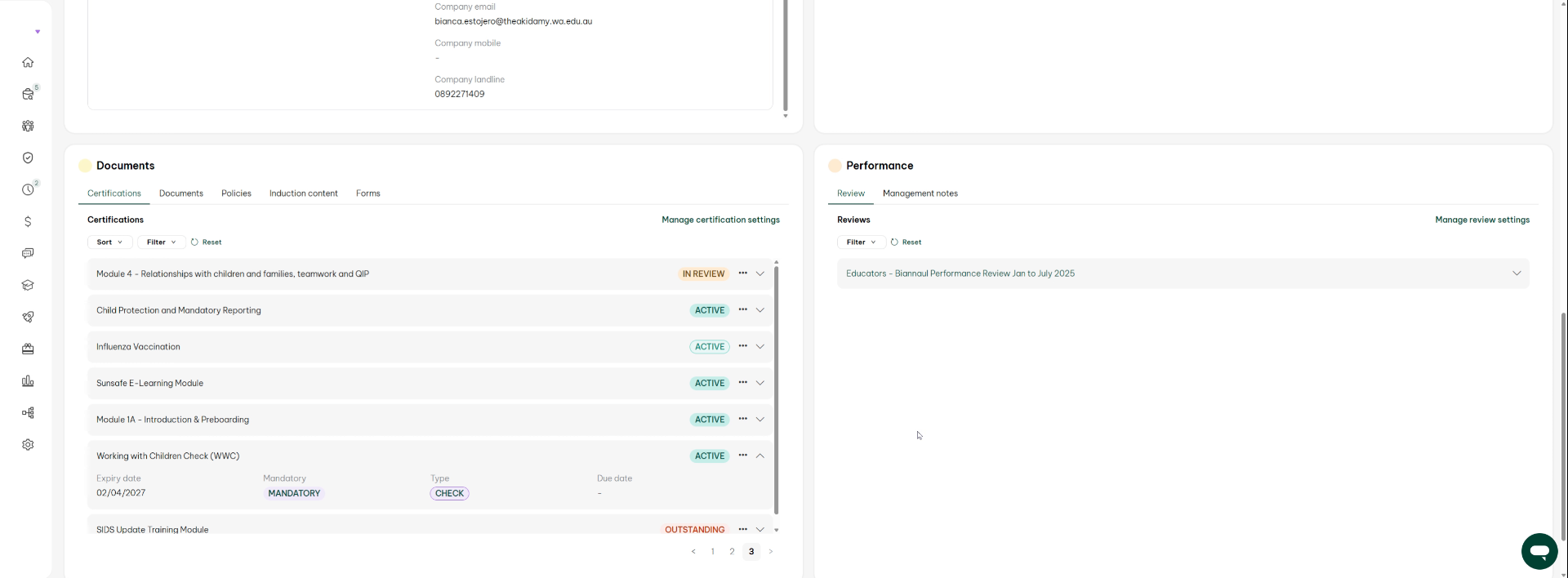
23. Access Reports Section for Compliance
if you need to maybe ask I want to see all the stuff all right, so if you want to see all the stuff what you need to do is you need to go and area called reports?
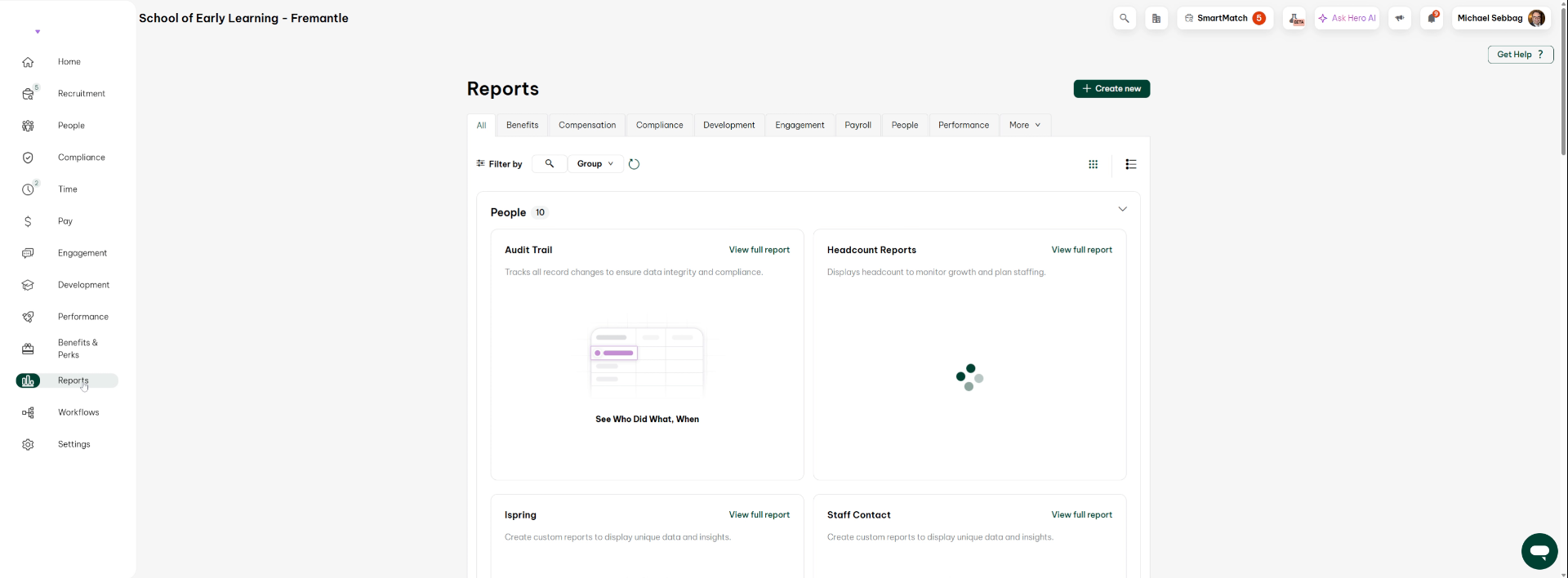
24. Create Custom Compliance Report
Now in reports there, are you can make a custom report? However if you go under compliance, because this is a compliance thing.
25. Generate Compliance Report Quickly
Do you can generate a report and this is a quickest way to do it okay, so in here you see in here. Is every sort of compliance organization has what you're looking for is the working with children.
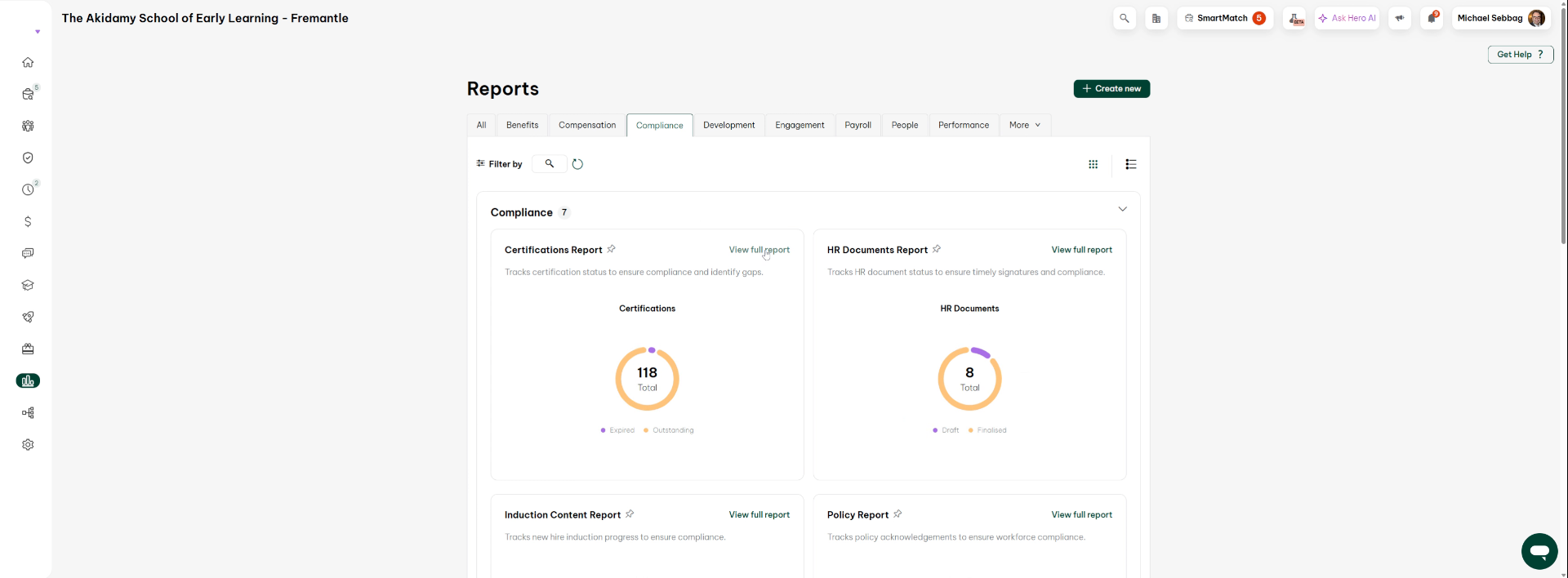
26. Select Working With Children Check Report
Click Working with Children Check (WWC) to generate the relevant compliance report.
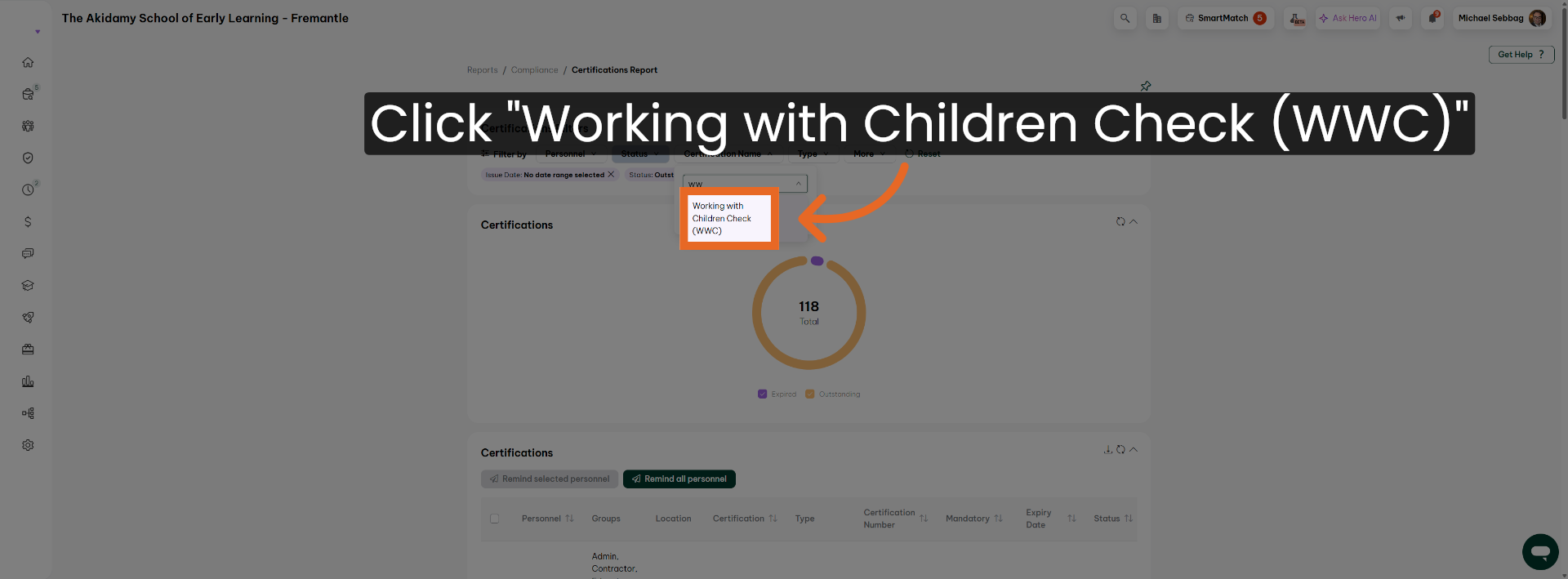
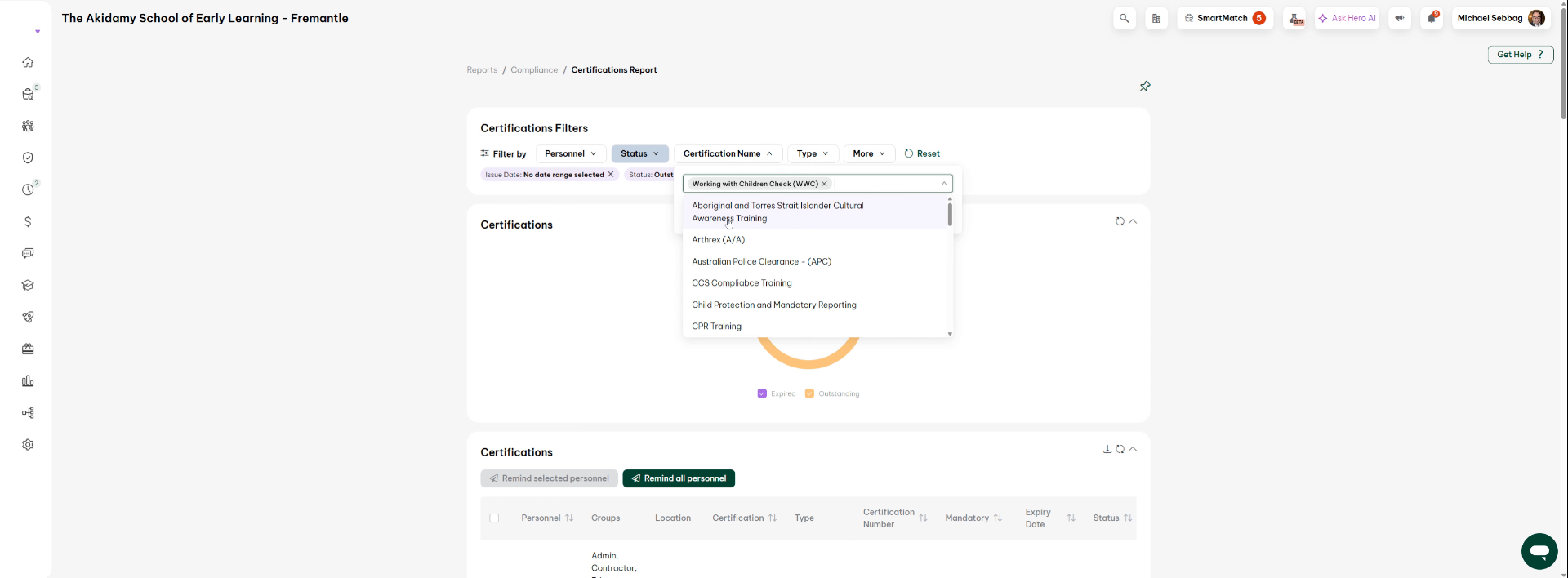
27. Review Compliance Report Summary
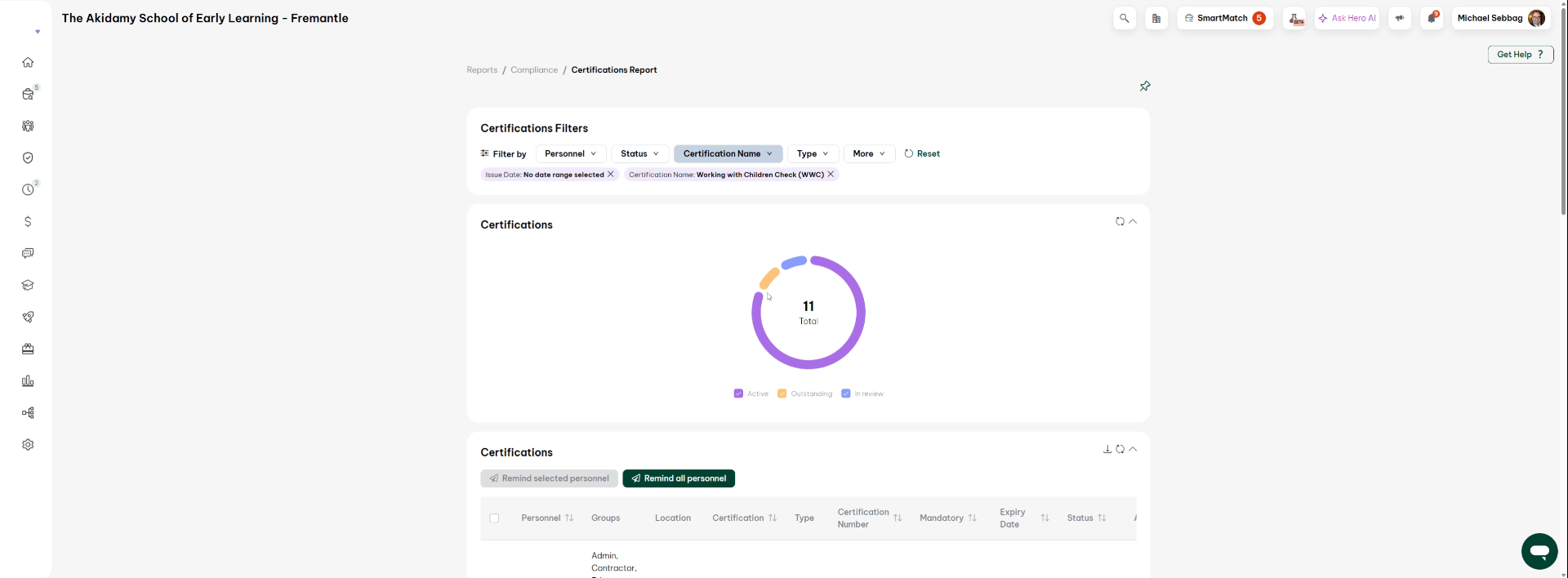
Okay, and it will give you every one. So what it says here what you can do is you can look at how many of their how many own review how many Active
28. Identify Outstanding Compliance Items
Now you can see it's one outstanding. So if you want to see what you can see below is all the people's. There and then you can pump out this report. You can even download it.
29. Download Compliance Report as CSV
As a CSV and that will give you a date and you can give them that or you can just show them individually how each report works all right, so you can see also this is a key information.
30. Check Active Status and Expiry Dates
all right active active active and when they expire
31. Open Detailed Report View
Click here to open a detailed view of the compliance report.
32. Access Additional Report Options
Click here to access further options related to the compliance report.
33. Complete Report Review Process
so you do that.
34. Access Help Resources
Click Get Help to access support resources and assistance within Employment Hero.
You have successfully accessed and reviewed Working With Children records within Employment Hero. You can now download individual certifications or generate comprehensive compliance reports to manage employee compliance effectively. For further assistance, explore additional Employment Hero support resources.
Did this answer your question?
If you still have a question, we’re here to help. Contact us