
How to Update Medical Records Efficiently in Employment Hero
This tutorial guides you through modifying your medical records within the Employment Hero system. You will learn how to access, update, and save your medical disclosure information to keep your records current.
Go to secure.employmenthero.com
1. Access Medical Disclosure Section
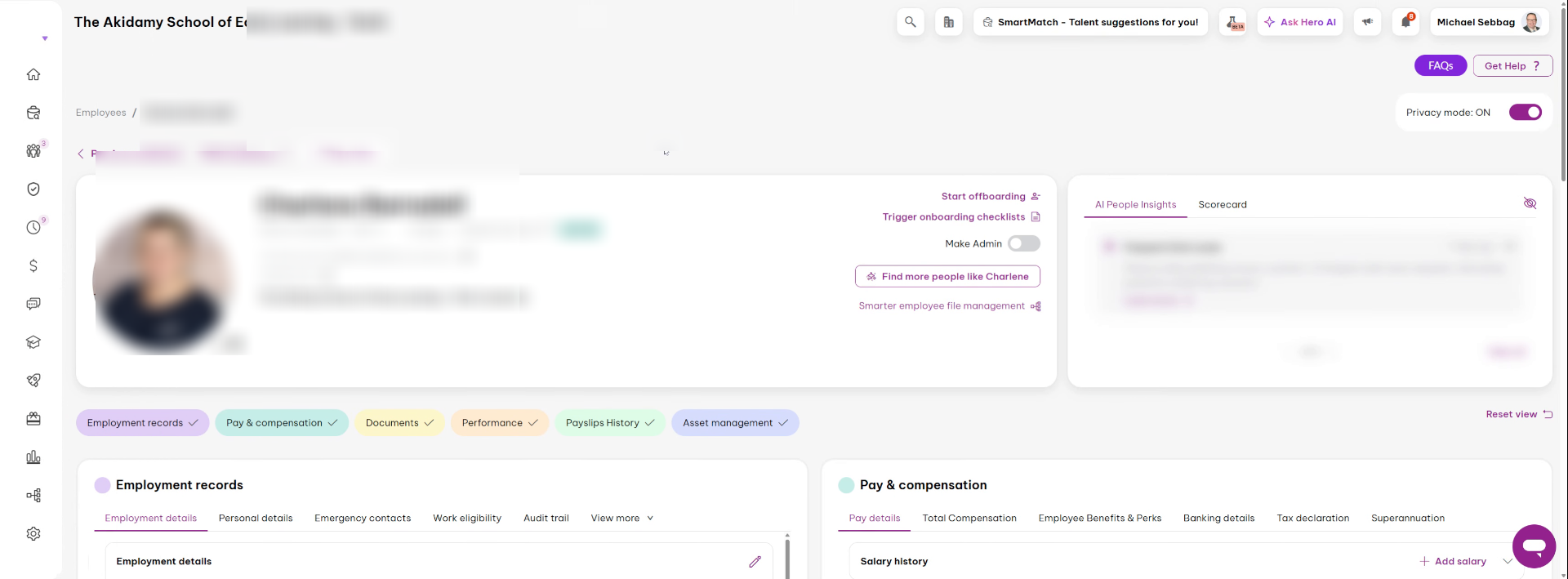
Dear staff member, to get your medical records, which you will need to do moving forward annually, and to update them, go under your employee file, under people, then view medical disclosure. Now, if you've answered the medical disclosure
2. Update Medical Disclosure When Needed
And recent events have changed regarding your illness or injury or any medical conditions, please update it by doing the following.
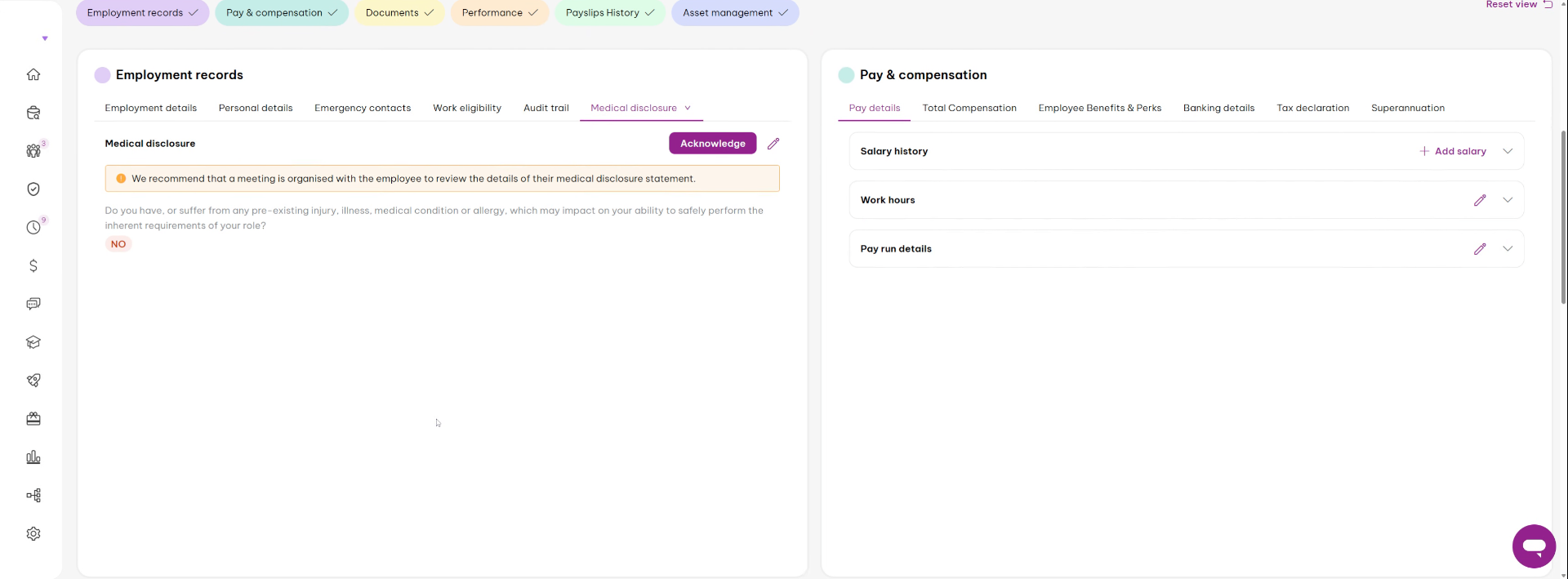
3. Open Medical Disclosure Form
Click here to open the medical disclosure form where you can review and modify your medical information as necessary.
4. Confirm Medical Condition Change
Click "Yes" to indicate that there has been a change in your medical condition or related information.
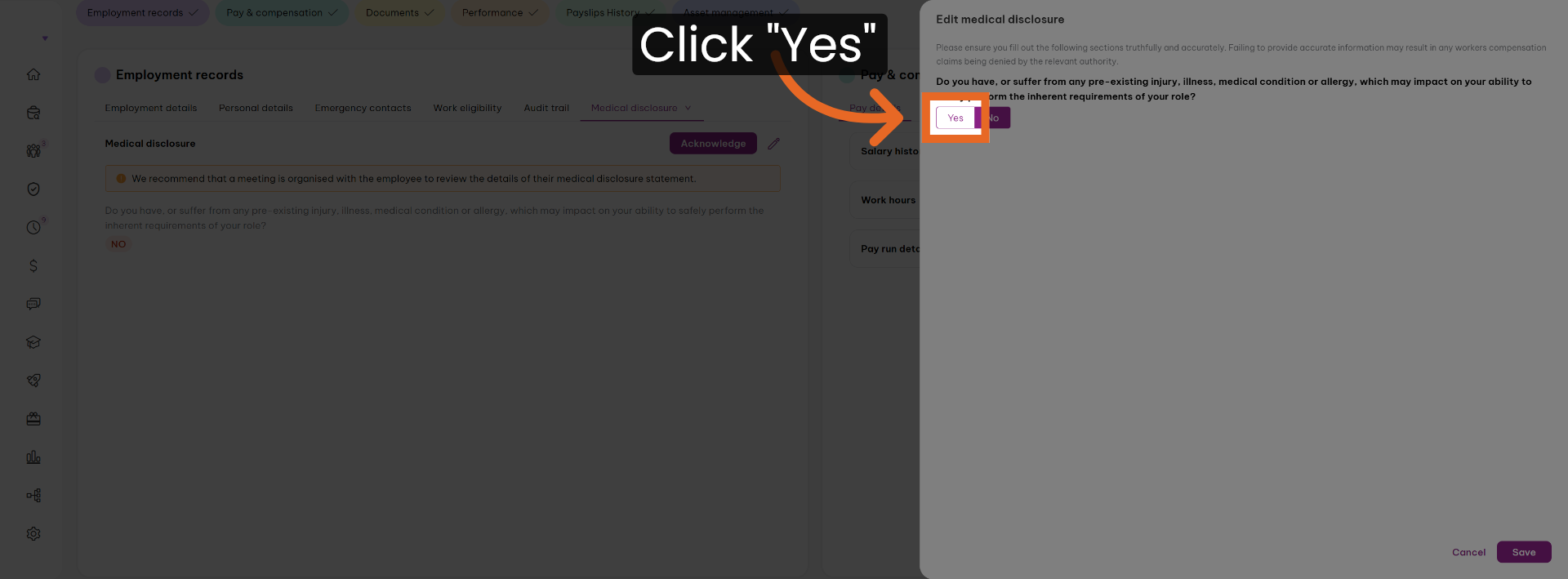
5. Respond to Medical Condition Question
Go and answer the question regarding your current medical status to ensure your records are accurate and up to date.
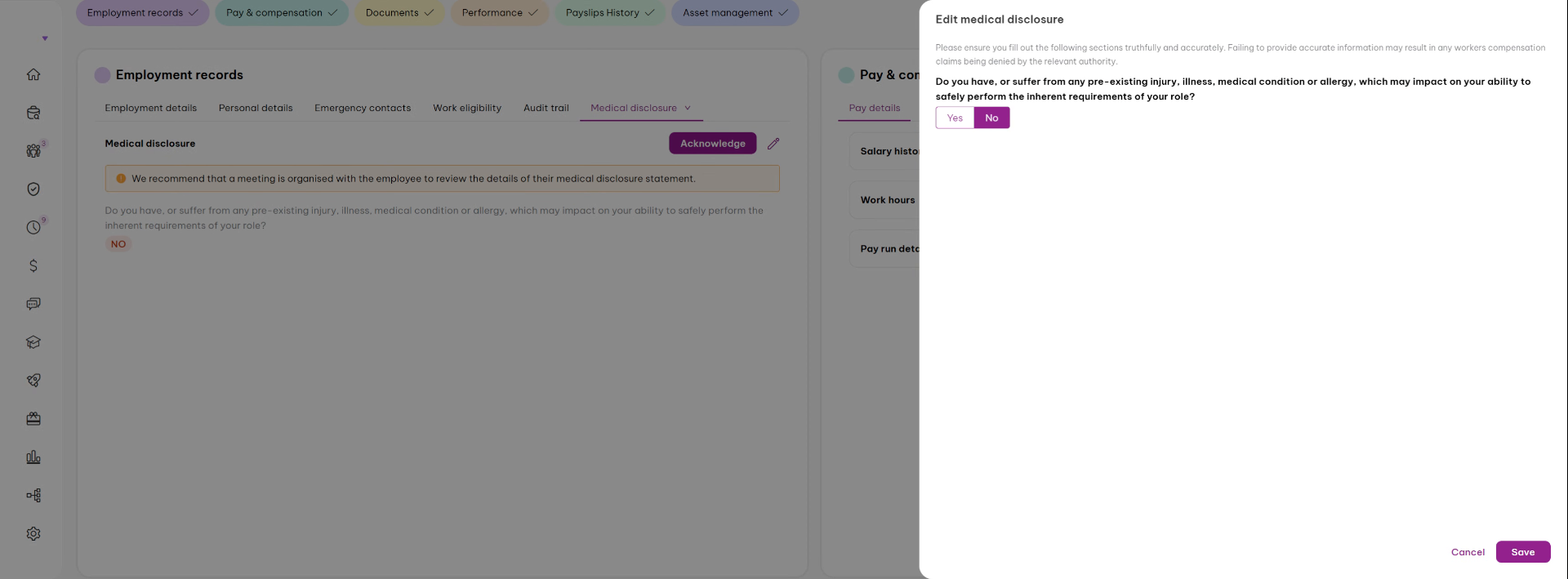
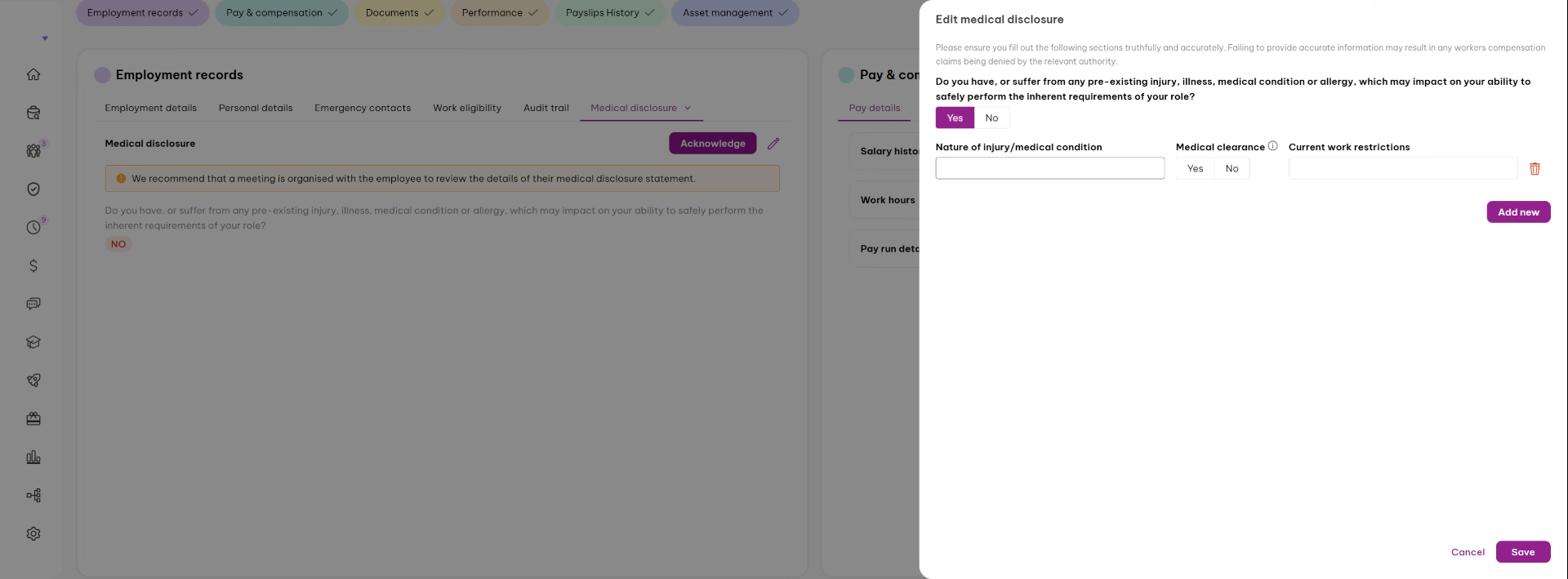
6. Detail Medical Condition and Clearance
If it's yes, outline the condition. Say if you've got medical clearance and outline any medical condition constraint and save it. It's important to confirm anything that you've done, saved or unsaved. This will automatically inform your School Director and CFO.
7. Notify School Director of Updates
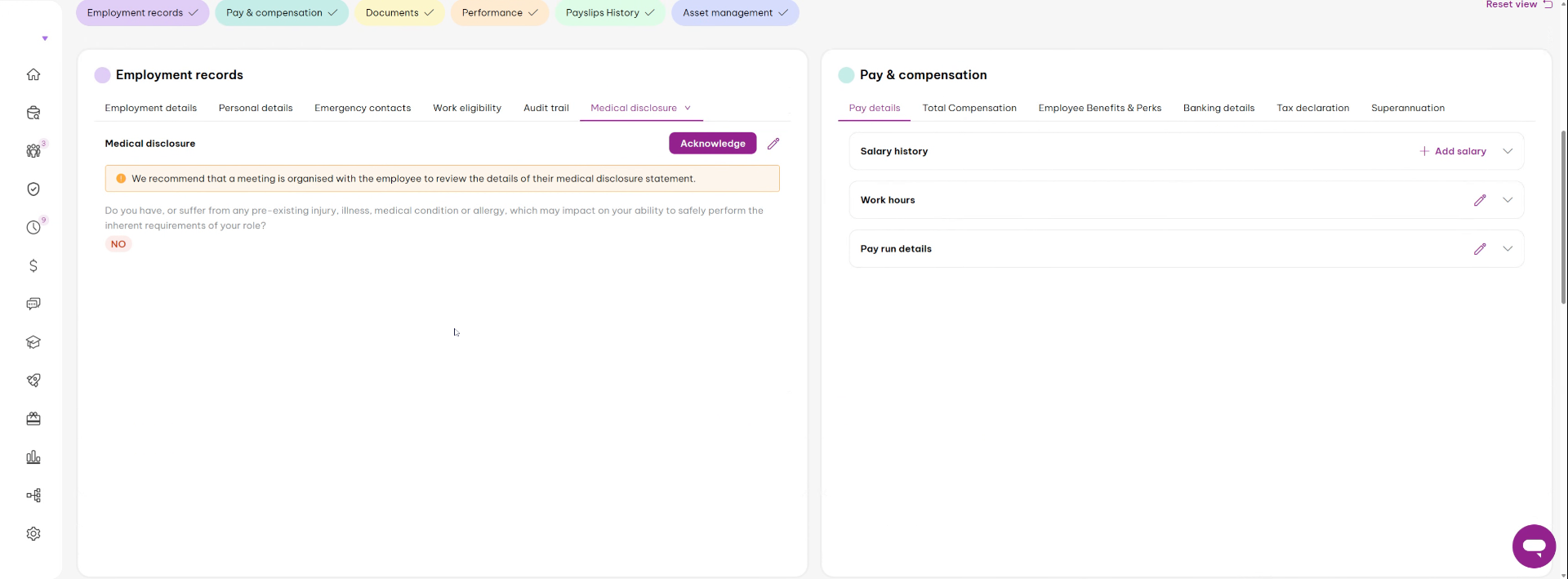
You have successfully updated your medical records by reviewing and modifying your medical disclosure information. The school director is notified automatically of any changes to ensure proper accommodations.
Did this answer your question?
If you still have a question, we’re here to help. Contact us