How-to locate and access Incident, Injury, Trauma, and Illness Records and Reports in Earlyworks
1. Introduction
You will learn the steps to access and print these reports efficiently.

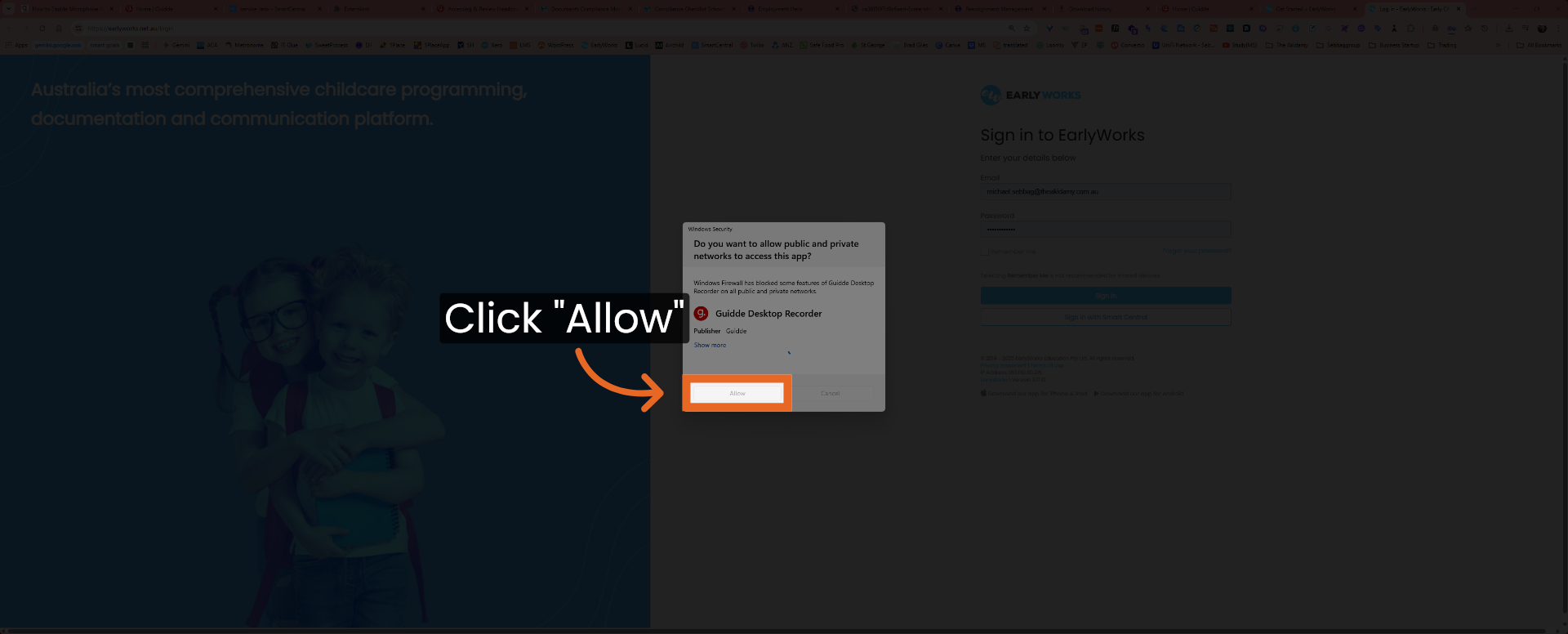
2. Allow Access Permission
Click Allow to grant the necessary permissions for accessing Earlyworks.
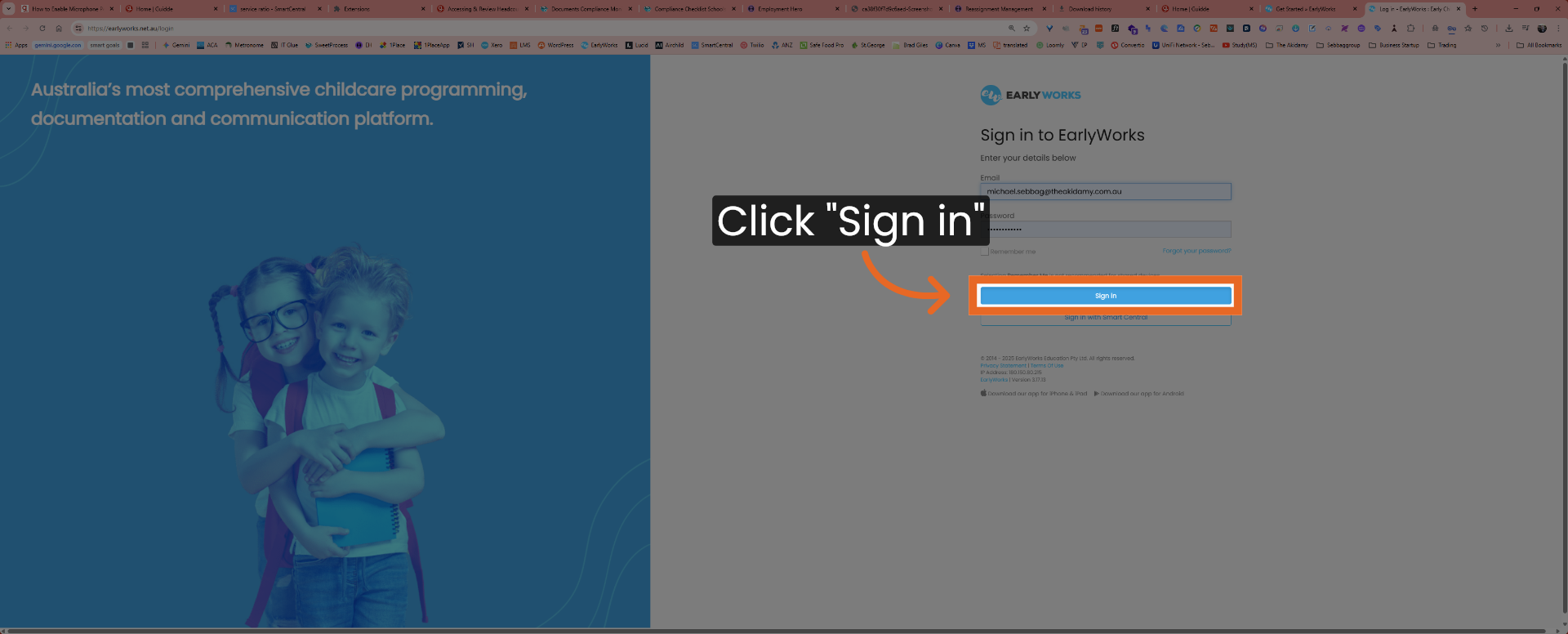
3. Sign In To Account
Click Sign in to log into your Earlyworks account securely.
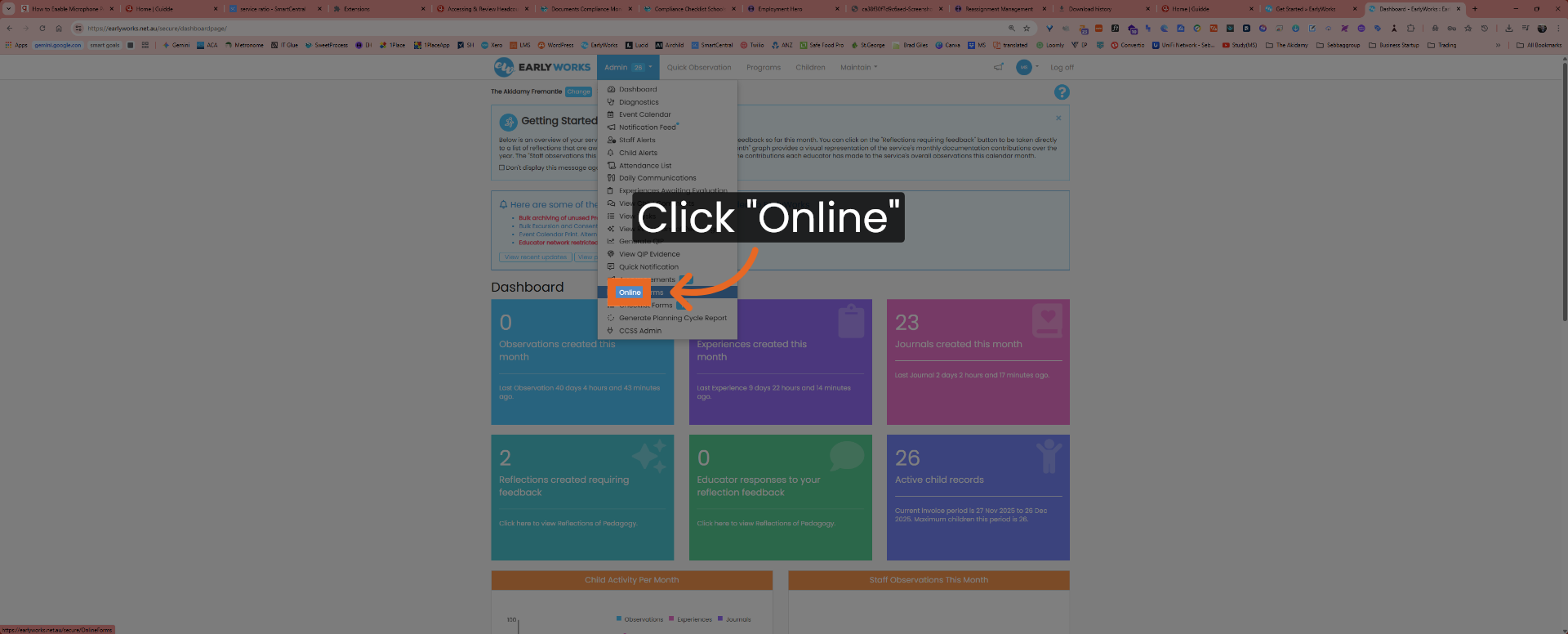
4. Select Online Option
Click Online to navigate to the online section where reports are available.
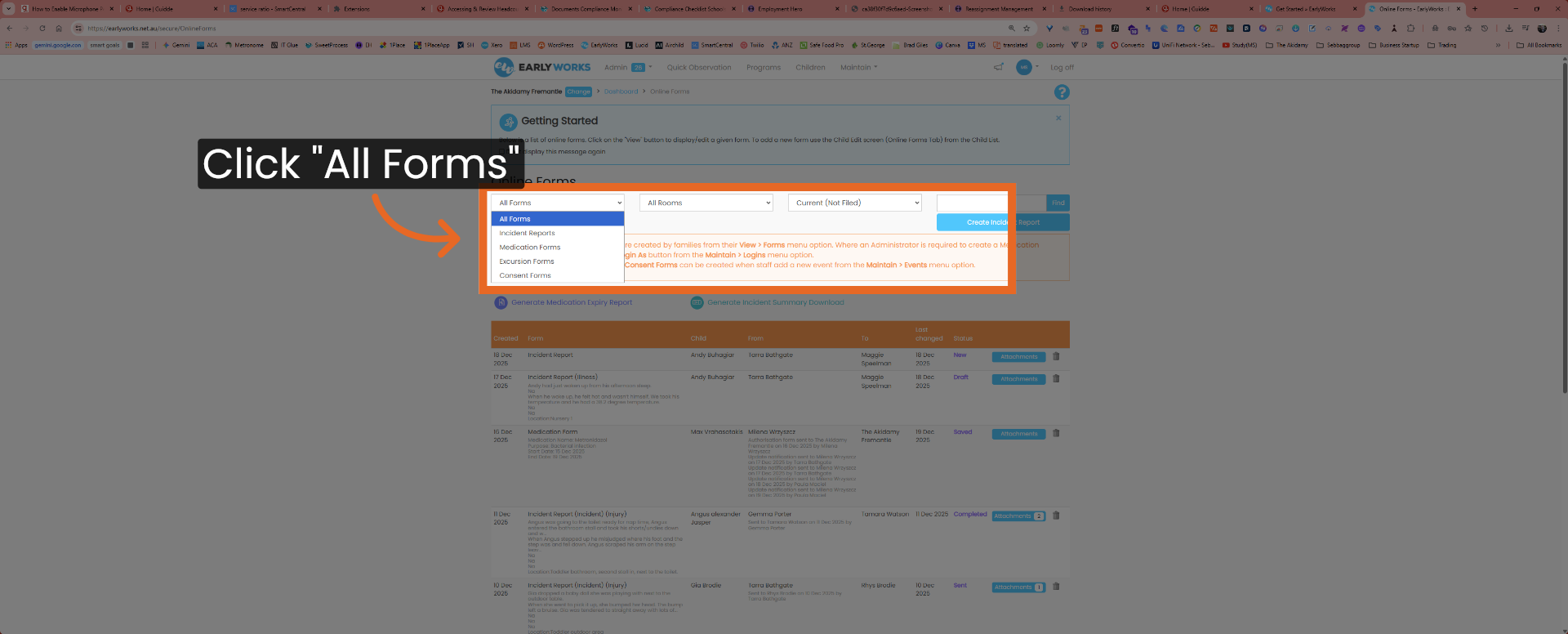
5. Open All Forms Section
Click on All Forms to access the full list of available forms and reports. This includes Incident, Injury, Trauma, and Illness Records & Reports.
6. Access Incident Reports
Click here for an example on how to locate and select the type of form. This will guide you in accessing the incident reports section within Earlyworks.
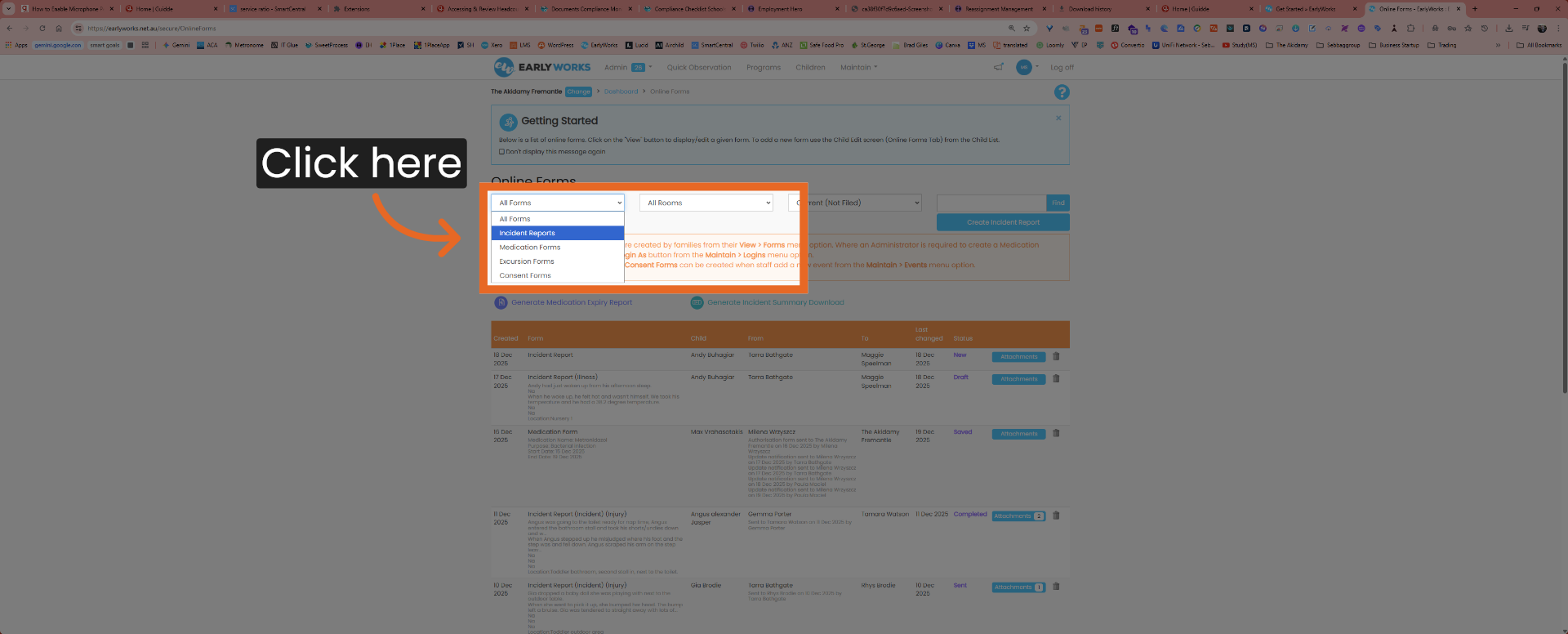
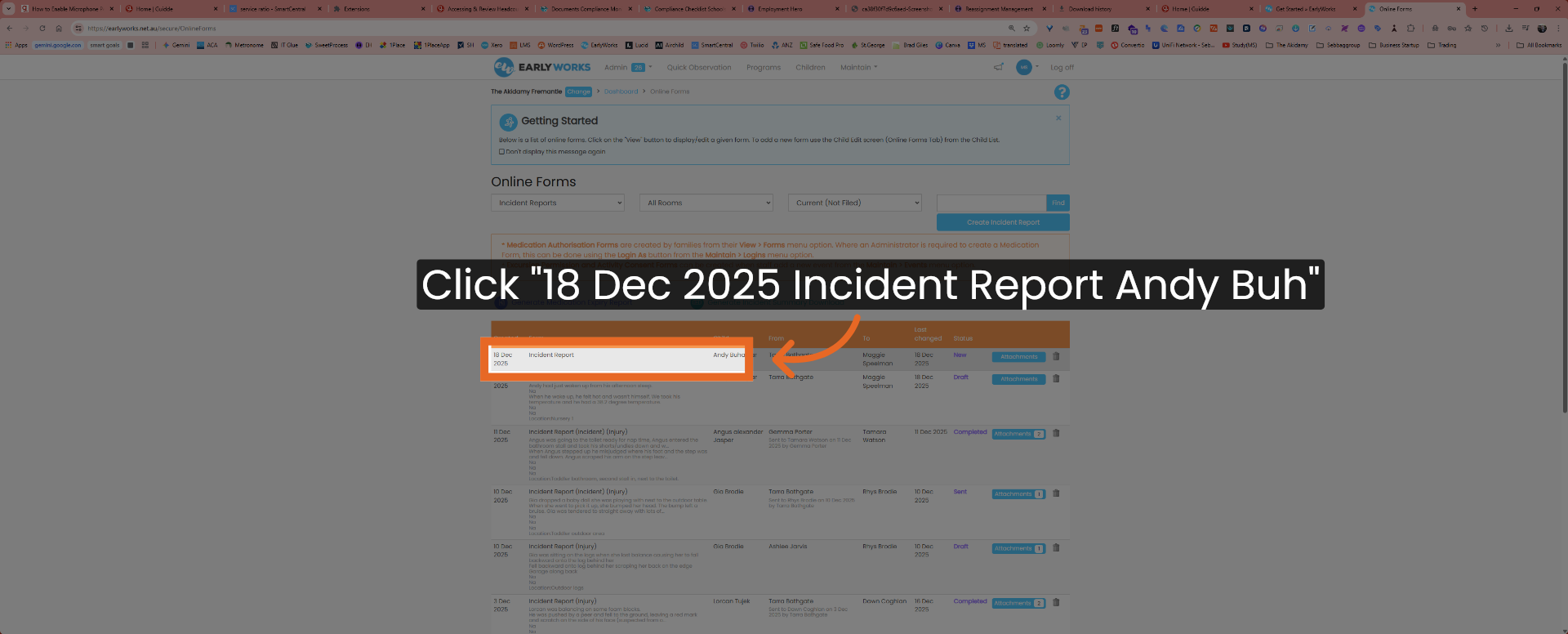
7. Choose Specific Incident Report
As an example, we can review an Incident Report that occurred on December 18, 2025, regarding "Andy Buh." Click to view the detailed report for that date and child.
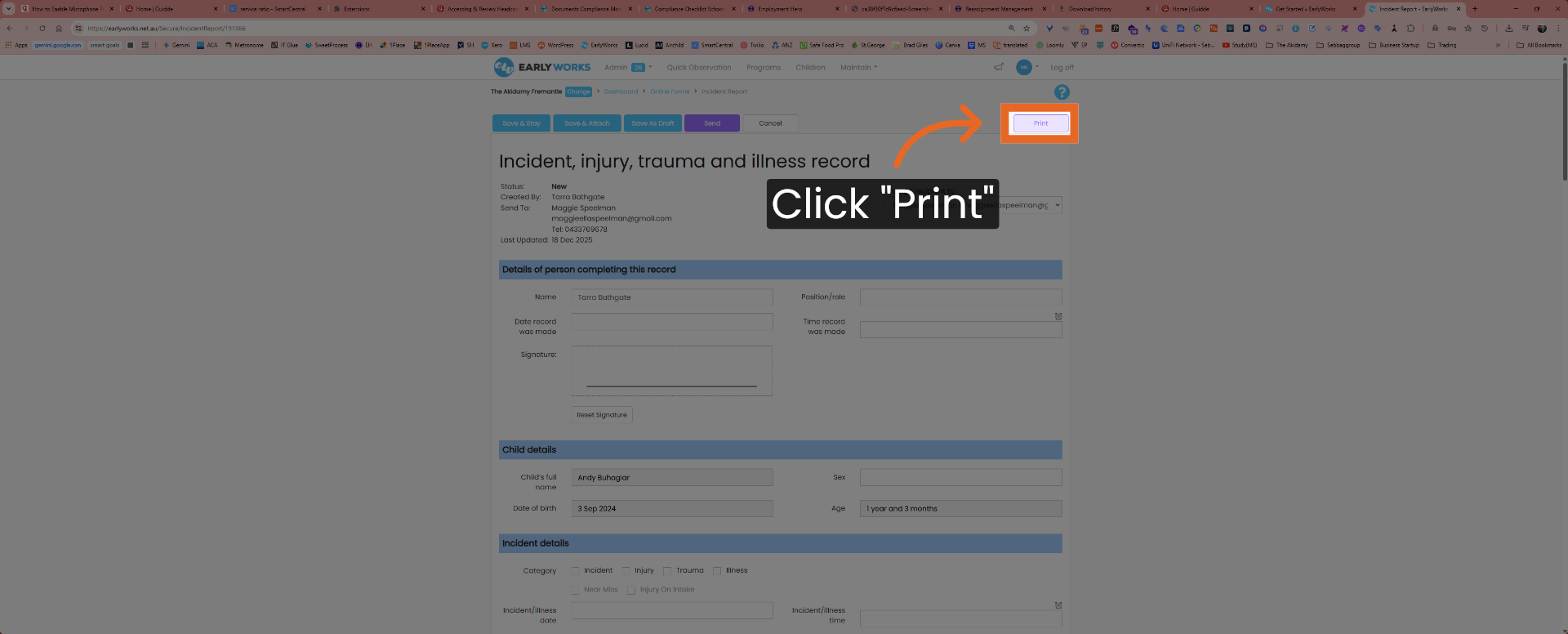
8. Print The Incident Report
Click Print to generate a physical copy of the selected incident report.
You have successfully located and printed children's incident reports in Earlyworks by following these steps. For more information, see related articles on managing reports and Earlyworks features.