This tutorial explains how to find and retrieve headcount records using SmartCentral. You will learn to navigate the platform to access staffing ratios and role information efficiently.
1. Log Into SmartCentral Platform
Okay, first thing to do is you log into smart Central in terms of how you're finding their head count and the ratios okay.

2. Navigate to Roles Section
So okay, so we're in the Perth school was an example. So where you find this thing is. You look at your roles. Okay.
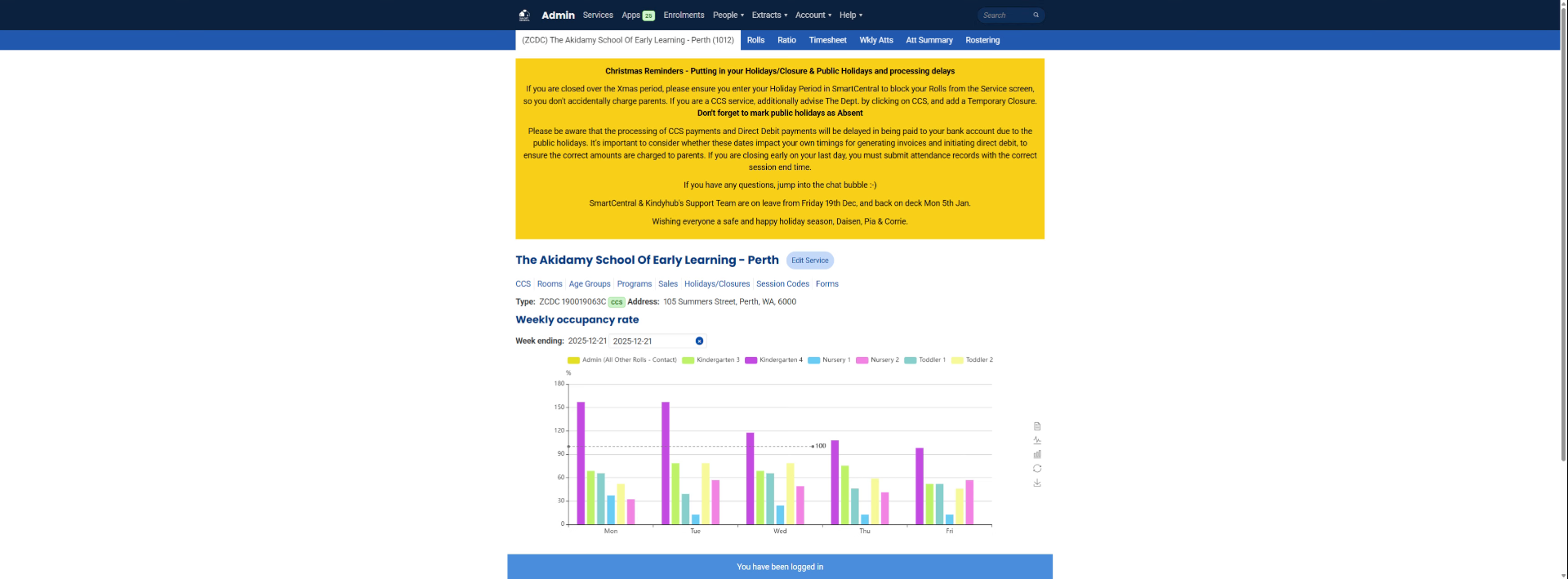
3. Click the Roles Tab
Click "Rolls"
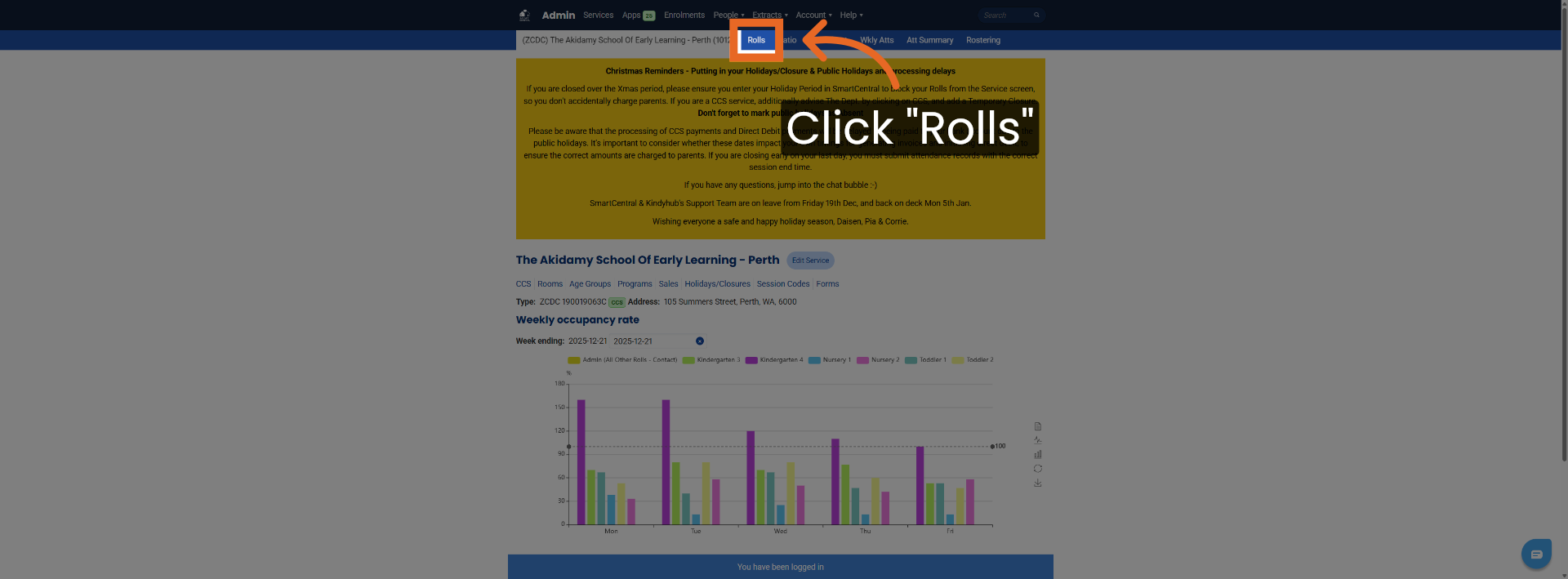
4. View Roles Overview
Alright, and you can see what it is.
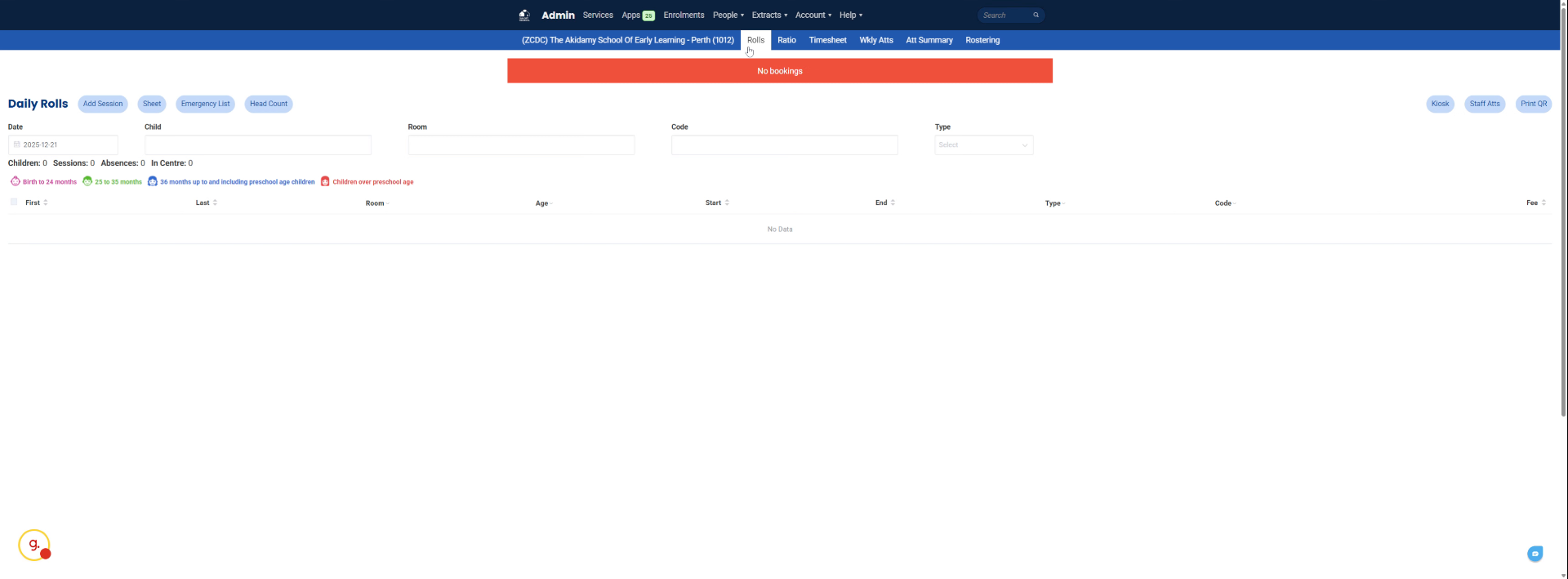
5. Select a Specific Date
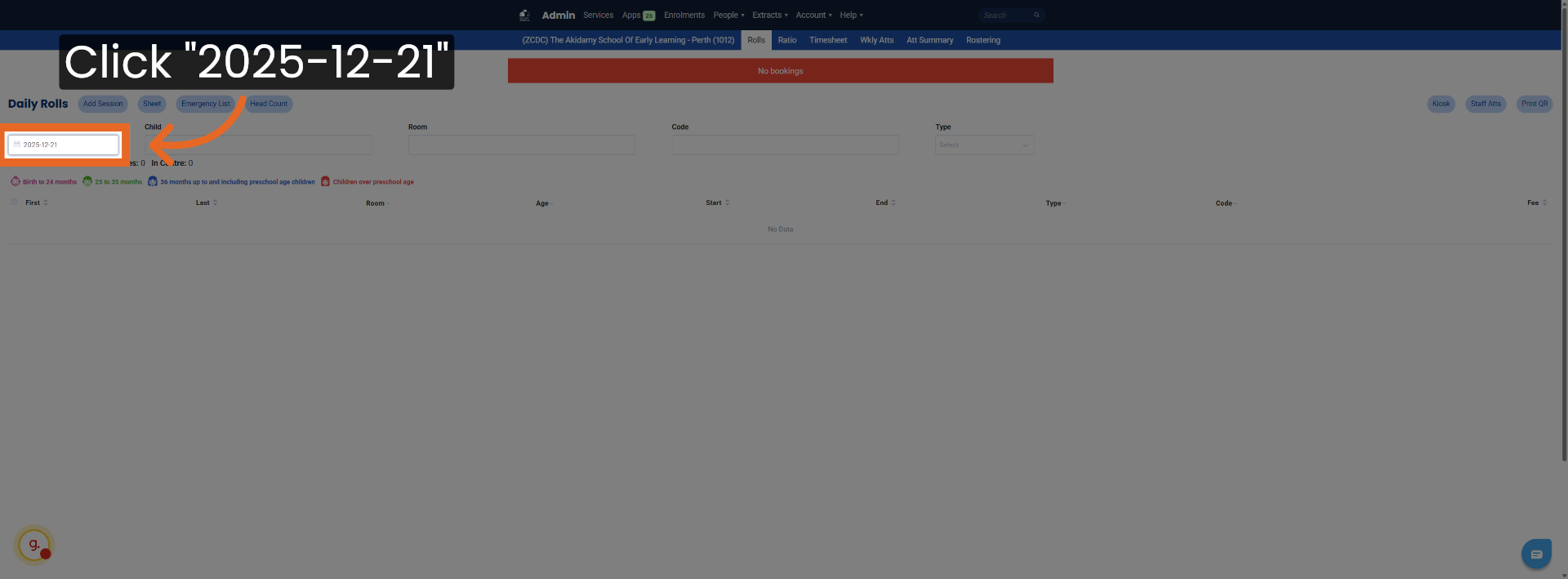
Click "2025-12-21"
6. Understand Role Availability by Date
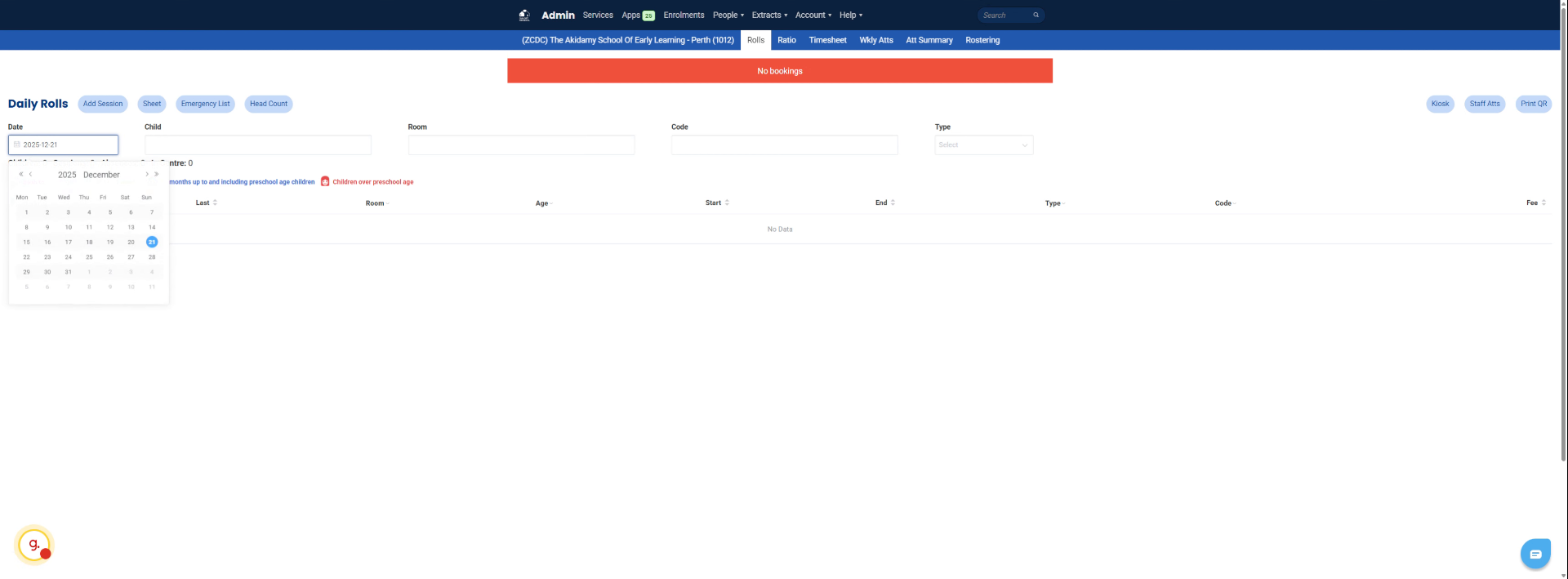
Say it was a Friday you can find a roles either children. so forth and so forth, but if you want to find
7. Choose a Reference Date for Ratios
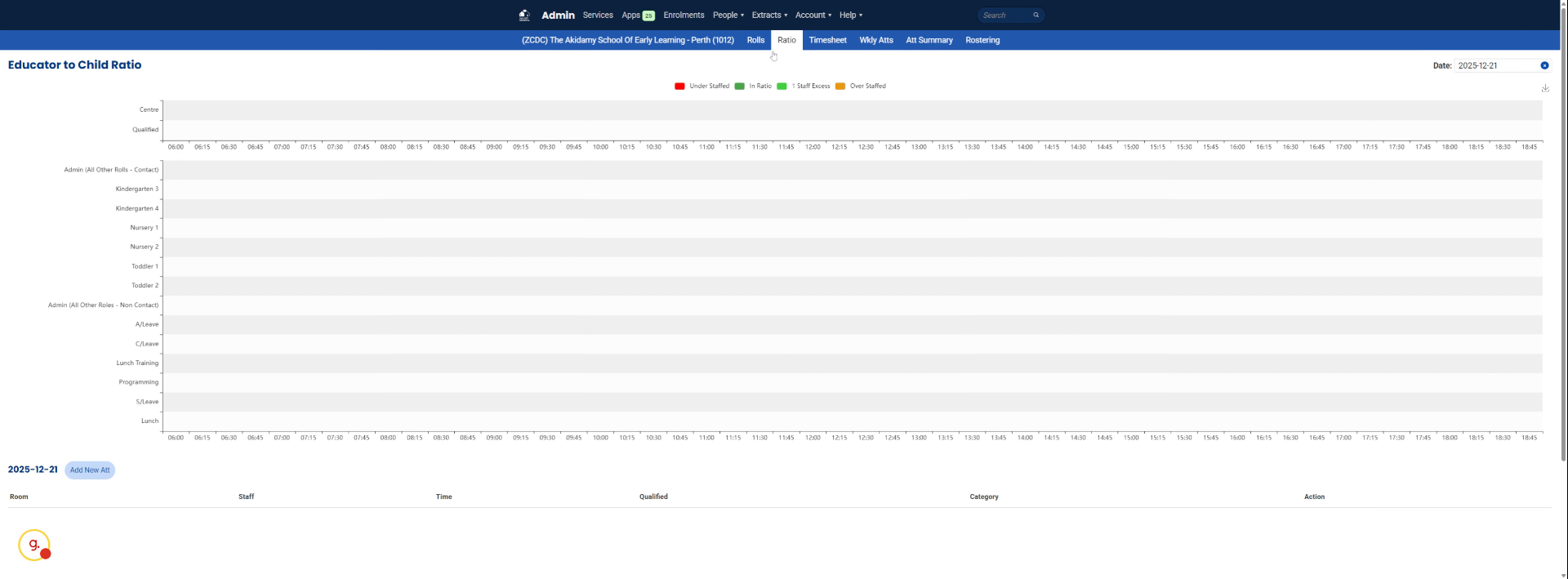
The starting ratio is because, of course, today, Sunday, you pick a date for, let's just say, Friday as an example.
8. Review Staffing Ratios for the School
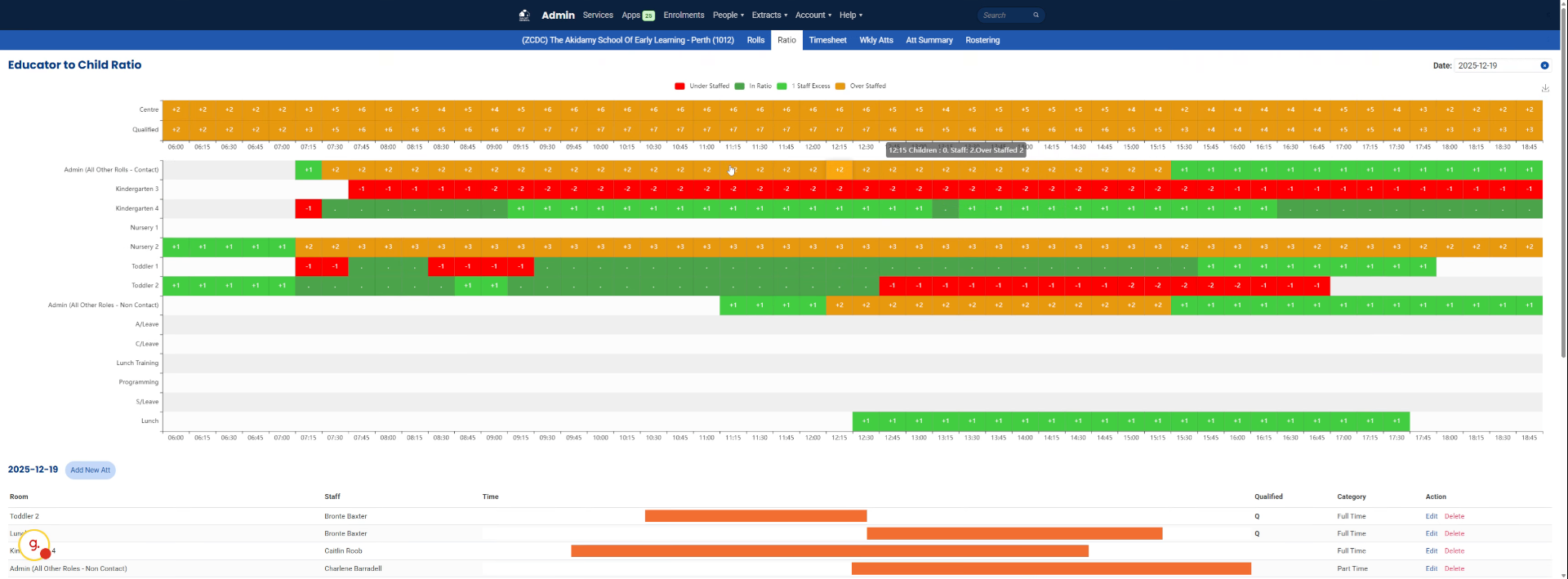
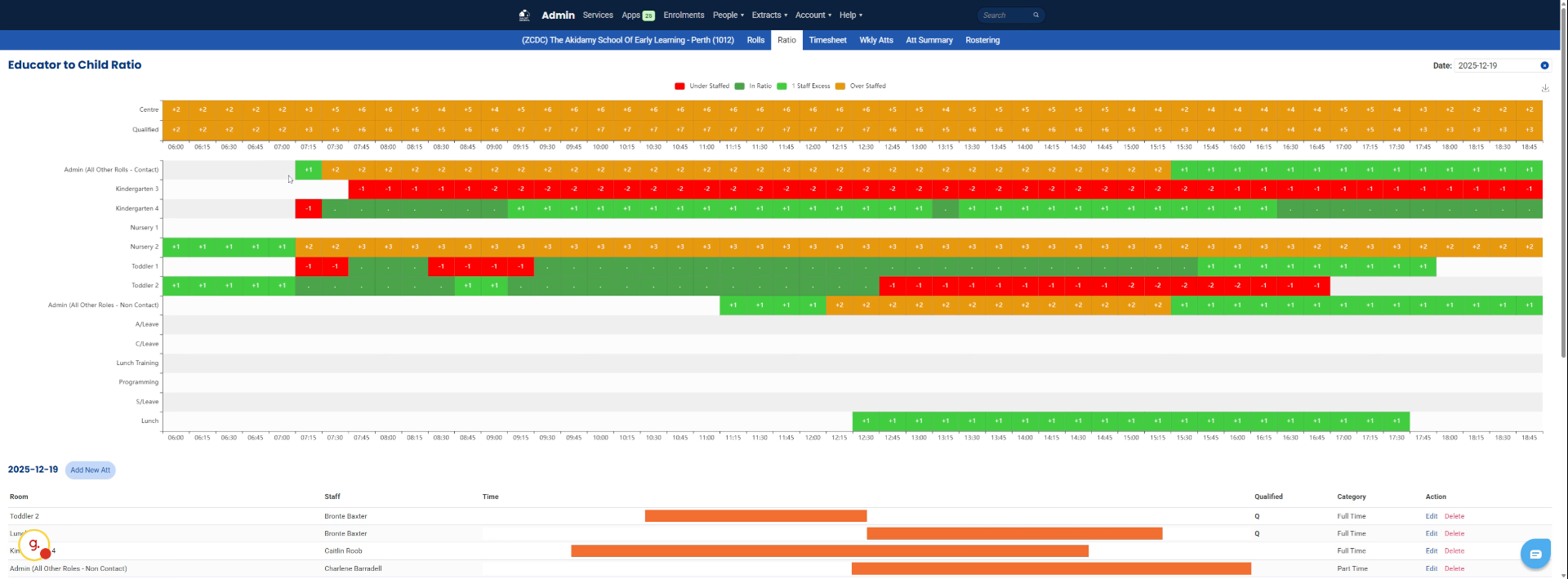
There's a ratio, and you can see the school as a whole was overstaffed. On that day, there is more staff to children, so we exceed our requirements.
9. Identify Responsible Personnel
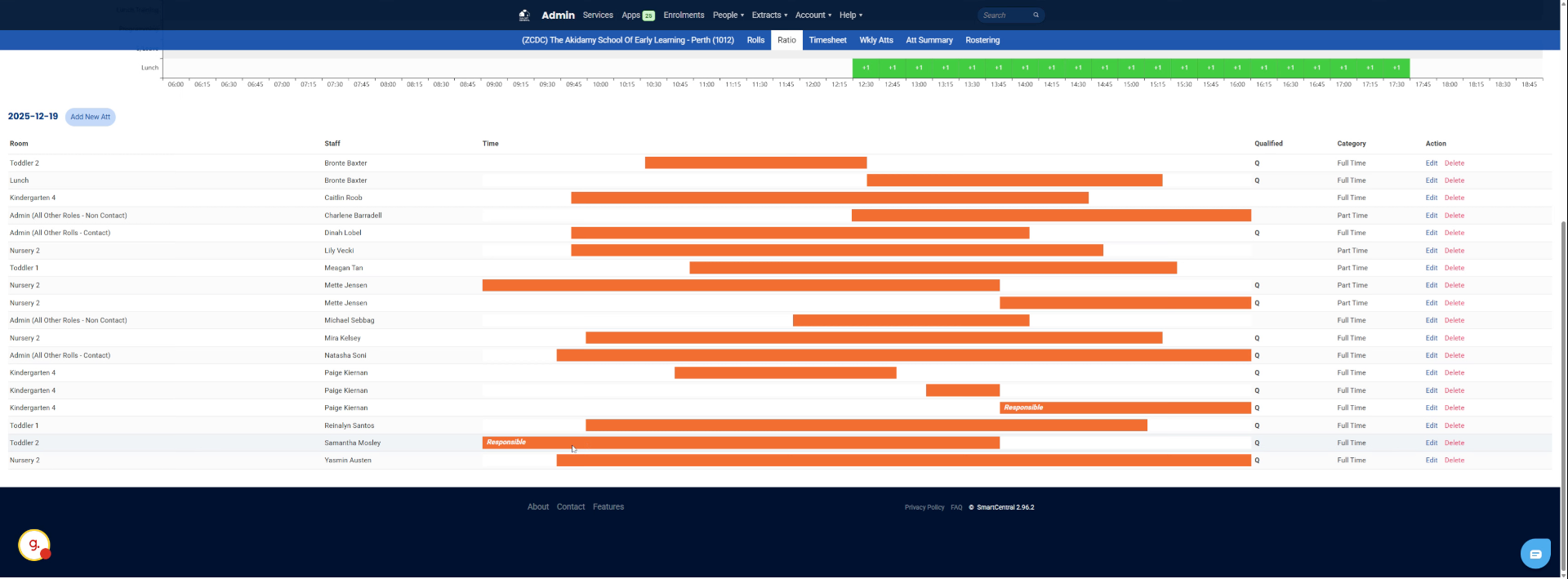
Who was the responsible person during the shift? This is very important in terms of compliance.
10. Examine Qualified Staff Ratios
The ratio of qualified to the Service /Centre throughout the day is a good example of ratios.
11. Provide Background on Headcount Retrieval
Yeah, just wanted to give you a quick background how to do this.
This tutorial guided you through accessing and interpreting headcount records and staffing ratios within SmartCentral. You can now confidently review roles, dates, and staffing details to manage headcount effectively.