
The instructions below will show you how to add/embed a video to a process.
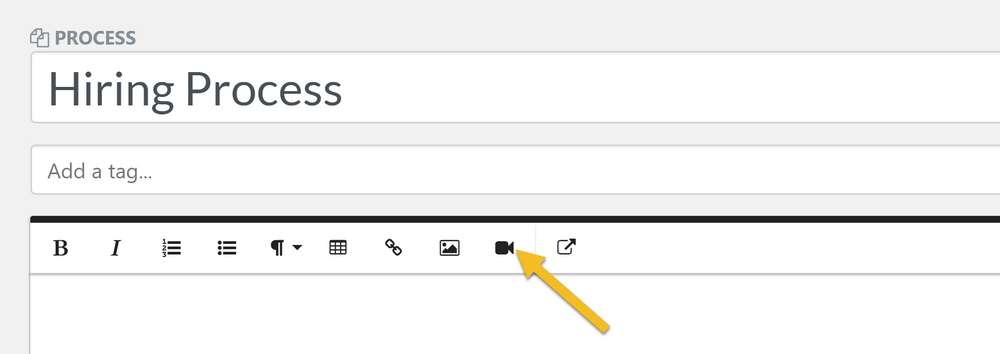
Note: Currently only videos in MP4 or WEBM format and file size up to 50 MB will be embedded.While editing the process description click on the "Insert Video" button.
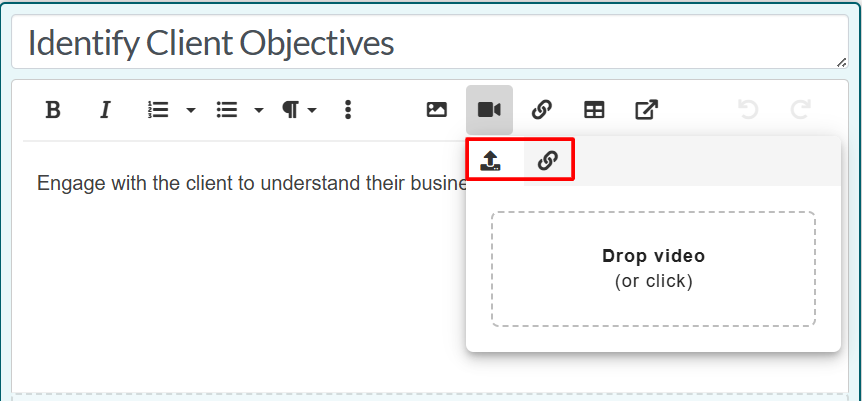
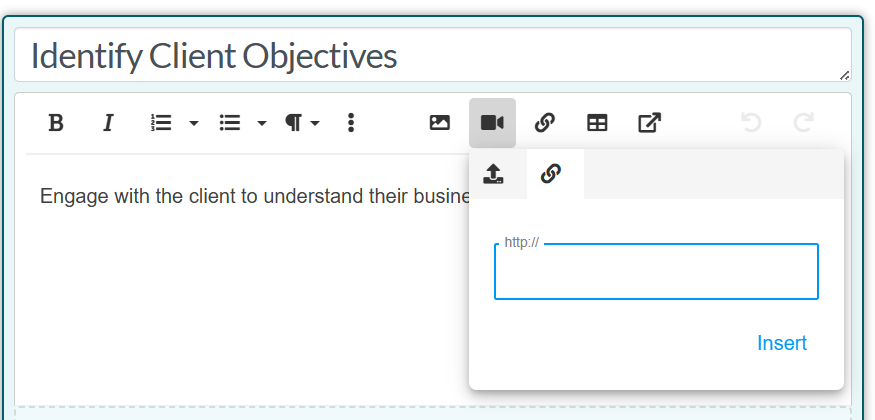
Click the upload icon to upload your video file, or drag and drop the video you want to upload. If you want to embed the video through a URL like YouTube / Vimeo, then click on the link icon and paste the URL
Click the "Save Changes" button at the bottom of the description of the process to complete the upload and rendering of the video.