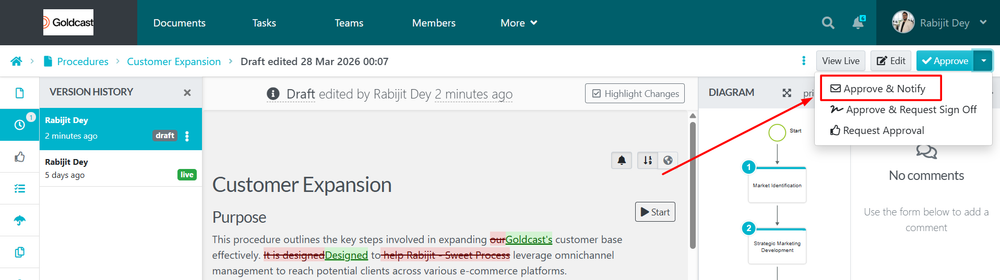
The instructions below will show you how to approve a draft of a procedure so that it becomes the live version and notify everyone who has access to it.
When a draft of a procedure is approved it becomes the live version and this allows the content to be searchable.
P.S: Only managers of teams and super managers have the ability to approve drafts of procedures.
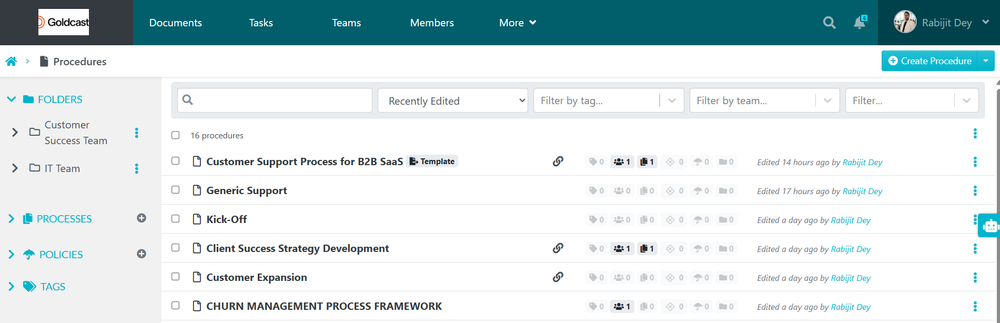
Click on the procedure you want to view.
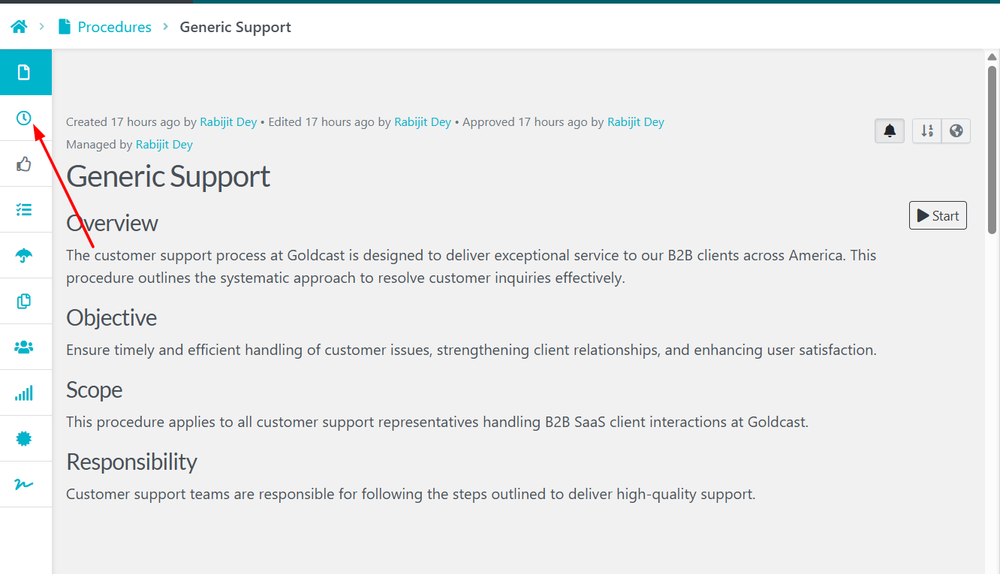
When the procedure page loads, click on the clock icon (Versions).
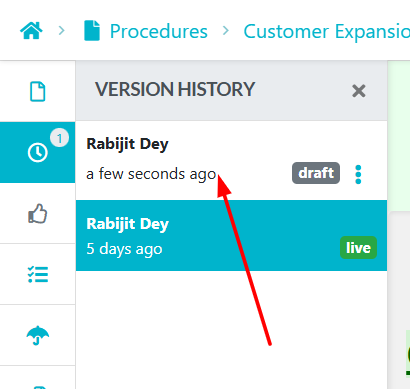
When the versions history sidebar for the procedure opens, click on the draft of the procedure you want to approve.
Click on the “Approve & Notify” button to make the draft of the procedure go live, and notify everyone who has access to it.