
Daily Attendance SOP
Daily Attendance Codes
Quick Reference Guides
Reviewing Attendance:
Attendance Taken Summary
Verifying Attendance
Parent Submitted Attendance
Recording Attendance:
Daily Attendance by Student (Elementary)
Daily Attendance by Class (Elementary)
Period Attendance by Student (Secondary)
Period Attendance by Class (Secondary)
Mass Changing Attendance
Other:
Log Phone Calls for Daily (Elementary)
Log Phone Calls for Period (Secondary)
Substitute Teacher Setup
-
1Menu Path & Searching for a Student
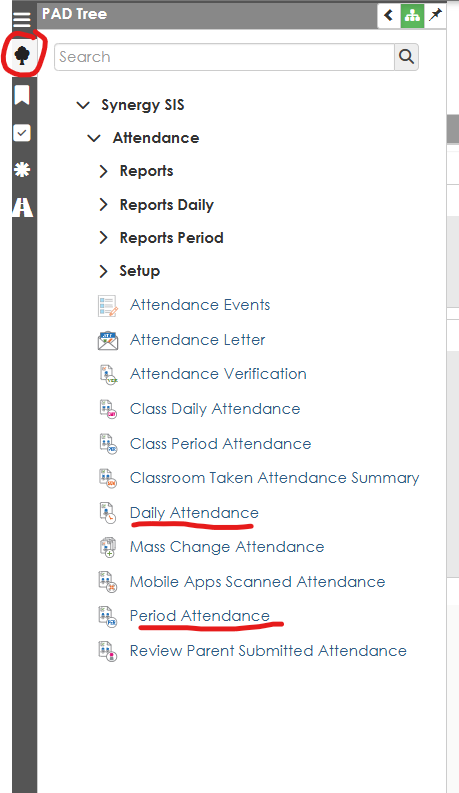
To enter a student's attendance you will need to go into Synergy. On the left-hand side of the screen, under the PAD Tree, select "Daily Attendance" for elementary schools and "Period Attendance" for middle and high schools
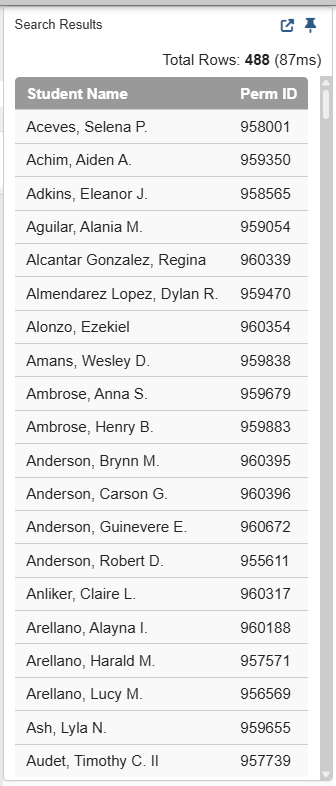
- In the yellow search fields, enter the name or ID number for the student you are searching for and click on the button "Find". The list on the right hand side will update to include matching students.

- Search results appear on the right, select the student you are looking for.
-
2Elementary Attendance Entry - Daily Attendance View
- Select the "calendar" tab after you search for a student, locate the date you want to enter attendance information for, click on that date,
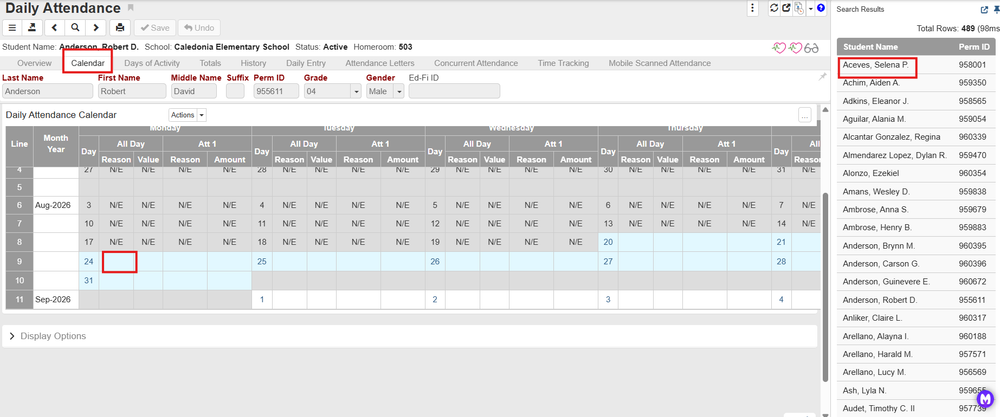
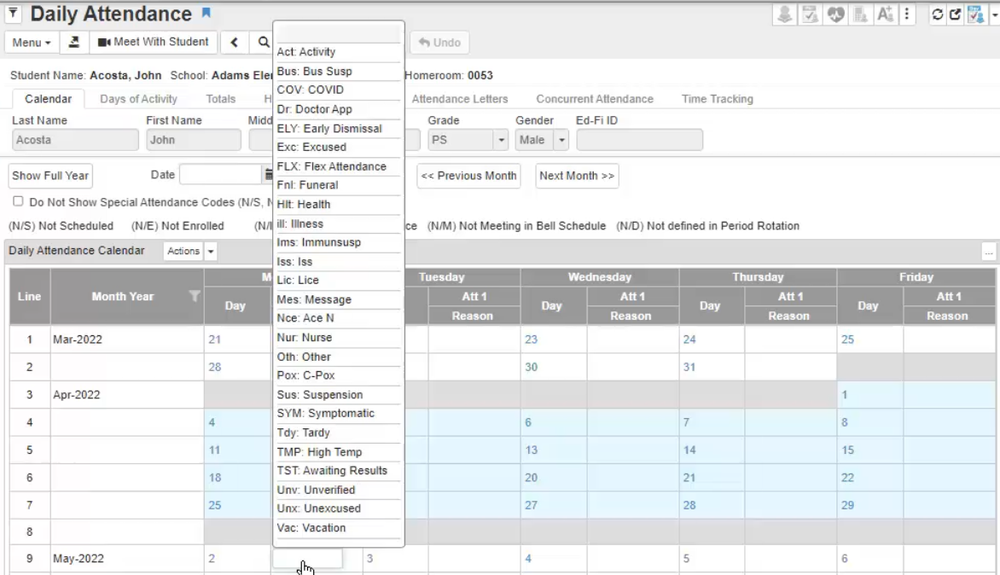
- Select the appropriate code from the dropdown that appears. Click save after you enter the appropriate attendance code.
- See Daily Attendance Codes for further information regarding coding of unverified/verified absences.
- If you would like to add additional details regarding the student's attendance, click on the date and the attendance detail screen will open .
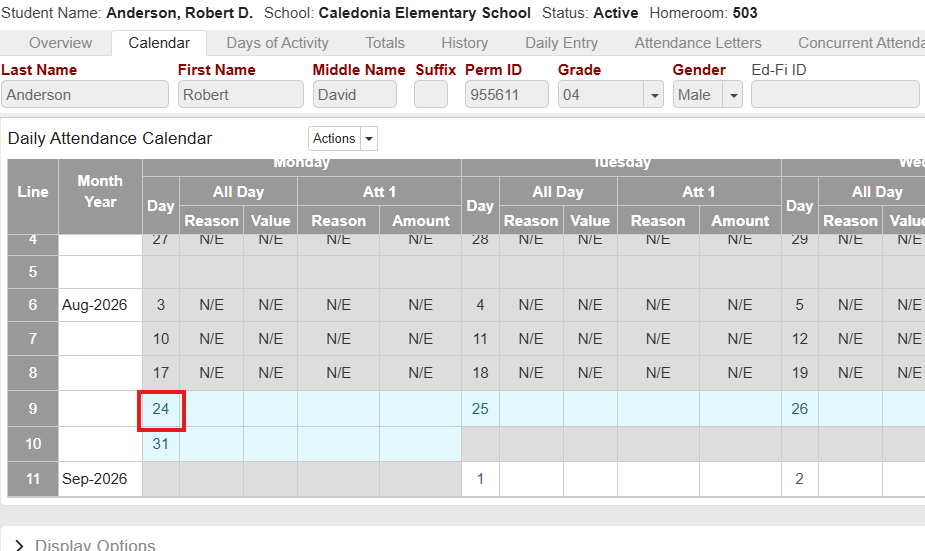
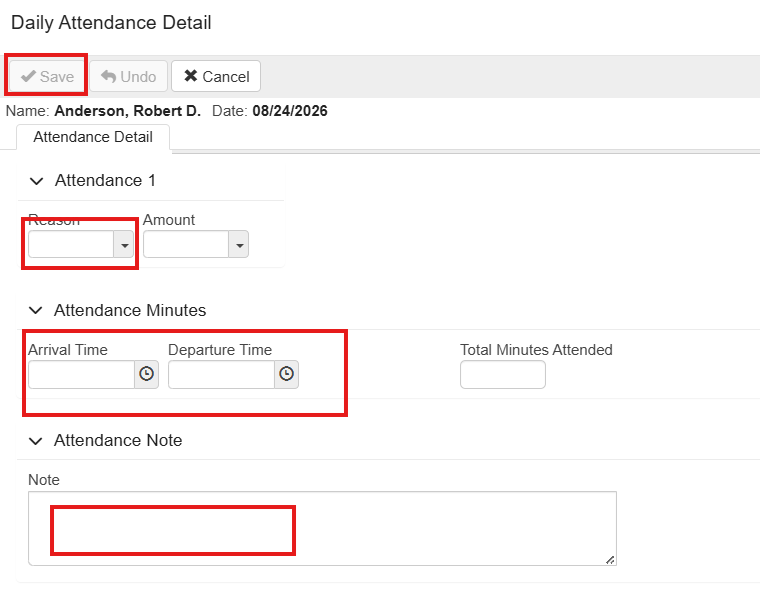
- In the reason you will put the type of absence that it is (EXE, UNEXE, MED, etc.). If you are able to put in a dismiss or arrival time please do so. You can also add a note in the notes section for if a parent called, you received a doctor's note, etc. Once you enter all information, select "Save" at the top of the screen
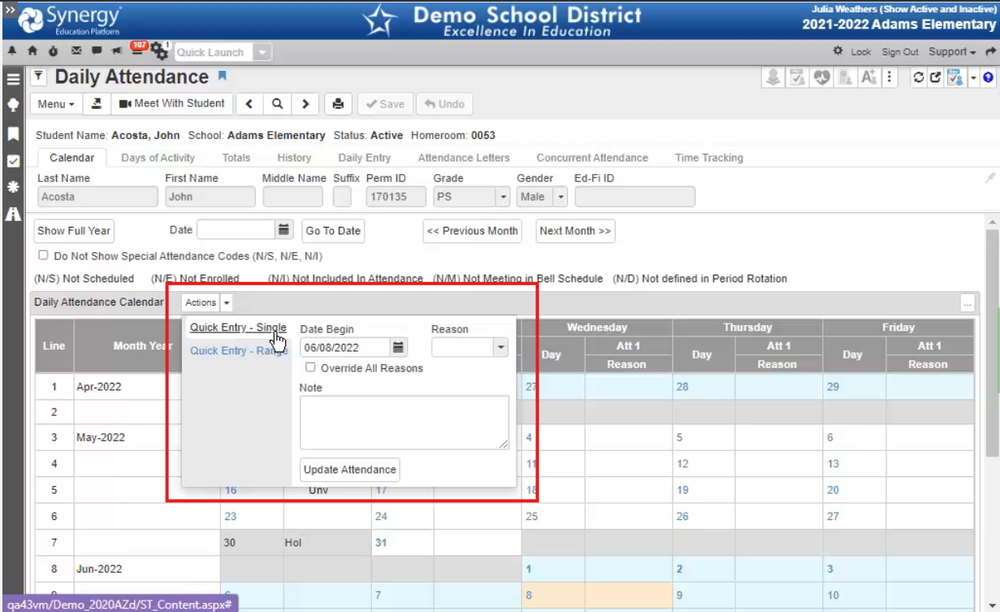
- Another option is to use the "Actions" button in the middle of the screen. This will allow you to enter a single attendance occurrence or a range of dates for a student.
- Select the "calendar" tab after you search for a student, locate the date you want to enter attendance information for, click on that date,
-
3Secondary Attendance Coding - Period Attendance View
- Click on the "Calendar" tab at the top left of the screen. Use the date selection to choose today's date by clicking on "Go to Current Date" or enter another date and select "Go to Date". Once the correct date is displayed, click on the actions button. In this field you will add the "Reason" by selecting the type of absence that it is (EXE, UNEXE, MED, etc.). You can also add a note in the notes section if a parent called, you received a doctor's note, etc. Once you enter all information, select "Update Attendance" at the bottom of the screen.
- See Daily Attendance Codes for further information regarding coding of unverified/verified absences.
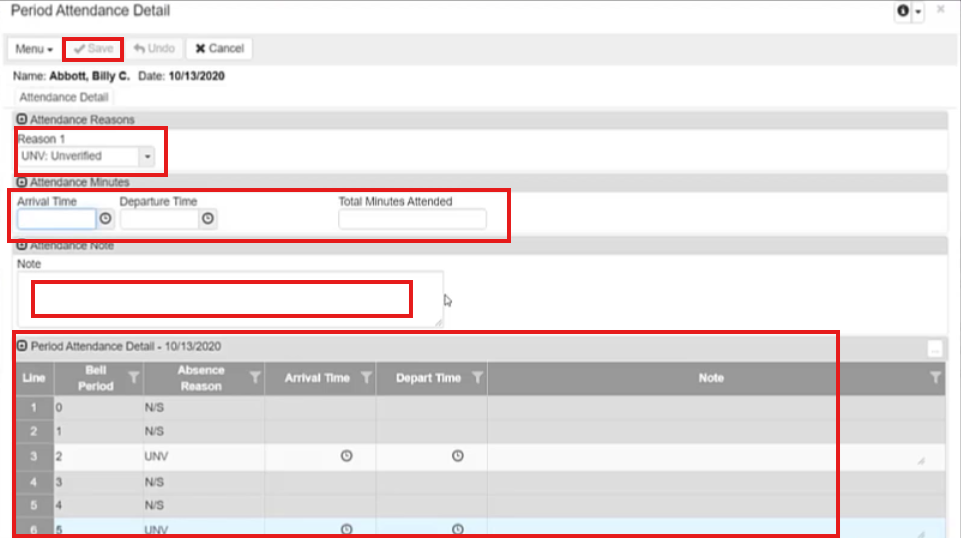
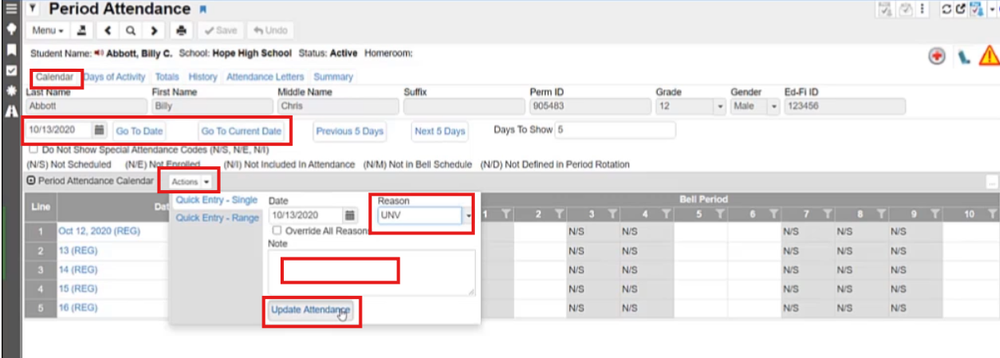 If you would like to add additional details regarding the student's attendance, click on the date and the attendance detail screen will open .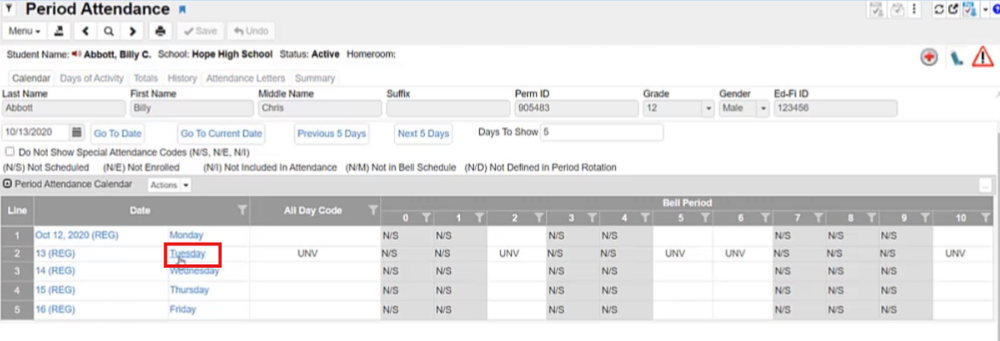
- In the "Attendance Detail Screen" you can enter the attendance code, arrival or departure time, or notes, like, parent called in sick, orthodontist appointment with note, etc. On the bottom of the screen you can enter specific absence codes and notes for specific periods. Once you are finished, click on "Save"
 To override all reasons for that day, you can select "Actions" and click the "Override All Reasons" select the updated code, and select "Update Attendance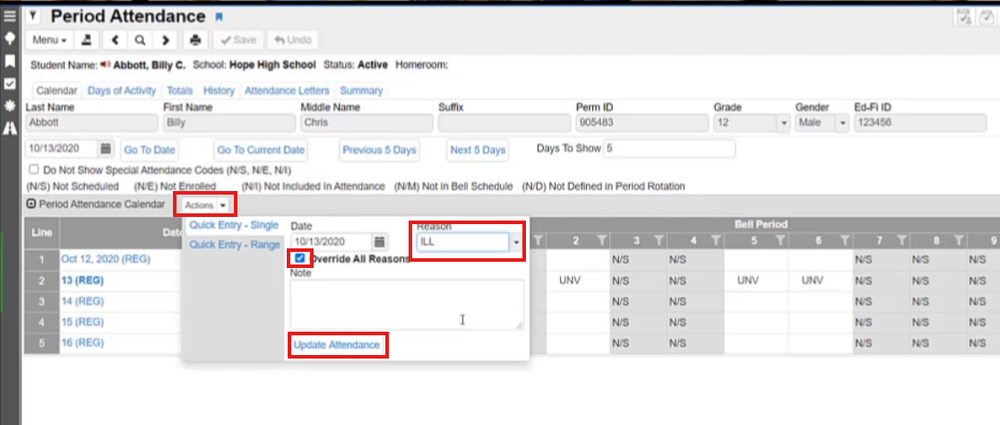
- You can update just one period of attendance by selecting that period, choosing the updated attendance code, and selecting save. To enter the same code for a different class period, hold down the control "ctrl" button and click on the cell for the period you would like to add the same attendance code into.
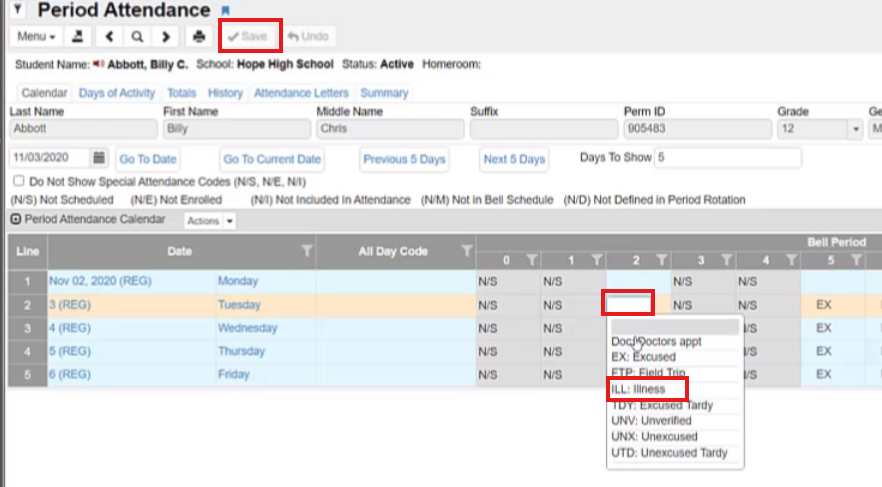
- Click on the "Calendar" tab at the top left of the screen. Use the date selection to choose today's date by clicking on "Go to Current Date" or enter another date and select "Go to Date". Once the correct date is displayed, click on the actions button. In this field you will add the "Reason" by selecting the type of absence that it is (EXE, UNEXE, MED, etc.). You can also add a note in the notes section if a parent called, you received a doctor's note, etc. Once you enter all information, select "Update Attendance" at the bottom of the screen.
-
4Mass Change Attendance Codes
Mass Change can be used to change the attendance code for a group of students, for example a group of students is on a field trip or a sports team is leaving a period early for the day.
Once you work through this process and save the job, it will be available to open, update the students (delete the students from the previous day), and re-run the job each day.
This approach can also be used for large numbers of students attending field trips, leaving early for sports, etc., but settings will have to be adjusted for the periods/number of minutes missed.
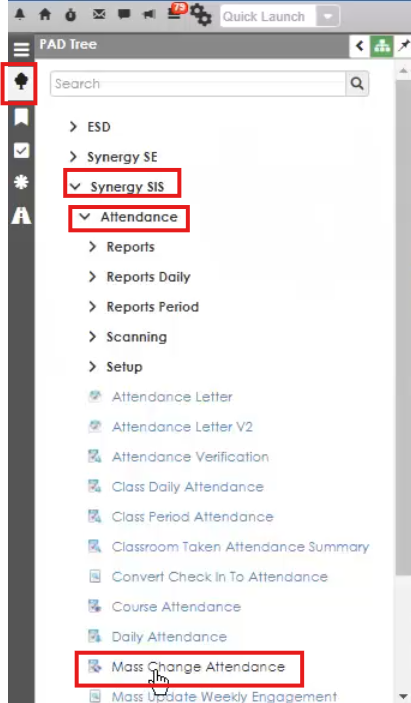
Navigate to the PAD Tree in the top left, select Synergy SIS, Attendance, Mass Change Attendance
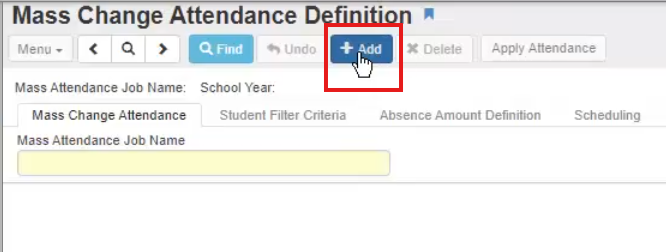
Create a new definition by selecting the add button
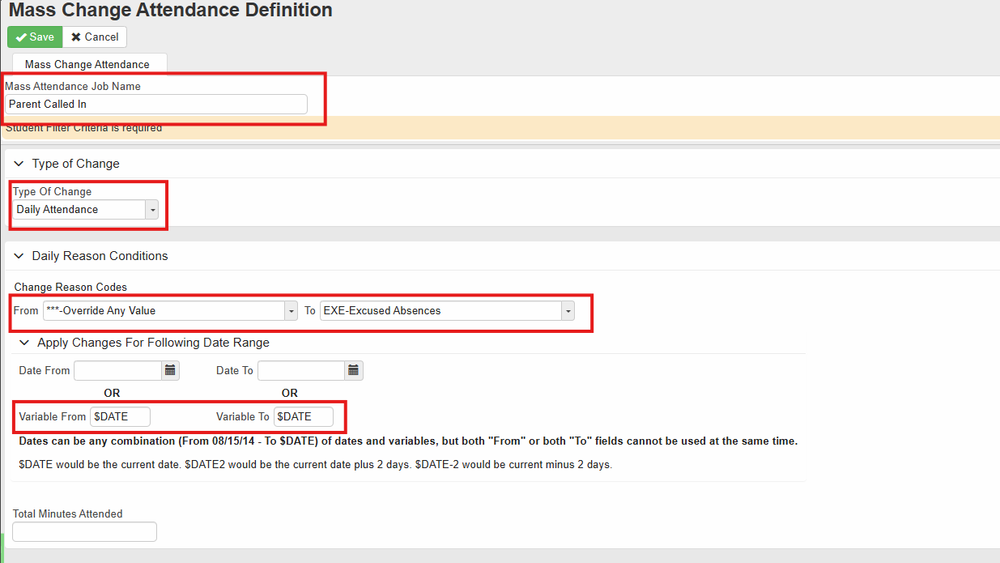
ELEMENTARY SETTINGS:
Select “Type of Change” to “Daily Attendance”
To code a group of students as absent for the full day, change the reason code “From””***-Override any Value” to the desired code.
For a field trip or sports event, to recode only present students, leave the "Change Reason Code, From" as blank, this will not recode students who are marked absent already in the system.
Either enter the current date or
Enter“$DATE” under variable for From: and To:
This will cause the process to run for the current day, each time you run it
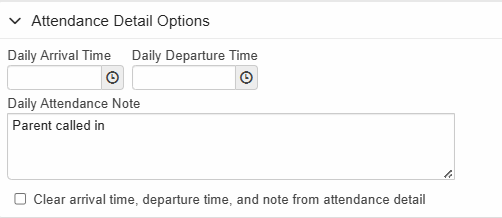
Add a note that you would like included for these attendance types
SECONDARY SETTINGS:
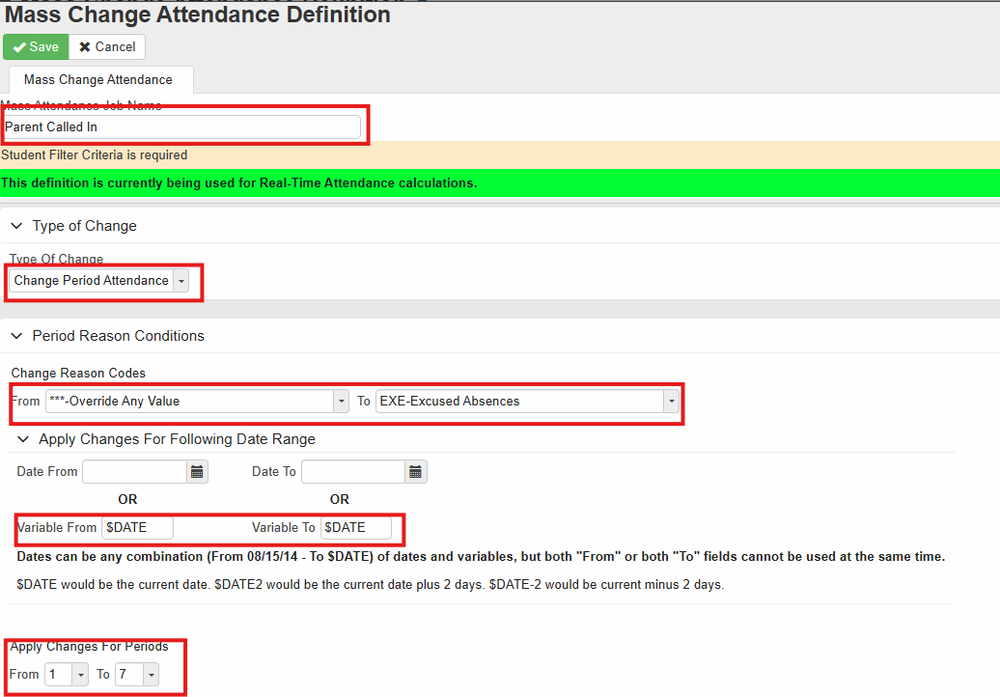
Select “Type of Change” to “Change Period Attendance”
To code a group of students as absent for the full day, change the reason code “From””***-Override any Value” to the desired code.
For a field trip or sports event, to recode only present students, leave the "Change Reason Code, From" as blank, this will not recode students who are marked absent already in the system.
Either enter the current date or
Enter“$DATE” under variable for From: and To:
This will cause the process to run for the current day, each time you run it
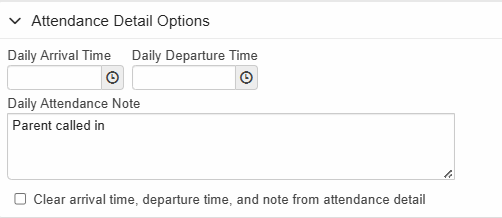
Add a note that you would like included for these attendance type
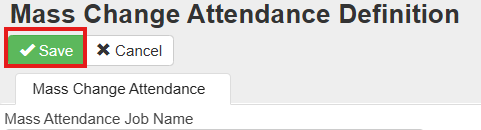
Click “Save”
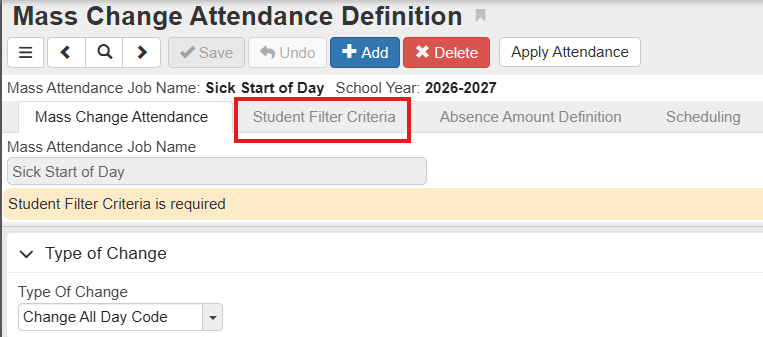
Select “Student Filter Criteria”
Click on “Chooser” next to “Student” to add individual students
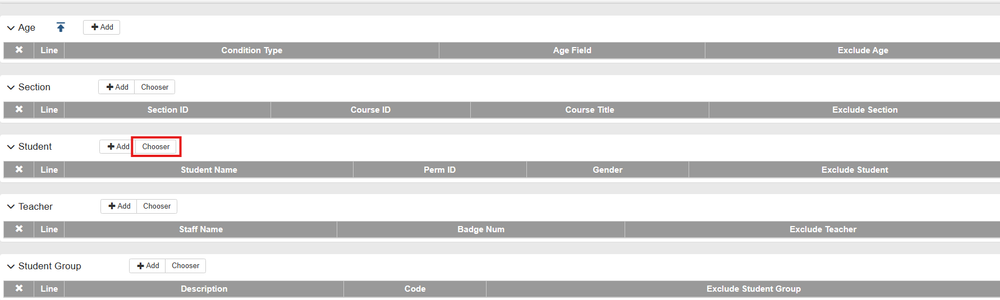
For groups of students you can use any of the filers available to include grade, student group, section, teacher
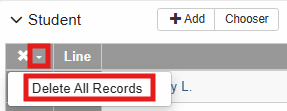
To delete all students from the previous day, use the drop down menu next to the X and select “Delete All Records”
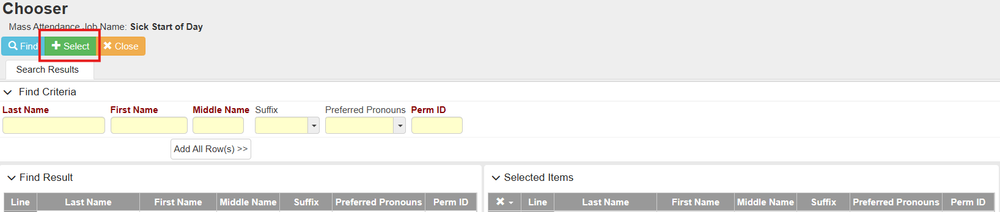
Use the students’ last name, first name, or perm IDs to look them up. Find the student’s name in the “Find Result” table on the left and click on it, the student’s name will be added to the “Selected Items” on the right.
Once you add all of the students, click on “+ Select”
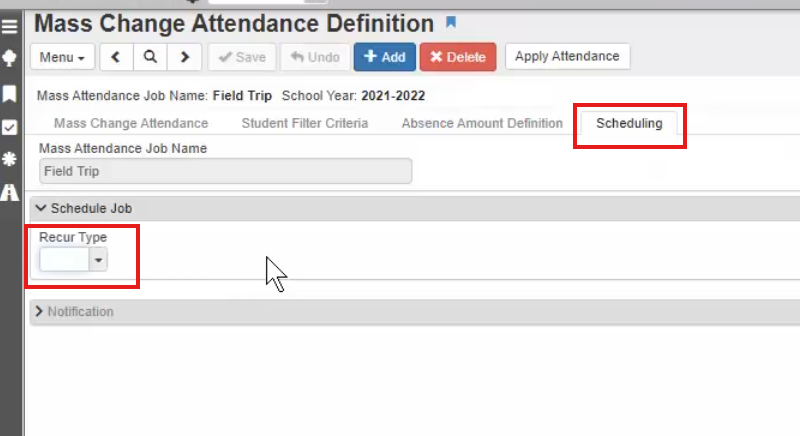
If this is a recurring event, you can schedule the mass update by selecting the tab "Scheduling" and choosing how often it occurs.
Click on “Save” and “Apply Attendance”
- The job should run and provide you with a notice and a Log File to confirm the job was completed successfully

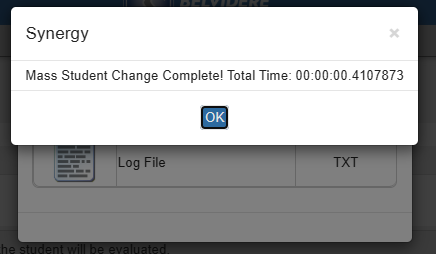
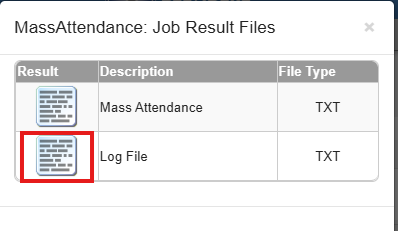
You can them spot check students to ensure the attendance is updated correctly.
-
5Attendance Verification
- This screen will show you all of the students who were marked absent and for which a code was not entered for their absence.
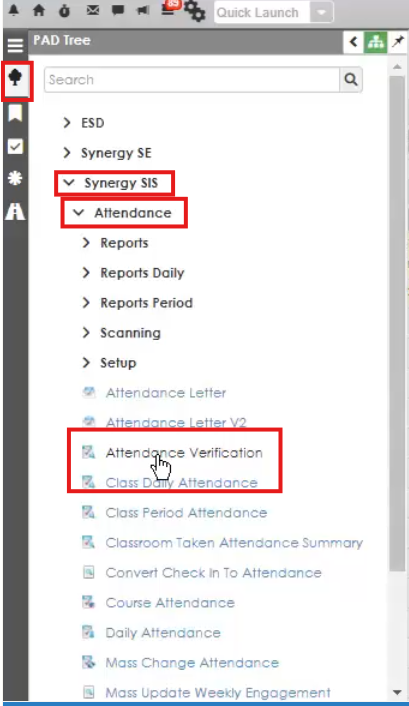
- Navigate to "Attendance Verification" found under the PAD Tree, Synergy SIS, Attendance.
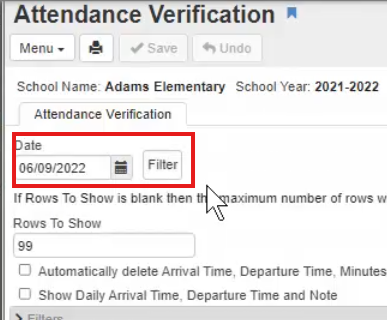
- Select the date you would like to verify, by choosing a date and clicking on the filter button.
- From this screen, you can look up guardian contact information and update students attendance codes
-
6Mental Health Days (MHD)
MENTAL HEALTH DAYS IN SCHOOL
Public Act 102-266, House Bill 576
The Compulsory Attendance Article of the School Code is amended to allow students to take up to five absences for mental or behavioral health; after the second mental health day used, they may be referred to the appropriate school support personnel.
Link to full Public Act 102-266
Overview:
Use of up to 5 excused absences without a medical note
Opportunity to make up any missed school work
After second mental health day is used, may be referred to school support personnel
Considered a “valid cause” for absence; Chronic truant is defined as child who is absent without valid cause
General Steps Taken at School Level:
Parent notifies the school that their child is absent and using a mental health day.
Secretary codes the mental health day.
When attendance is pulled monthly (or more frequently), staff (admin or secretary) will sort by mental health day code and create a list of students who have utilized more than 2 days.
If 2 days have been utilized, a referral to social worker (elem level) or counselor (MS/HS level) should be made for an initial session. Admin/ school support personnel may use judgment if the days are more than 3 months apart.
-
7End