
SweetAI Overview
SweetAI is a powerful, built-in assistant designed to eliminate "blank page syndrome." It helps you draft, refine, and optimize your Standard Operating Procedures (SOPs) and policies in seconds.
Please note:
1) The information is not shared if you enable SweetAI in your SweetProcess account.
2) It is not used to train data in other SweetProcess accounts or the global LLM (large language model).
3) The AI accesses only your documents and does not interact with those in other SweetProcess accounts.
4) The reason we suggest you enable SweetAI is so it can provide relevant suggestions.
5) The data typed into the AI prompt is private. It is protected.
1) The information is not shared if you enable SweetAI in your SweetProcess account.
2) It is not used to train data in other SweetProcess accounts or the global LLM (large language model).
3) The AI accesses only your documents and does not interact with those in other SweetProcess accounts.
4) The reason we suggest you enable SweetAI is so it can provide relevant suggestions.
5) The data typed into the AI prompt is private. It is protected.
-
1Key Capabilities
- Industry-Aware: SweetAI uses your company’s industry classification (e.g., B2B SaaS, E-commerce, Healthcare) to suggest relevant documentation.
- Zero Cost: Available to all SweetProcess users (Trial and Paid) with no hidden fees or extra subscriptions.
- Built-in Compliance: Ready-made prompts for HIPAA, ISO, and GDPR standards ensure your documents meet regulatory requirements.
- Dynamic Editing: Beyond just writing, it can rewrite, summarize, or add specific elements like tables and job roles to existing text.
-
2Adding Industry Classification for SweetAI to SuggestBefore you can start generating content, ensure your account is properly configured to give SweetAI the context it needs.
SweetAI’s "Suggest" feature relies on your industry setting to provide relevant titles.- Click on your Account Name in the top right and select Account Overview.
- Locate the Industry Classification box.
- Type the industry that best fits your business (e.g., E-commerce or Legal Services).
- Ensure to enable the "Allow AI Data Share" checkbox so that all the data you process in SweetProcess can be accessed by SweetAI.
PS- SweetAI uses trusted AI. Your data is safe with us and serves your request only and not used for any training purposes.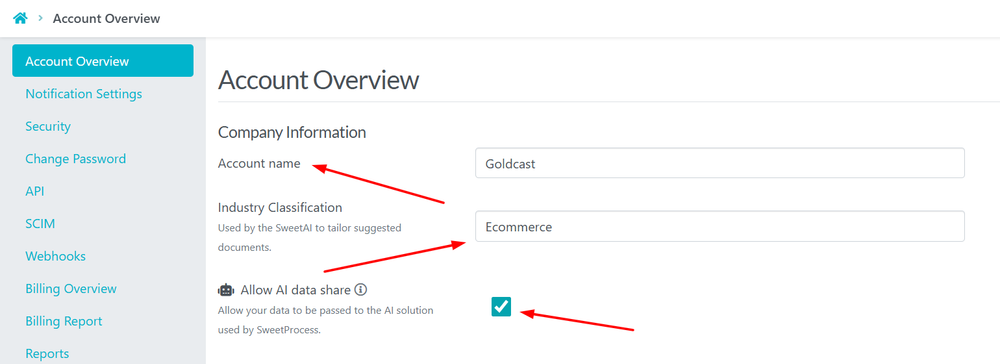
-
3Using SweetAI: Procedures and PoliciesGoal:Step-by-step instructions for the "Suggest," "Write," and "Rewrite" features.
A. Generating New Titles (The Suggest Feature)
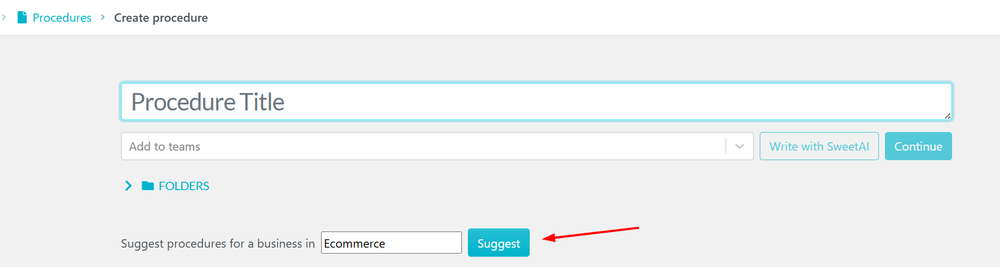
If you aren’t sure what to document next, let SweetAI lead the way.- Go to Procedures or Policies and click Create.
- Click the Suggest button next to the title field.
- SweetAI will generate a list of essential titles tailored to your specific industry. Select one to get started.
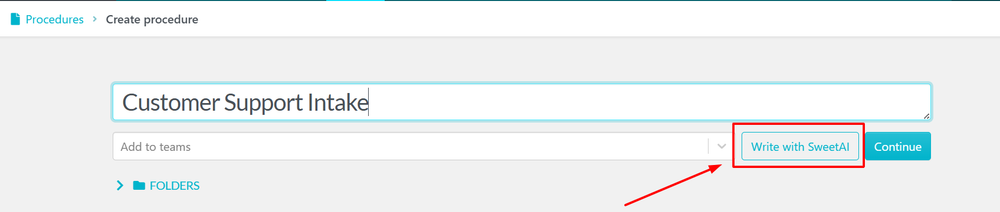
B. Writing from Scratch- Enter your desired title (e.g., "Customer Support Intake").
- Click the Write with SweetAI button.
- Watch as the AI generates a complete outline, including headings, steps, and substeps.
C. Refining and Prompting
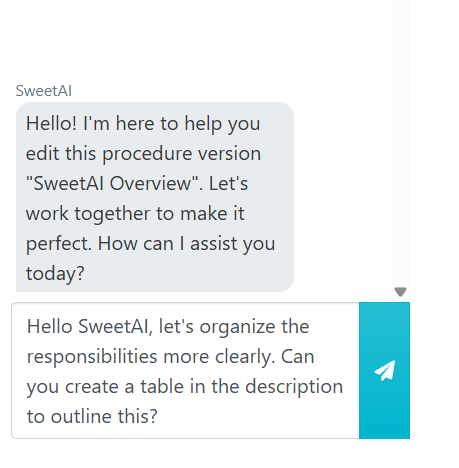
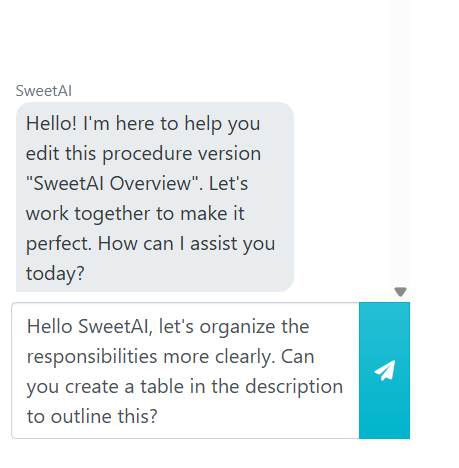
If the first draft isn't perfect, you can chat with the AI to fix it:- Click on the SweetAI Chat box on the right hand side.
- Enter a custom prompt, such as: "Rewrite this to be more concise" or "Add a section for emergency troubleshooting.
-
4Chatting with SweetAIDon't waste time digging through folders. SweetAI Chat allows you and your employees to "talk" to your company’s knowledge base. It can answer specific questions about your procedures, find relevant policies, or explain how to use the SweetProcess platform itself.
Where to Find the Chat
Once SweetAI is enabled for your account, you will see the SweetAI Sidebar available on your various dashboards (Procedures, Policies, and Processes).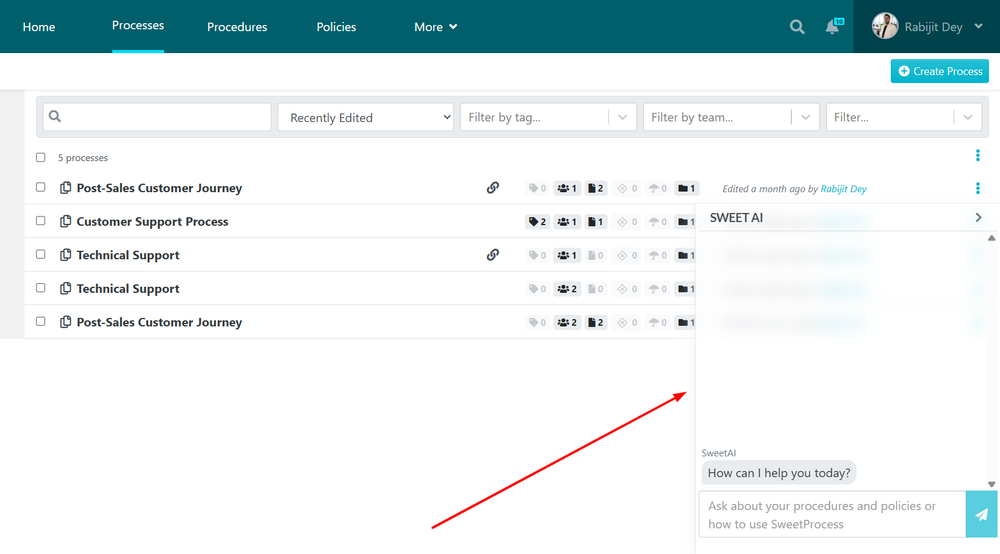 What You Can Ask SweetAI
- Process Questions:"How do I handle a refund for a customer?"
- Policy Clarifications:"What is our policy on hybrid work eligibility?"
- Summarization:"Give me a quick summary of the New Hire Onboarding procedure."
Benefits for Your Employees- Instant Support: Employees get answers in real-time without needing to ping a manager.
- Reduced Friction: It uses natural language, so users don't need to know the exact title of a document to find the information inside it.
- Contextual Accuracy: SweetAI searches your specific company documents to provide answers that are relevant to your business rules.
-
5Advanced Editing: Step-Level AI AssistanceGoal:Detailed instructions on editing specific parts of an existing document.
You don’t have to rewrite an entire document to make an improvement. SweetAI can work on a granular level.
Editing Individual Steps- Open an existing procedure and click the Edit button on the top right.
- Scroll to the specific step you wish to change.
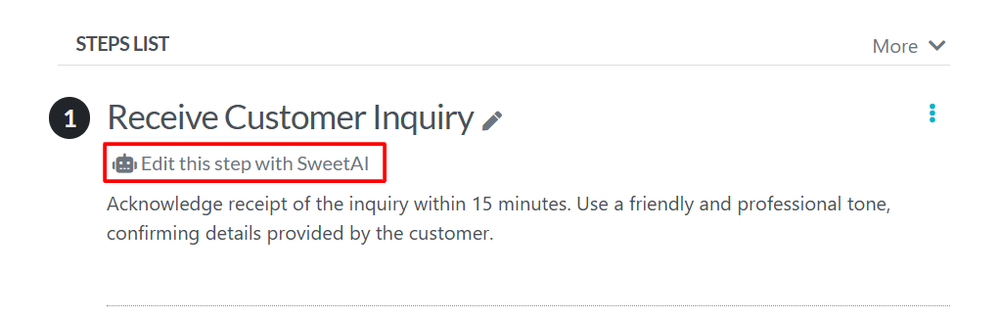
- Click Edit this step with SweetAI.
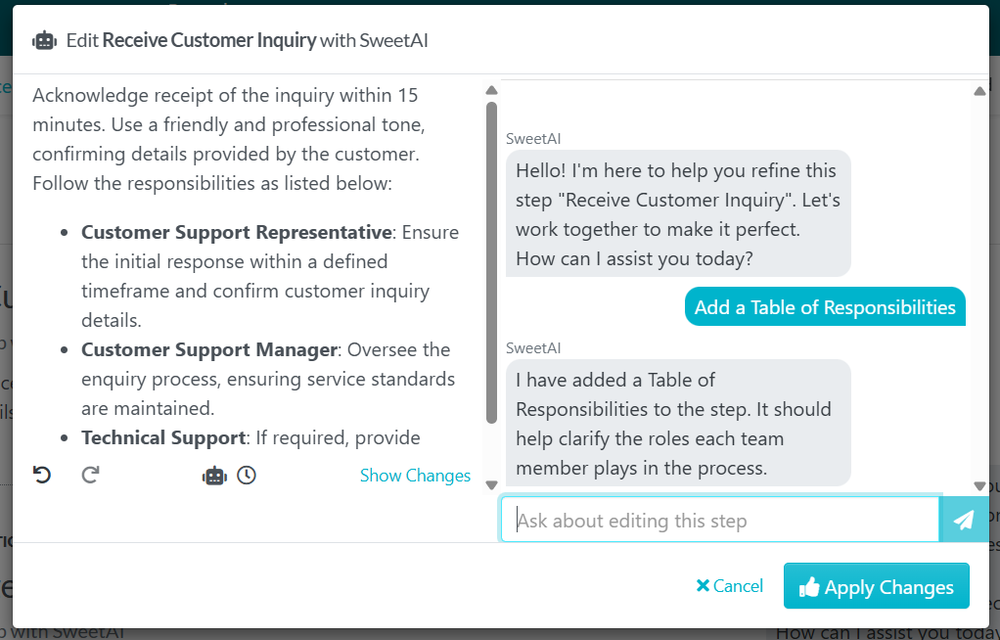
- Prompt for specifics: You can ask the AI to "Add a table of responsibilities" or "Include a warning about data privacy" to that specific step.
- Review the change and click Apply Changes.
-
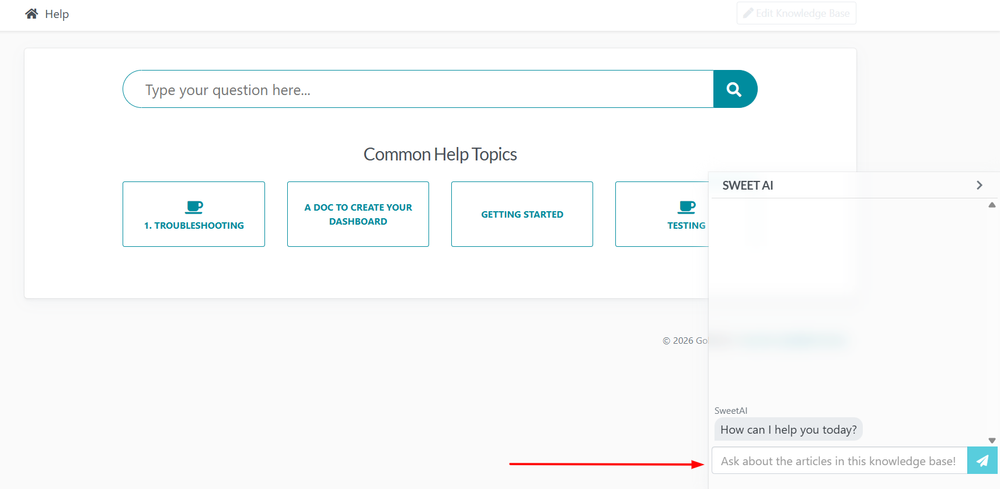
6SweetAI for Public Knowledge BaseSweetAI chat can be enabled for your Public Knowledge base as well, by enabling this you will allow your knowledge base visitors to search.
In the modern workplace, the "Knowledge Base" (KB) has long been the graveyard of good intentions. Companies spend hundreds of hours documenting Standard Operating Procedures (SOPs) and policies, only for them to sit gathering digital dust because employees find it faster to tap a colleague on the shoulder than to hunt through a 50-page PDF.
SweetAI changes this dynamic entirely. By integrating generative AI directly into the knowledge ecosystem, it transforms a static library into a conversational partner.
The End of the Search Bar: Conversational Discovery
Traditional knowledge bases rely on keyword matching. If you search for "vacation" but the document is titled "Annual Leave Policy," you might come up empty-handed.
SweetAI utilizes Semantic Search. It understands the intentbehind a query. When a user interacts with the SweetAI chat interface, they aren't just searching; they are consulting.- Direct Answers: Instead of a list of links, the user receives a concise summary of the answer.
- Contextual Awareness: The AI "reads" your specific company documents to ensure the advice given is relevant to your unique workflows.
- Source Transparency: Every answer is backed by a citation, allowing users to click through to the original SOP for deeper verification.

Did this answer your question?
If you still have a question, we’re here to help. Contact us