
How to make changes and comments in Sweetprocess
This procedure explains how to provide feedback and edit policies or documents within Sweetprocess. It ensures consistent updates and proper version control for organisational compliance.
Go to sweetprocess.com
1. Access Policy For Editing
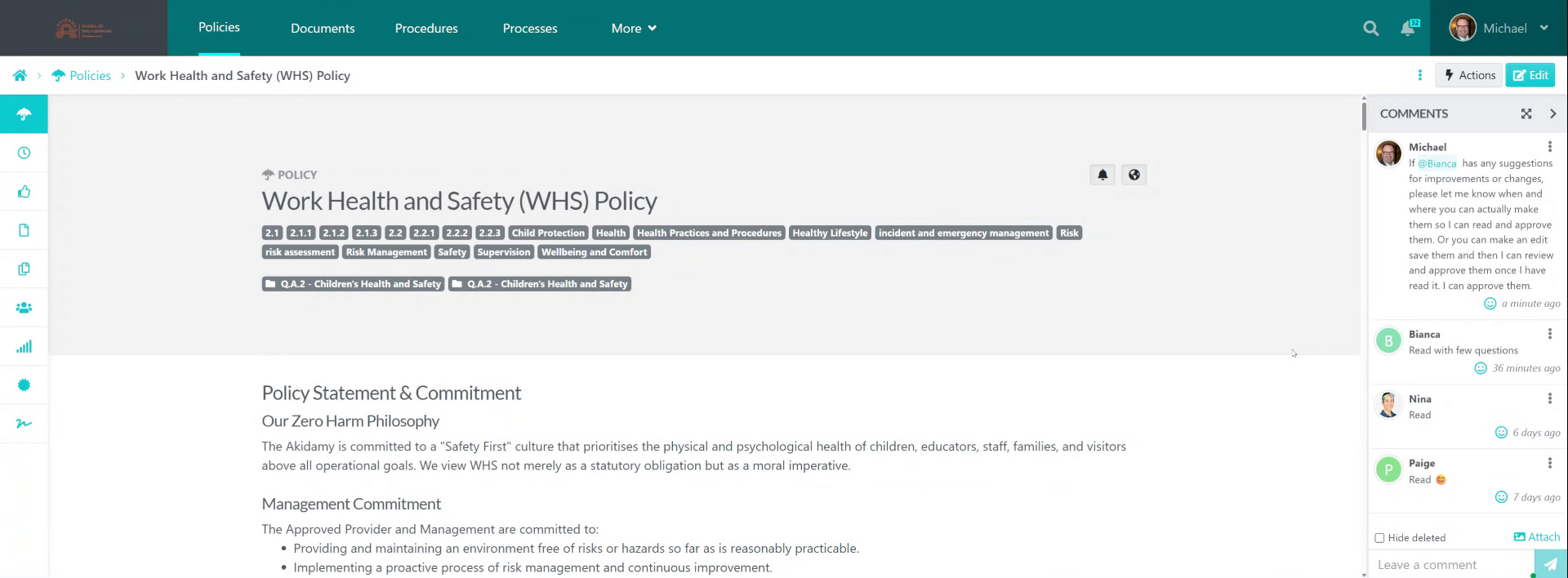
To be able to edit a policy or procedure go into the policy. And go up to the top corner here and edit.
2. Make Required Changes For Review
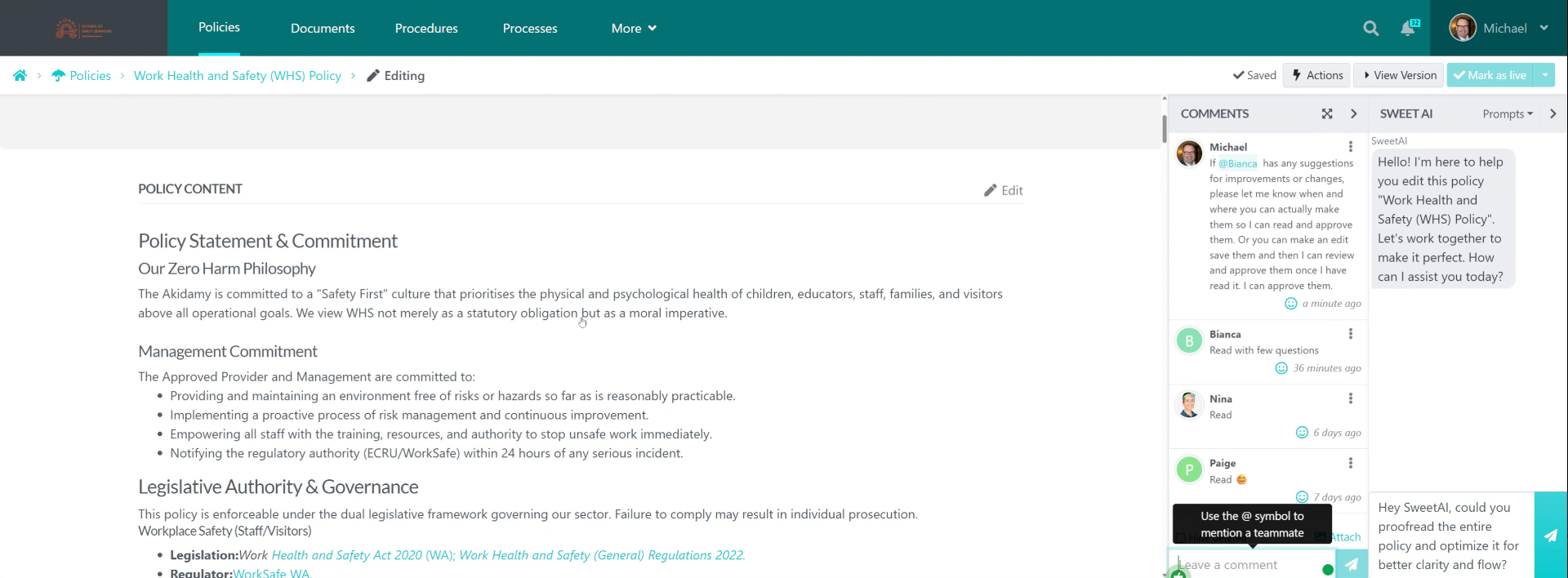
When you make changes to the content, such as modifying existing text to include phrases like "suggest we have an extra comment made here" or by adding new words for clarification, please ensure that these changes are thoroughly reviewed. This review process is essential to maintain the overall quality and coherence of the document.
3. Add Necessary Content And Save
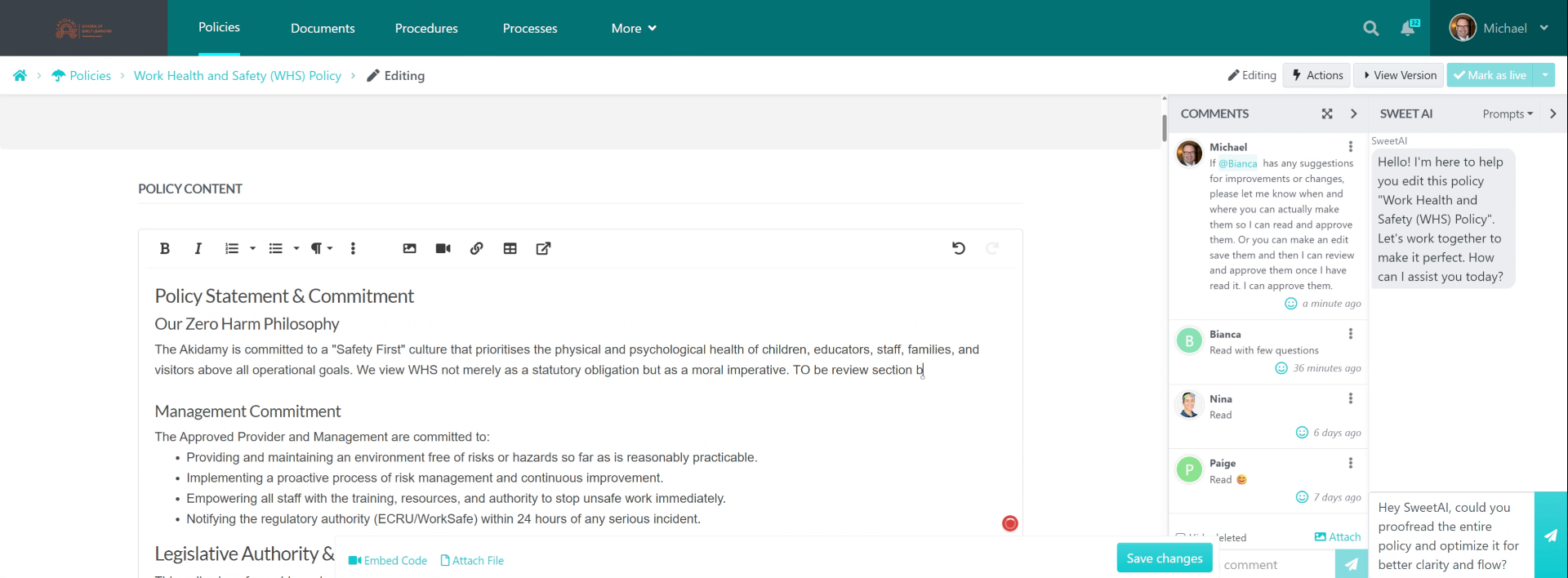
By adding comments or improved text, press save at the bottom. Note that the policy is not live or approved until reviewed by a Superuser (School Director, Head of Studios, Educational Leader, or Approved Provider).
4. Track Version Control Updates
SweetProcess includes a version control system accessible from the left-side tab, which efficiently tracks version history. You can also use the messenger on the left-hand side to communicate with the person you wish to review the policy. For instance, when you send a message like, "Hey Michael," I will respond accordingly.
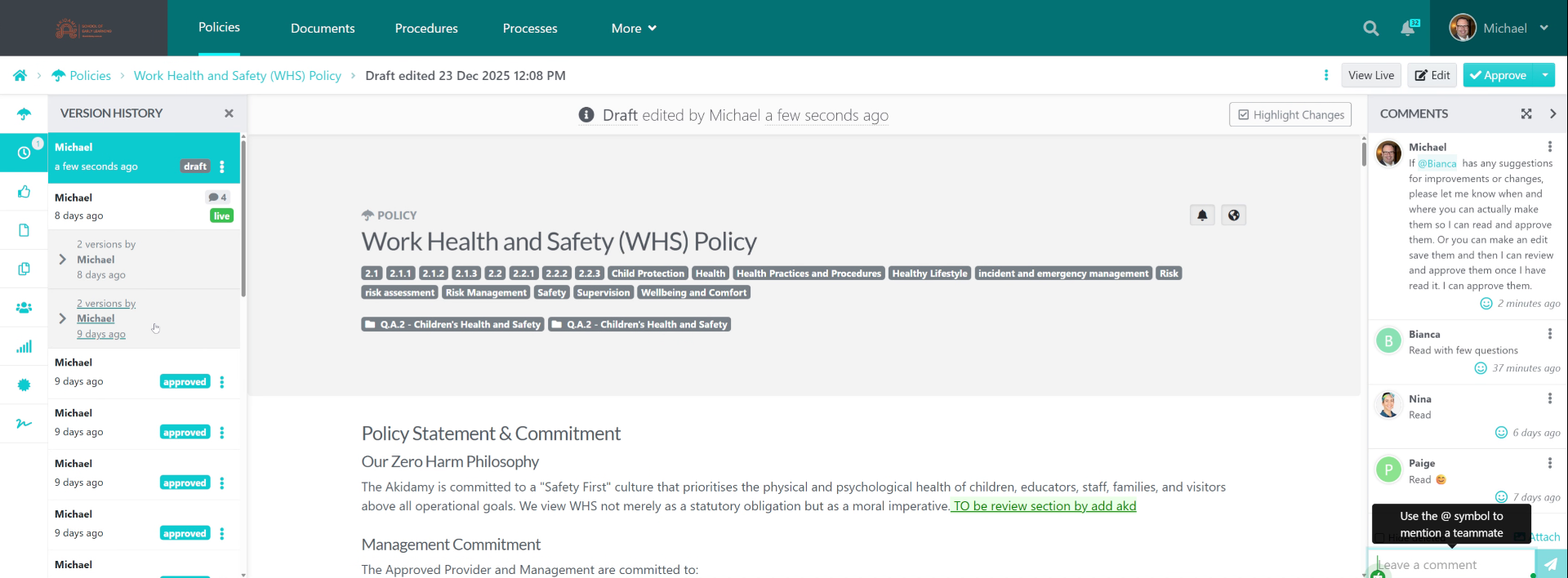
5. Notify Collaborators Of Changes
To invite someone to review the draft, simply type the @ symbol followed by the initial letters of their name. You can add multiple reviewers by continuing to insert the @ symbol along with each name as many times as needed.
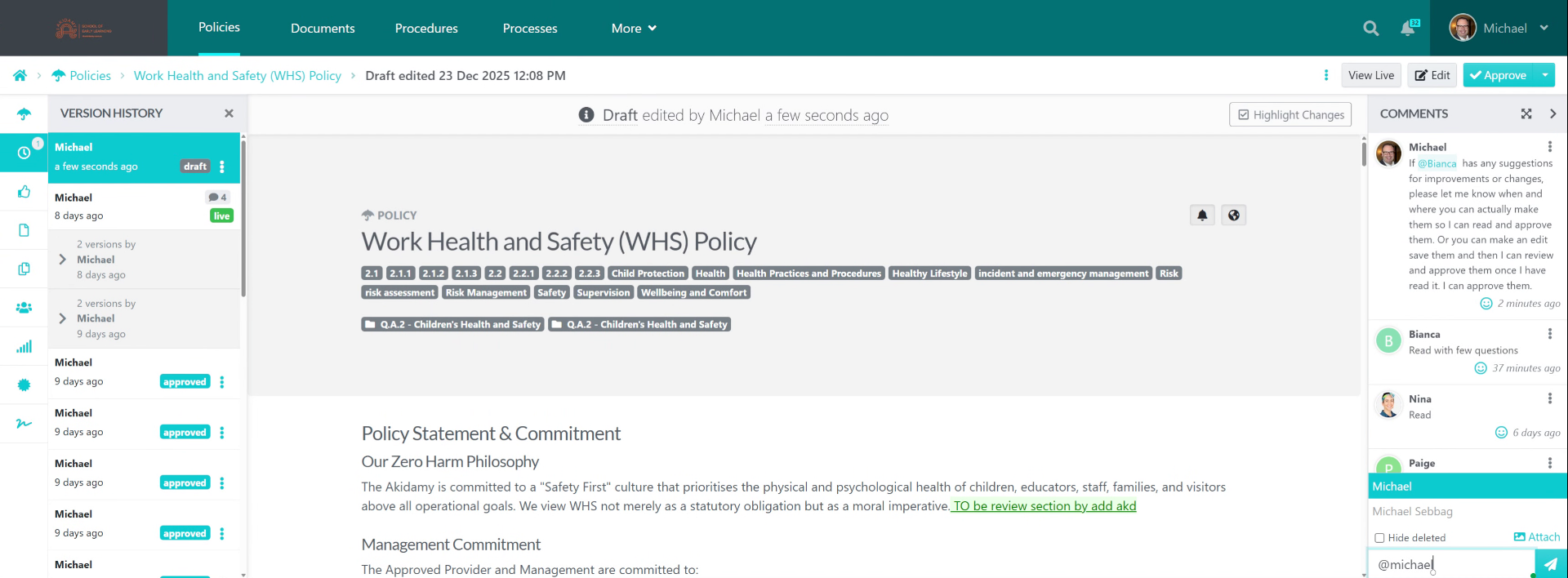
6. Enter Feedback For Reviewer
This will inform the reviewer that you've made changes and that the policy is now ready for review.
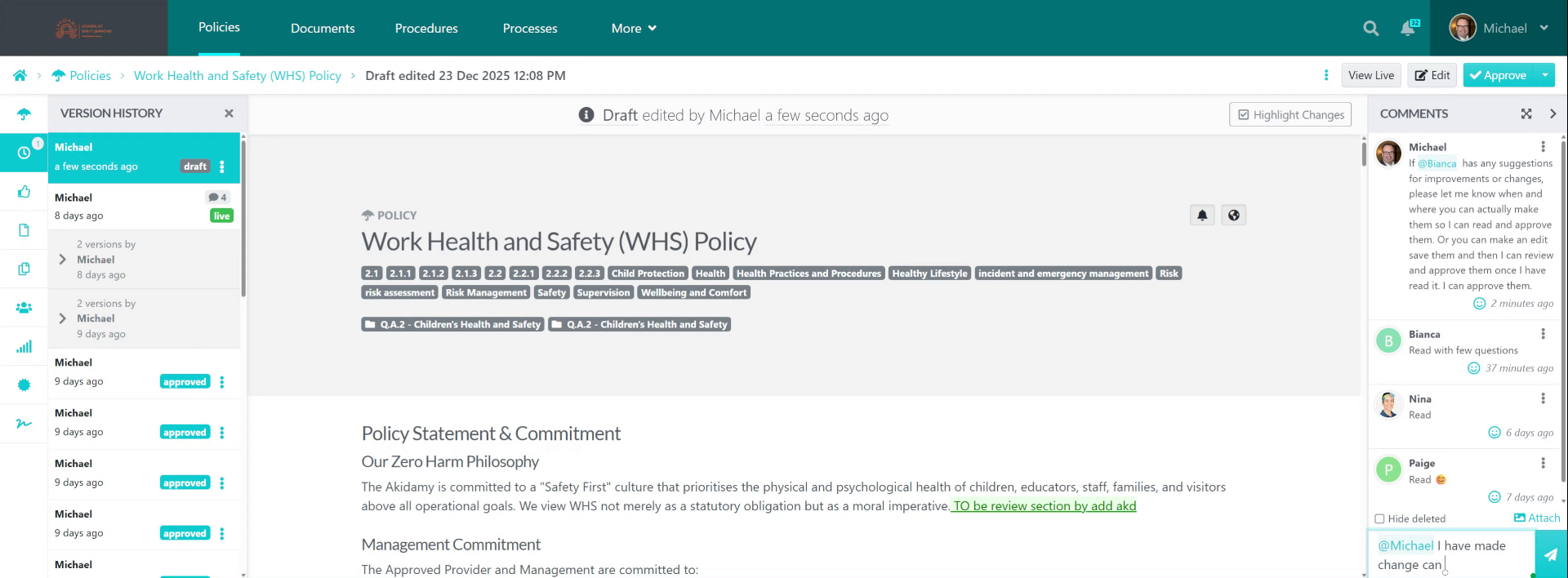
7. Select Feedback Message
Select the feedback message to notify the reviewer that changes have been made and the policy can be reviewed.
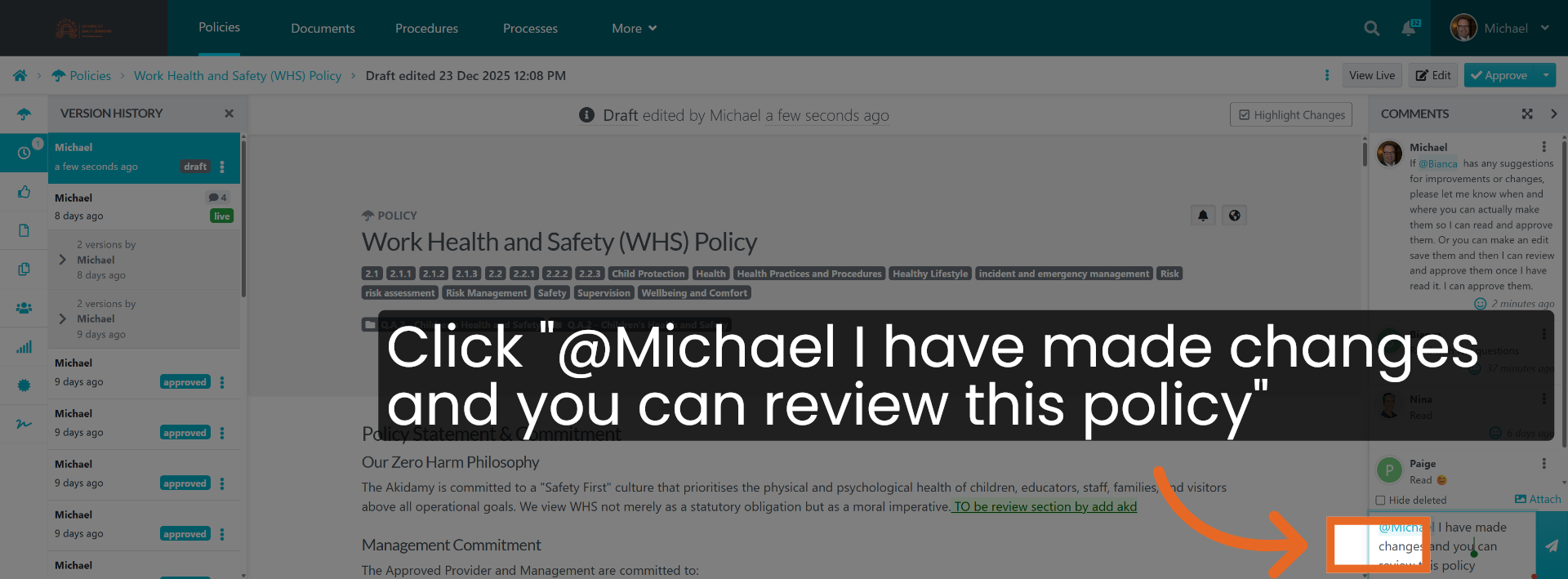
8. Send Notification To Collaborators
And it will send a message that even the anchor between anyone, you just need to do the axle. To do that.
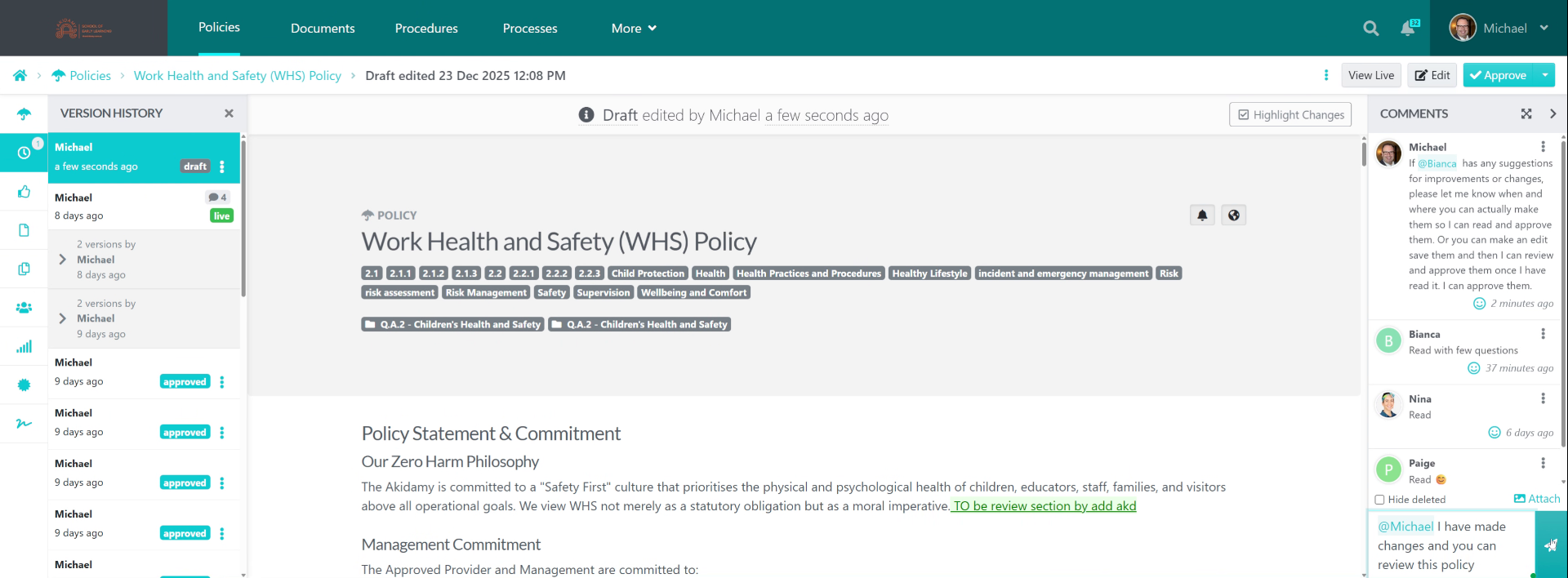
9. Confirm Feedback Message Entry
Confirm the feedback message indicating changes have been made and the policy is ready for review.
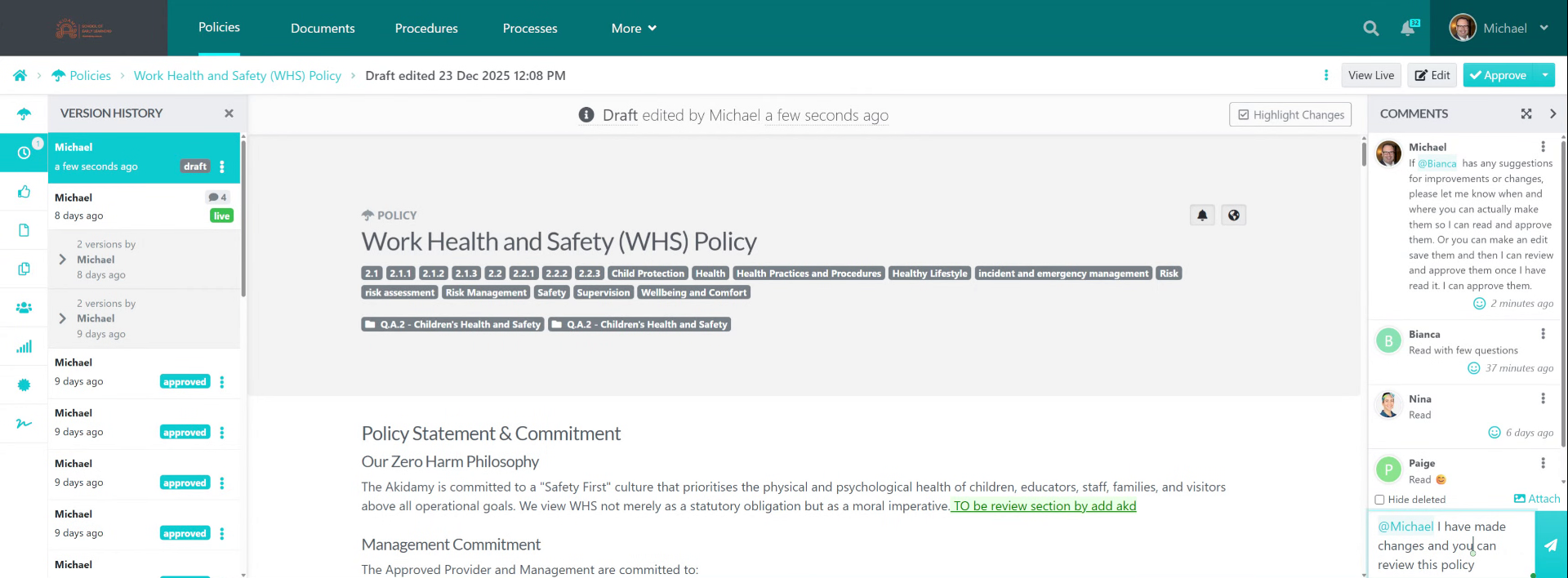
10. Click To Proceed
Click here to send the message for comment and review.
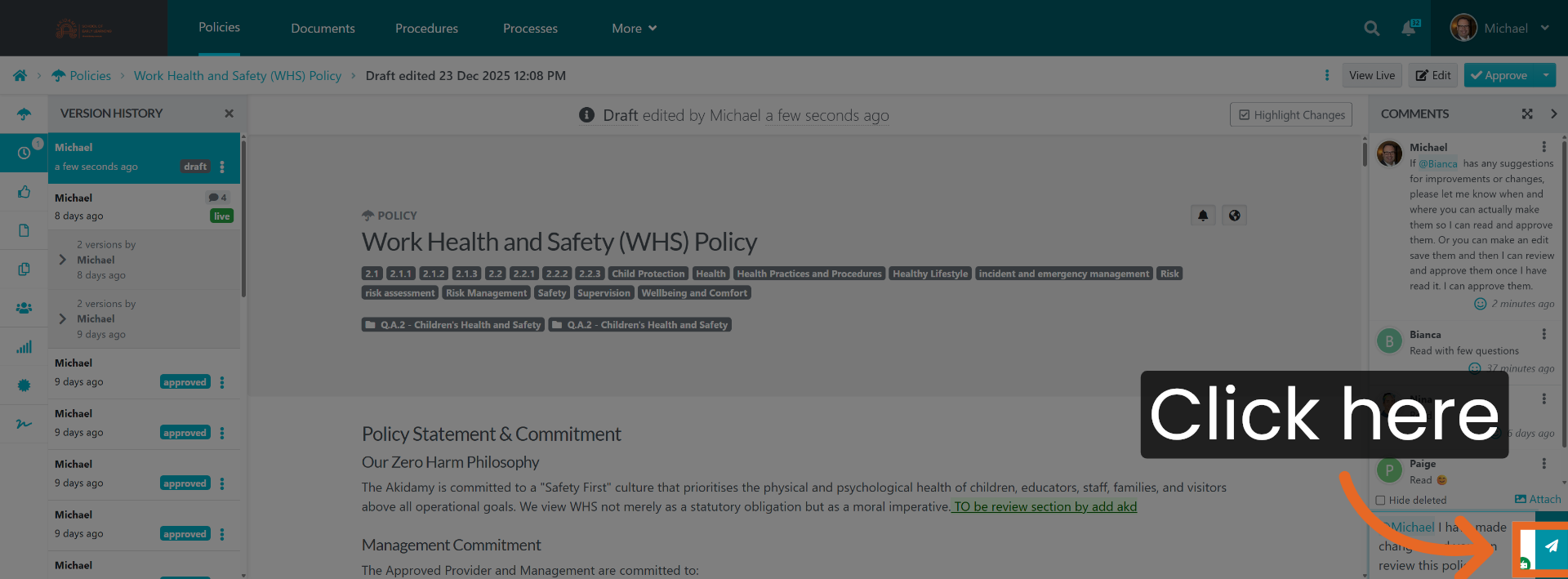
11. Prepare For Next Action
The text underlined in green highlights the changes you have made. If the change is a deletion, it will be underlined in red.
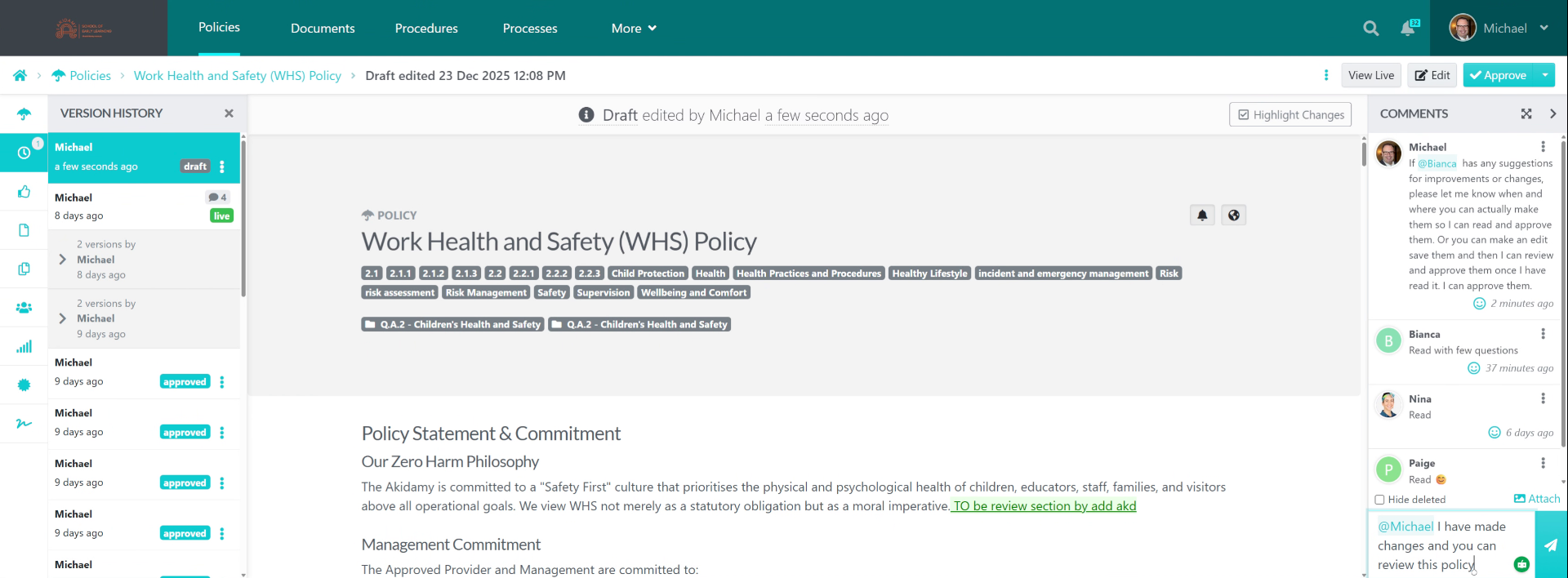
12. Review And Approve Changes
In the future, I plan to revisit that. However, if I want to revert to a previous version, I need to address the current one. I can review the changes you've made along with your suggestions, and then I typically proceed to approve the final version.
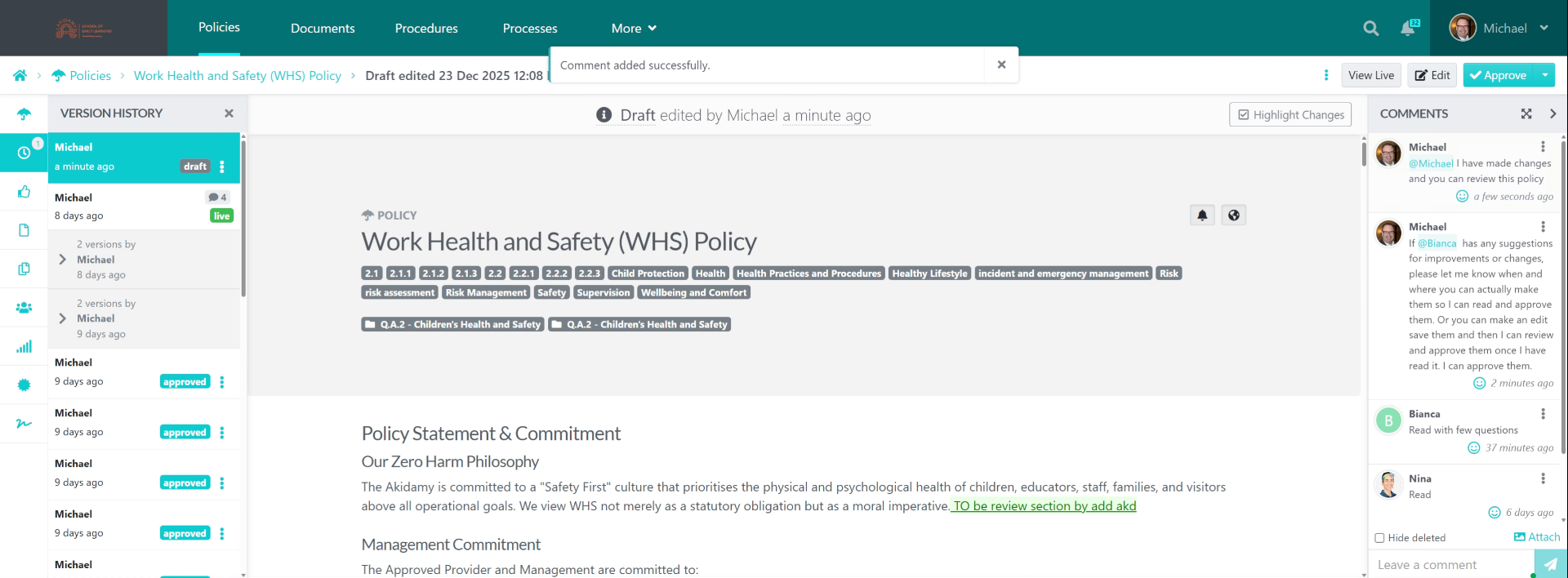
This procedure outlines how to provide feedback and edit policies or documents in Sweetprocess, including making changes, tracking versions, notifying reviewers, and approving updates to ensure compliance and accuracy.
Did this answer your question?
If you still have a question, we’re here to help. Contact us