
Edit & Provide Feedback On Policies In Sweetprocess
This tutorial will guide you through using templates in SweetProcess to streamline your document creation process. Before starting, ensure you have access to SweetProcess and the necessary permissions to use templates.
Go to sweetprocess.com
1. Introduce Template Usage in SweetProcess
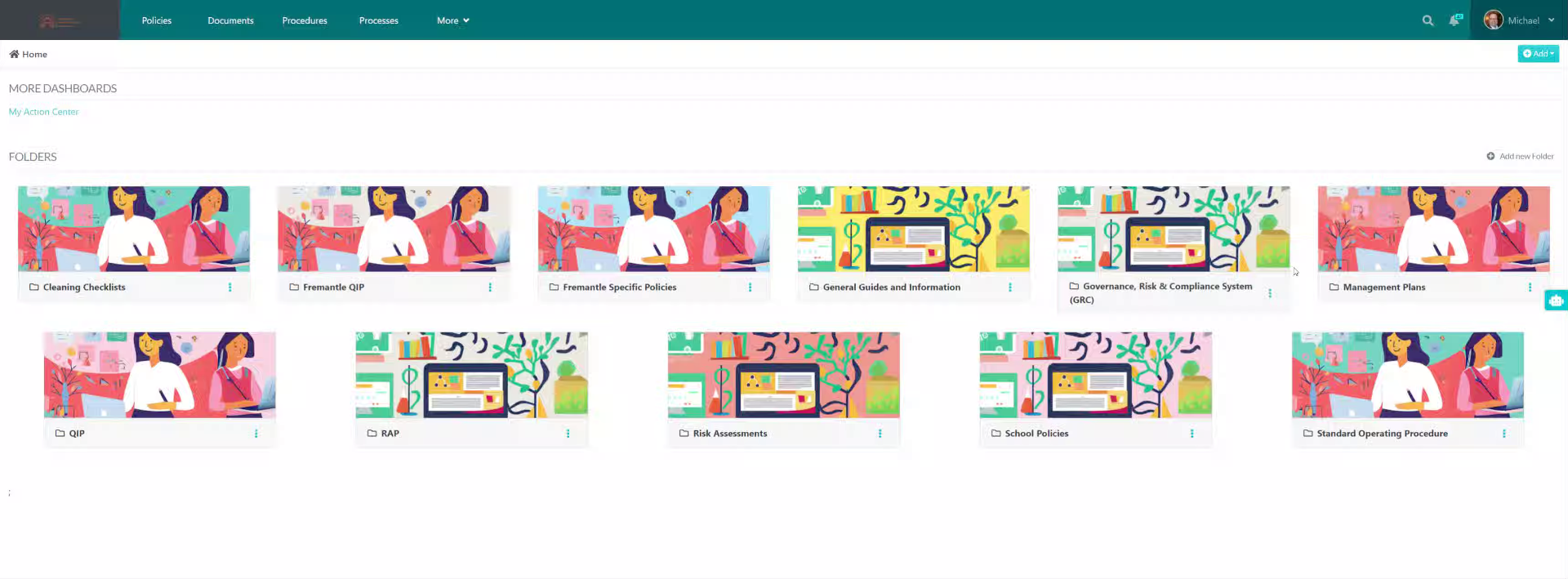
We're going to undertake a step-by-step guide. How to use templates. So assuming you go into the Suite process.
2. Navigate to Templates Section
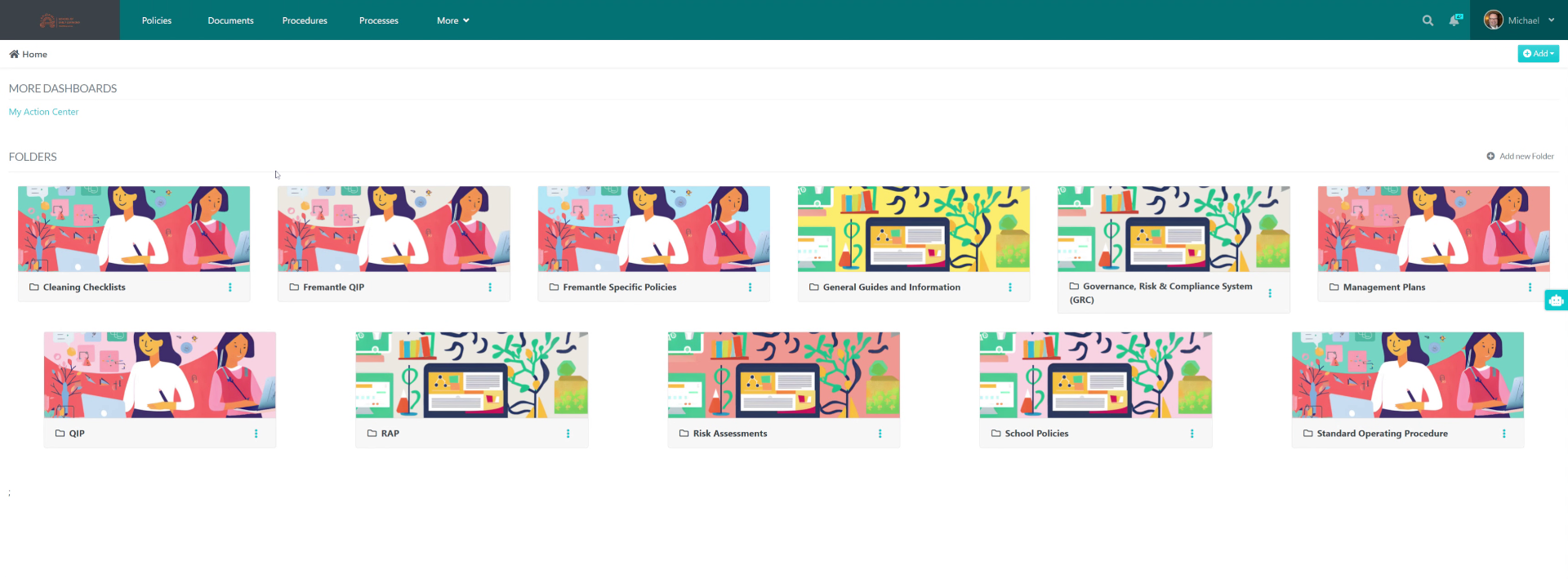
When you go into Sweetprocess you go on to templates.
3. Access the Templates Menu
Click the Templates option to view available templates for your processes.
4. Identify Meeting Template Purpose
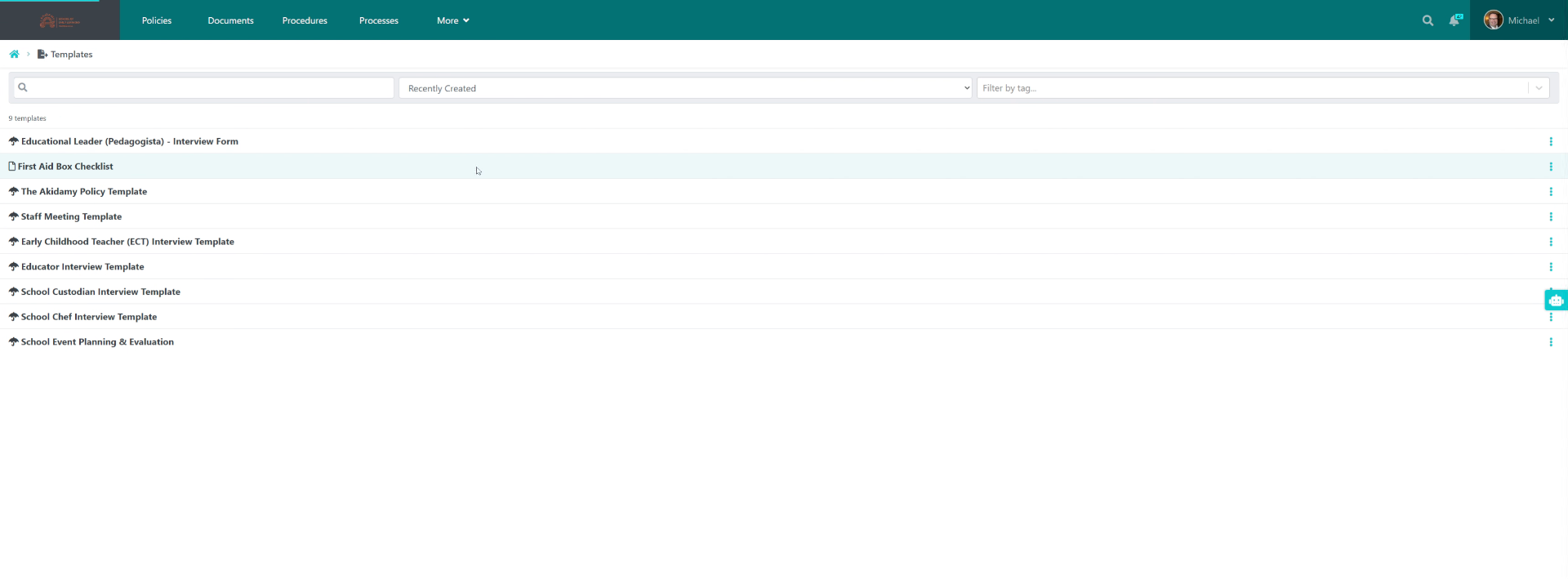
5. Select for example, "Staff Meeting Template" "
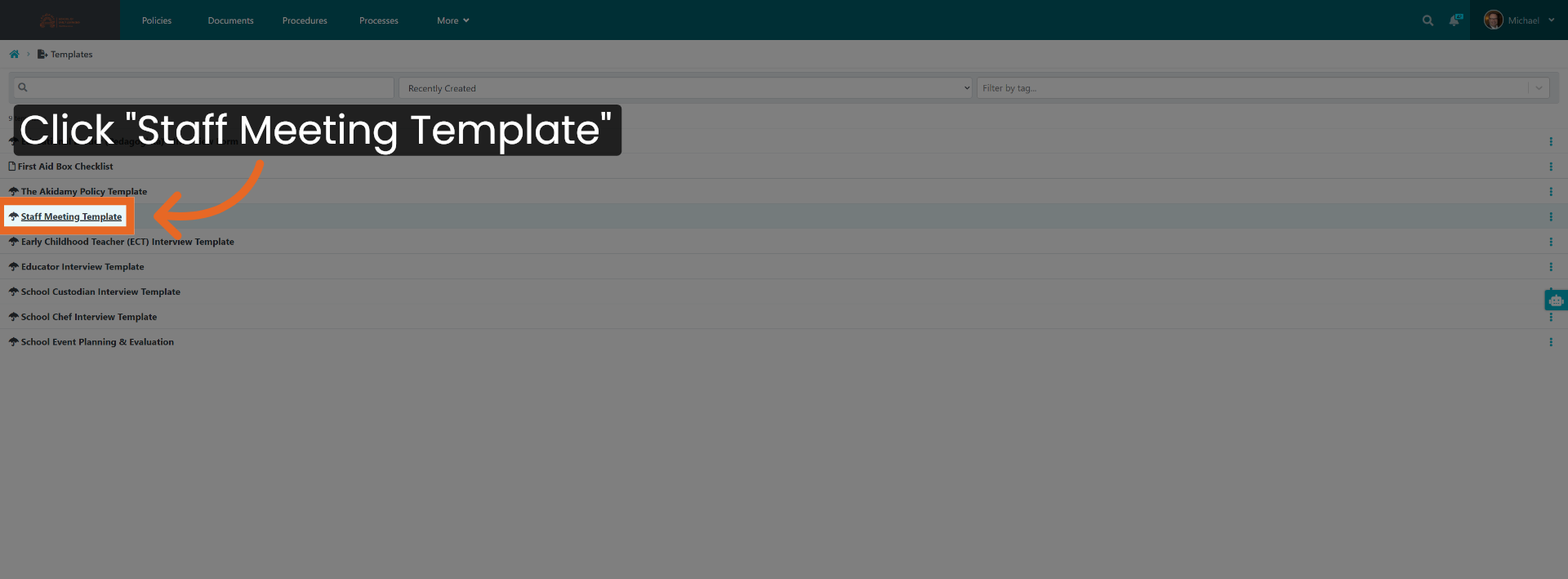
Select the template that you want to use. Click on the Template outline from the list. For this example, we have chosen the "Staff Meeting Template", which is a predefined meeting format.
6. Choose Template and Name Document
To proceed, simply press the button to select the template that you would like to utilise for your document creation. Once you make your selection, the system will automatically configure a document for you. Typically, this document is formatted as a Policy Formatted File within the Sweetprocess application. It is important to remember that you will need to provide a name for the template you have chosen, ensuring that it is easily identifiable for future use.
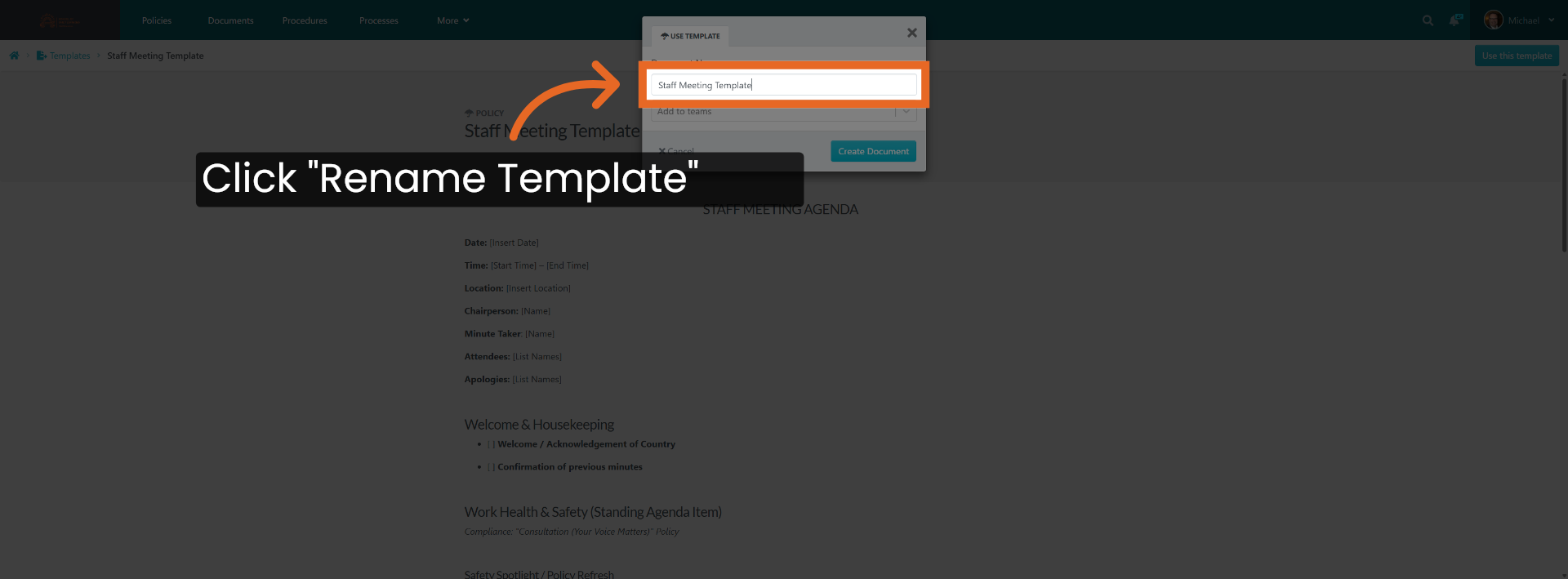
7. Confirm Template Selection
This tab is the location to rename the template file to the desired name for the activity.
8. Review Meeting Details
They are having a working lunch. 6 of October.
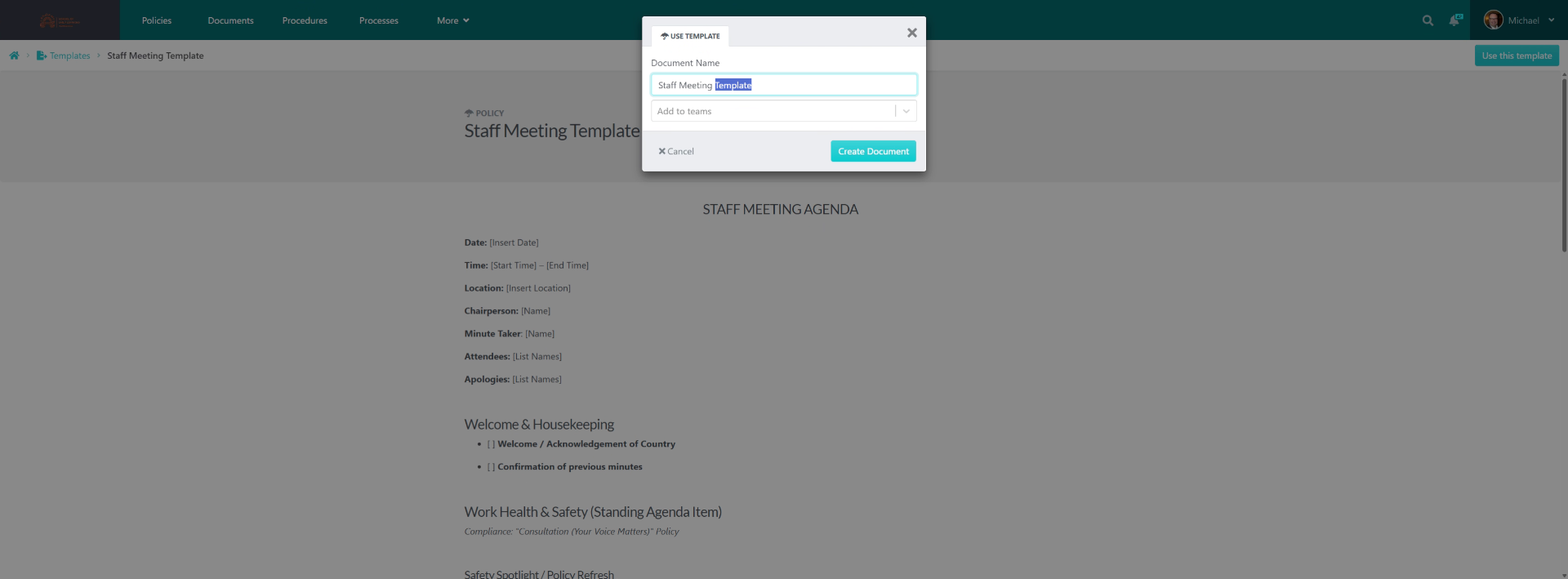
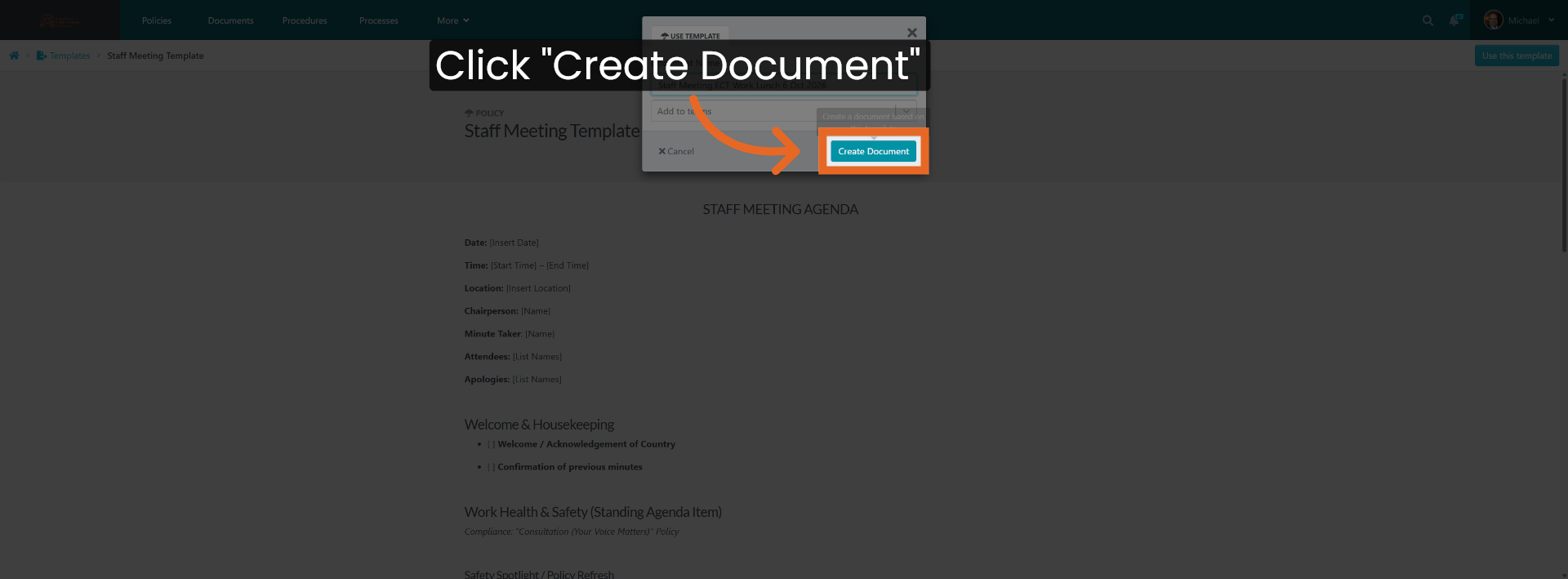
9. Create Document from Template
Click 'Create Document' to generate a new document based on the selected template.
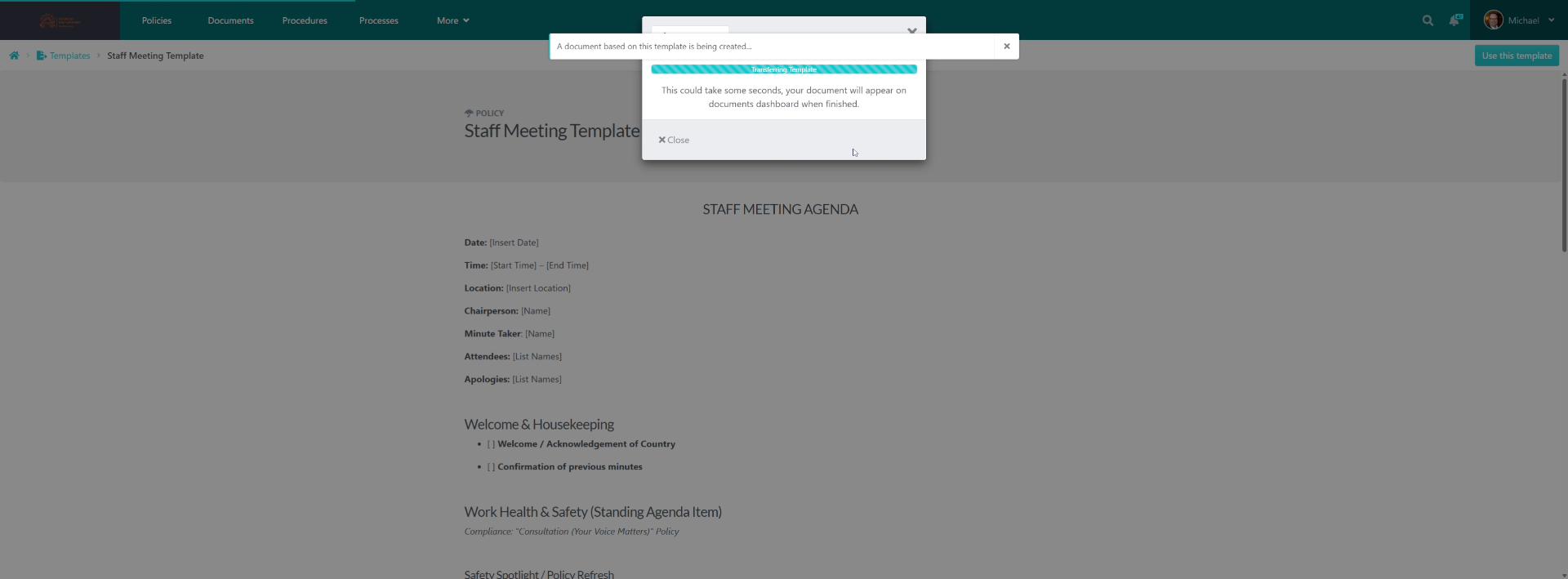
10. Locate Created Document
It creates it. You then go find.
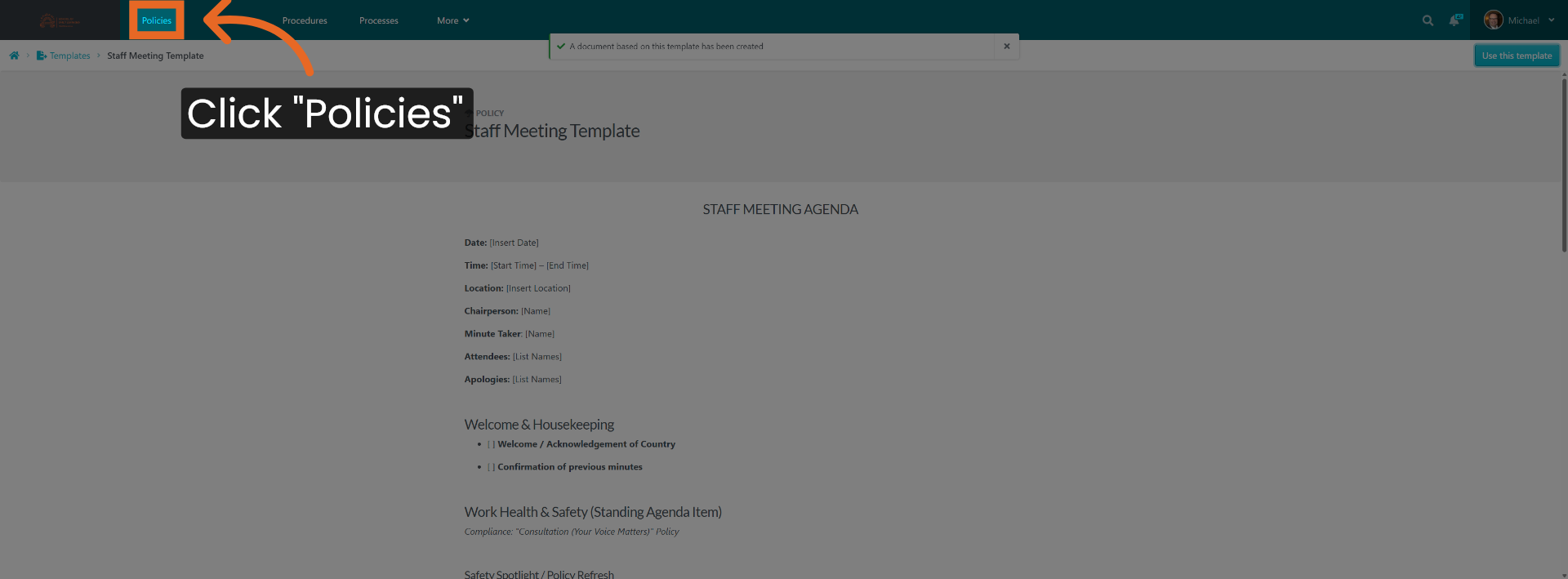
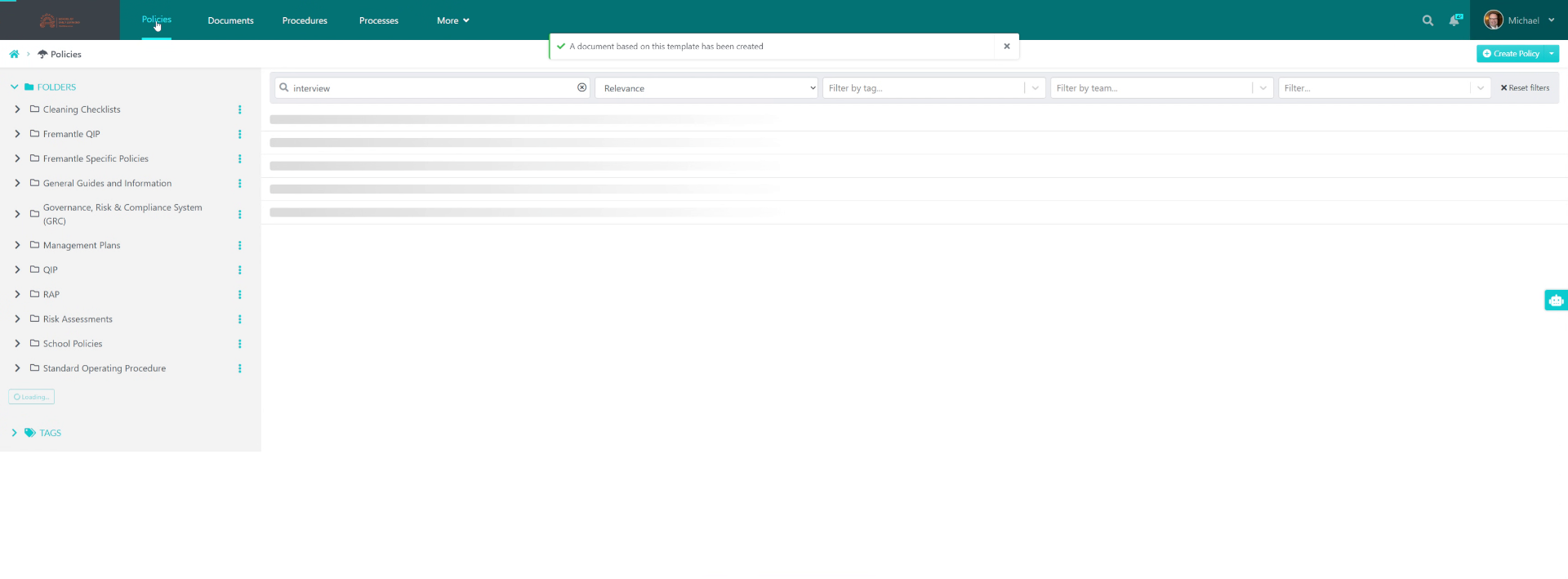
11. Open Policies Section
Click on Policies to access the related documents or settings. To find the name of the Template to rename it to.
12. Identify Relevant Item
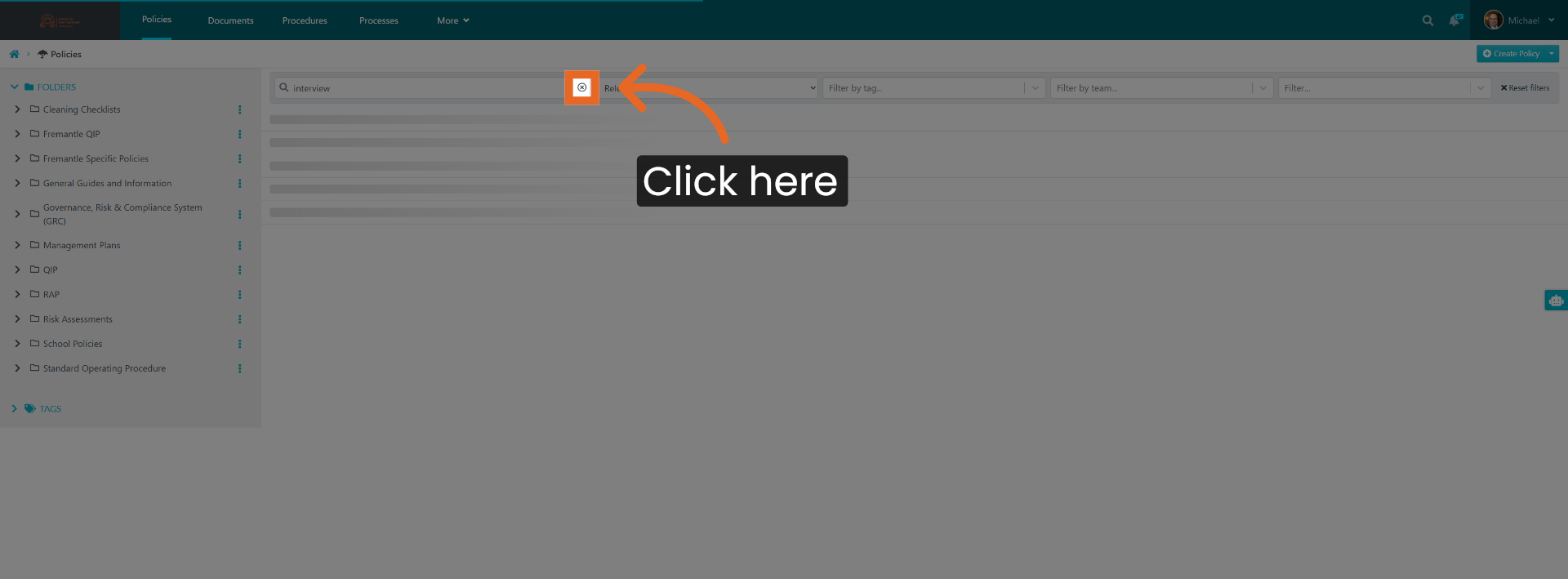
13. Select Document for Editing
14. Complete Template Usage Process
That is the end of how to create and use a template.
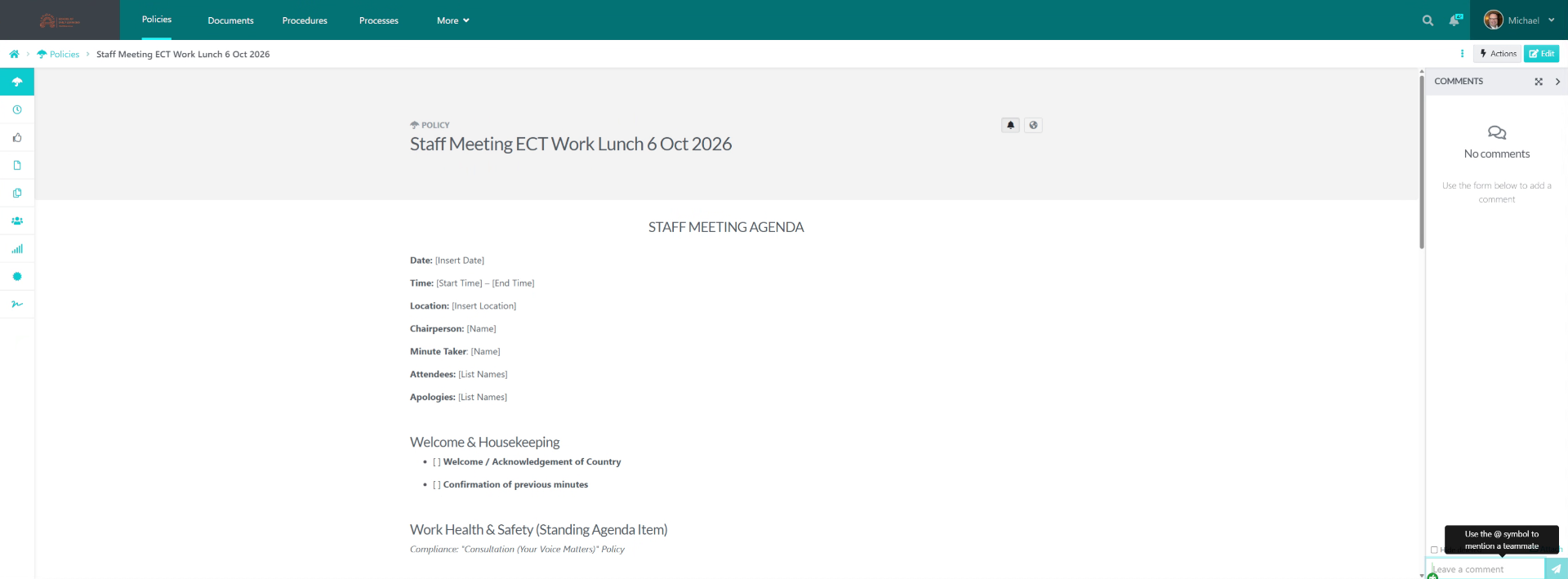
This guide has shown you how to navigate SweetProcess, select and use templates, create documents, and begin editing them effectively. You can now explore customising templates further or managing other document types within SweetProcess.
Attachments
Did this answer your question?
If you still have a question, we’re here to help. Contact us