How do I import a policy into SweetProcess?
The instructions below will show you how to import an existing policy into SweetProcess.
Use this feature when you have policies that are not yet in your organization's SweetProcess account and you want to migrate them quickly so that you and/or your employees can make any necessary changes or improvements to these documents within SweetProcess.
Please note whenever you import a policy we add a tag titled “imported” so that it is easy for you to filter/find documents you imported.
-
1Navigating to Policies
Click on the “Policies” tab (If you don't see Policies on the top Navigation Bar, you can click on "More" button to find it.

-
2Creating the Policy
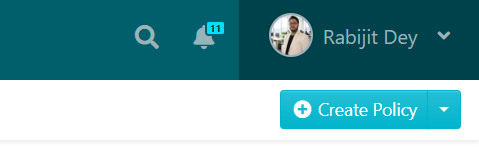
Once the new page opens up, click on the down arrow button to the right of the "Create Policy" button.
-
3Uploading the Document
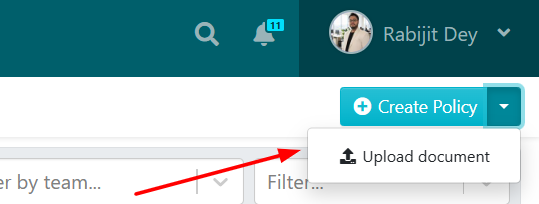
Once the menu is displayed, identify the button labeled as "Upload document". Go ahead and click on this button to proceed.
-
4Adding to Teams & Folders
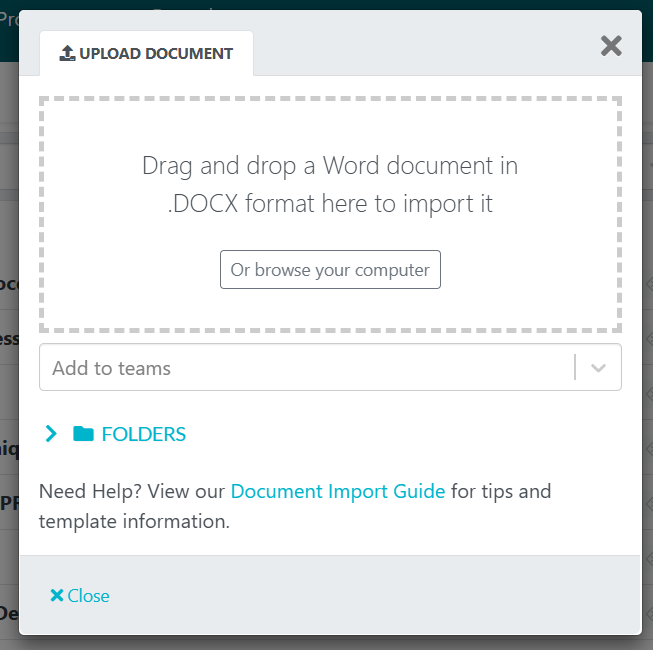
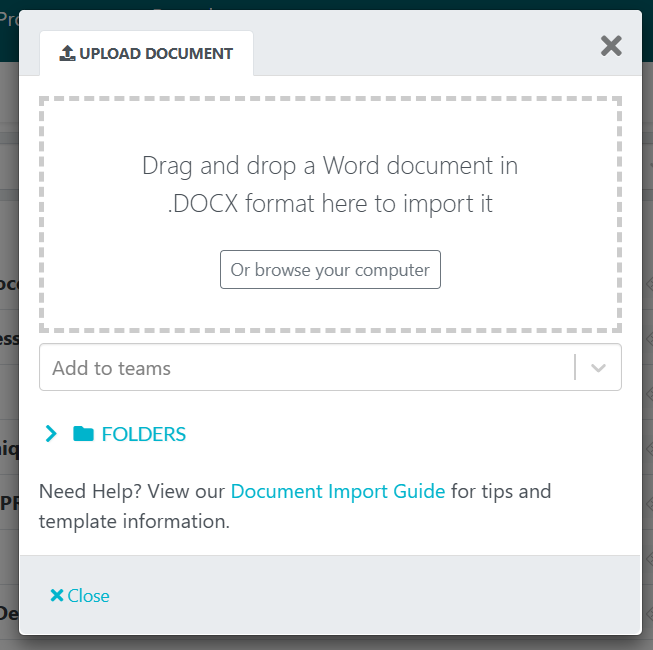
After the "UPLOAD DOCUMENT" dialog box opens up, click on the "Add to teams" button to add the policy to a team or multiple teams apart from that the Policy can be added to a Folder / Folders as well.
-
5Uploading the Document
Drag and drop the file into the "UPLOAD DOCUMENT" dialog box or browse your computer for the file and upload it.
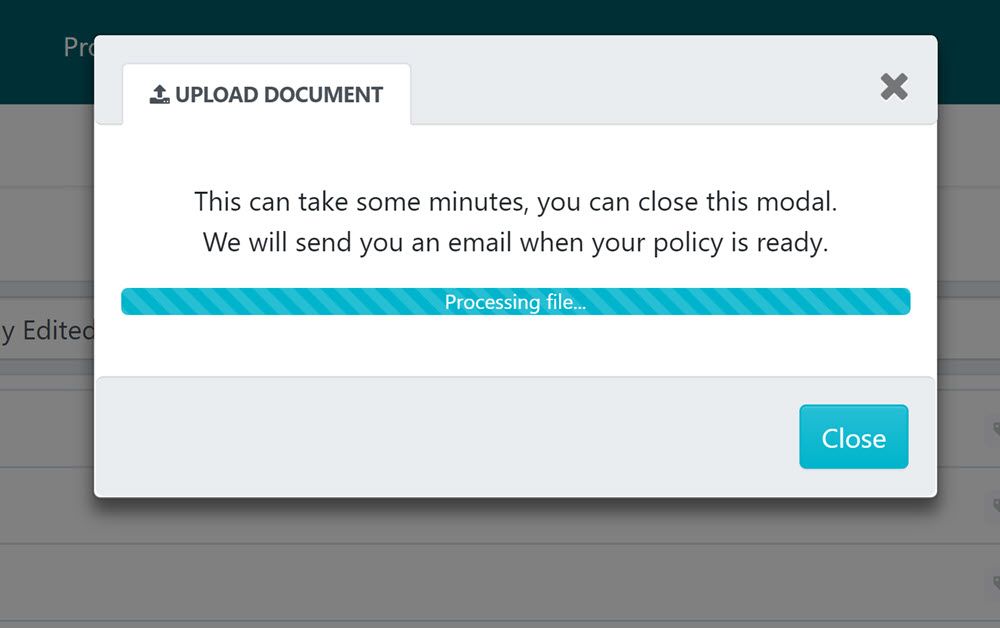
At this stage the file will be processed and imported into SweetProcess.
-
6Viewing the Policy
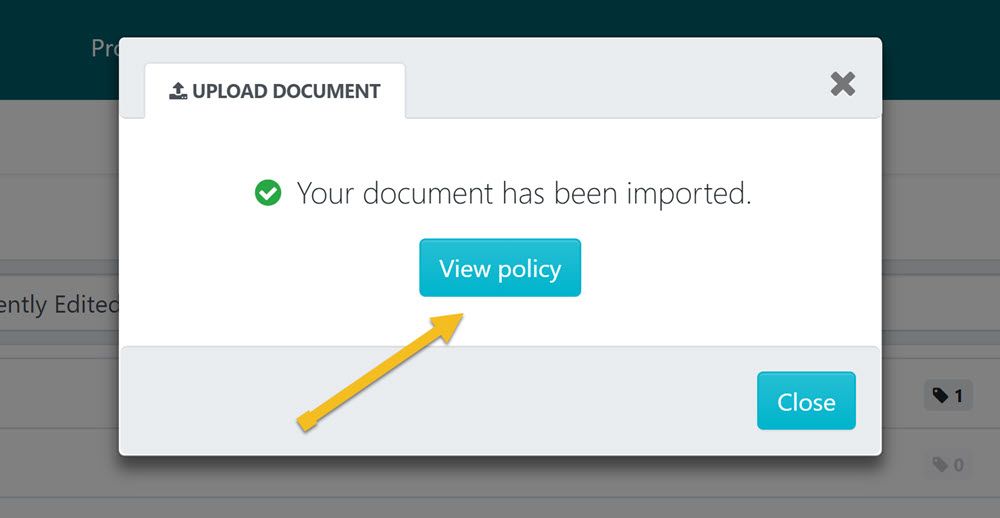
After the policy has been imported click on the "View policy" button.
-
7Editing the Policy
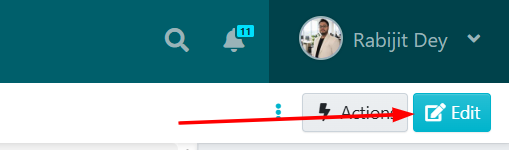
Once the new page loads up, click the "Edit" button to make changes or improvements to the policy you just imported.
-
8Make necessary changes
Make all the necessary changes and improvements to the policy as needed.
Make the changes and improvements until all the descriptions, images and so on look exactly as you want them to be inside SweetProcess.
-
9Approve / Request Approval
After making all necessary changes and improvements to the policy you imported into SweetProcess, click on “Approve”, which’s on the top right-hand corner of the page to approve the policy and make it live.

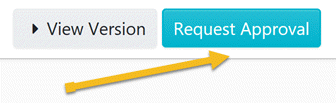
Note: if you do not have the ability to approve the policy, you will be able to request approval by clicking on the "Request Approval" button as shown below.