
How do I Approve/Reject a draft of a Procedure, Policy or Process
The instructions below will show you how to approve or reject a draft of a procedure, policy and process.
When a draft is approved it becomes the live version and this allows the content to be searchable.
P.S: Only managers of teams and super managers have the ability to approve drafts.
-
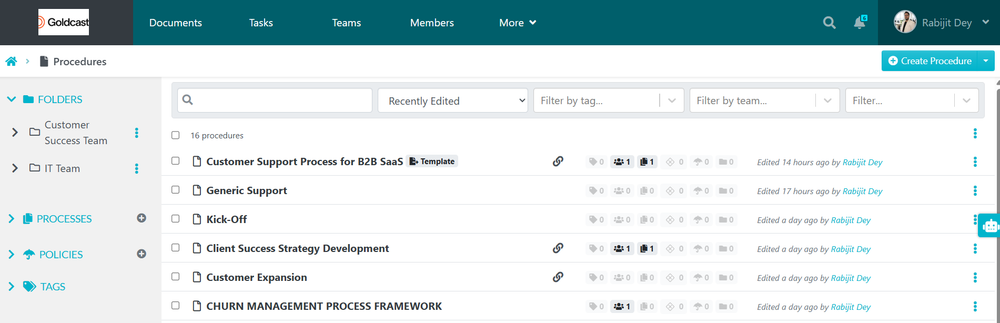
1Select the Procedure, Policy or Process.
Click on the procedure, policy or process you want to view.
-
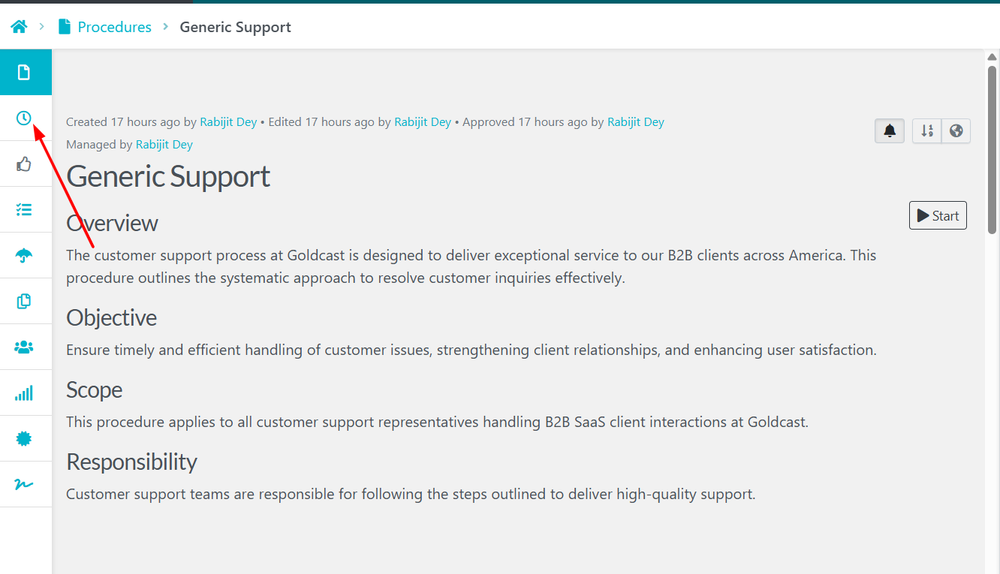
2Click on Versions
When the page loads, click on the clock icon (Versions).
-
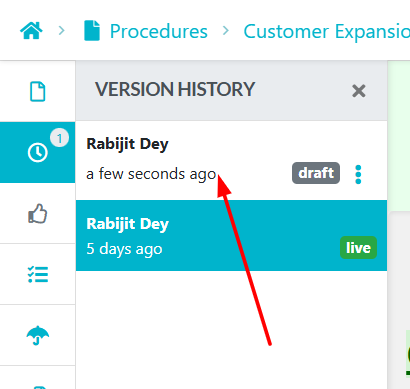
3Select the Draft
When the versions history sidebar opens, click on the draft you want to approve.
-
4Click to see the Approval Request
Once you click on the Draft you will see a Notification that will mention you to give approval for this draft.
Click on "Check it Out"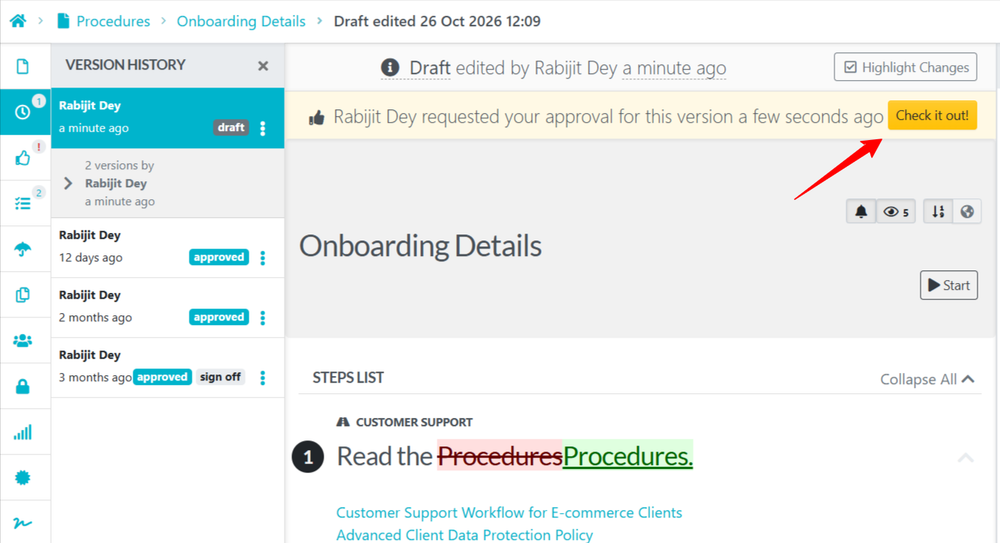
-
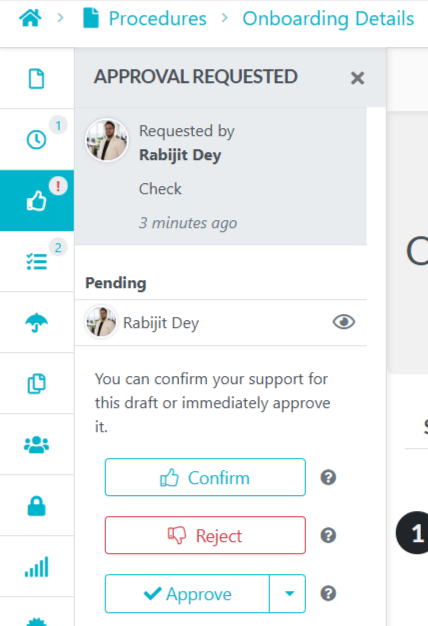
5Confirm / Approve or Reject The DraftOnce you have gone through the Draft you can choose to Confirm this version and then Approve it, or you can reject this Draft so that the team member can work on the changes and request again for Approval.
Did this answer your question?
If you still have a question, we’re here to help. Contact us