
Generating the report to get the List of All Document Tasks
This report provides a list of tasks associated with a document
-
1Navigate to "Reports" section
1. Open Your Account Menu
In the top-right corner of the SweetProcess dashboard, click on your Profile Name.
A dropdown menu will appear. Click on My Account to enter your administrative settings.
2. Access the Reports Tab
Once you are in the account settings page, look at the sidebar on the left side of the screen. Scroll down until you see the Reports tab.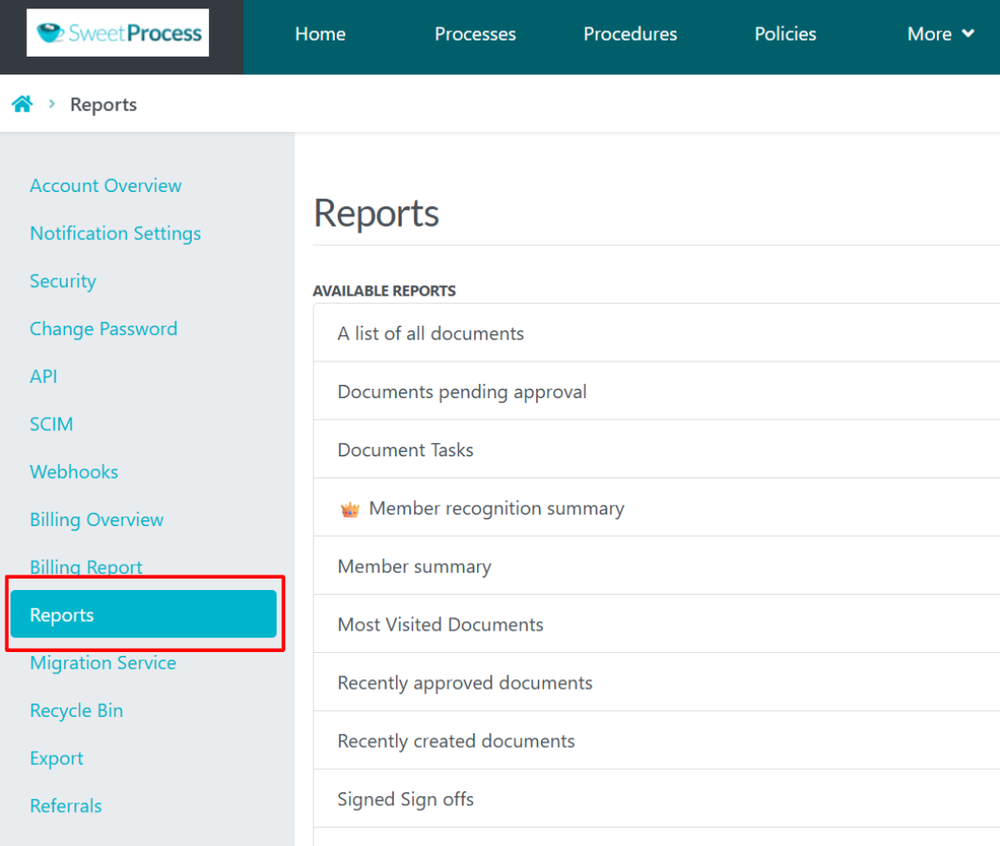
-
2Click on "Document Tasks"You will now see a list of Available Reports on the right side of the page.
Click on "A List of all documents"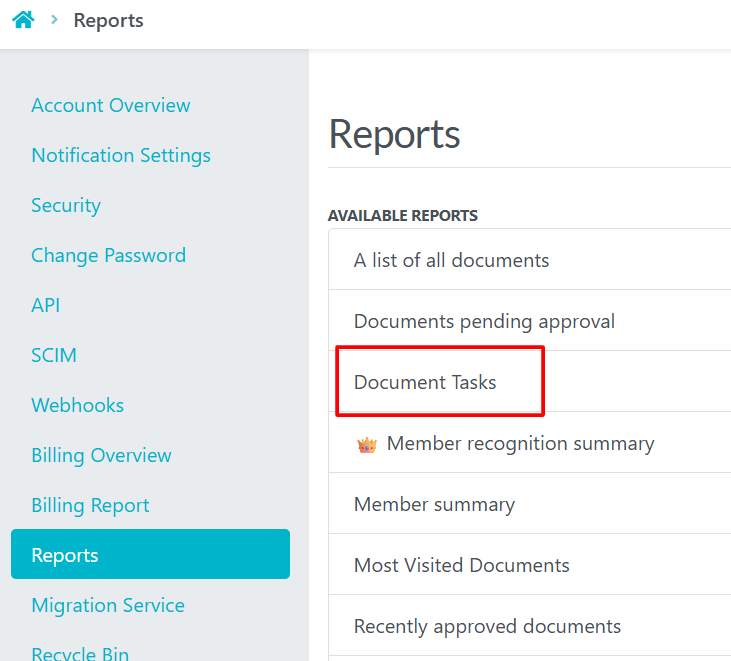
-
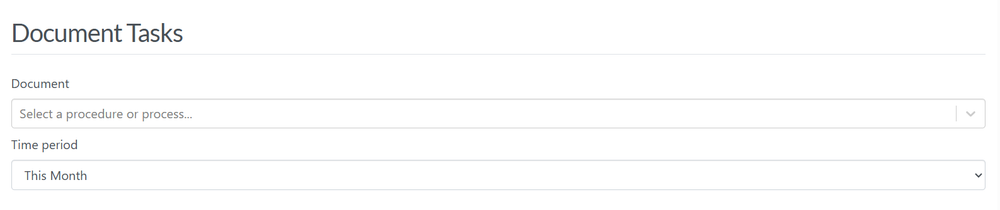
3Select the Document & Date RangeYou can generate the report based on the Document you choose and the different Date Ranges available, or select your own range.
-
4View / Download the ReportAfter selecting the Document & Date Range click on Run Report.
Post that the report will be available to see in the dashboard and from their you can download the report as CSV as well.
Did this answer your question?
If you still have a question, we’re here to help. Contact us