
How do I add an Employee to a Team?
The instructions below will show you how to add an employee to a team.
There are a few levels of permission that a team member may have:Manager
A manager will have approval access to documents in the team, they can also add and remove staff from the team.Member
The default level of access. A member may create new draft edits to a document in the team, but they may not approve them.Read Only
A read only member can read the documents in the team but they cannot suggest edits-
1Click on "Teams" Tab
On the top Navigation Bar click on "Teams"

-
2Select the Team
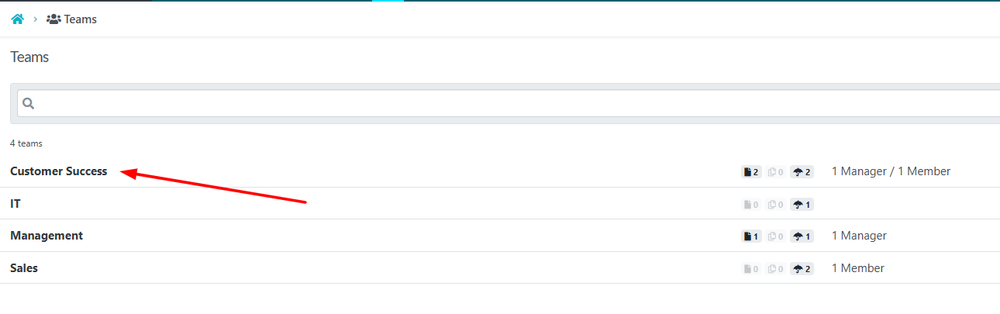
When the “Teams” page opens up, click on the name of the team you want to add an employee to.
-
3Add new member
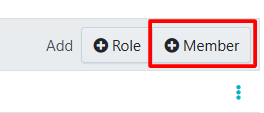
As soon as the team opens up, click on the “+ Member” in the top right-hand side of the page.
-
4Add the member
1. Adding Existing Account Members
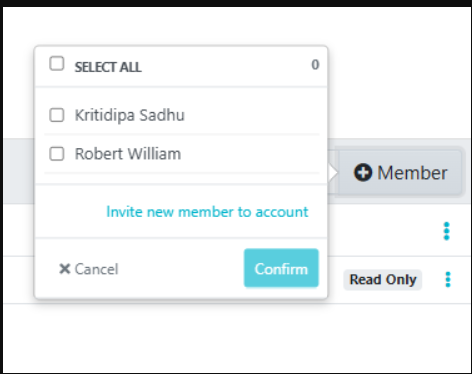
If the person you want to add is already a user within your SweetProcess account, you can add them to the team instantly.- View the List: A dropdown menu will appear showing existing employees (e.g., Kritidipa Sadhu, Robert William).
- Select Individuals: Check the box next to the name(s) of the people you wish to add.
- Select All: Use the "SELECT ALL" toggle at the top to add everyone currently in the account to this specific team.
- Confirm: Click the teal Confirm button to save your selection.
2. Inviting a New Member to the Account
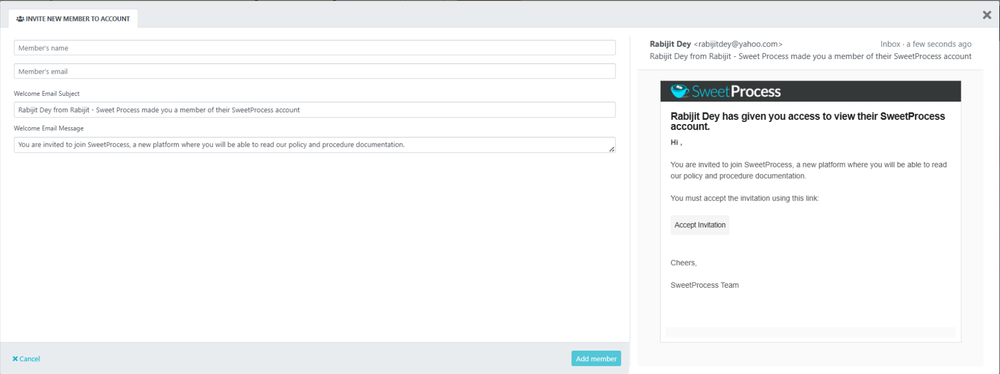
If the person is not yet a user in SweetProcess, you can invite them directly from this menu, which will add them to the account and the team at the same time.- Initiate Invite: Click the link labeled "Invite new member to account" at the bottom of the dropdown.
- Enter Details:In the modal that appears, fill in the following:
- Member's Name: Their full name.
- Member's Email: The address where they will receive their invitation.
- Customize the Welcome Email: You can review or edit the Welcome Email Subject and Message to provide extra context about their new role.
- Send Invite: Click the Add member button at the bottom right.
Note: The new member will receive an email with a link to "Accept Invitation." They will not appear as an active member until they have completed their account setup through that link.
You can instantly give Manager access to the Team Member as well.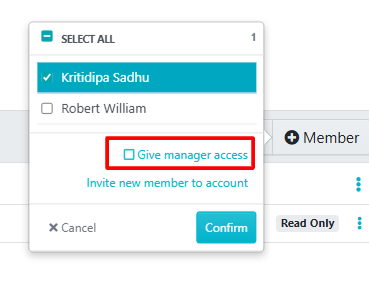
-
5Change team member to read onlyYou may want your new team member to only have read-only access to the documents in this team.
Select the three dots menu on your new team member and choose 'Read Only Member'. You can convert them back into a 'Team Member' (the default) by simply re-selecting that option later on.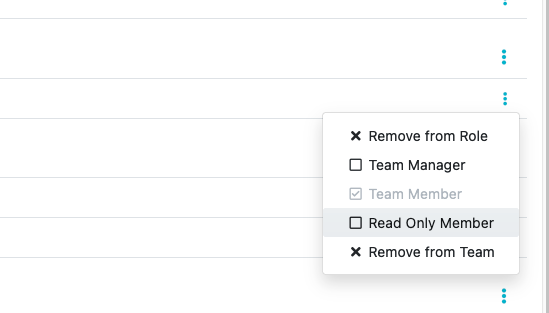
Did this answer your question?
If you still have a question, we’re here to help. Contact us