
How To Update ACH in Skyward
-
1How To Update ACH in Skyward Online Forms
Any changes to ACH must be submitted prior to the Monday of Payroll week; otherwise, your ACH will be sent to your previous banking account.
Log in to Skyward using Sign IN SSO
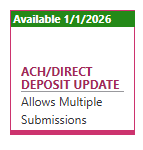
On your dashboard, please click the “ACH/DIRECT DEPOSIT UPDATE” tile. NOTE: Once you select the tile, it will create a new tile on your dashboard with the in progress status until you submit the form.
Your previous banking information will appear at the top and bottom of the screen. Be sure to remove the old banking information
Complete the fields for each step as necessary with your new banking information
Click Complete & Next near the top of the screen once you are finished entering the information
Upload a copy of your voided check or your direct deposit confirmation letter
Click Complete & Review
After you have reviewed the information entered for each step, check the box at the bottom of the list of steps to confirm that all the above information is correct.
Click Submit Form
**Payroll will review your updated ACH/Direct Deposit information. Please view the My Messages tab in Skyward for any denial reasons**
-
2How To Delete In Progress Forms
Click the IN PROGRESS tile you would like to delete
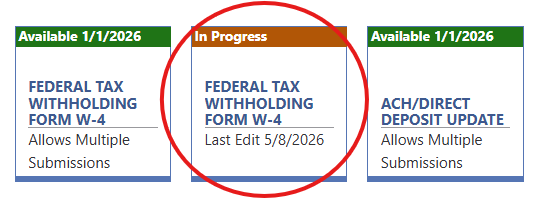
2. In the upper right corner, click Delete In Progress Online Form
