
Microsoft 365 - Multi-Factor Authentication (MFA) Setup
To enhance email security, a security feature called “Two Factor Authentication” will be enabled. This will help prevent unauthorized access to your e-mail account even if your password is compromised.
2 Factor Authentication sends a code through text, phone call, or with a mobile app like Microsoft Authenticator when accessing email through the Microsoft website.
Please follow the steps below to configure 2 Factor Authentication.
If you have any questions or need assistance, please feel free to reach out to Next7 IT by email at support@next7it.com or by calling the support line at (412) 573-9684.
2 Factor Authentication sends a code through text, phone call, or with a mobile app like Microsoft Authenticator when accessing email through the Microsoft website.
Please follow the steps below to configure 2 Factor Authentication.
If you have any questions or need assistance, please feel free to reach out to Next7 IT by email at support@next7it.com or by calling the support line at (412) 573-9684.
-
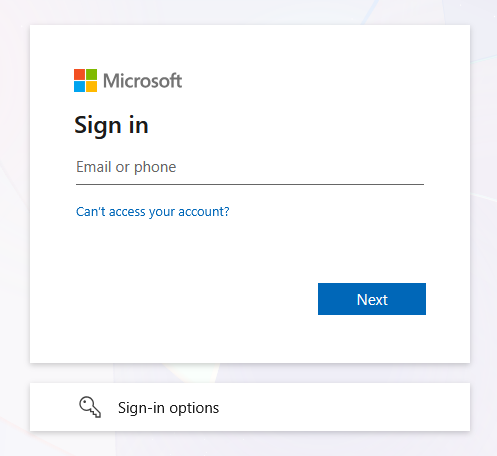
2Enter your e-mail address then click Next
-
3Enter your password when prompted then click Sign In.
-
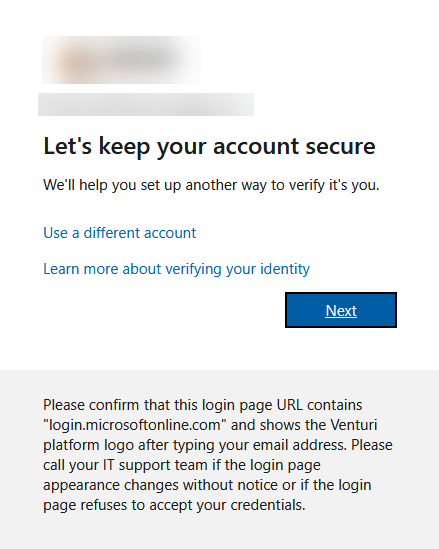
4You will be prompted to set up additional security verification.
-
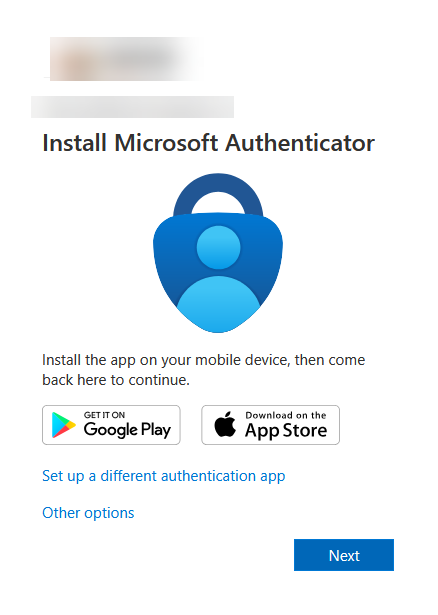
5Click NextYou will be prompted to install the Microsoft Authenticator app onto your cell phone.
-
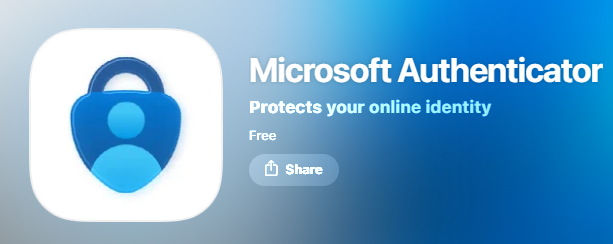
6Download The Microsoft Authenticator App on your Phone to Receive Verification Codes
- Download the Microsoft Authenticator app to your phone
-
7Open the app and Accept Notifications.
-
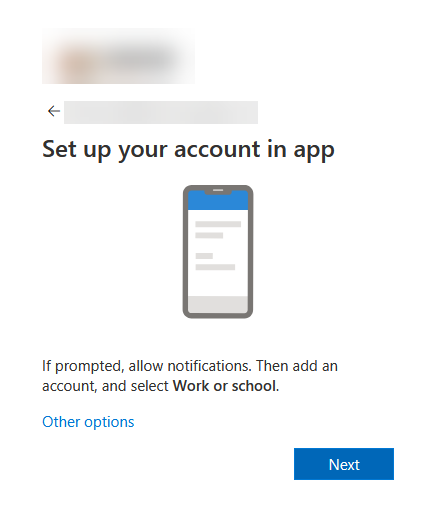
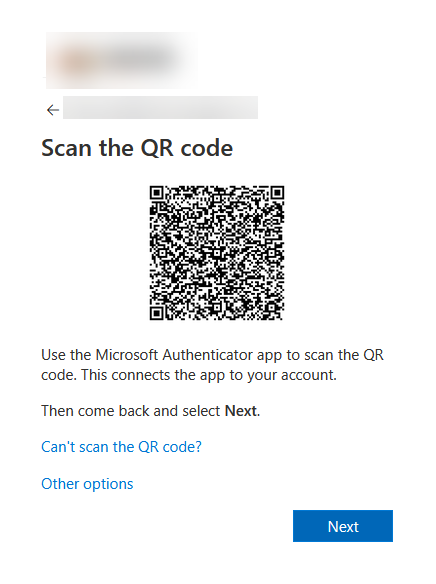
8SetupYou will be prompted on the webpage to setup a Work or School account. Click Next
-
9On the Authenticator Tap Work or school accountTap Scan a QR Code
-
10Hold camera of phone toward the screen to capture the QR code on your screen.
- You may need to increase the brightness of your computer screen if it cannot not read it.
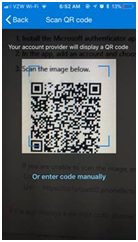
- You may need to increase the brightness of your computer screen if it cannot not read it.
-
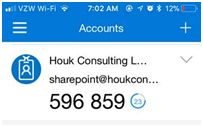
11The Authenticator app will show your account and when you tap on it you will see 6 numbers cycling underneath it.
-
12Press Next on the QR Scan page on your computer.
-
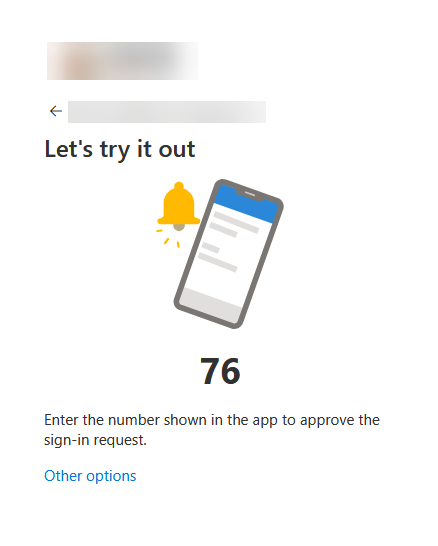
13Microsoft Will Test The Authenticator App By Having You Confirm A Number On The Webpage.
-
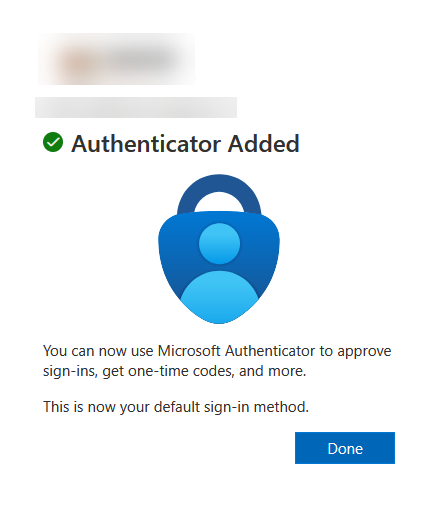
14The Webpage Will Now Refresh And Confirm That The Authenticator Was Added To Your Account.
-
15Press Done.
-
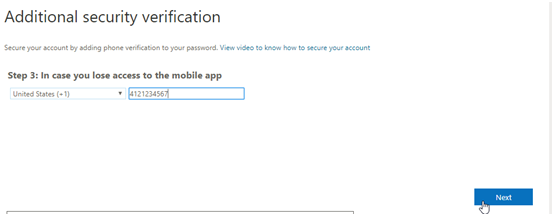
16If prompted, enter your phone number on the next screen then press Next.
-
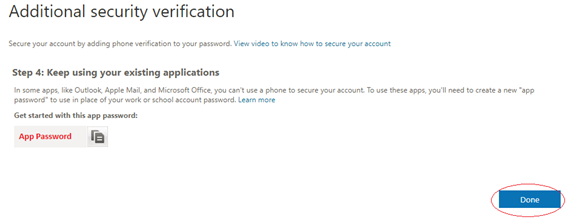
17If prompted, you will be given an app Password.
- App passwords are passwords to be used in legacy applications but are generally not needed anymore.
- Please make a note of the password somewhere secure.
- Press Done once the password is documented.
-
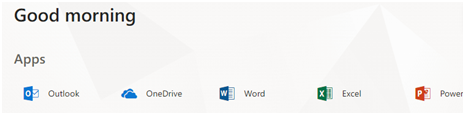
18You will be re-directed to the portal. From here you can access Office365 web applications.
-
19To sign backTo sign back into your webmail at any time afterward, navigate to outlook.office365.com.

Did this answer your question?