
How to Set the Default Document Order in SweetProcess
Choose how procedures, policies, and processes are ordered by default across your account.
Who can change this setting?
A workspace administrator can update the default document order from the Account Overview page. The setting is account-wide and affects all users in the account.-
1Open Account OverviewSign in to SweetProcess, select your profile menu in the upper-right corner, and open Account Overview.
-
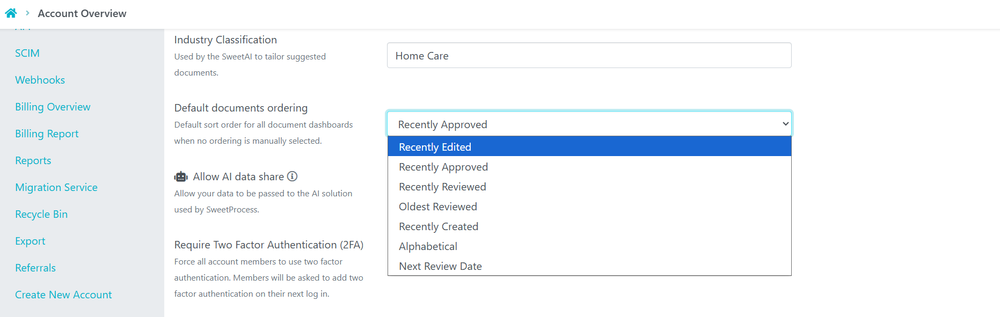
2Find Default documents orderingOn the Account Overview page, scroll to the Default documents ordering setting.
-
3Choose the default orderOpen the dropdown and select the order you want SweetProcess to use by default.
The new order will apply across the account
Did this answer your question?
If you still have a question, we’re here to help. Contact us