Last Updated on October 13, 2026 by Owen McGab Enaohwo
Scribe and Loom have different use cases. While Scribe captures your clicks and turns them into a screenshotted guide, Loom’s format leans more towards capturing a video that someone has to watch.
This difference matters depending on the process you are documenting. A repeatable software workflow may be easier to follow as a series of screenshots and written steps. On the other hand, a task that needs additional explanation or context may work better as a video.
The choice comes down to what your team needs to do with the instructions: skim a repeatable task, watch an explanation, or maintain an approved procedure over time. Comparing Scribe and Loom on capture, editing, pricing, and upkeep makes those differences clearer, including when a system such as SweetProcess is a better fit for managing the finished procedures.
To test drive SweetProcess’s features, consider signing up for a free trial. No credit card is required, and you can cancel anytime. Click here to start for free!
Key Takeaways
- Scribe captures browser and desktop workflows and automatically creates step-by-step guides from your actions.
- Loom is a video messaging and screen recording tool that lets you capture your screen and voice to explain processes and demonstrate tasks.
- Your choice of tool depends on how your team needs to capture, explain, share, and maintain process documentation.
- While both Scribe and Loom capture your screen, they don’t offer comprehensive process documentation beyond that step. Tools like SweetProcess provide a platform to assign, review, and track whether the process was followed. Try SweetProcess here for free for the first 14 days!
Table of Contents
- What is Scribe?
- Who Is Scribe For?
- What is Loom?
- Who Is Loom For?
- Do You Need Both Scribe and Loom?
- Scribe Vs Loom: Key Differences
- Scribe vs. Loom: Use Cases
- Cons of Scribe
- Cons of Loom
- When Neither Tool Is the Answer
- SweetProcess: The Scribe and Loom Alternative for Documenting and Managing Your Company’s Procedures and Processes
- Scribe vs. Loom: Which Should You Choose to Create Step-by-Step Guides and Instructions?
- FAQs
What is Scribe?
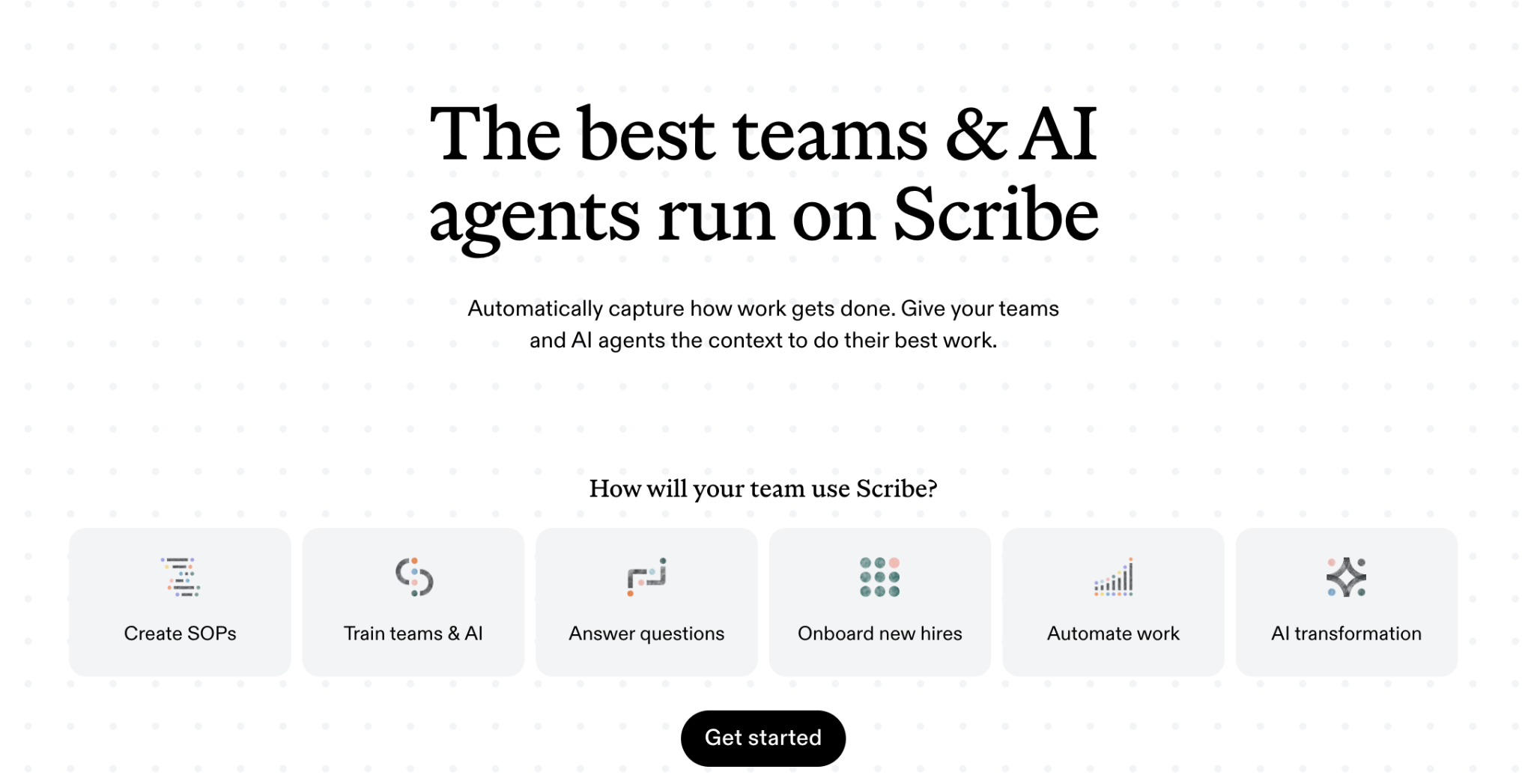
Image source: Scribe
Scribe is a tool that lets you record the steps of a process and then automatically convert them into clear, easy-to-understand instructions. In your company, you may be the expert on performing certain tasks. Scribe is a process documentation software that can transform those tasks into easy-to-follow steps.
What makes Scribe stand out from other SOP software is its user-friendliness. Its AI feature converts any process into a detailed step-by-step guide with text and annotated screenshots. You can tailor these guides to your business requirements. You can use Scribe to create training manuals and onboarding materials for new team members or even clients. Eventually, you can share these guides within your company’s knowledge base.
Here is how Scribe works: It lets you capture on-screen actions, such as movements and clicks, and then turn them into detailed guides with screenshots and text. As a team leader or manager, you can edit and share these guides with your team. But first, you need to install the Scribe Google Chrome extension. Once it’s up and running, you can record your screen and turn it into instructions. You can do all that within a few seconds. Creating step-by-step instructions for your team and employees has never been this quick and painless.
If you’re weighing Scribe against another click recorder rather than a video tool, Scribe vs. Tango covers that comparison in depth.
Who Is Scribe For?
Scribe is valuable for small to medium-sized businesses, including freelancers. As a business owner or technician, you’ll find this software useful. If you frequently create tutorials and how-to guides, this tool will simplify your work.
Your team can quickly access instructions from Scribe, share them with a link, or add them to your knowledge base. Scribe is also excellent for documenting admin pages for clients. If you are an admin virtual assistant, it will save significant time during meetings.
Key Features
- Browser extensions: Available for Chrome and Edge on desktop. It lets you capture browser-based apps and processes with ease for you and your team.
- “Capture a Scribe” feature: Scribe automatically creates step-by-step guides for digital processes. To use it, simply activate the Scribe recorder through its browser extension. Alternatively, you can use the desktop application by installing it on your computer.
- Training materials: Create a knowledge base for your company, ranging from detailed guidelines to accessible documentation. Ensure team members can easily find the information they need whenever they need it.
- Drag-and-drop editor: This feature lets you create guides by dragging and dropping elements into place.
What is Loom?
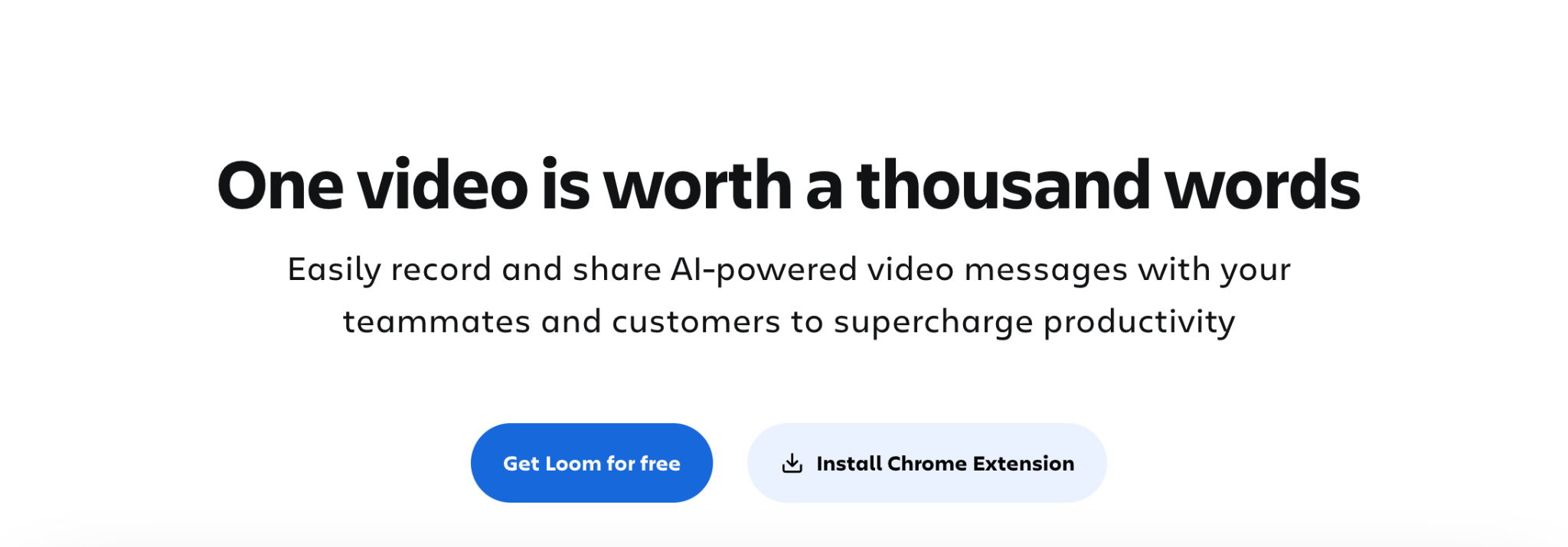
Image source: Loom
Loom is an asynchronous video tool. You record your screen and your voice, and Loom generates a shareable link instead of a document. This allows your team members to watch it whenever it fits their schedule, rather than sitting through a live call.
With this tool, you can create and share recorded guides with your teams. It’s especially valuable for recording straightforward company instructions. Instead of writing out every step, you can record your screen and voice, walking through a task from beginning to end.
It streamlines collaboration by making information sharing swift and simple. Even better, you don’t need to jot down extensive meeting notes; Loom lets you record meetings or screen activity. Loom’s video editing features also allow for edits and comments.
Who Is Loom For?
Loom suits small business owners, remote and distributed teams, and anyone who wants a cheaper, faster alternative to writing a guide from scratch. If your team is spread across time zones, a short video often communicates more in two minutes than a page of written steps, making Loom a powerful screen-sharing tool for remote teams.
Key Features
- Record with custom backgrounds: Blur or replace your background with images or videos during webcam recordings.
- Enhance collaboration: Loom was designed for team collaboration. It lets you add timestamped comments and emojis to videos.
- Captions: Loom provides video transcription and closed captioning.
- Integrate with other tools: Sync Loom with apps like Slack, Gmail, Salesforce, and more.
- Capture screenshots: Quickly take screen images, even though many devices already have this feature.
Do You Need Both Scribe and Loom?
You may need both Scribe and Loom if your process requires a visual guide and explanation. The format you keep depends on what your team members need to understand or do. Here’s a breakdown of when to go for each of these tools:
When You Need a Written Guide
A written Scribe guide gives your employees a practical reference. They can open the guide, scan the screenshots, find step seven, and continue working. For instance, if a team member needs to confirm a step in the refund process, nobody wants to scrub through a four-minute video to find it. A written guide with screenshots lets them scan straight to the step they forgot.
When You Need Video
If your task involves a judgment call, Loom is a better choice. You can use it for tasks such as explaining how to handle or escalate a difficult customer complaint. Video carries tone better than a screenshot in this case, because you can communicate context more naturally and explain your reasoning while showing the relevant screens.
When You Need Both
Employee onboarding is the clearest case for using both tools together. A new hire can watch a Loom video once to understand why a process exists and how it fits into the bigger picture. Then they can refer to a written guide every time they perform the task. If the employee forgets how to complete step seven three weeks later, they can open the written guide.
If you’re weighing this same question on how Loom stacks up, our Tango vs. Loom comparison covers the differences between video documentation and workflow capture in more detail.
Whichever way you land, the tool you pick only solves half the problem. Someone still has to own the guide, keep it current, and confirm the right person actually followed it, which is the part SweetProcess is built to handle. Start your free 14-day trial to see how.
Scribe Vs Loom: Key Differences
Scribe and Loom solve the same underlying problem, capturing what you do on a screen, but they hand you back two completely different formats. Scribe gives you a screenshotted document while Loom gives you a video.
On top of these two, there is also SweetProcess. It comes with two fantastic features to simplify the creation of your instructions and guides: the Google Chrome plugin and SweetAI. It gives you both a capture tool and a system for managing the results.
Here’s how the three tools compare:
| Scribe | Loom | SweetProcess |
| The dashboard is built around individual guides and can feel busy once you have many. | The dashboard is built around a video library. It’s simple and fast to navigate. | The dashboard is user-friendly and easy to navigate. Built for managing procedures, processes, and policies together. |
| Mobile capture is limited to Pro and Enterprise plans. | Loom mobile app is compatible with both iPhone and Android devices. | SweetProcess is compatible with both iPhone and Android devices. |
| Can’t capture audio | It includes audio capture functionality. | Can’t capture audio. |
| Integrates with Confluence, Notion, and other tools | Integrates with Dropbox Business, Gmail, and other everyday tools. | Seamlessly integrates with over 1,000 apps through Zapier. |
| Limited customizability. | You can customize Loom. | It is customizable. |
| The free plan comes with limited features. | Freemium is available for freelancers and startups. Starter tier is free but capped at 25 videos. | Offers a 14-day free trial. Every plan includes the same full feature set. |
| Can’t handle longer processes. Industries such as manufacturing will not find it useful. | It handles longer processes effortlessly. | Can create longer processes, procedures, and policies |
| Clunky dashboard | Intuitive dashboard. | Intuitive dashboard. |
Product details and pricing were checked on September 7, 2026.
Screenshot Capturing and Editing
Both Scribe and Loom let you capture and edit screenshots. Loom simplifies the process of editing text and images once they’re captured. Simply open the app and hit the “Start recording” button to begin.
With Loom, capturing and sharing screenshots with your team is straightforward. Simply click a button to take a screenshot and create a shareable URL. Plus, all screenshots are saved in your Loom Library for easy access. To use this feature, ensure you’ve installed the Loom Desktop app properly. After installation, use the pre-recording menu to capture screenshots. To start, open the app and select the capture mode.
Loom also allows you to use keyboard shortcuts to take screenshots:
Alternatively, you can click the “Start Capture” button under the Screenshot tab in the user interface. If you’d like, you can modify these shortcuts in your Desktop app settings.
After capturing a screenshot with Loom, you can open it in a separate tab and receive a shareable link. To use this feature, ensure you’ve enabled permissions in your browser and activated it in your desktop app’s video and audio settings.
With this Scribe, capturing screenshots is as simple as a click. After you capture, Scribe automatically annotates your screenshots based on your clicks and keystrokes, saving you time. Note that if you’re using the trial version, you can’t edit these annotations. To edit annotations, you need to upgrade to Scribe Pro.
To capture a screenshot with Scribe, first install the Scribe application. After installation, open the screen you wish to capture and begin the process. When finished, click “Stop Recording.” Scribe will then automatically generate step-by-step instructions. With Scribe, you can edit and customize your steps. You can add extra steps, callouts, and other resources as needed.
Video and Screen Recording
You can record your desktop screen with either Scribe or Loom. Essentially, using one of these solutions will not only transform how you document but also how quickly you train remote team members. The best part is that both applications allow you to create a walkthrough in just seconds.
- Scribe offers a “Record Video” feature that lets you capture up to two minutes of video and easily embed it in text-supported sections of Moodle.
- You can also use the same feature to record and post a welcome message for your group.
That said, when it comes to creating great videos, Loom stands out for these reasons:
- Loom offers a feature-rich screen recorder that is an exceptionally great tool.
- You can use it for engaging with online communities or conveying any message in a professional manner.
- What’s more, Loom provides versatile recording options, capturing screen, audio, and voiceovers across macOS, Windows, and Chrome.
If your team already relies on video for tutorials or walkthroughs outside of documentation, a general-purpose screen recorder might be worth comparing against Loom directly. Our screen recorder covers that category on its own.
AI Capabilities
Scribe AI acts as your virtual documentation assistant, helping you craft work processes, manuals, and how-to guides.
The Scribe AI tool has several capabilities. You can use it to add titles and descriptions, provide extra context, and hide sensitive information. It also allows for custom branding, screenshot editing, and the inclusion of useful tips, among other features.
On the other hand, Loom’s AI feature enables you to create quick and clear video recordings that captivate your audience. The only caveat you should be aware of is that Loom AI Suite is not included in the free version and is only accessible with the paid Business and Enterprise plans. It currently provides features like Auto Titles, Auto Summaries, Auto Chapters, Auto Tasks, Filler Word Removal, and Silence Removal.
Chrome Extension
Both Scribe and Loom have Chrome extensions. Scribe offers a straightforward Chrome extension that’s quick to install and easy to use. However, we recommend updating your Google Chrome browser before installation to ensure the best experience. The Scribe Chrome extension takes only a few seconds to install, and once set up, you can easily capture your screen.
Loom boasts a Chrome extension that outperforms Scribe’s. With Loom, you can record your screen and camera simultaneously. This feature is ideal for assembling presentations or adding context to your pitches, among other uses. Loom offers more than just a screen recording tool for Chrome. It also serves as a video hosting platform, allowing you to upload step-by-step instructional videos for use in video conferencing tools.
Customization
Customization is a crucial factor to consider before adopting an application. It’s important to confirm that both you and your team can easily tailor the tool to streamline the creation of step-by-step instructions.
Scribe offers the kind of flexibility any business needs. You can use the Scribe editor to customize your step-by-step instructions. You can use it to personalize your content. You can enhance instructions with tips and more details, edit the text, modify images, or consolidate documents. Your team can also easily duplicate and adapt Scribes to serve various support functions.
Here are the key benefits of using Scribe:
- Perform step actions: Combine, copy, merge seamlessly, and delete multiple steps.
- Enhance team collaboration: Switch step completion on or off and allow for public and team comments and reactions.
- View stats & information: Access detailed data regarding the creation and last updated times, the users involved, and view counts, interactions, and comments.
Loom takes customization to new heights. It’s also built with personalization in mind.
It lets you and your employees choose from Loom’s default backgrounds or upload your own images. To customize your background, begin by starting a video, then click on the “Effects” button and select “Virtual Background.” From there, you can choose an existing background or upload a new one.
The key benefits of using Loom:
- Loom features Canvas, a customizable recording background that enhances the visual appeal of your videos and makes them more engaging. This is particularly useful for conveying instructions to remote team members.
- Incorporating a custom thumbnail is an effective method to highlight the subject of your step-by-step instructions.
- You can easily add Canvas to your recordings for a more personalized touch.
Team Collaboration
Scribe excels as a collaboration tool by simplifying how teams work together. It allows team members to collaborate on projects, share feedback, and stay in sync effortlessly. It serves as a centralized communication hub where you can exchange ideas, files, and updates while maintaining a clear overview of your team’s progress.
Furthermore, Scribe streamlines workflows, eliminating the need to juggle multiple tools. With Scribe, everything your team needs is consolidated in one user-friendly platform, without complicated dashboards or challenging navigation.
Loom is highly regarded for boosting team collaboration and efficiency. Many business owners love it because it allows them to explain tasks to newly hired employees quickly. Plus, it doesn’t take long to figure it out.
Writing lengthy step-by-step instructions and sending them via email is time-consuming. Every minute spent typing is a minute not spent growing your business, and there’s a risk your business may stagnate if too much time is devoted to such tasks. A tool like Loom is a more efficient alternative.
Loom can enhance productivity in your workplace by:
- Facilitating clear communication with remote team members.
- Visually sharing ideas to clarify tasks.
- Providing context-rich feedback.
- Delivering personalized support to clients and colleagues.
Desktop and Mobile Apps
Having an app that works on both your computer and mobile device is very handy. Luckily, Scribe and Loom are mobile-friendly. However, only Scribe’s Pro and Enterprise subscribers can create Scribes on mobile; the trial version doesn’t allow this. With the basic plan, you can capture content only on your computer using a browser extension.
This means if you have an iPhone, iPad, Android phone, or another tablet, you can create step-by-step instructions using Scribe. This is especially useful for people who travel frequently and need to collaborate with colleagues in the office.
Similarly, Loom offers a mobile screen recorder app for Android and iOS. It’s one of the easy-to-use apps for recording and instantly sharing a video from your mobile phone.
The primary limitation you’ll encounter with Loom, whether you’re using the mobile or desktop version, is the video-length restriction on the Starter plan. This free plan limits you to recording videos of up to five minutes each and storing a maximum of 25 videos. The Business plan, a paid option, offers unlimited recording time and storage space.
If you find Scribe’s or Loom’s mobile version inept at creating step-by-step instructions on your mobile phone, you might want to consider using an app like SweetProcess instead. You can get a good grasp of how it works by signing up for a free trial here!
Privacy and Security
Scribe has completed a SOC 2 Type II audit covering its information security practices, and encrypts data both in transit and at rest using industry-standard protocols. Loom stores data in encrypted databases, uses SSL-encrypted uploads, and runs on Amazon Web Services infrastructure, giving it the backing of AWS’s physical and environmental security controls.
Both companies treat security as a real priority, not an afterthought, and neither is a weak choice on this front. If your team handles sensitive information as part of its documentation, it’s worth confirming each vendor’s current compliance certifications directly, since these details change as companies grow.
Integrations
Both Scribe and Loom can integrate with a couple of other apps. If you already use tools such as SharePoint, Airtable, 360Learning, HubSpot, and other CRMs, Scribe integrates easily with them.
Loom also lets you import step-by-step instructional videos from Zoom, though this feature is exclusive to Enterprise users. In addition, Loom enhances your daily workflow by integrating with tools like Gmail, Jira, GitHub, and Slack.
| Scribe | Loom | SweetProcess |
| SharePoint, Airtable, HubSpot | Slack, Gmail, Salesforce | Zapier, connecting to over 1,000 other apps |
| 360Learning, Skilljar, Seismic | Jira Service Desk, Zendesk | Google Spreadsheet, Slack |
| Stonly, Slab, Monday | Medium | Microsoft Teams, Zendesk |
Pricing
All three companies publish their pricing, so here’s what each one actually costs.
Scribe Pricing
Scribe’s Basic plan is free with limited web-based capture. Once you upgrade, Scribe Pro Personal costs $25 per seat per month and gives you access to branding, screenshot editing, and a mobile app. You can also opt for the Pro Team plan at $13 per seat per month. Both plans are billed annually. To use the Enterprise plan, you have to request a custom quote from the Scribe team.
Loom Pricing
Loom’s Starter plan is free and capped at 25 videos of five minutes each. The Business plan costs $18 per creator per month. The next tier, Business + AI, costs $24 per user per month. Loom also offers an Enterprise plan with more advanced features. However, you’ll need to contact the sales team for the actual cost.
SweetProcess Pricing
SweetProcess costs $99 a month for up to 10 users with each additional user paying $5 per month. If you prefer to pay annually, SweetProcess costs $990 for the same number of users. Every new user pays $50 with this option. For small teams, this tool costs $495 per year. The advantage of using SweetProcess is that every employee can access all features as soon as they sign up.
Additionally, you get a 30-day money-back guarantee that includes a one-hour consultation call if you’d like to explore other alternatives.
Start your free trial today to compare the real cost for your team size.
Scribe vs. Loom: Use Cases
Scribe is particularly beneficial for users who need to train customers. For repetitive training sessions, Scribe saves time by letting users send step-by-step instructions effortlessly.
You simply click on the Scribe recorder and walk through any process. Scribe then automatically generates a guide, complete with text and screenshots, in just seconds. This feature enables you to:
- Swiftly respond to customer queries about how to do things.
- Enhance customer onboarding and product adoption.
- Complement or even replace live training sessions with on-demand training materials.
Loom improves teamwork in ways we haven’t seen before. It makes it fairly easy for remote employees to exchange ideas, communicate more effectively, refine their skills, and onboard new clients. It also facilitates equal collaboration and helps teams concentrate on what matters most, which is to surpass customers’ expectations regardless of whether they are working within the same department or across different time zones.
Loom offers several features that are beneficial for companies:
- Clear calls-to-action: Loom enables companies to create compelling calls to action within their videos.
- Link integration: Users can embed links to relevant documents or content in their videos, making it easy to share with current and prospective clients.
- Engagement tracking: Loom provides insights into viewer engagement, showing who watched your instructional videos and for how long, which helps in assessing the content’s effectiveness.
- Content security: Understanding the importance of security, Loom offers features to keep your video content private and secure, including access control via email and password. However, it’s important to note that there’s always a risk of content being shared externally without authorization.
- User interaction: Many Loom users prefer emojis for quick reactions to videos instead of leaving written comments.
Cons of Scribe
Scribe has some drawbacks. Here are some of them:
It Can Only Be Used to Create Processes
While Scribe can help you create processes, it falls short when it comes to developing procedures and policies. Meanwhile, SweetProcess excels at crafting step-by-step processes, policies, and procedures with ease.
The Basic Tier Has Limited Features
Scribe’s basic plan provides access to a limited set of features. Under this plan, you can work with any web app, personalize your Scribes, and create guides. However, to access additional features, you will need to upgrade to a paid plan.
It Can Be Costly
To fully enjoy Scribe’s services, be prepared to pay up to $25 per seat each month if you use the Pro Personal plan designed for individuals or the Pro Team plan at $13 per seat to cover five users. If you have more than 20 technicians, you’ll incur additional costs.
Cons of Loom
Although the application is user-friendly, it has drawbacks.
Recording Limit on the Free Tier
Loom’s free version limits you to recording videos of only five minutes in length. This duration may be insufficient for detailed walkthroughs with a client or new employee. The only way to extend this limit is by referring a new user to Loom. It would be more convenient if there were no time restrictions for capturing your step-by-step instructions, similar to SweetProcess.
Not Suitable for Creating SOPs
Loom wasn’t designed primarily for standard operating procedures (SOPs). While it may be useful for marketing teams, technical professionals, particularly those in manufacturing, might find its features restricted.
This limitation also extends to fields like law, insurance, and other sectors that require extensive documentation of processes, policies, and procedures. SweetProcess wins hands down, especially for handling processes, policies, and procedures. Not only can it boost your team’s productivity, but it’s also a valuable tool for crafting guides for your customers.
When Neither Tool Is the Answer
Scribe and Loom are both excellent at what they do. But a screen recorder and a click recorder can only document what happens on a screen, and not every process your business runs actually happens there.
For instance, a client onboarding conversation during a site visit shifts depending on what the client says. In these situations, you can’t capture the information by recording a browser, because none of them happen in a browser.
If your documentation needs stop at “how do I use this software,” Scribe or Loom will serve you well. If they extend to “how does this business actually run when a judgment call is involved,” you need a system built to hold that kind of knowledge. Process documentation software like SweetProcess is built to hold a library of interrelated procedures, policies, and processes with ownership and review built in.
Documenting the parts of your business that don’t happen on a screen is exactly the gap SweetProcess is built to close. Try it free for 14 days and see how it handles your processes.
SweetProcess: The Scribe and Loom Alternative for Documenting and Managing Your Company’s Procedures and Processes
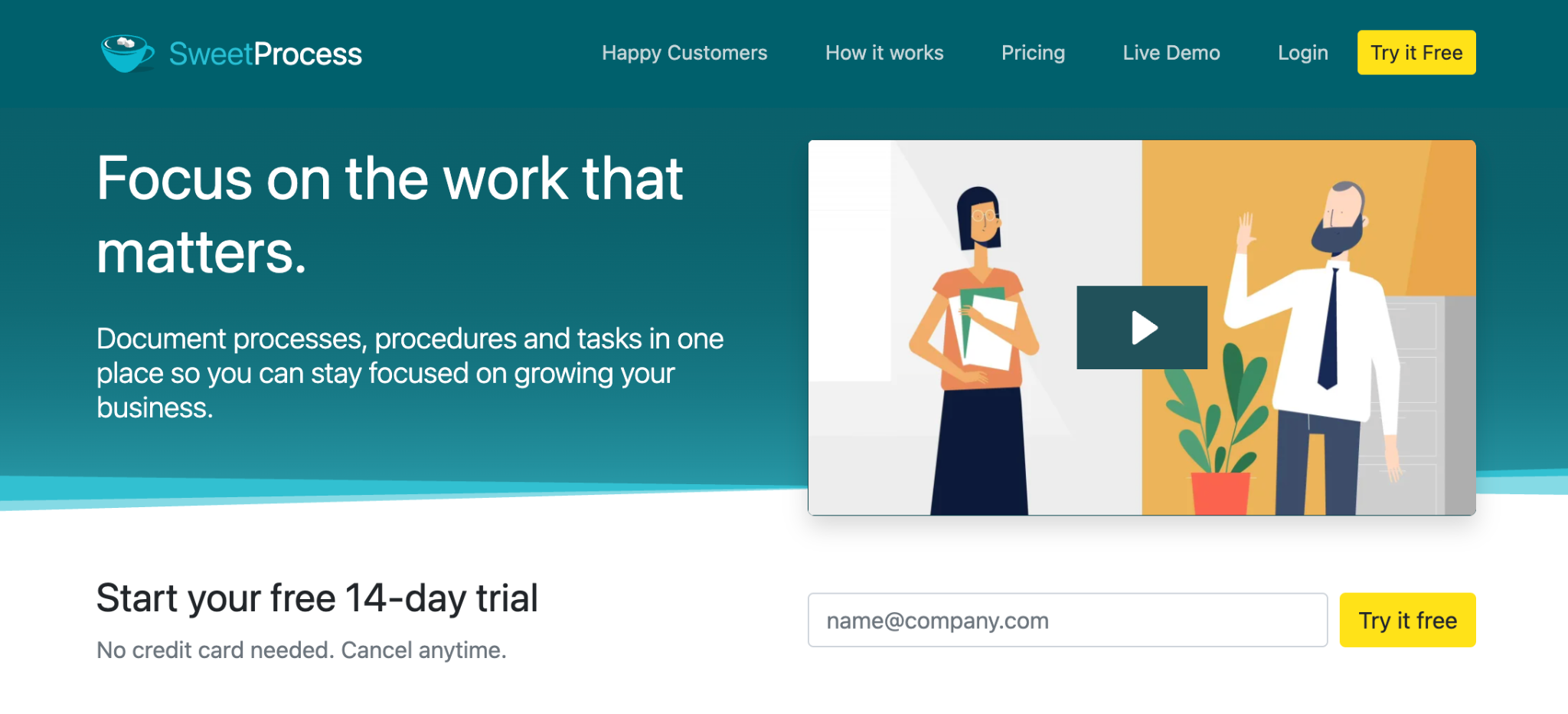
SweetProcess is a comprehensive alternative to Scribe and Loom, offering robust SOP software. It’s not just for crafting step-by-step guides and instructions. SweetProcess allows you to develop detailed procedures and policies and streamline your company’s process management.
Its user-friendly, cloud-based platform is ideal for businesses of all sizes, making it easy to manage workflows and SOPs.
Notable Features
A notable recent feature of SweetProcess is SweetAI. This AI-powered tool enables your company to quickly create workflows and populate templates, drastically speeding up the process. Unlike Scribe and Loom, SweetAI can also help generate policies and procedures.
Additionally, SweetProcess has introduced a Google Chrome plug-in, revolutionizing how you automate the generation of procedures, policies, and processes. With a simple click, you and your team can generate documents that are automatically added to your SweetProcess account. This innovation is proving to be an indispensable asset for organizations, significantly streamlining operations.
If you’re intrigued by its capabilities, consider signing up for a free trial to check out its unique features and benefits for yourself.
Document Procedures With a Click of a Button
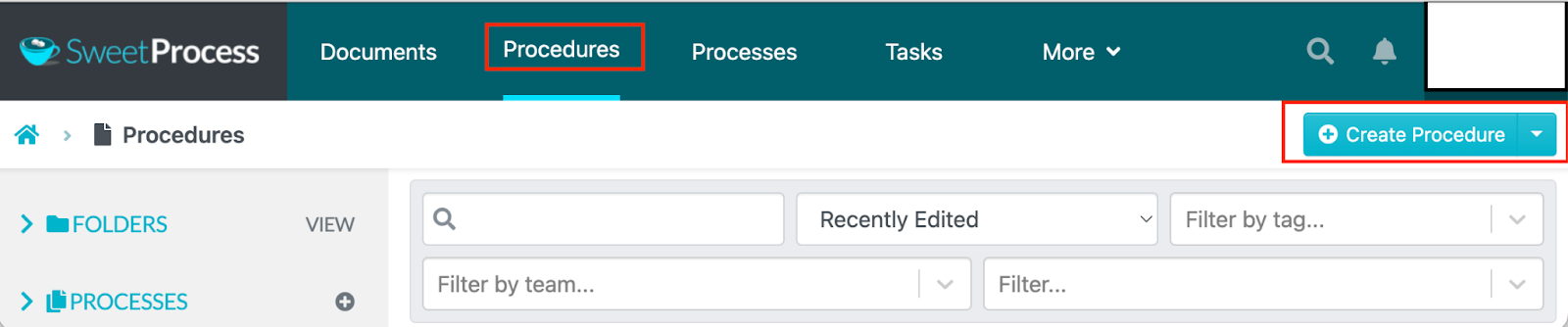
Creating a procedure on SweetProcess takes a few steps. Click “Create Procedure.”
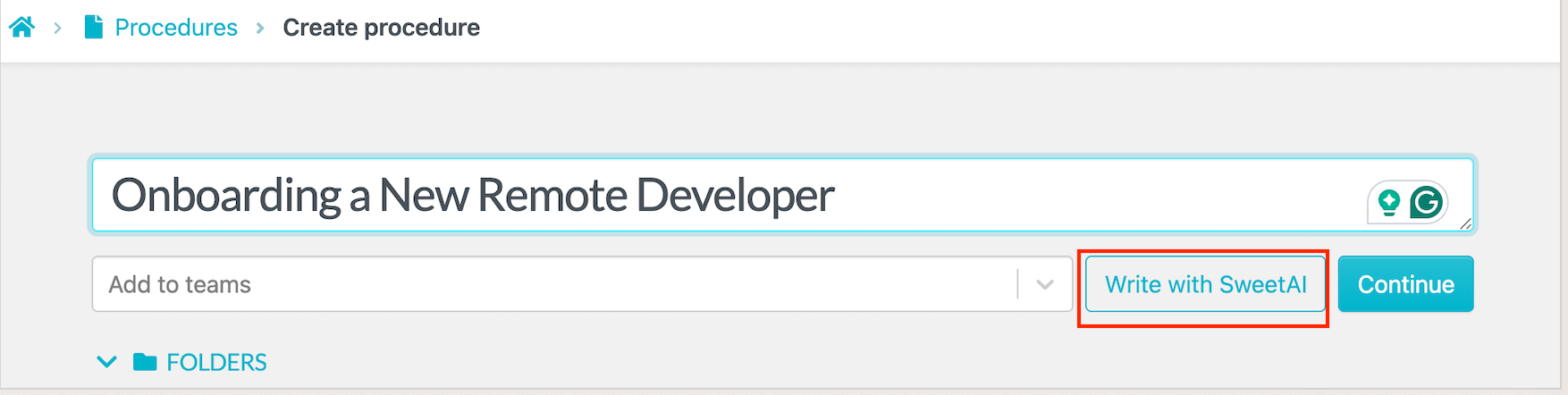
Once you name the procedure, you can use SweetAI to create the first draft.
After SweetAI automatically generates a procedure for you, review it carefully. Ensure that everything aligns with your brand’s standards. You can then approve it as is, or make any necessary amendments to refine it further.
For a full walkthrough of every step, our knowledge base covers the SweetAI workflow in detail once you’re inside your own account. Start your free 14-day trial today!
Scribe vs. Loom: Which Should You Choose to Create Step-by-Step Guides and Instructions?
Both Scribe and Loom give your team a platform to capture and share company information. Scribe gives your team a visual guide they can scan and follow. Loom gives your team a video to watch when they need context. Businesses run both, using each one where it actually fits, rather than forcing every process into a single format.
But what happens after twelve months? Will your processes still be accurate if the details you recorded or captured have changed? You’ll need to re-record the video on Loom or replace the updated sections on your screenshotted guide.
SweetProcess solves this problem by making it easy for you to capture tasks on a screen. However, it doesn’t stop there. Every procedure you build on the platform allows you to access a version history, assign it to an owner, and schedule a review cadence. When something changes in the industry, you know exactly what needs updating and who’s responsible for it, instead of finding out six months later that half your team has been working from a video that no longer matches reality.
If you want your documentation to be still accurate a year from now without someone rebuilding it from scratch, start your free 14-day trial of SweetProcess. No credit card required, and you can cancel anytime.
FAQs
Is Loom better than Scribe?
Each tool has its strengths. Loom is better when your team needs to hear reasoning or see a demonstration in real time. Scribe is better when your team needs a document they can scan and return to later. Most teams get more value from picking based on the task.
Is there anything better than Scribe?
It depends on what “better” means for your team. If you need Scribe’s capture speed but also need to assign, track, and version what you capture, SweetProcess extends that same basic motion into a full documentation system. If you want video, Loom may be a better fit.
Is there anything better than Loom?
There are alternatives to Loom, but the right choice depends on the format and workflow you need. Scribe can be a better option when you want written, screenshot-based instructions rather than video. If you need to create and manage procedures and processes, SweetProcess is another option to consider.
Is there a Microsoft equivalent to Loom?
Microsoft Teams includes meeting recording and collaboration features, while Microsoft Clipchamp provides video creation and editing capabilities. None of them match Loom’s asynchronous sharing workflow or engagement analytics out of the box, so teams already inside Microsoft’s ecosystem often still add Loom for that specific purpose.
How much do Scribe and Loom cost?
Scribe’s annual pricing starts at $25 per seat per month for Pro Personal and $13 per seat per month for Pro Team covering up to five seats. Loom’s Business plan costs $18 per user per month, while Business + AI costs $24 per user per month. Both products also offer free plans with different limits.