Last Updated on November 13, 2026 by Owen McGab Enaohwo
TL;DR: SweetProcess is a strong ScreenSteps alternative if you need to document procedures, assign work, and track completion in one place.
Trainual focuses on employee onboarding and training, Scribe captures software instructions, and Document360 supports knowledge-base publishing.
Process Street is built for repeatable workflows, Confluence organizes collaborative team knowledge, and Notion combines documents, wikis, and databases.
Compare each tool’s capabilities, pricing model, and the work required to maintain your documentation before choosing a replacement.
Start your free 14-day trial of SweetProcess.
No credit card needed. Cancel anytime.
Looking for a ScreenSteps alternative? The right choice depends on what you need to improve.
You might want to create software instructions faster, give new employees a structured training experience, organize a searchable knowledge base, or make sure employees complete recurring procedures consistently.
While these needs overlap, the tools that address them are not interchangeable.
This comparison examines seven ScreenSteps alternatives by their primary use cases. For each tool, you will see what it is built for, what it costs on a clear basis, and what to check before you commit.
Key Takeaways
- When choosing a ScreenSteps alternative, select an option based on whether you need to train employees, complete your recurring processes, capture instructions, or document knowledge.
- Before picking a replacement, compare prices on the same basis. Scribe, Confluence, and Notion charge per seat or member, while Trainual, Document360, and Process Street quote pricing. SweetProcess charges a flat price for up to 10 users and offers an annual Small Team plan for up to five users. Add the cost of required seats, premium features, and add-ons before deciding.
- You should test permissions, media, links, editability, task ownership, completion evidence, and export with one real procedure before switching all your SOPs.
- SweetProcess is a strong ScreenSteps alternative for managing procedures, policies, and assigned work. Start your 14-day free trial before rolling it out to your team to see how well it fits.
Table of Contents
Quick Comparison: Which ScreenSteps Alternative Fits Which Job?
When Should You Replace ScreenSteps?
7 Alternatives to ScreenSteps for Documenting SOPs
How Teams Use SweetProcess for Documentation and Assigned Work
How to Choose and Migrate Safely
Quick Comparison: Which ScreenSteps Alternative Fits Which Job?
On smaller screens, scroll the comparison table horizontally to see every column.
|
Tool |
Best fit |
What to check |
Pricing model |
|---|---|---|---|
|
Procedures, policies, and assigned work in one place |
It records task completion. It is not a compliance or attendance system |
$99 per month or $990 per year for up to 10 users plus additional-user charges; small team of five users at $495 per year |
|
|
Trainual |
Employee onboarding and role-based training |
Plan limits for e-signatures and the records recurring work needs |
Quote-based |
|
Scribe |
Fast visual capture of software steps |
A captured guide does not show that assigned work was completed |
Free Basic plan. Pro Personal from $25 per seat per month billed annually. Pro Team from $13 per seat (Minimum: 5 seats) per month billed annually |
|
Document360 |
Internal and external knowledge publishing |
Capture and video tools sit in an optional add-on |
Customized pricing |
|
Process Street |
Recurring workflows with logic and approvals |
Features and limits in your quoted configuration |
Contact sales |
|
Confluence |
Collaborative wiki with linked pages |
Add-ons and implementation ownership |
Free up to 10 users. Standard: $7.15 per user/month billed monthly for a 10-user team; $720/year for the 1–10-user tier |
|
Notion |
Flexible wiki with databases |
Setup and ownership for a consistent workflow |
Free for individuals. Plus: $10 per member/month billed annually |
Competitor details and pricing checked November 13, 2026.
Disclosure: SweetProcess publishes this comparison and is our top pick for teams that need to document recurring work and track its completion. A specialist capture, training, or knowledge-base tool may fit a different priority better.
How We Chose These ScreenSteps Alternatives
We compared these tools based on their published features and pricing:
- Job completed: Each alternative earned its place by serving one clear job in employee guidance. For instance, capture tools like Scribe make instruction creation faster without providing the complete workflow you need to assign and track recurring work, while wiki platforms like Confluence organize information effectively.
- Billing models: Some tools on this list, like Scribe, SweetProcess, Notion, and Confluence, publicly list their prices on their websites. However, Trainual, Document360, and Process Street require you to request a quote from the team.
When Should You Replace ScreenSteps?
You should replace ScreenSteps only when a specific problem justifies the move. If it already does the job and the price fits your user count, you can keep it.
ScreenSteps helps teams create and organize employee instructions. Its Operations Standard plan includes procedures and articles, decision trees, checklists, video, change notifications, and content certifications.
Operations AI adds AI-powered capture and content tools, courses, and Sidekick. Check the plan and capabilities you already use before choosing a replacement.
These situations can justify a closer look at alternatives.
You Need Documentation and Execution in One Workflow
If managers still need to chase employees to confirm that each step was completed, check whether your current setup provides the task ownership and completion records you need.
Look for software that connects the procedure to assigned work. Check whether you can identify an owner, set a due date, review completion evidence, and update the procedure when the work changes.
Your Priority Has Changed
You may have started with software instructions and now need a structured onboarding program. Alternatively, your team may need a public-facing knowledge base or a collaborative wiki for information across departments.
In these cases, a specialist tool could offer a better fit for the job you need to do now.
The Total Cost No Longer Fits
ScreenSteps’ annual starting prices are $6,000 for Operations Standard and $9,000 for Operations AI. Enterprise pricing is available by custom quote.
Compare the total cost with an alternative, including the work required to rebuild content and maintain a new system.
7 Alternatives to ScreenSteps for Documenting SOPs
Here are the top ScreenSteps alternatives that you can consider for your business.
SweetProcess
SweetProcess is an ideal ScreenSteps alternative when you need employees to follow documented procedures and managers to track assigned work.
It connects procedure documentation with policies, processes, tasks, approvals, version history, and public or private knowledge bases.
Instead of treating instructions as documents employees consult separately from their work, you can connect the instructions to a recurring operational task.
That makes SweetProcess worth considering if your main concern is helping your team use it consistently.
Your team can access procedures and other company documentation online. You can assign tasks to specific people and monitor the progress of assigned work.
Features of SweetProcess
Document and Manage Procedures
Businesses with multiple procedures need a clear place to maintain their SOPs. Centralizing instructions can make it easier to standardize documentation, review changes, and train staff.
With SweetProcess, you can create step-by-step instructions for work such as onboarding a customer, handling a support request, or preparing a monthly report.
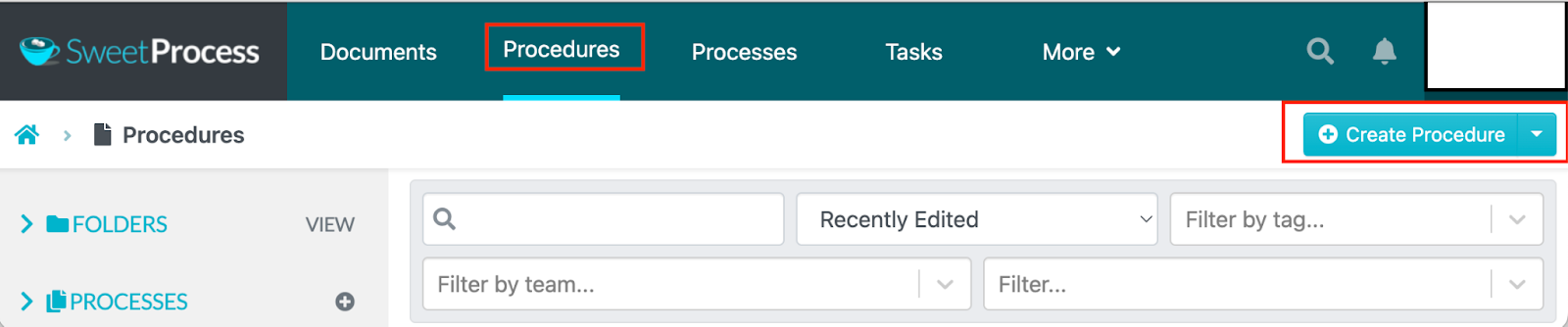
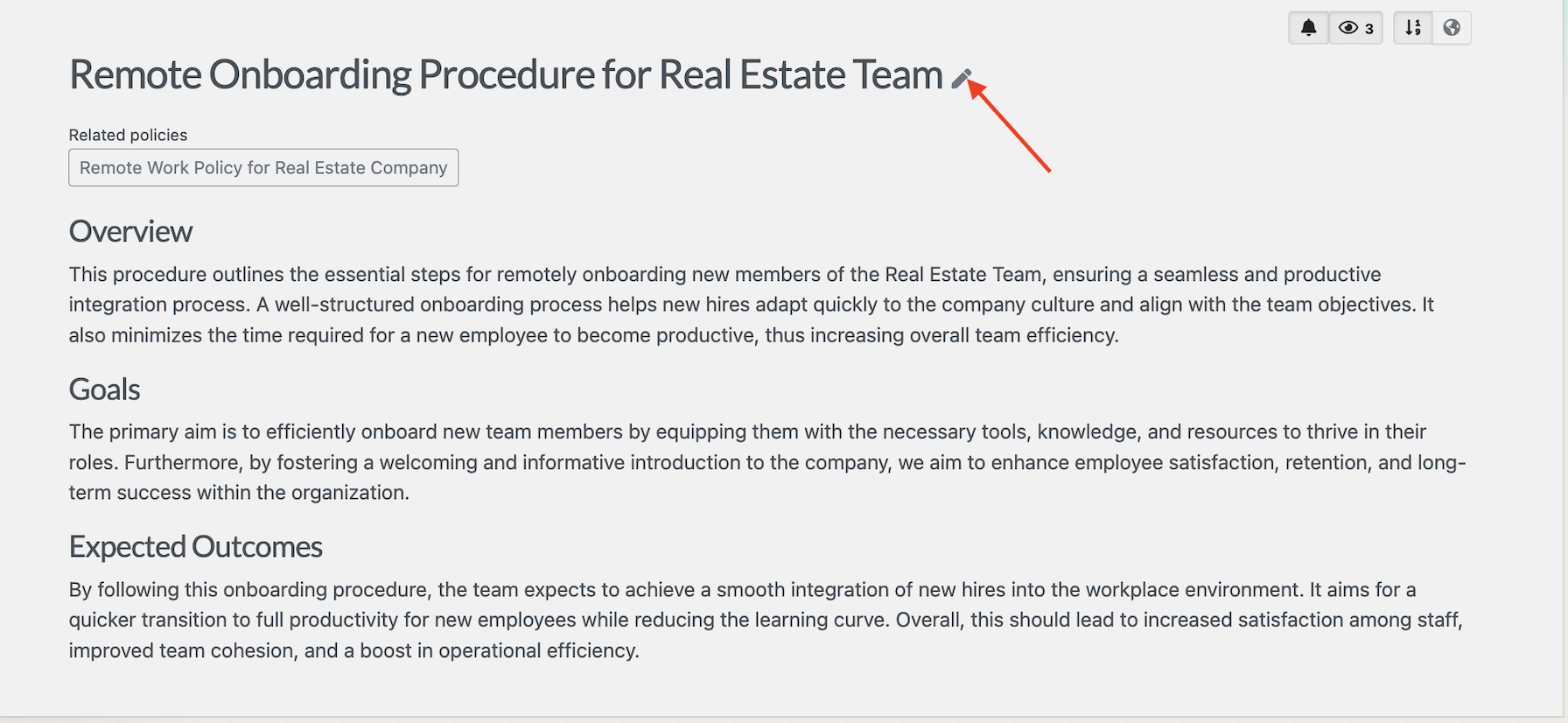
Draft a procedure manually or use SweetAI to generate a first draft. Add the steps and media your employees need, then assign access to the relevant teams or departments.
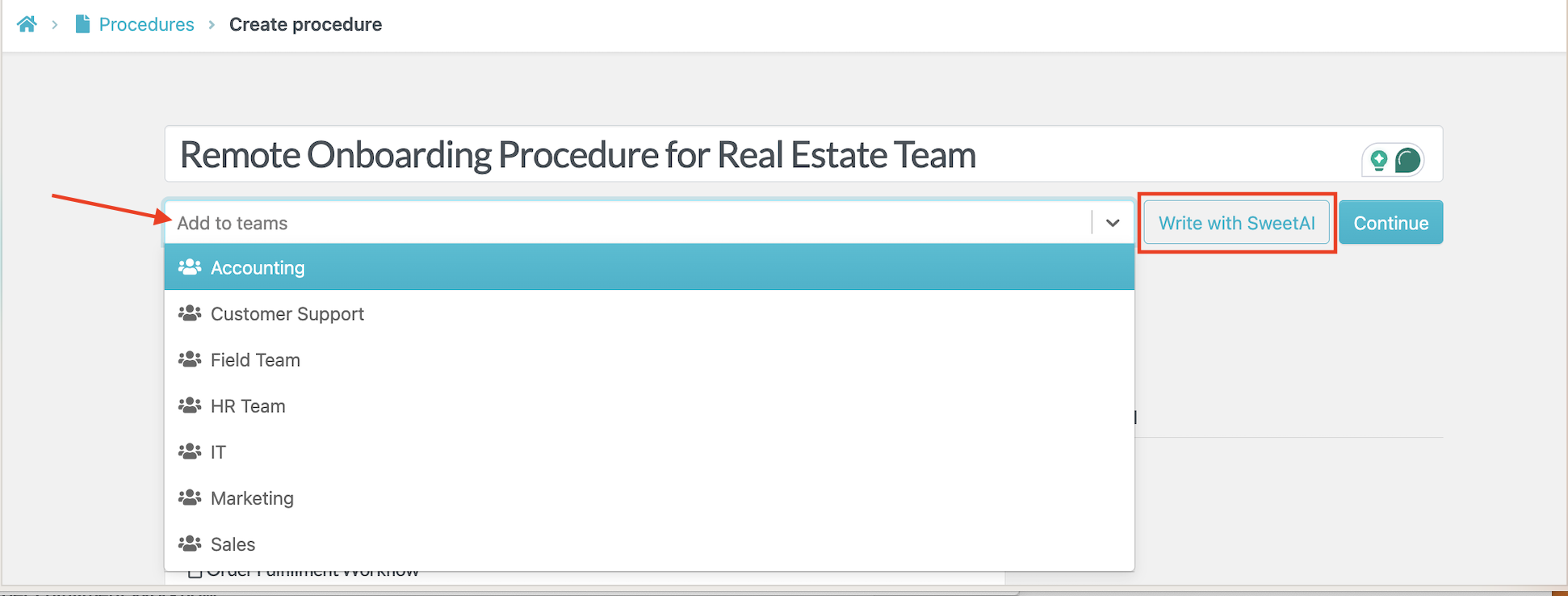
If you draft with SweetAI, you can edit the generated content to refine the procedure to align with your team’s needs. An employee or manager can add missing details, correct information and remove steps that don’t apply.
Keep Track of Your Policies and Processes
With SweetProcess, you can easily document your company’s rules, procedures, and processes in one place. This gives employees a central location to find the instructions they need for routine activities.

Employees can search for documents and filter them by tags or team.

By organizing procedures and processes in one central repository, SweetProcess helps teams avoid confusion when managing multiple documents and procedures.
Assign Tasks To Employees
SweetProcess allows you to turn recurring responsibilities into assigned work. For example, when a new hire is confirmed, you can create a task from the relevant procedure.
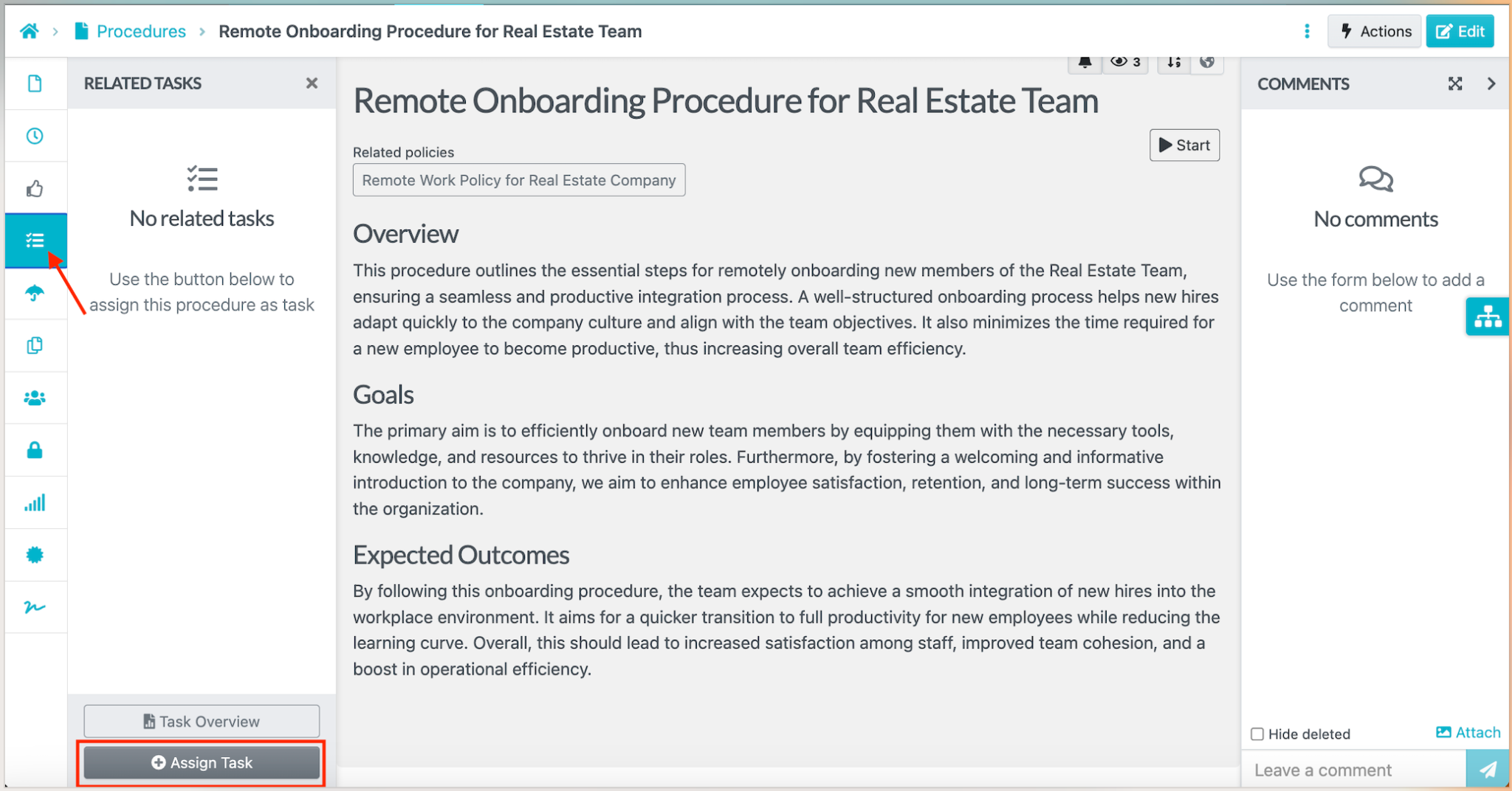
You can add a task owner and due date.
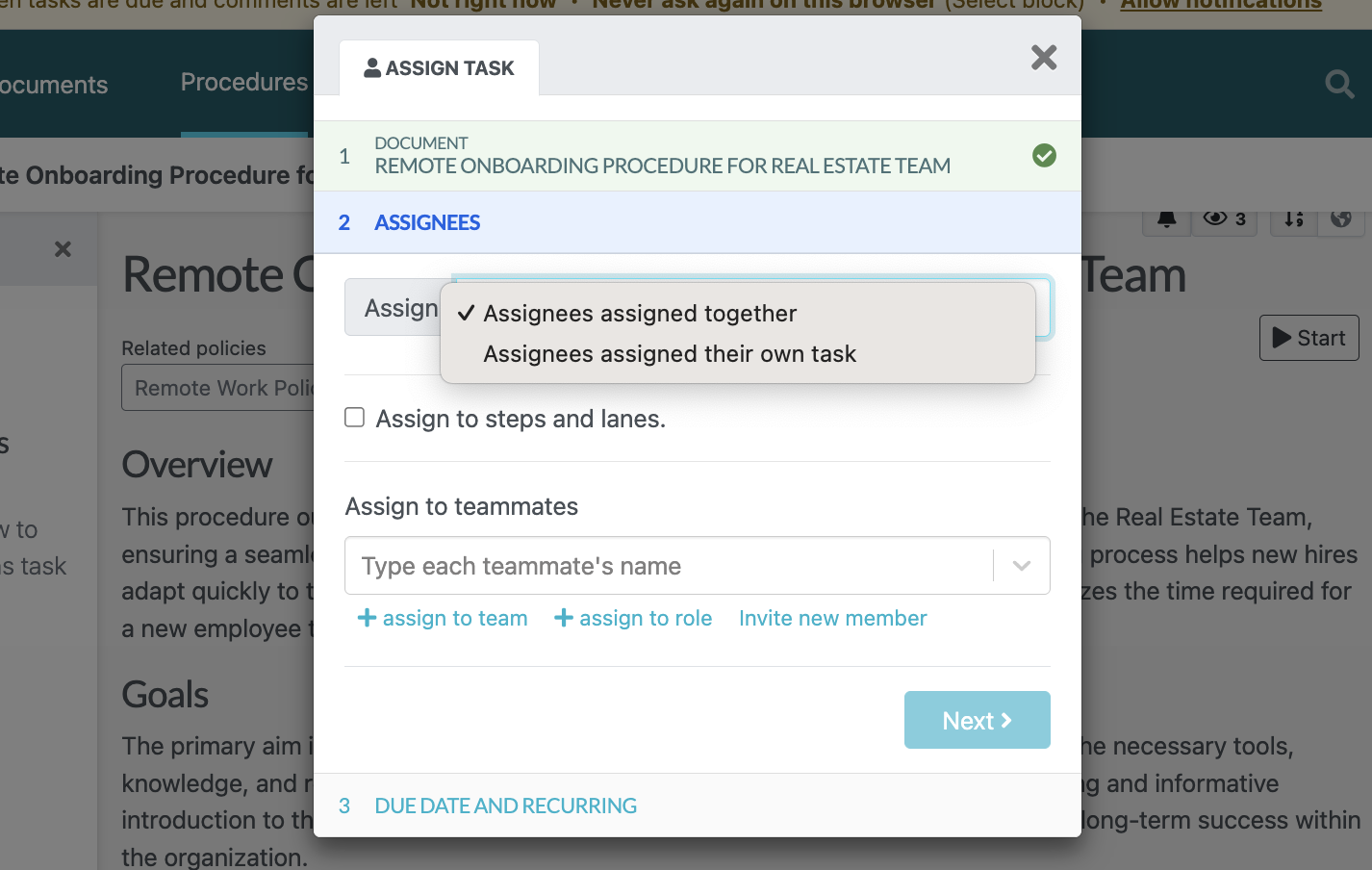
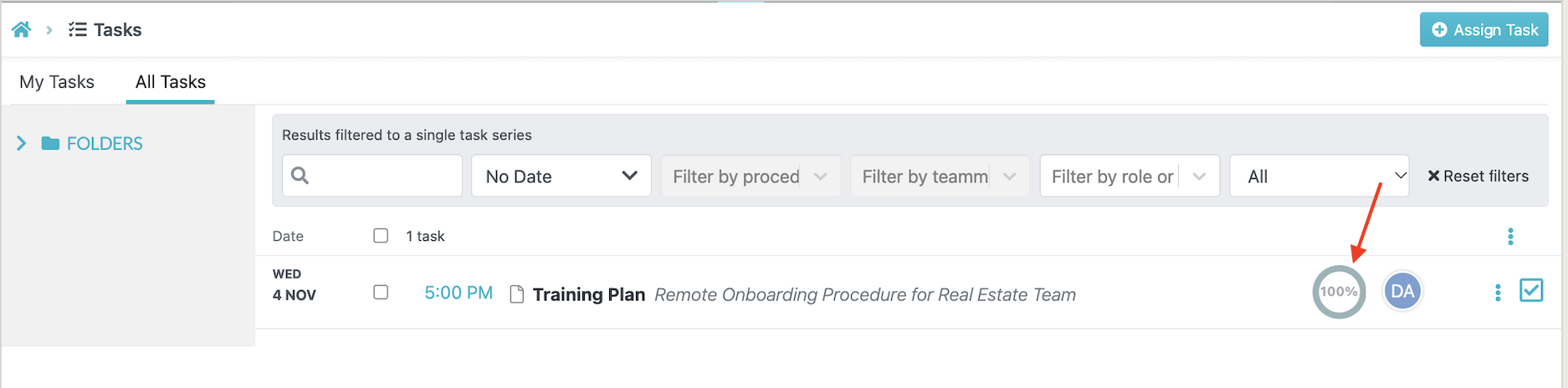
From the “Tasks” menu, you have a clear view of all the pending and completed tasks. This way, employees have a defined responsibility, while managers can review task progress instead of relying entirely on verbal updates.
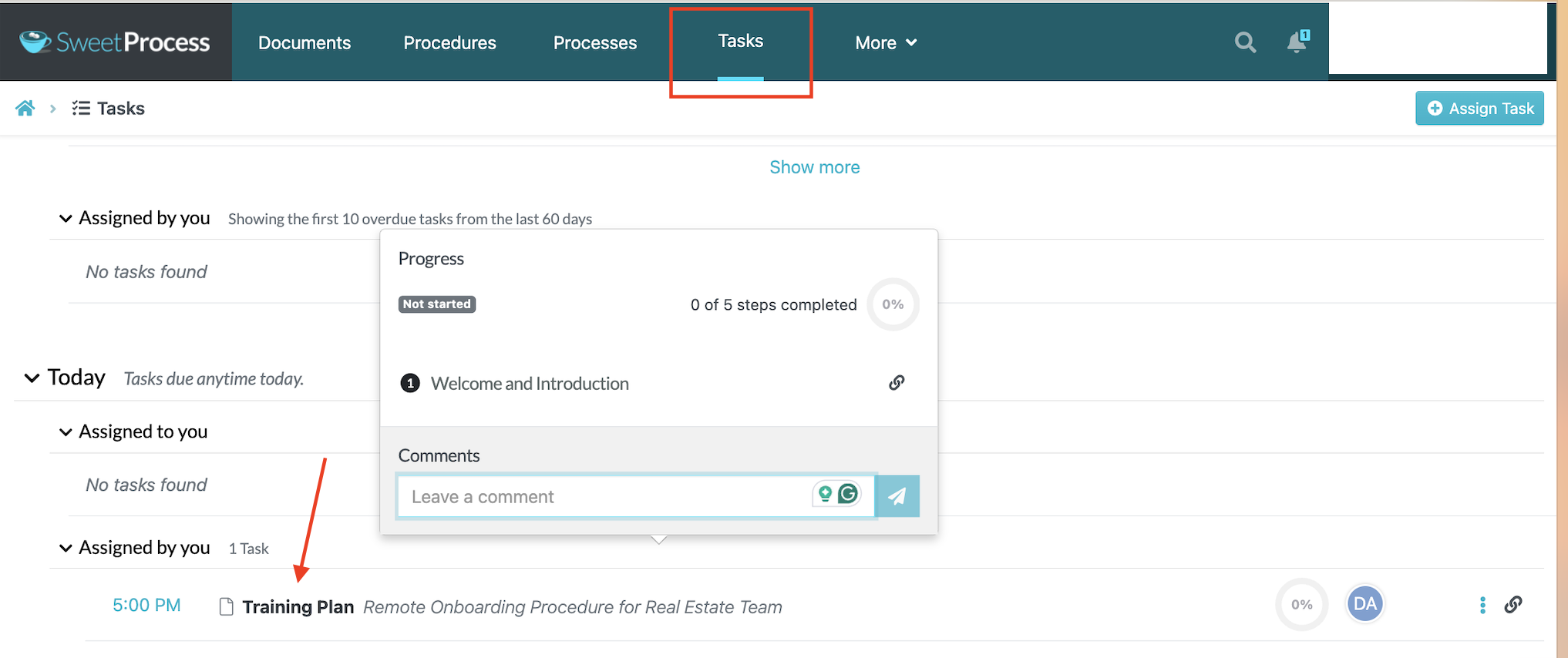
The Tasks view helps managers review which assigned work is pending or marked complete. Open the task details when you need its activity history. Task completion does not prove compliance with a rule, policy, or regulation.
Manage Approvals and Revisions
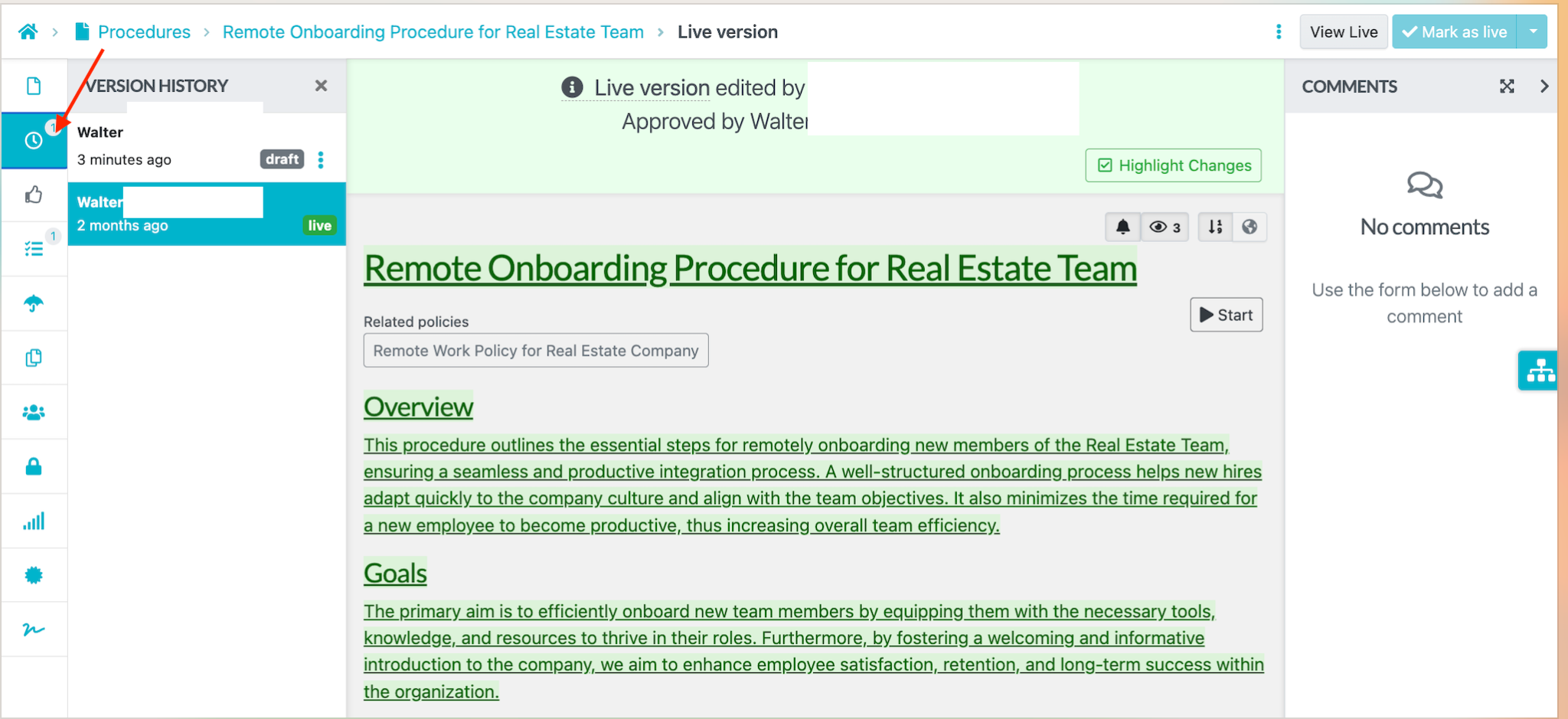
Version history lets you see who last modified a document and helps your team keep track of changes.
SweetProcess maintains version histories for policies, procedures, and processes. You can review previous versions, see the changes that have been made, when they were made, and who made them.
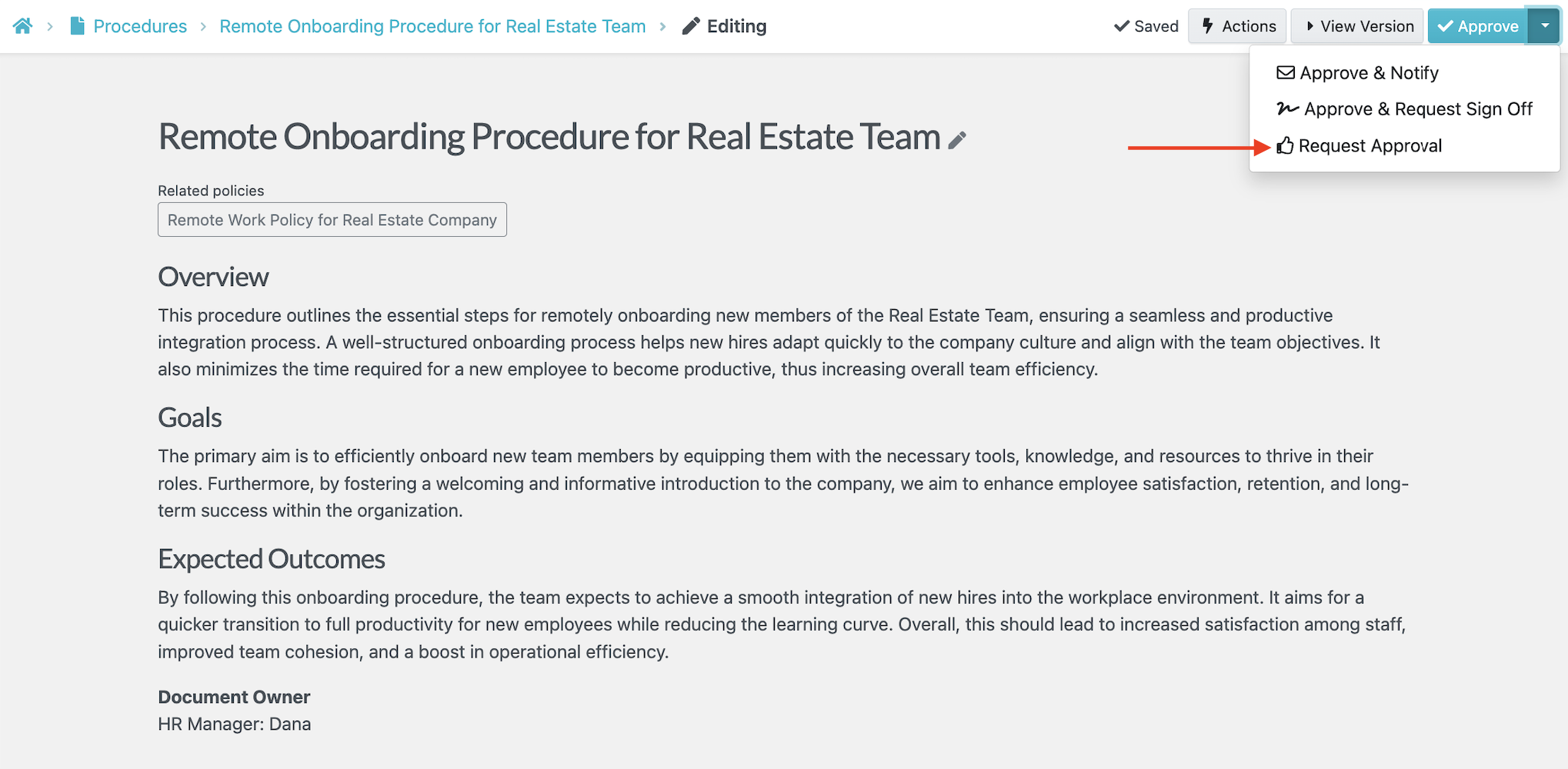
It also allows you to restore an earlier version when necessary. The history also helps teams track drafts and approval activity.
After the revised procedure is approved, employees with access can view the current version.
You can also send it to a manager or supervisor, especially if the document needs to be reviewed or approved before publishing.
Create a Knowledge Base
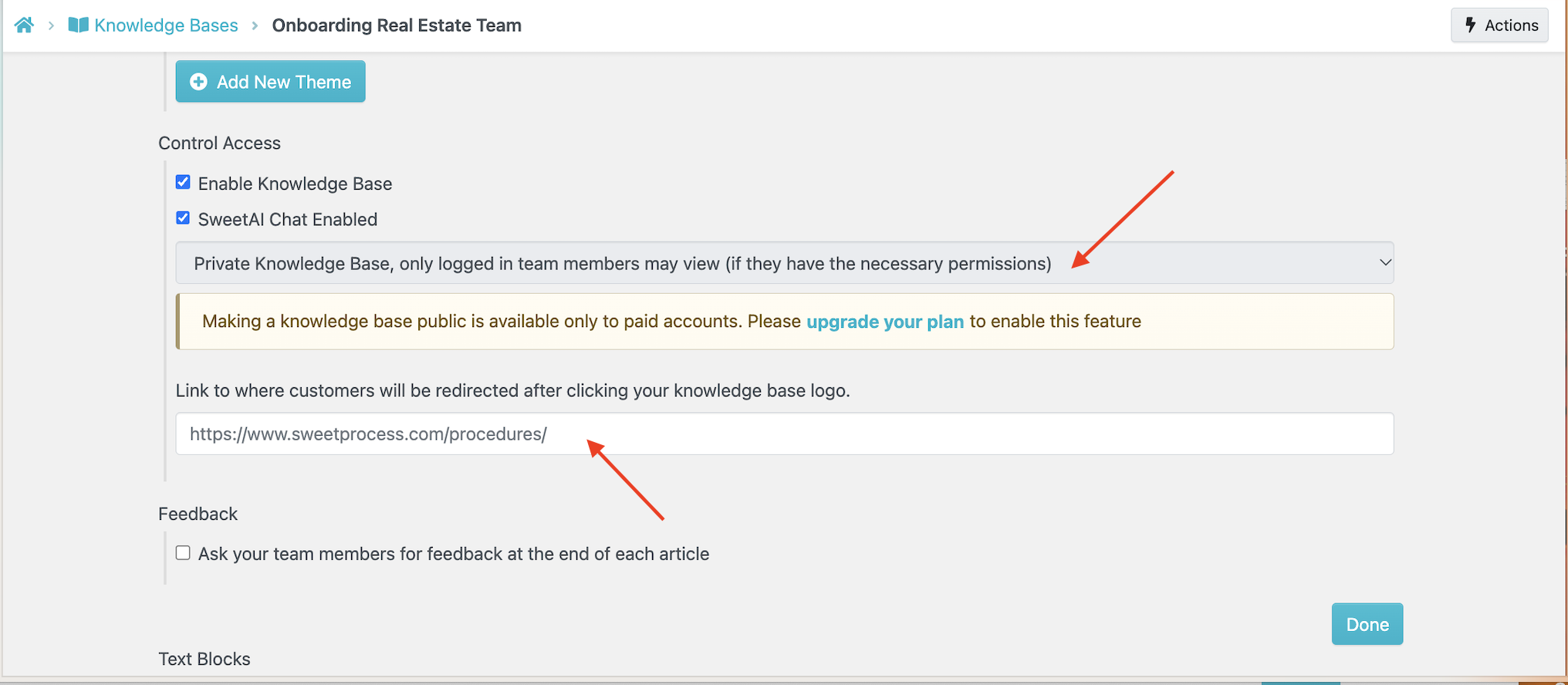
With SweetProcess, you can easily create a knowledge base for your staff or customers based on your current rules and processes. You can make the knowledge base public or restrict access, depending on who needs the information.
You can publish answers to recurring customer questions in a public knowledge base so customers can find them without contacting your team.
To create a knowledge base for your customers, log in to your account. Select the “More” tab, then select “Knowledge Base.”
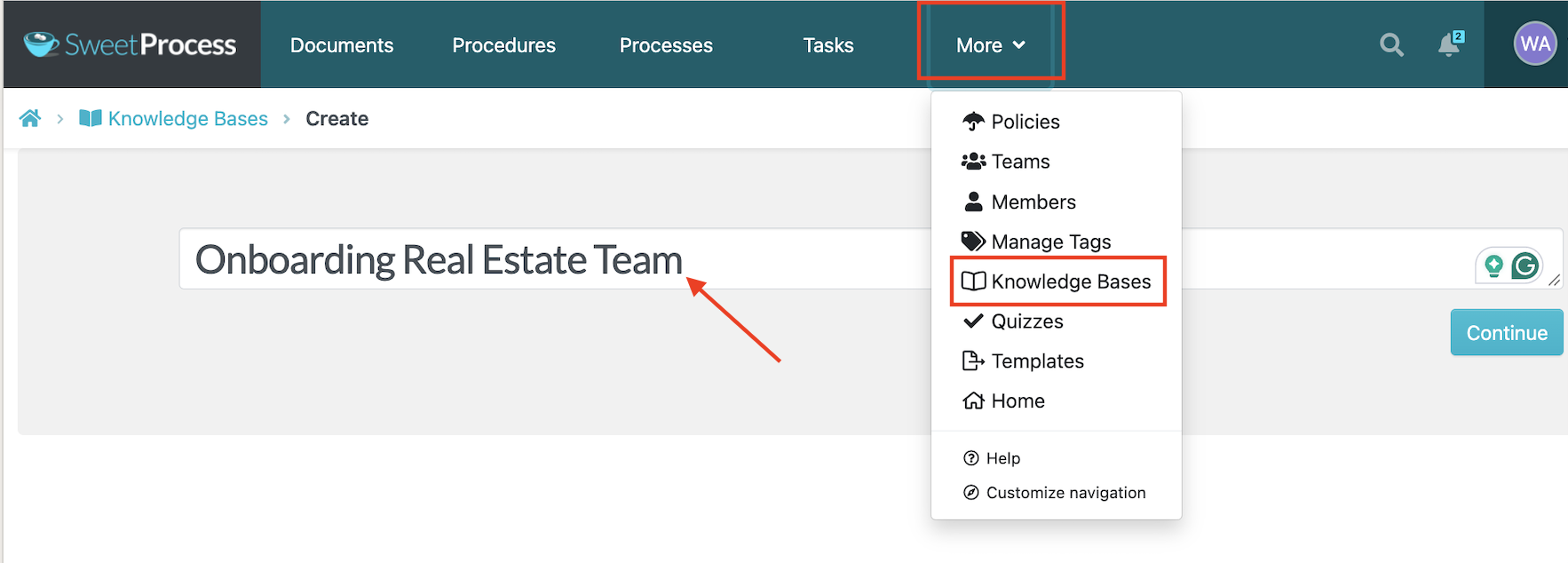
If the knowledge base is only for internal use, you can make it private. If you want to share information externally, you can publish a public knowledge base and provide customers with its URL.
Publishing a public knowledge base requires a paid account.
Pros of SweetProcess
- Export procedures: SweetProcess supports exporting procedures in Word and PDF formats. You can also control access to documentation within the workspace. Check export options and permissions before sharing sensitive procedures outside it.
- Business process mapping: SweetProcess provides flowcharts to show how steps fit together. You can also add images and videos to procedures to explain tasks and their expected results.
- Separate work areas: SweetProcess organizes documents, policies, procedures, processes, and tasks into dedicated areas so employees can find the material and assigned work they need.
- 1,000+ app integrations: SweetProcess connects with more than 1,000 apps through Zapier. You can use supported triggers and actions, such as creating a task or responding when a task is completed, to connect SweetProcess with other software.
- Email and phone support: You can contact SweetProcess by email or phone for help.
SweetProcess Pricing
SweetProcess costs $99 per month or $990 per year for up to 10 users. Each additional user costs $5 per month or $50 per year. The annual-only Small Team plan costs $495 per year for up to five users, plus $50 per year for each additional user.
All plans include all features. Billing is based on users in the account, whether or not they have logged in. Removing a user provides a prorated credit for the next billing cycle. You can start with a 14-day free trial.
SweetProcess may not be the best fit: It’s not automatically the best choice for every documentation need.
If your primary requirement is visual software capture, compare Scribe’s browser, desktop, and mobile coverage with SweetProcess’s browser-capture workflow before choosing. If structured employee training is your main priority, compare Trainual.
Trainual

Trainual helps businesses organize employee onboarding and role-based learning. You can structure company knowledge around employees’ responsibilities and give new hires a learning path.
It also offers operations and performance tools for broader organizational needs.
Features of Trainual
- Structured learning by role: Organize training material around the responsibilities employees need to learn.
- Track training progress: Use progress-tracking capabilities to monitor how employees are moving through assigned training material.
- Searchable company knowledge: Give employees a structured place to find training resources and internal information.
- Screen-recorded guidance: Trainual supports screen recording, which can help explain software-related tasks as part of a broader training program. Confirm if the feature is available for your plan.
- Custom branding: Fonts and styles are available across plans. Logo and brand-color customization are included in Premium and Enterprise.
Pros of Trainual
- Combine training with company knowledge: Keep training content and reference material in one platform, giving employees a place to consult when they need guidance.
- Include visual learning material: Screen recording helps you explain software-based tasks and demonstrate procedures that may be difficult to communicate through text alone.
- It supports broader people and operations needs: Trainual also offers operations and performance tools, which may appeal to businesses looking to connect employee training with wider organizational processes.
Trainual Pricing
Request a demo to get a customized quote from the Trainual team. Plans vary by features, user count, and implementation needs; include required implementation support in your estimate.
Trainual may not be the best fit: If your priority is documenting procedures and assigning operational work as tasks, a process management or workflow tool may sit closer to the job.
Scribe

Scribe is a good alternative when you need a visual guide to a software process, fast. You can run through a task, and Scribe will turn the steps into a shareable how-to guide with screenshots.
This software can be useful when employees need to follow a sequence of clicks and menu selections without relying on a long written explanation.
Features of Scribe
- Browser capture: You can generate guides from browser-based work. You can use the free plan to explore visual instruction capture before committing to a paid subscription.
- Desktop and mobile-app guidance: Pro plans support guides for web, mobile, and desktop applications. Check the vendor’s current mobile capture workflow before assuming it works like browser capture.
- Custom branding: Scribe allows you to add company branding to your guides; however, you have to upgrade to the Pro plans.
- Redaction: Scribe allows you to redact sensitive information from captured screenshots before sharing guides.
- Export capabilities: On the Pro plan, you can export your guide to PDF, HTML, and Markdown.
Pros of Scribe
- Reduce manual screenshot work: Capturing a sequence of software actions can help you create visual instructions without preparing every screenshot from scratch.
- Create browser guides without a paid subscription: Scribe’s Basic plan lets you capture browser-based instructions for free, making it useful when you want to start documenting software tasks on a limited budget.
- Tasks are easier to follow: Step-by-step guides help employees see where to click and what to do next, particularly when learning an unfamiliar application.
Scribe Pricing
Scribe offers a free Basic plan. To access mobile and desktop capture, company branding, and screenshot redaction, you need a Pro plan. Pro Personal costs $25 per seat per month billed annually, or $35 billed monthly.
Pro Team requires at least five seats and costs $13 per seat per month billed annually, or $17 billed monthly. Enterprise pricing is customized.
Where Scribe may not be the best fit: Scribe is primarily a workflow-capture tool.
If you need connected policies, procedures, assigned tasks, approvals, a knowledge base, and completion records for the work the guide describes, you might need to pair it with another tool.
Document360

Document360 is a knowledge base software that you can use to publish and maintain information for both internal users and external customers. It helps people find reliable answers and reference information.
Depending on your requirements, that information may include product documentation, troubleshooting instructions, internal procedures, or support material.
Features of Document360
- Multiple content formats: You can enrich your SOPs by adding video, images, or callouts to make instructions clearer and easier to follow.
- Diverse editors: It offers Markdown and advanced WYSIWYG editors, giving teams different ways to create and format documentation.
- Revision history: Teams can track changes to documentation and use review workflows to manage updates before publishing revised content.
- Import and export: You can import existing procedures into the platform to centralize your company information or export content when you need to move or share your information.
- Decision trees: You can create guided paths that help users navigate the site and find the information or answer relevant to their situation.
Pros of Document360
- Provide a dedicated knowledge-publishing environment: Teams can focus on organizing and maintaining a knowledge base instead of building their documentation system from a general-purpose workspace.
- You can centralize knowledge for different audiences: Document360 supports internal and external knowledge publishing, making it ideal for businesses that need employee documentation and customer-facing help content.
- Visual documentation capabilities: The optional AI Premium Suite includes screen capture, step-by-step guides, interactive demos, and video recording for organizations that need these capabilities.
Document360 Pricing
Document360 uses customized pricing so businesses need to contact the vendor for a quote. Before committing, confirm which features are included in the base package and which require additional paid add-ons.
Document360 may not be the best fit: If you need assigned operational tasks rather than knowledge publishing, compare task ownership and completion-tracking options before choosing.
Process Street
Process Street helps teams standardize and share repeatable workflows with steps, logic, and approvals. You build a template once, then run it each time the job comes up.
Each run is a separate instance of the work, so you can track progress across activities.
Features of Process Street
- Repeatable workflows: You can structure recurring activities so employees can follow the required steps.
- Conditional logic: A workflow may need different steps depending on the information entered or the outcome of an earlier step. Conditional logic helps accommodate these differences.
- Approvals: Add approval steps when work needs a manager’s review before it proceeds.
- Schedule recurring work: Scheduled workflows can support activities that need to happen at regular intervals.
Pros of Process Street
- Workflow design: Process Street provides tools for documenting simple and complex processes and arranging their steps.
- Track workflow runs: You can monitor individual runs and see which steps have been completed, helping teams follow activities such as customer onboarding or employee recruitment.
- You can add visuals: You can include pictures, videos, links, and other online media in workflows to provide additional guidance for employees.
- Automation of processes: Process Street provides automation tools that allow teams to connect steps and trigger actions without having to build every workflow manually.
- It supports collaboration: A structured workflow lets you define the steps and handoffs involved when work moves between employees or departments.
Process Street Pricing
Process Street offers three pricing tiers: Startup, Pro, and Enterprise. However, there is no publicly listed pricing; you have to contact the sales team. You can use the free 14-day trial on the Pro plan to test the tool.
Process Street may not be the best fit: If you mainly need visual capture, a lightweight guide-creation tool may be enough. If your priority is a searchable knowledge base, you may want to evaluate an alternative.
Confluence

Confluence functions as a shared workspace where you create, document, and share files and processes in an open environment. It builds team collaboration by helping all members of the team access and work on essential aspects of a task.
It comes in handy if you want to document decisions, explain internal processes, and maintain reference material across departments.
Features of Confluence
- Pages and spaces: You can organize documentation by department, project, or subject. A space contains process descriptions, policies, and reference material.
- Link related information: Pages can link to other pages and anchors, helping employees move between related instructions. This can be useful when a process refers to a separate policy or supporting document.
- Collaboration: Teams can maintain shared information rather than keeping every procedure in an individual’s files.
- Control access: Administrators can manage who can view, edit, or manage pages and spaces, depending on the plan and configuration.
Pros of Confluence
- Ease of access: Teams can use Confluence to organize project information, decisions, timelines, and reference materials in one workspace, making it easier to find and access relevant information in one central location.
- Collaborative teamwork: Team members can contribute to shared pages, review information, and keep documentation updated. This helps teams work from a common source of information.
- Restricted content: On plans that support the required permissions, teams can restrict access to pages and spaces. Check the plan’s permission limits before storing confidential material.
- Integrations: Confluence connects with tools such as Jira and Trello, allowing teams to bring relevant project information and updates into their documentation workspace. Available integrations and functionality depend on the connected apps and configuration.
- Easy navigation: Quickly locate any page in your organization by searching for it globally or browsing the page tree, which organizes your projects and pages into a tree structure.
Confluence Pricing
Confluence’s Free plan supports up to 10 users and includes pages, spaces, and up to three active whiteboards per user. For a 10-user team on monthly billing, Standard costs $7.15 per user per month and Premium costs $14.10 per user per month.
On annual billing, the 1–10-user tier costs $720 per year in total for Standard or $1,400 per year in total for Premium. Monthly pricing uses progressive user pricing, while annual subscriptions use user tiers.
Use the calculator for your team size and billing period. Enterprise pricing requires a quote.
Confluence may not be the best fit: If your priority is a connected system for documenting procedures and tracking assigned work, compare the amount of configuration needed to support that workflow.
Notion

Notion combines documents, wikis, and databases in a flexible workspace. Teams can connect written instructions with related records and tasks, but they need to establish their own approach to organizing and maintaining the information.
Features of Notion
- Build a company wiki: You can organize policies, process descriptions, onboarding material, and other reference information into pages employees can find and update according to their permissions.
- Databases: The Notion databases can help you manage related records, such as a list of procedures, their owners, review dates, and status fields. You can design the structure around your needs.
- Combine documents and operational information: Teams can link procedure pages to related database records, helping employees move between written instructions and information such as task owners, review dates, and completion status.
Pros of Notion
- Notion allows users to customize pages and incorporate different types of media, including images and videos.
- Users can organize and rearrange page content to suit their needs, including nesting pages within other pages. You can use the drag-and-drop tools to move the pages to new locations.
- Teams can use Notion to organize work-related information such as product roadmaps, meeting notes, and internal reference materials.
- Teams can use a shared workspace as a common reference and work on the same document together or contribute at different times. Clear owners and review routines help keep the information consistent.
- You can create databases to manage team-wide initiatives, monitor deals, onboard new staff, and publish to the web.
Notion Pricing
Notion offers a Free plan and paid Plus and Business plans. Plus costs $10 per member per month billed annually, and Business costs $20 per member per month billed annually. Monthly billing is also available at a different rate.
Contact sales for an Enterprise quote.
Notion may not be the best fit: Notion is a reasonable choice when flexibility is important, and you have the time to design the system around your workflow.
If you want a more structured approach to procedures and assigned work, compare the setup effort with a dedicated process-management tool.
How Teams Use SweetProcess for Documentation and Assigned Work
SweetProcess’s published customer story describes Don Houk, president of Next7 IT, moving the company’s procedures from Word documents to a more organized system.
Next7 IT provides IT services that help small and medium-sized businesses improve productivity and security.
Before adopting SweetProcess, Next7 IT struggled to index and retrieve Word-based instructions. As its documentation grew, procedures could become hard to find or get mixed up.
Houk also wanted clearer records of execution: who completed the work and when. Checklists and task records were part of the system the team was looking for, alongside accessible instructions.
After evaluating several products, Next7 IT selected SweetProcess for its documentation and operational needs. The story illustrates why a team should evaluate both the quality of its instructions and how employees use them.
Another example is Thimbleberry Financial, a financial planning and wealth management firm in Portland, Oregon. Amy Walls, its president and financial advisor, described difficulties onboarding employees using a Microsoft Word manual.
The manual made sense to Walls, but new employees found it harder to follow. The team also needed a clearer way to check off completed work. Those gaps became more apparent when the company experienced employee turnover.
Using SweetProcess helped Walls identify gaps in the company’s documentation and improve its onboarding and process management.
How to Choose and Migrate Safely
Choosing an alternative is only half the decision. You also need to move your existing information without losing important instructions, access controls, or links to other systems.
Here’s a checklist to evaluate your shortlist and plan a controlled migration.
Identify Work To Improve
Start with the problem you want to solve. Ask yourself:
- Are employees struggling to find the correct instructions?
- Does creating or updating screenshots take too long?
- Do new hires need a more structured training program?
- Do employees need a searchable internal or external knowledge base?
- Is the current subscription too expensive for the capabilities you use?
Your answers will help identify the biggest gaps in your current setup and determine which capabilities matter most in a replacement.
Compare Subscription Costs On the Same Basis
Pricing comparisons can be misleading when one product charges per seat and another quotes an annual subscription for a team. To compare these ScreenSteps alternatives, use the same team size and billing period for every estimate.
Ensure that you include the cost of the number of required users, paid plans, add-ons, and any services needed to migrate or configure the platform.
For instance, if you have 10 users, SweetProcess costs $990 annually for up to 10 users, while Confluence Standard’s verified annual price for the tier covering up to 10 users is $720.
Those prices provide a starting point, not proof that the products are equivalent. It’s important to compare the capabilities included in each plan and any additional costs needed to meet your requirements.
For quote-based tools such as Trainual, Document360, and Process Street, you can request a quote using the same requirements and user count.
Test One Procedure
Select a real, recurring procedure, such as customer onboarding, to evaluate whether it’s easy to migrate safely.
- Export or copy the existing instructions: Preserve the original version so you can compare it with the new one.
- Rebuild the procedure in the new tool: Make sure the instructions remain editable. Check the order of the steps and confirm that the content makes sense outside the original platform.
- Assign a person to perform the work: Give the procedure to an employee who normally performs the task. If possible, choose someone who did not write the instructions. Their experience will help reveal unclear steps.
- Observe the workflow: Check whether the employee can find the instructions, access the required media, understand the decisions, and complete the procedure. Record any questions or workarounds.
- Review completion and revisions: Confirm that the system records the information your manager needs. Make a small, appropriate change to the procedure and test the review or approval process.
- Test export and rollback: Retrieve the new procedure or its available export. Confirm that you can retain a usable copy if you decide not to proceed with the migration.
Conclusion
ScreenSteps remains a strong option for teams that need in-the-moment guidance at scale. SweetProcess suits procedure documentation and recurring tasks. Scribe focuses on capture, Trainual on training, and Document360 on knowledge-base publishing.
Process Street handles workflows; Confluence and Notion organize collaborative knowledge.
If you need to connect documented procedures with assigned work, completion records, approvals, and revisions, start by evaluating SweetProcess.
It’s useful when your team needs clear instructions and a consistent way to manage recurring responsibilities.
Put the process to the test. Start your 14-day SweetProcess free trial. No credit card required. Document one recurring task, assign the work, review completion, and decide whether the workflow fits your team before making a wider change.
FAQs
Which ScreenSteps alternative is best for documenting and assigning SOPs?
SweetProcess is a strong fit when you want procedures and assigned work in one place. You can write a procedure, create a task from it, assign an owner and due date, and see when it is done.
Version history and sign-off features help you maintain procedures and record acknowledgments. Completion or acknowledgment alone does not prove regulatory compliance.
Is there a free alternative to ScreenSteps?
Yes, but free tiers cover narrower jobs than a complete team workflow. Scribe’s Basic plan is free for browser-based guides, while Confluence is free for up to 10 users.
Notion has a free plan for individuals, and collaboration with two or more members has content limits. Alternatives like SweetProcess and Process Street offer a 14-day trial.
Check each free tier’s limits against your real needs before you rely on it.
How much do ScreenSteps alternatives cost?
It varies. SweetProcess costs $99 per month or $990 per year for up to 10 users. Scribe Pro Team costs $13 per seat per month billed annually, with a five-seat minimum. Notion Plus costs $10 per member per month billed annually.
Trainual, Document360, and Process Street require quotes. Include required seats and any paid add-ons when comparing totals.
Can SweetProcess help me move existing procedures from ScreenSteps?
SweetProcess supports importing Word documents into procedures, so you may not need to retype all your instructions. Start with a sample, then check media, links, editability, and permissions.
Keep the original procedure until the pilot passes your acceptance checks.
Do I need a knowledge base, a capture tool, or training software?
It depends on the main job you need the software to perform. A knowledge base is a reasonable choice when the problem is finding an answer, such as the current policy.
A capture tool is a good fit when the problem is recording steps, such as showing someone how to use a screen. And training software is ideal when you need to confirm your team has learned something.
If your priority is recurring operational work, you may need more than one of those functions.
What should I test before replacing ScreenSteps?
Test one recurring procedure from start to finish before migrating your library. Preserve the original, rebuild it in the new platform, and check editable text, images, links, and access.
Assign the work to an employee with a due date, then confirm that the completion record gives your manager the information they need.