Last Updated on October 25, 2026 by Owen McGab Enaohwo

Choosing between Confluence and SweetProcess comes down to what you need your documentation to do after someone writes it. While both tools can hold your operating instructions, they approach it differently. SweetProcess focuses on maintaining SOPs, policies, and processes and connecting that documentation to assigned work, while Confluence provides a collaborative knowledge workspace organized with deeper connections to Jira and other Atlassian tools.
Neither product automatically guarantees that an employee follows an instruction correctly. Your choice should reflect the work you need to manage, the permissions and review rules you require, and the complete cost of the setup. We’ll compare the two tools to determine where they overlap and their distinct features to help you pick the right fit.
Key Takeaways
- Both Confluence and SweetProcess support documentation, collaboration, and operational use. They differ in what happens after a document is written.
- With SweetProcess, you can create and manage procedures, policies, and processes, capture browser-based steps, and connect instructions to assigned work.
- Confluence is designed for collaborative knowledge. Spaces and pages will help you organize project information, reference material, decisions, and team documentation.
- Confluence offers a free plan for up to 10 users, with limits on features and storage. SweetProcess has a free trial that gives you access to all features if you want to test one workflow on the platform before paying. Sign up here for the 14-day free trial!
Confluence vs. SweetProcess: A Quick Comparison
SweetProcess publishes this comparison. We recommend it for teams that need maintained procedures connected to acknowledgment and assigned work. Confluence remains a strong choice for broader collaborative knowledge, so compare the workflow and required plan rather than treating our recommendation as an independent ranking.
Here’s how the two tools compare:
|
Task |
Confluence |
|
|---|---|---|
|
Capture |
Write procedures or record browser steps with the Chrome extension. Flowcharts are generated from your steps |
Write pages or live docs or start from an SOP template |
|
Editing |
Users can collaboratively edit SOPs from the editor. Team members are notified about changes |
Live docs edit in real time. Pages add a publish step |
|
Review and history |
Supports draft approval, periodic review, and version history |
Page history; Premium/Enterprise page approvals with required permissions and space settings |
|
Acknowledgment |
Can record acknowledgment against a document version, including signing time |
Page approval is a content-governance record, not automatically an employee acknowledgment record |
|
Recurring tasks |
Assign a procedure or process as a task, then track status and completion |
Action items with assignees and due dates |
|
Search and access |
Simple search features by teams or roles, and public or private knowledge bases |
Spaces, linked pages, and search. Customizable permissions need a paid plan |
|
Integrations |
Connections to 1,000+ apps through Zapier |
Integrates with multiple apps, including other Atlassian tools. |
|
Pricing |
Standard plan costs $99 per month or $990 per year for up to 10 users. Small Team plan starts at $495 per year for up to five users. |
Free plan; paid Cloud pricing depends on the selected plan, seats, billing cadence, and any required extras |
Confluence details and pricing conditions checked October 23, 2026.
What Is SweetProcess?
SweetProcess is cloud-based SOP software for businesses that need to maintain operating instructions and assign work from them. It simplifies business process management through its user-friendly interface, which is intuitive even for those who aren’t tech-savvy.
SweetProcess brings procedures, policies, and processes into one place. Consistency and accuracy still depend on the instructions your team writes, reviews, and maintains. Moreover, SweetProcess enhances teamwork in your company by allowing you to:
- Create procedures and connect them in processes.
- Monitor progress in real-time
- Collaborate with your team on operating instructions
- Assign and track tasks clearly, eliminating guesswork
- Access your workflows and SOPs anytime, anywhere
What is Confluence?
Confluence is SOP software that helps businesses manage their process documentation. It is ideal for teams already familiar with Atlassian products like Jira. Companies use Confluence as their go-to platform for document and quality management and structuring their SOPs. This tool offers a range of functionalities; for instance, you can use it to write and organize documents on linked pages, manage access rights and permissions, collaboratively edit documents in real-time, and export content in multiple formats.
Confluence provides pages, live docs, action items, and, on Premium and Enterprise, native page approvals. These capabilities serve different purposes. A page can hold an operating instruction; an action item can assign work with a due date; an approval records a review decision. A separate Marketplace app or Jira configuration may be needed for a broader workflow. Check the exact setup rather than treating Confluence as a built-in business process management system.
Confluence supports meeting notes, product specifications, and research pages. Managers can review and comment on those documents.
Pros of Confluence
Here’s what you get from Confluence:
Streamlined Cross-Functional Projects
Confluence spaces group documents for departments or projects. Linked pages help readers find related information, while notifications can alert collaborators to changes.
Secure Repository For Documents
Document security is crucial across all industries. One mistake you should never make is storing your information in an insecure repository.
Confluence provides a place to store processes, policies, and other documents. Review its security documentation, your selected plan’s permissions, and your organization’s access requirements before storing sensitive information. Customizable page and space permissions require a paid plan.
Make Your Workflow More Efficient
Before relying on an integration, check its supported actions, permissions, plan requirements, and performance in your own workflow.
Confluence vs. SweetProcess: Procedure Creation and Capture
A useful procedure tells the team doing the work when to begin, which decisions to make, and what to do when the usual steps do not apply.
Consider a fictional customer-request procedure for correcting a billing address. This is an illustrative evaluation you can run, not a report of measured product testing. The trigger is a customer’s request; the owner is a support representative; the inputs are the request and the organization’s identity-check policy. The intended outcome is an authorized correction recorded in the customer system. If identity cannot be confirmed, the representative must stop and hand the request to a manager rather than change the record.
Start with the screen-based step: Open a demonstration customer record and enter the corrected address. In SweetProcess, capture the browser steps or write them as a procedure. Add the judgment that screenshots cannot supply: Which evidence your policy accepts, when a manager must decide, and what to do if required information is missing. Use fictional data. A generated flowchart can help show the sequence, but inspect it rather than assuming it includes every business exception.
Next, have the designated reviewer check the procedure against the actual policy. Record which version is approved for use and who owns its next review. Do not confuse a saved draft with an approved instruction. In Confluence, deliberately choose a published page for this test; if you need native approval, use the qualifying plan and configured space rules. Without that access, evaluate the documented workflow as a buyer checklist rather than claim you tested it.
Then assign the demonstration work. In SweetProcess, assign the procedure as a task to a test user, set a due date, and inspect the responsible person, status, and completion record. A completion record means the assignment was marked complete; it does not independently prove the address was correct. In Confluence, test an assigned action item and decide whether it supplies enough procedure context and completion evidence or whether another configured tool is required.
Request acknowledgment separately. Ask the relevant employee to acknowledge the operating instruction and inspect the document version and signing time where shown. This records acknowledgment, not competence or completed customer work. Keep that evidence distinct from the reviewer’s approval and the task’s completion.
Finally, change one instruction, such as which manager receives an exception. Compare the earlier and revised versions, review the change, and inspect who receives an update. Check future assignments and any already-open demonstration task separately; do not assume an edit retroactively changes every work record. This final step reveals whether your team can find the current instruction without losing the history it needs.
If the wider operation includes intake, identity checking, and a separate billing correction, keep each procedure distinct and assemble the related procedures into a Process. A Process coordinates procedures rather than replacing them with a single long step list. Inspect its connected flowchart and assignment behavior using the same fictional case.
Both SweetProcess and Confluence can hold instructions for this work. The difference is how you organize the instructions and connect them to the work your team performs.
The SweetProcess dashboard is your central hub for creating various documents, from company processes to procedures and policies. It features an easy-to-navigate main menu, where you can readily access tabs to create processes, procedures, policies, tasks, knowledge bases, and other essential company documents.
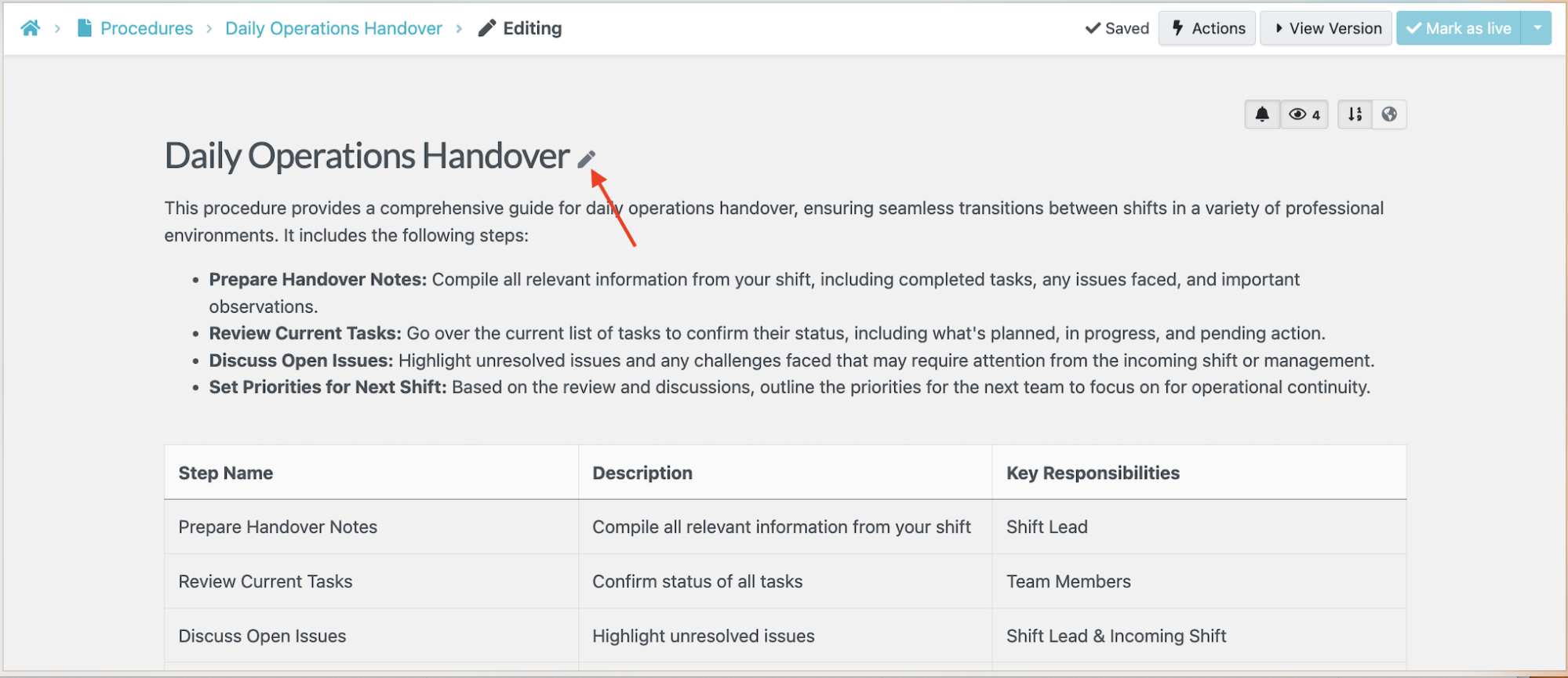
The screenshots below illustrate separate examples, including a handover procedure, website navigation, meeting notes, onboarding, and a customer request. They are not a completed run of the fictional billing-address evaluation above.
To create procedures on SweetProcess, click the “Procedures” tab on the dashboard and select “Create Procedure.”
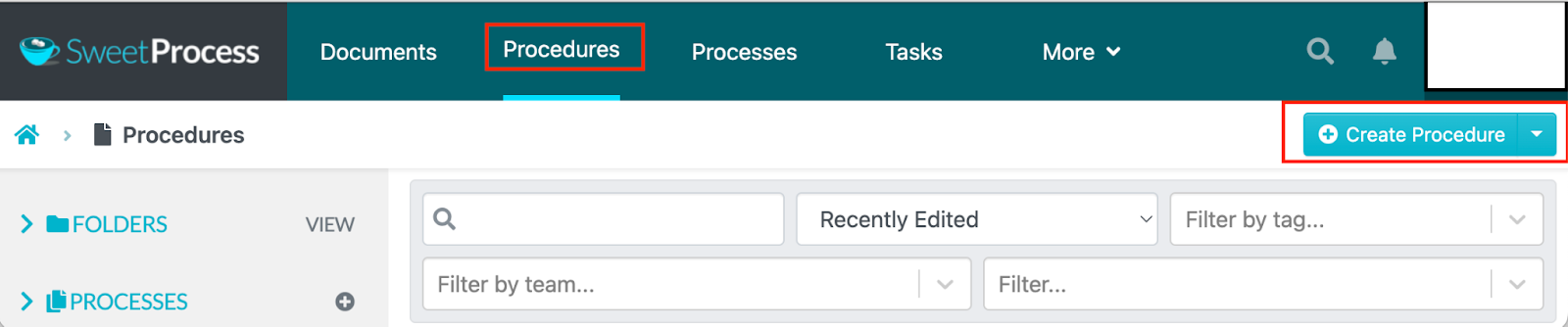
Give it a title, select a team from the dropdown, and add your steps.
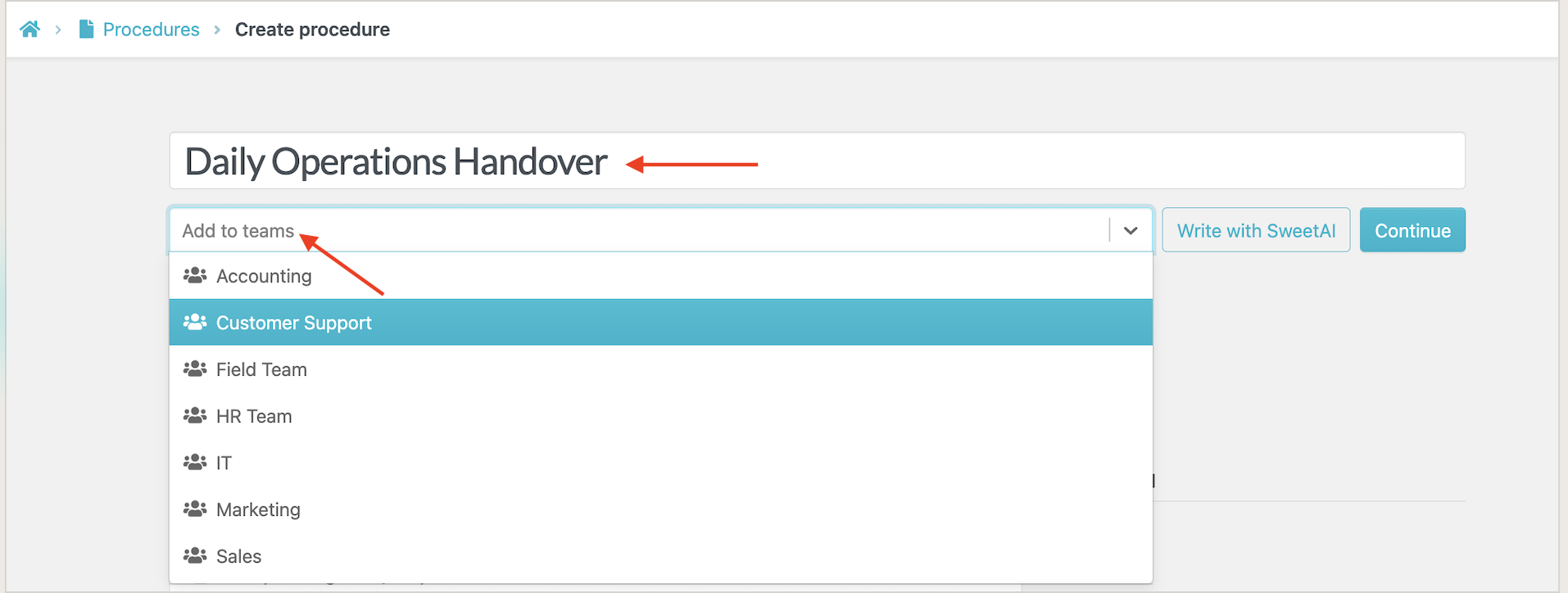
Instead of drafting the procedure manually, use SweetAI to generate a first draft.
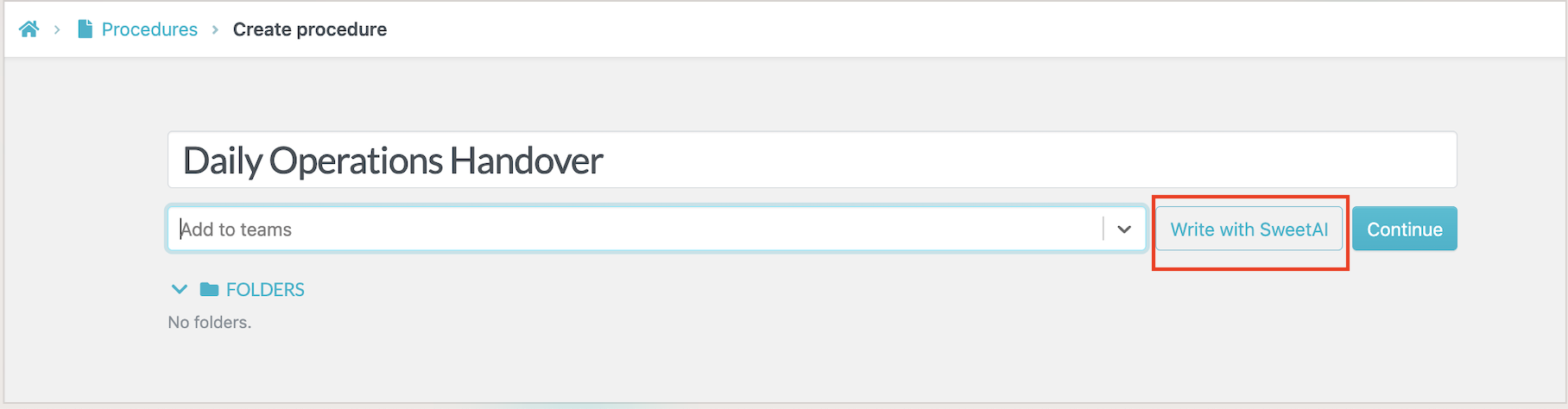
Your team still needs to review this draft and edit it to keep it accurate.
Alternatively, you can use the SweetProcess Chrome extension to capture your procedure.
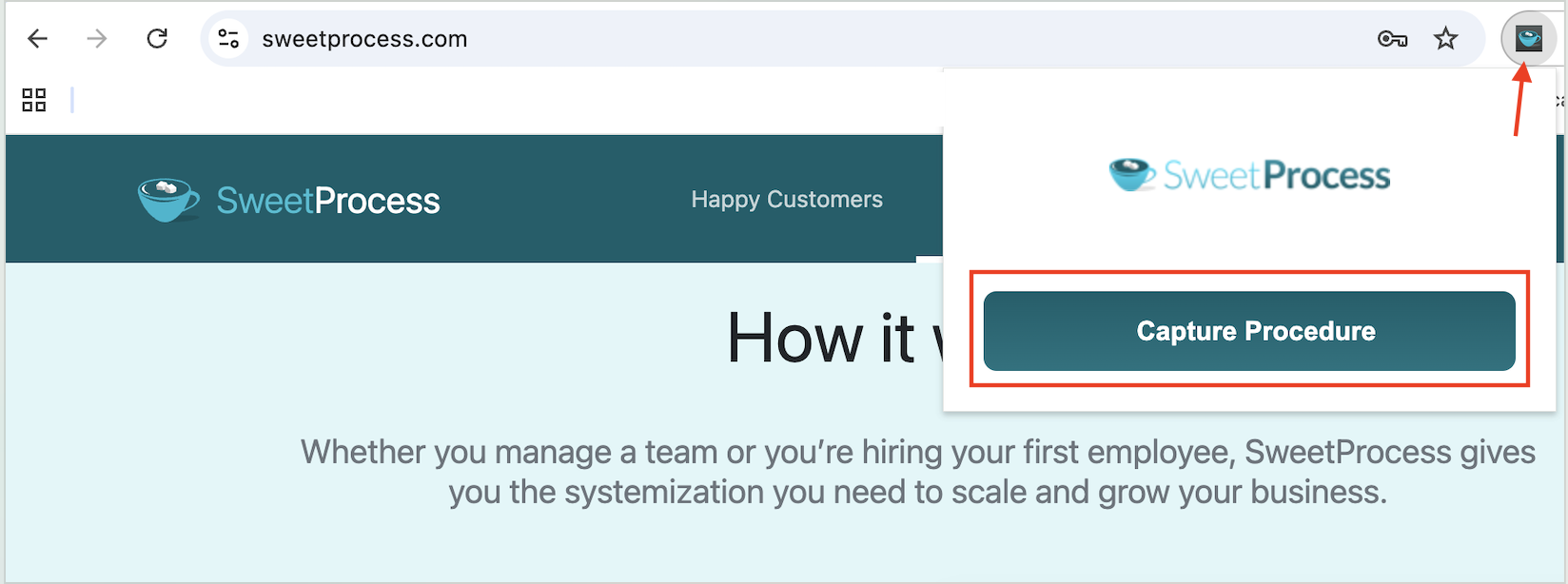
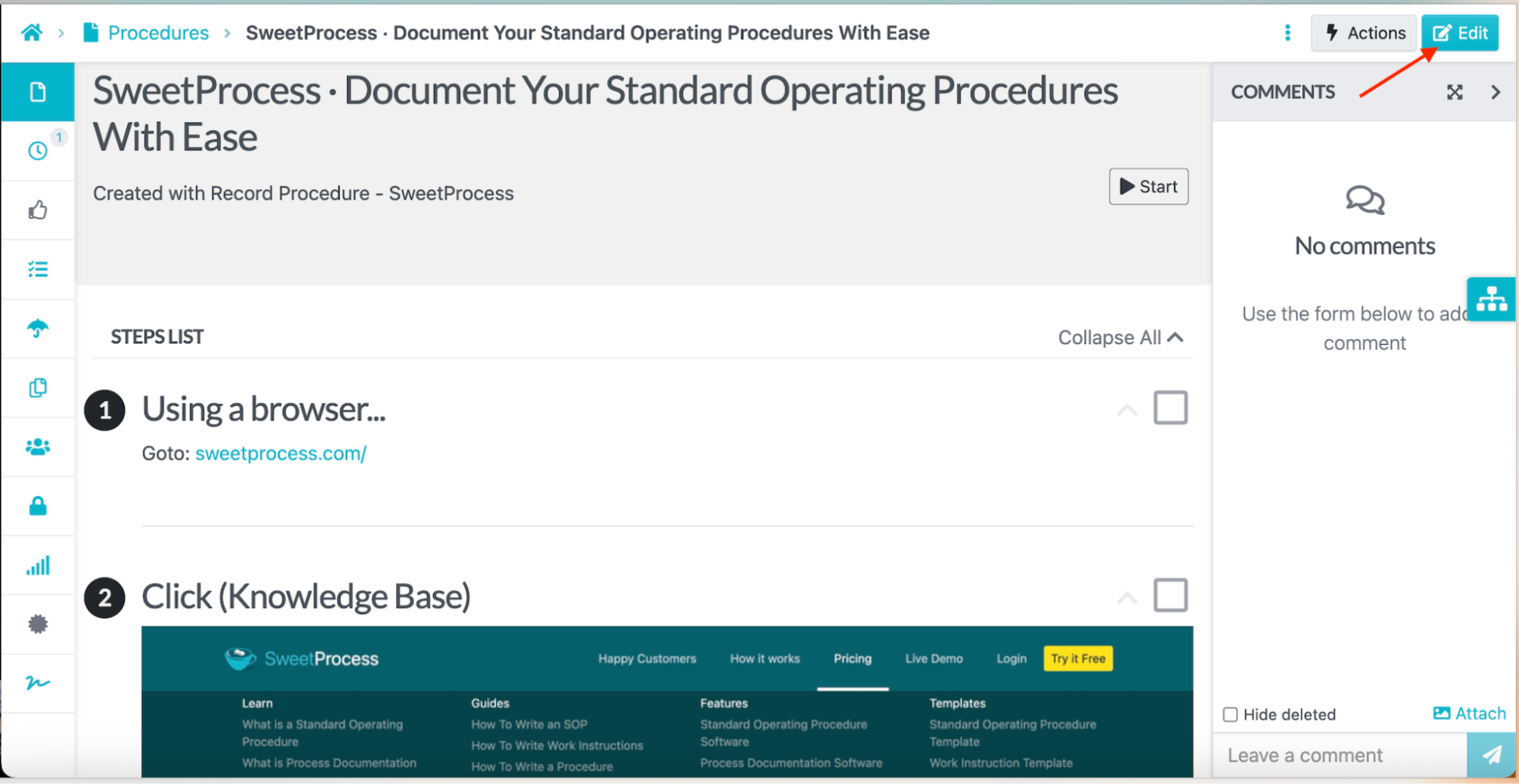
While capture can help you document the sequence of actions in a software interface, you still need to supply the context that makes the instructions useful. You can edit and remove some of the screenshots depending on your tasks and operations.
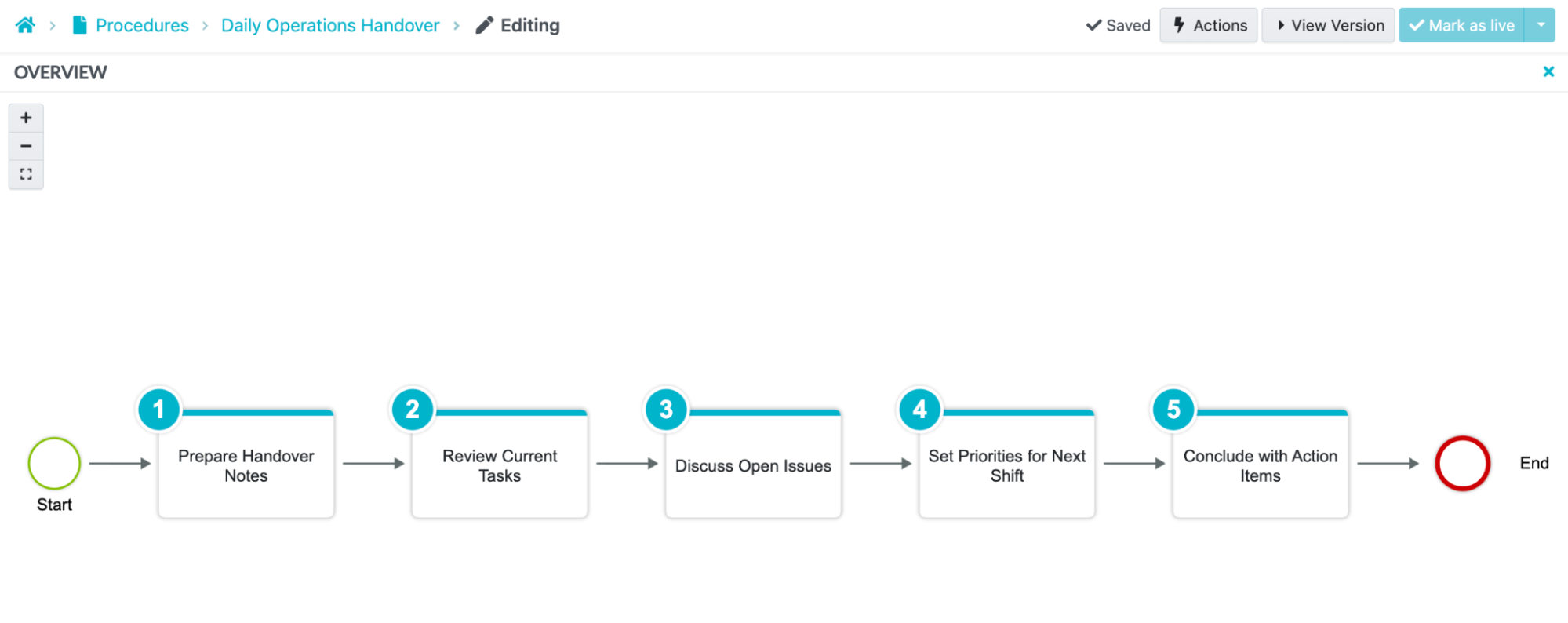
As you capture or create these procedures, SweetProcess also generates a flowchart from your steps automatically. The example below shows a sequence of steps. When evaluating your own procedure, check whether its flowchart represents the decisions and handoffs your team needs.
Once the procedure is ready, you can also embed it on an external website, such as WordPress, by selecting the globe icon and copying the embed code. When you edit the procedure in SweetProcess, the embedded copy updates too.
Use a Process to connect related procedures into a larger workflow. Keep the individual procedures distinct so you can maintain and reuse them.
To start, open “Processes” and select “Create Process.”

As your business grows, the need for various policies also increases. Keeping up with policy creation can be challenging during rapid expansion. SweetProcess also allows you to create a variety of policies for your employees. You can download and print them, or even save them in your internal repository. If you want to make changes, you can do so anytime.

With Confluence, you can access pages, live docs, templates, and content elements to organize information. You can use these features to create an SOP with a purpose, scope, roles, steps, review points, and links to related resources.
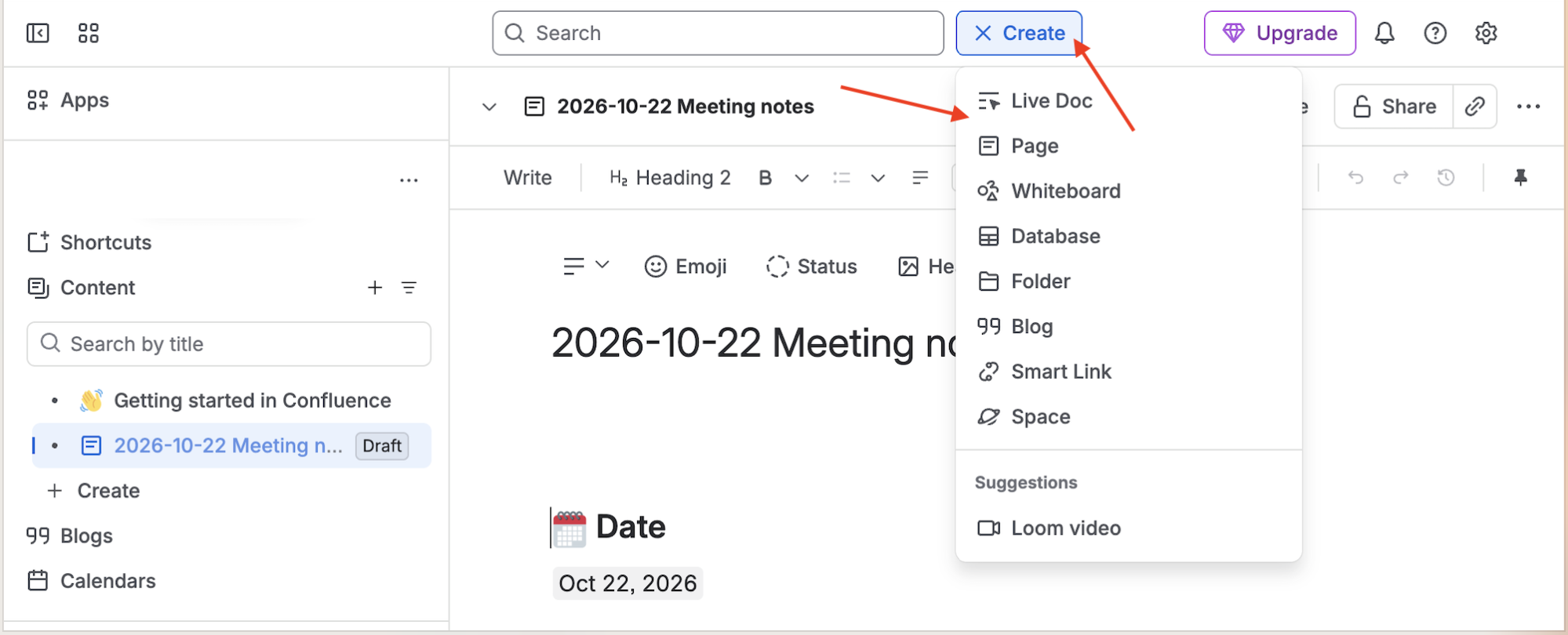
Choose the content type you need. With Live docs, you can update in real time as other employees type, while pages provide a publishing workflow for information intended to be maintained and referenced.
You can also use the templates to get started. You can edit them and customize them based on what you need.
Confluence vs. SweetProcess: Collaboration and Wiki Organization
Operational instructions rarely exist in isolation. Your customer-support procedure might refer to a refund policy or a product guide. Therefore, your team needs to find those resources without losing track of which instruction governs the work.
Confluence uses spaces to group pages and other content into meaningful areas. A space might cover a product, department, project, or internal knowledge area.
The meeting-notes template is one example of the content you can organize within a space.
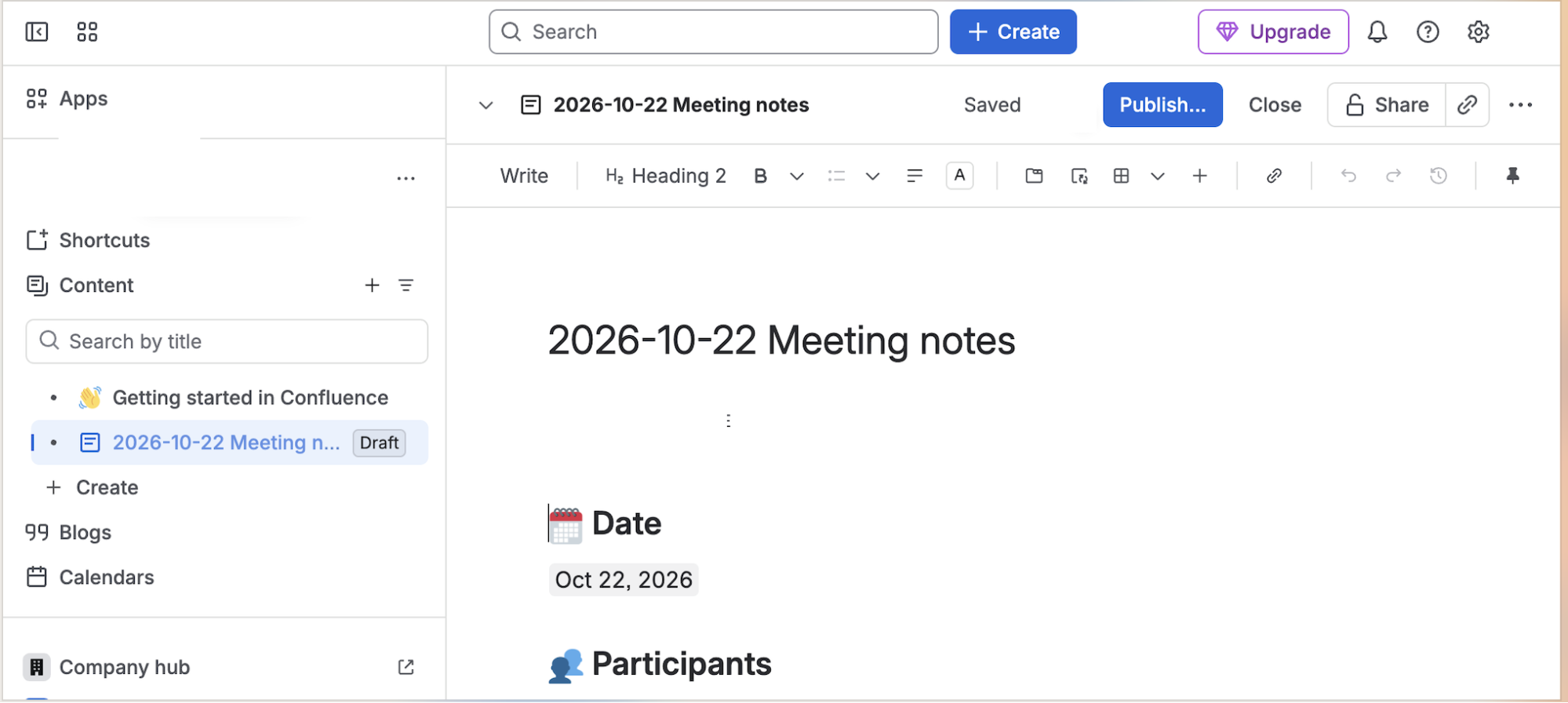
Pages can contain instructions, meeting notes, project plans, decisions, reference information, and links to related content. You can add tables, use templates and any other elements you’d like to add to your content.
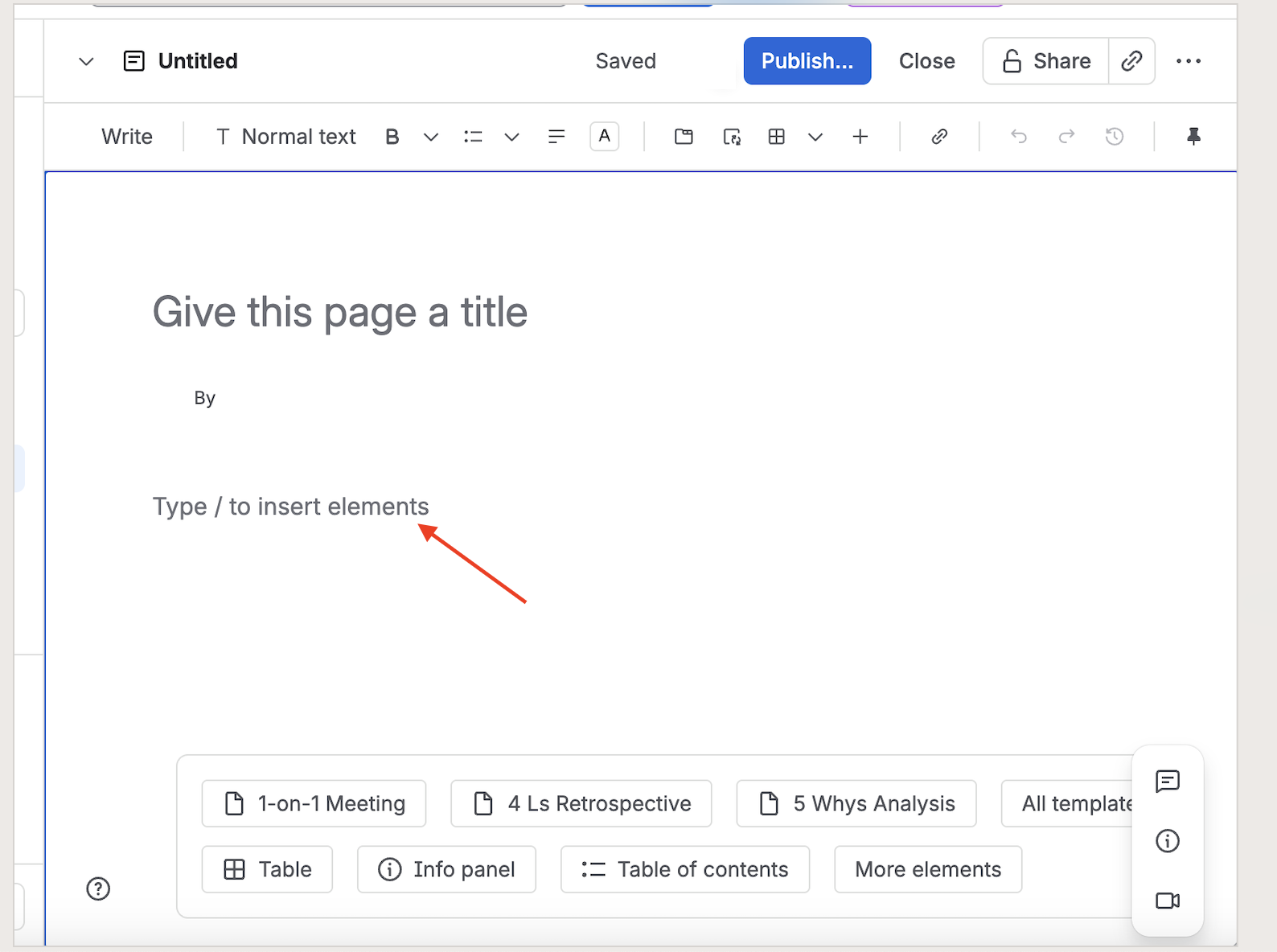
Confluence also supports linking related content. A page can direct readers to another page or relevant resource instead of duplicating the same explanation in multiple places.
Live docs let several people write at the same time and see each other’s changes as they happen. People can comment, mention teammates, and review version history.
Choose a live doc when your team needs to work together on evolving content.
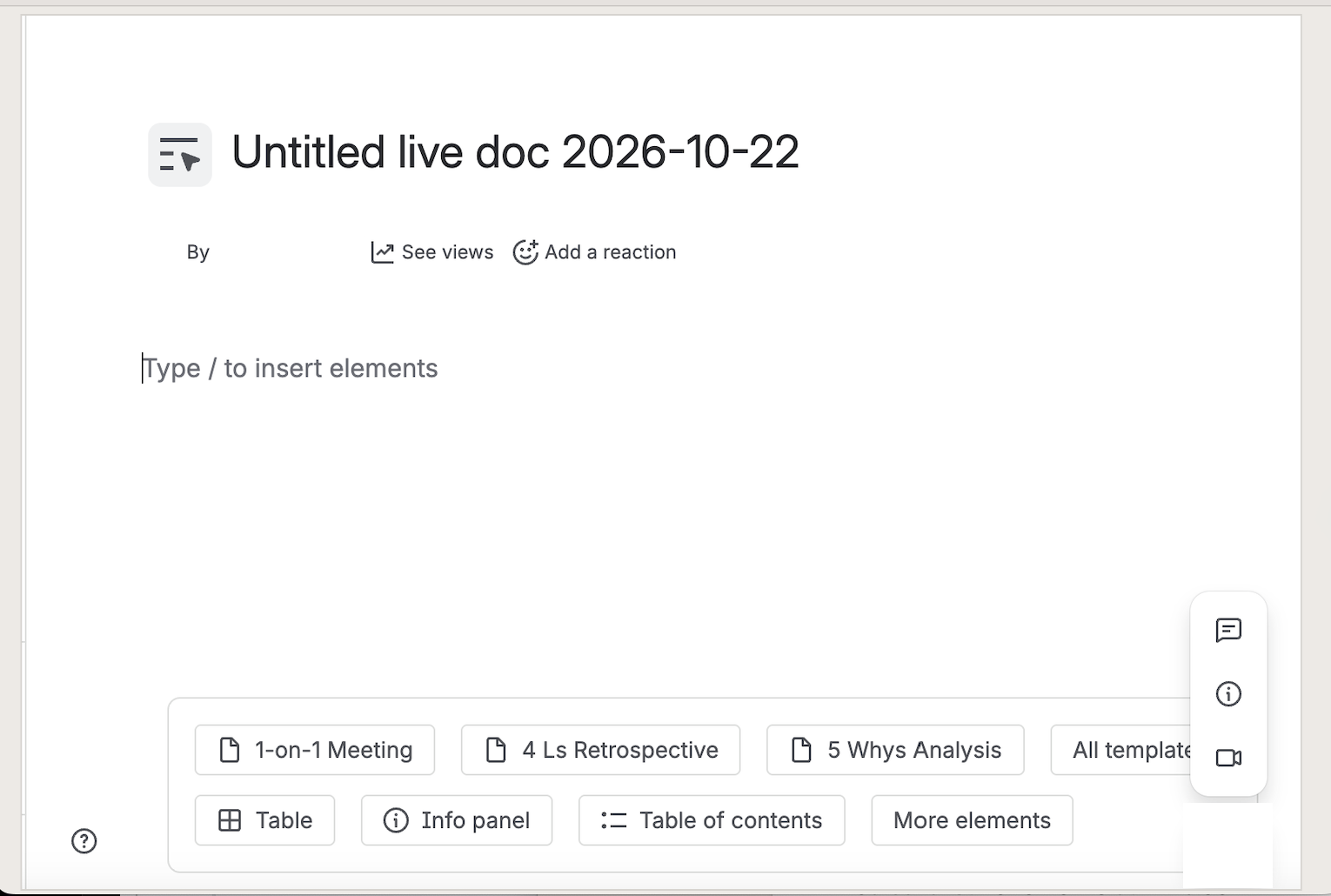
With such a collaborative environment, team members can work with the related material in the same knowledge environment.
Confluence also connects to Jira and other Atlassian apps. If project work and documentation need to reference each other, being in the same ecosystem saves effort.
SweetProcess makes collaboration easy. Its dashboard is organized into procedures, policies, processes, and knowledge bases, which makes it easier for teams to collaborate on projects from different locations.

When a document changes, people on the team get notifications about updates, comments, edits, and approvals.
Additionally, you can create a public or private knowledge base on SweetProcess that all employees can use to access information. The knowledge base provides another way to make documentation available to the people who need it.
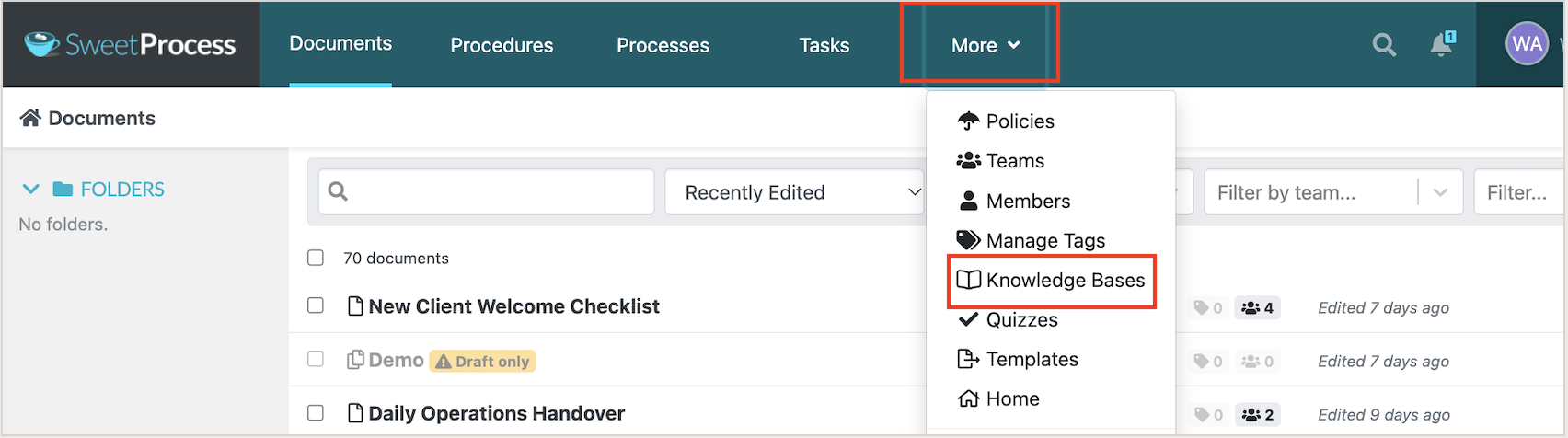
You can name all your different knowledge bases, which makes it easy for your team to find.
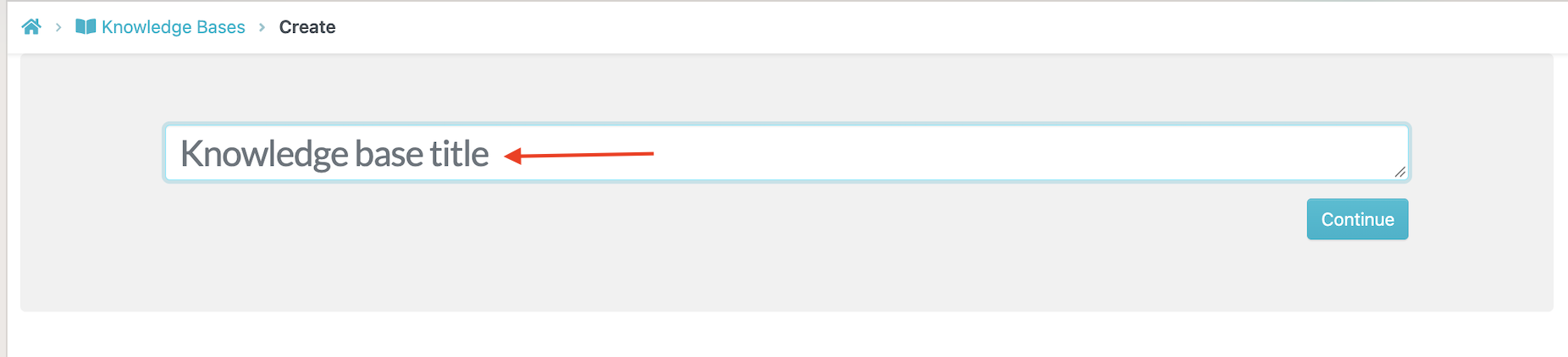
You can make your knowledge base public if you need to share it with external parties or make it private if it is meant for specific employees. Use Control Access to choose the intended audience. The title/logo redirect URL controls where readers go when they click that element; it is not the knowledge-base sharing URL.
In the account inspected for this comparison, Control Access displays a notice that making a knowledge base public requires a paid account. Check your account’s eligibility before planning public access.
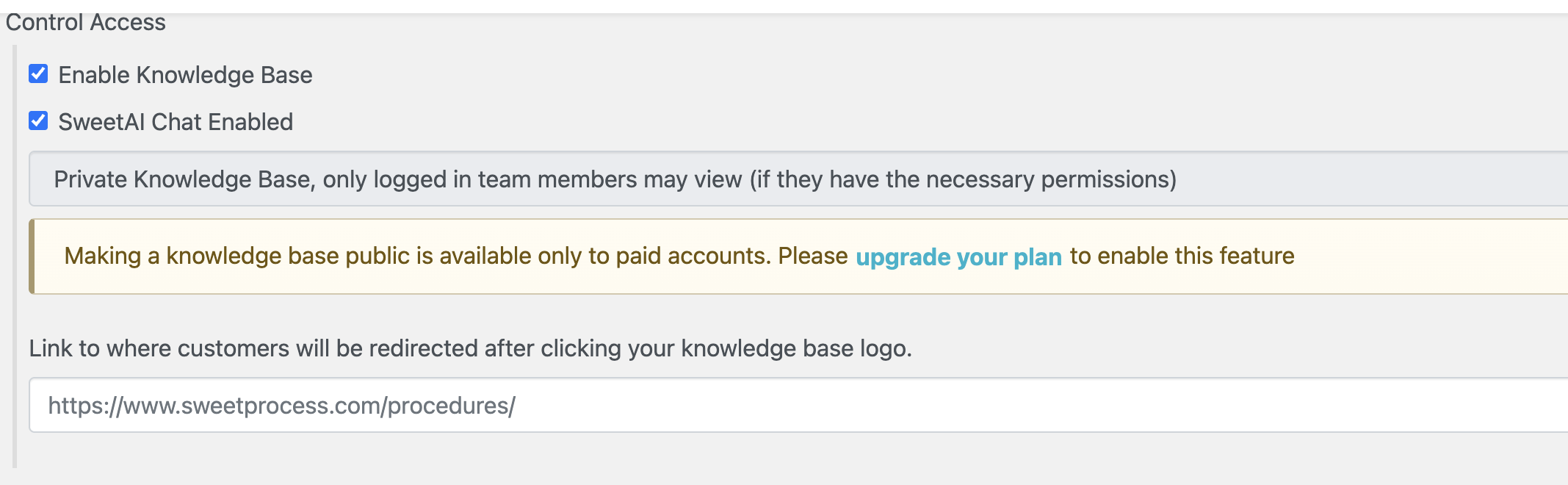
With the right permissions, your team can edit the knowledge base in case there are new changes that everyone needs to know. You can also use this knowledge base to centralize all company information and tribal knowledge that you can use to train new hires.
If your team frequently discusses project decisions, edits reference material together, and connects documentation to Jira work, Confluence may be the more natural home for that information. If you need clear operating instructions that can be maintained, acknowledged, and connected to assigned procedures, SweetProcess is designed around that job.
You may also decide that both products have a place. Confluence can remain the broader project wiki while SweetProcess holds the controlled operational instructions used to perform recurring work.
Confluence vs. SweetProcess: Approval, Review, History, and Acknowledgment
A document’s status can mean several different things. A published instruction may be available to employees without having gone through the required approval process. Acknowledgment records that a person confirmed reading a particular document, while a completed task record shows that an assignment was marked complete in the system.
Once the SOPs have been created, they also need to be reviewed regularly to keep them updated.
Confluence offers native approvals on Premium and Enterprise plans for pages, not live docs or blog posts. Edit permission is required to request or respond to an approval. Space administrators can configure required approvers and require approval before new pages are published.
Your team can request approval from designated people, track progress, and inspect the approval history. The approval activity log shows past approval cycles, including who requested approval, who responded, any comments, and when decisions were made. This is useful for pages that require a formal review before publication.
Once you create a page, you can check the version history and view what has changed. Confluence makes it easy to revert to an older version if necessary.
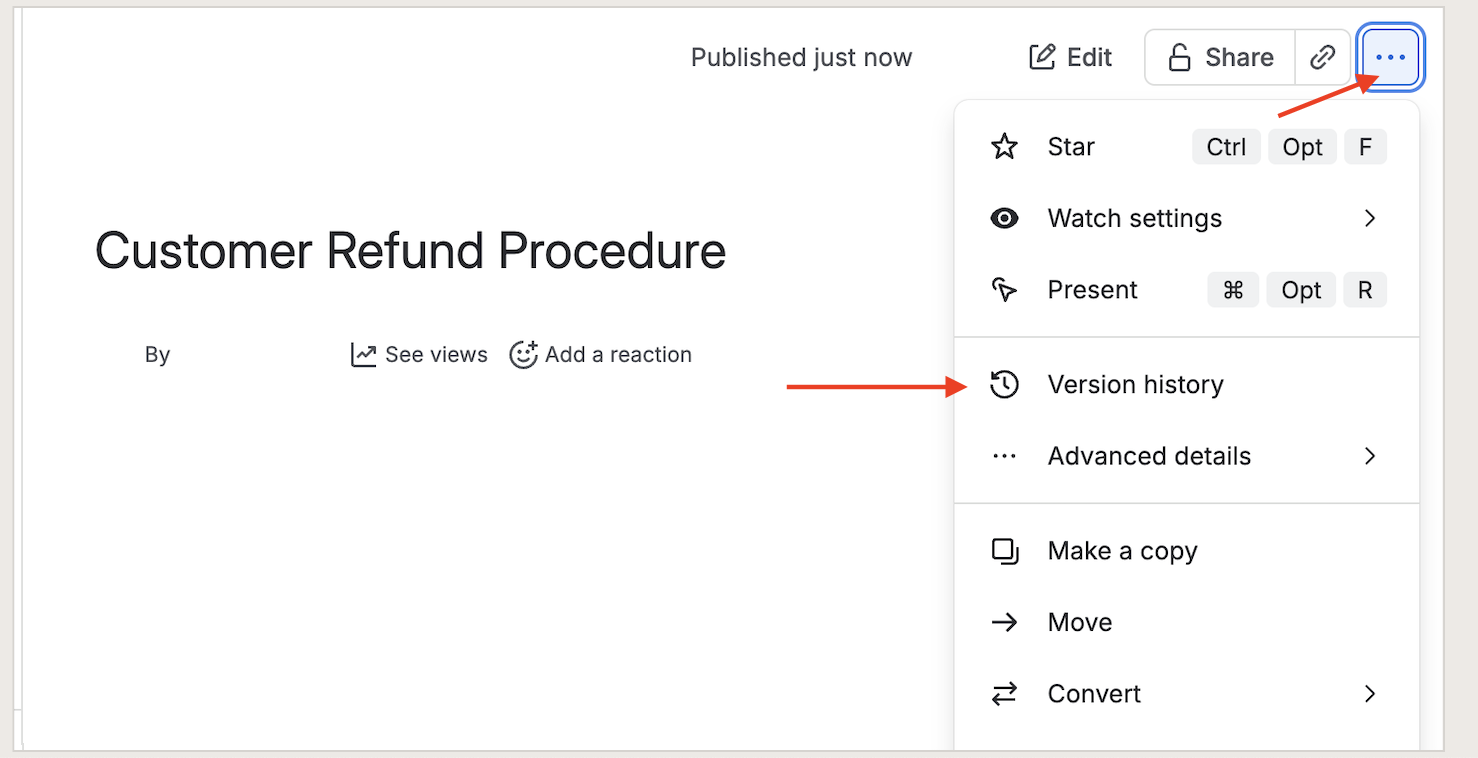
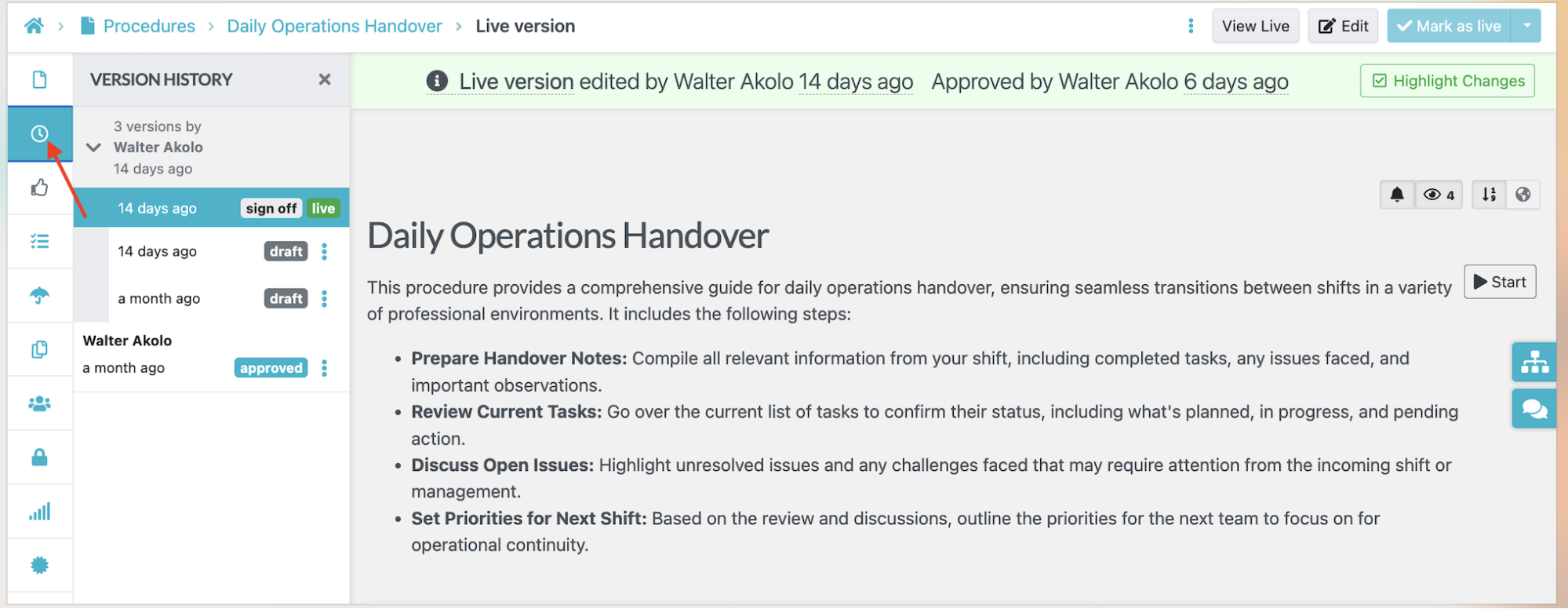
With SweetProcess, document history lets you inspect revisions and review activity. Keep this document history separate from task assignment and completion records. If a team member makes an unintended change, you can quickly revert to the original version.
To view the version history of your documents, go to the far left side of your screen and click on the clock icon. You’ll see the version history for each document. If a document has been changed without your approval, you can quickly identify it and undo the changes. You can also ask a team member to fix any errors.
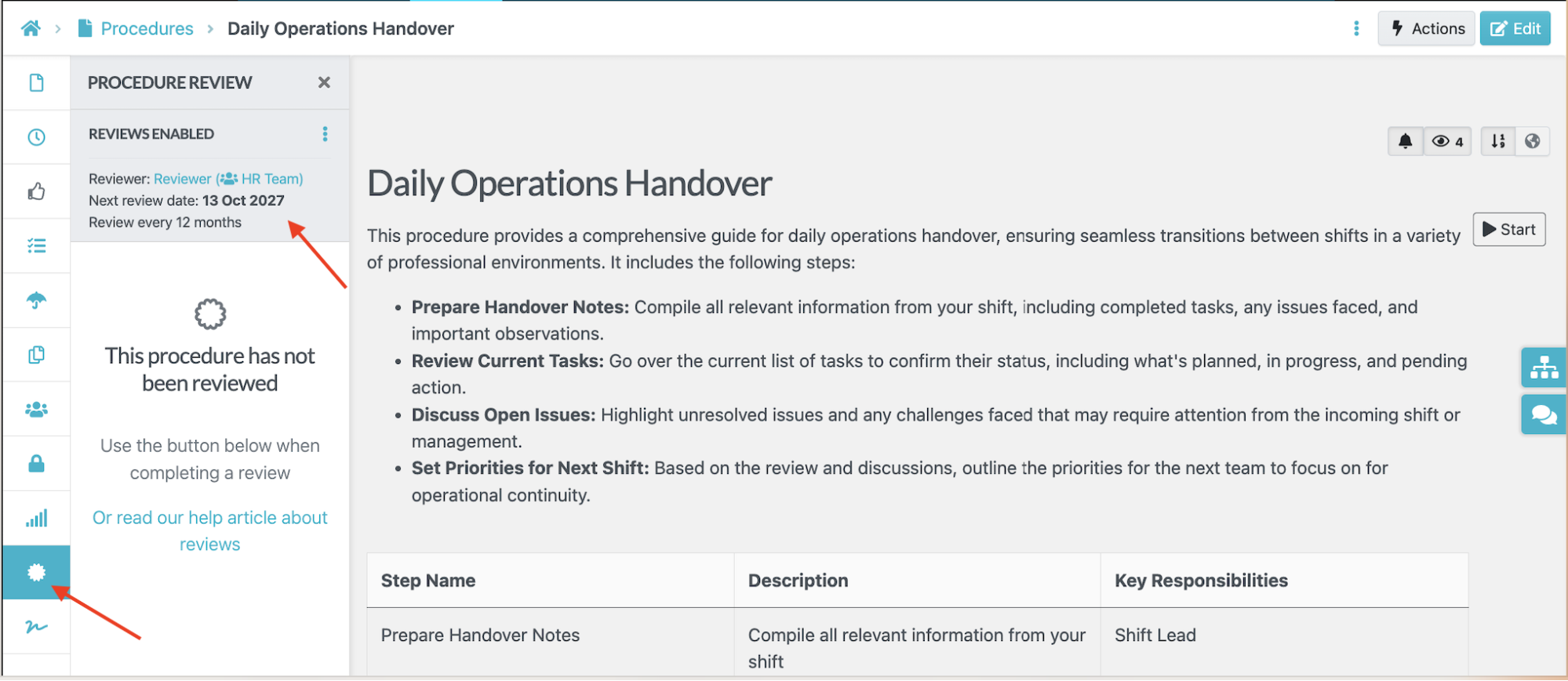
You can also schedule a review for your SOPs with SweetProcess. Here, you can indicate which employee or department is in charge of the review process, add a date, and schedule it to keep your documents accurate.
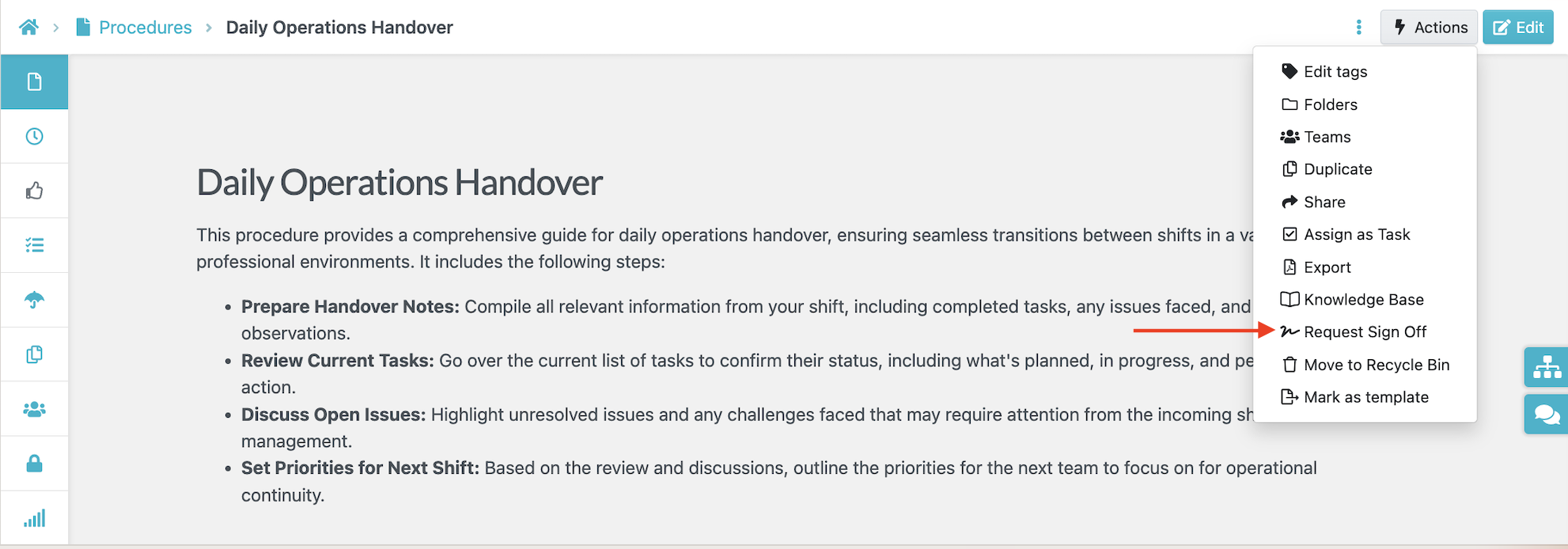
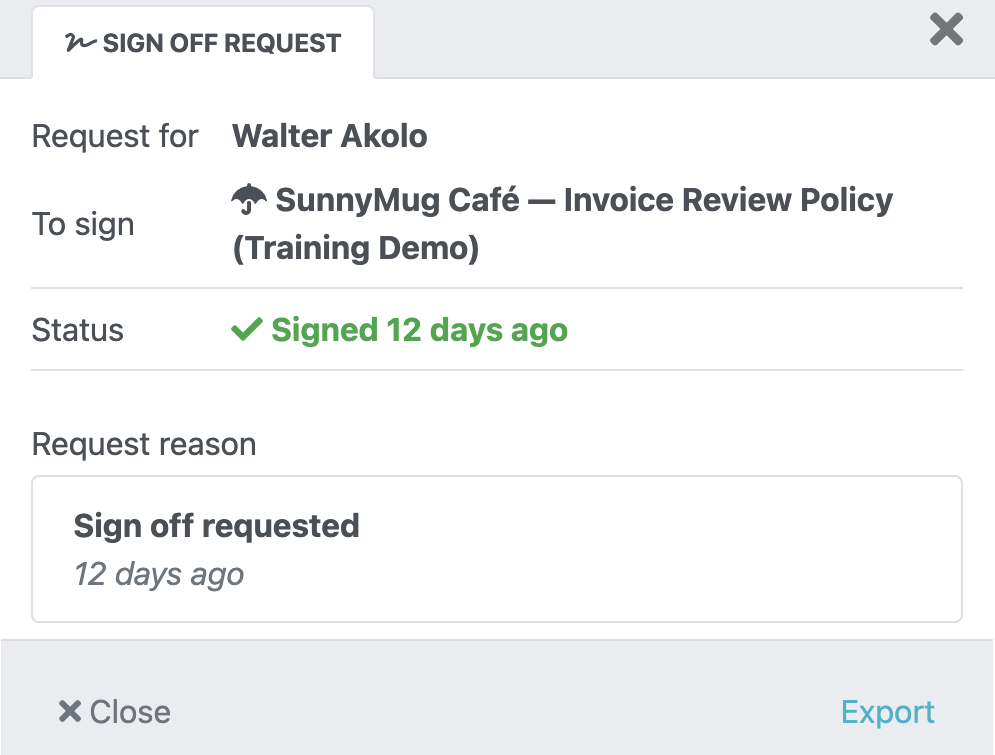
SweetProcess also makes it easy to get acknowledgments from employees. For instance, if you want to assign a specific procedure, you can request a sign-off and get feedback from the team that they have read and understood the company documentation.
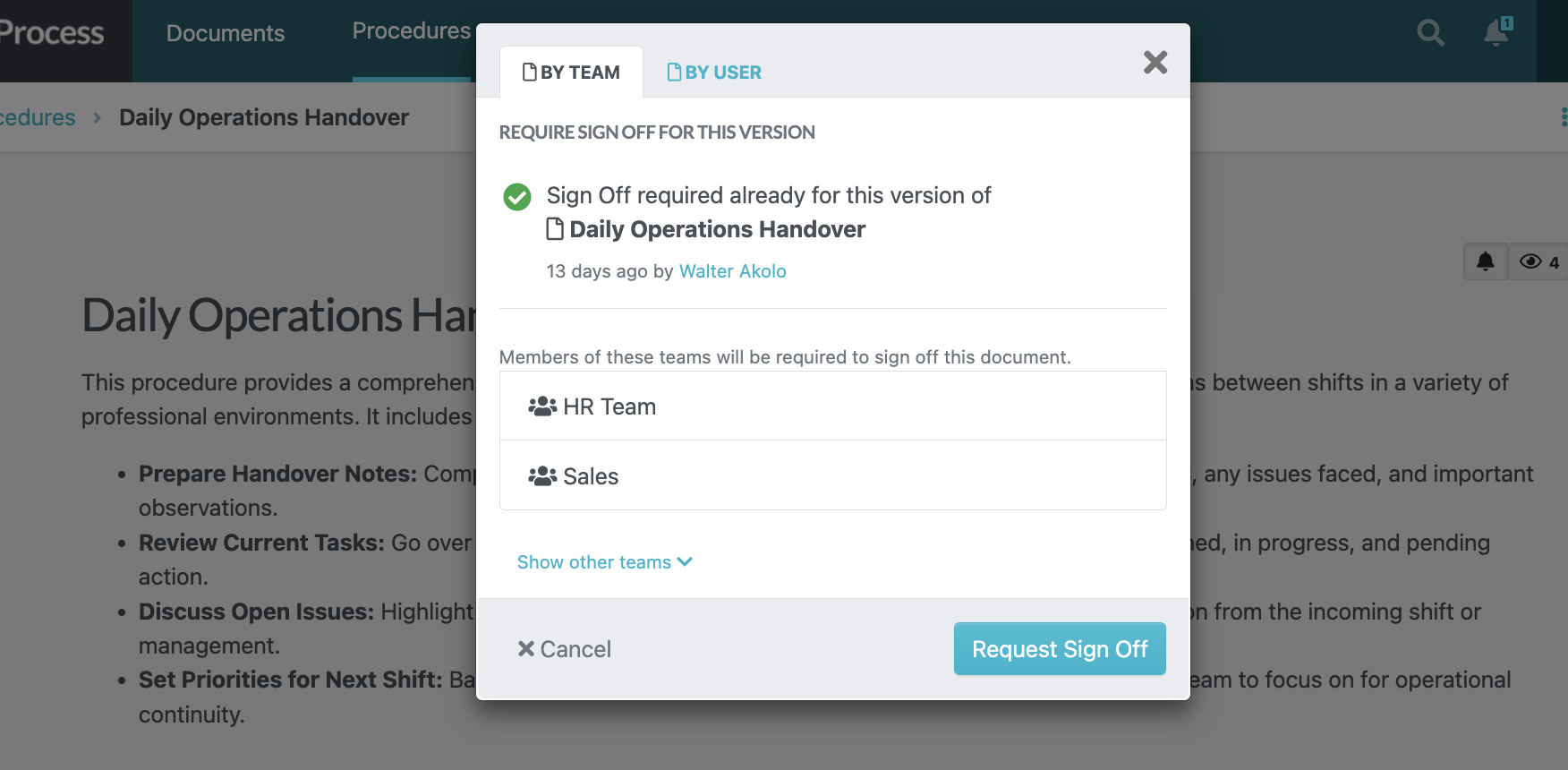
For acknowledgment requests, select the relevant teams. After employees respond, inspect the signing time and document version in the acknowledgment record.
The existing SunnyMug Cafe Invoice Review Policy training-demo record below shows a signed acknowledgment, labeled “Signed 12 days ago” in the captured view. Keeping this record separate from task completion helps distinguish reading an instruction from marking assigned work complete.
Confluence vs. SweetProcess: Recurring Work and Completion Tracking
A procedure is useful only if people can apply it when the work needs to be done. For recurring activities, you also need to know who is responsible and which items remain open.
Confluence supports action items that can be assigned to people using mentions. Assigned items can notify the responsible person and appear in their task views. A person can return to an action item and mark it complete.
This can be useful for work arising from a meeting, project decision, or documentation review. For example, after a team discusses a change to the billing process, a manager can assign someone to update the relevant page and another person to review the revised instructions.
You can also open the “Tasks” tab to see more information.
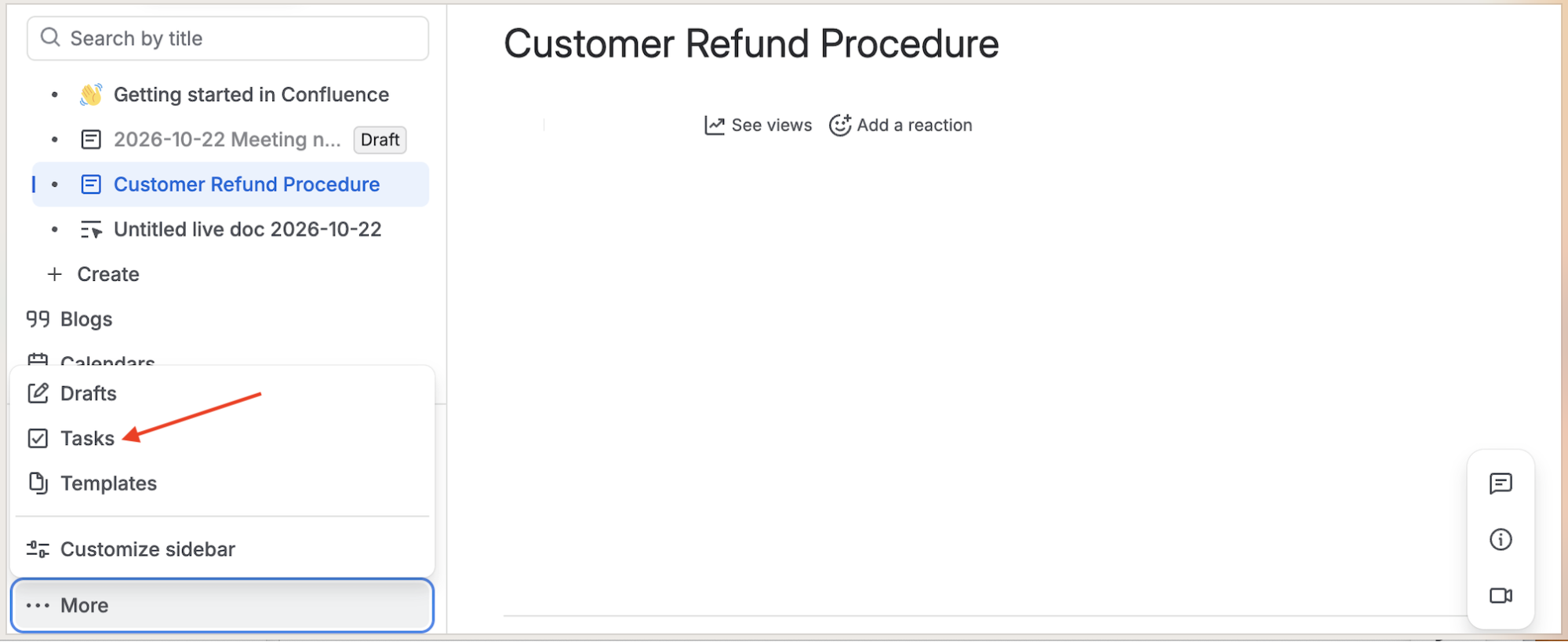
The task view separates “Assigned to me” and “Created by me.” Open a populated task view to inspect assignment details and completion records.

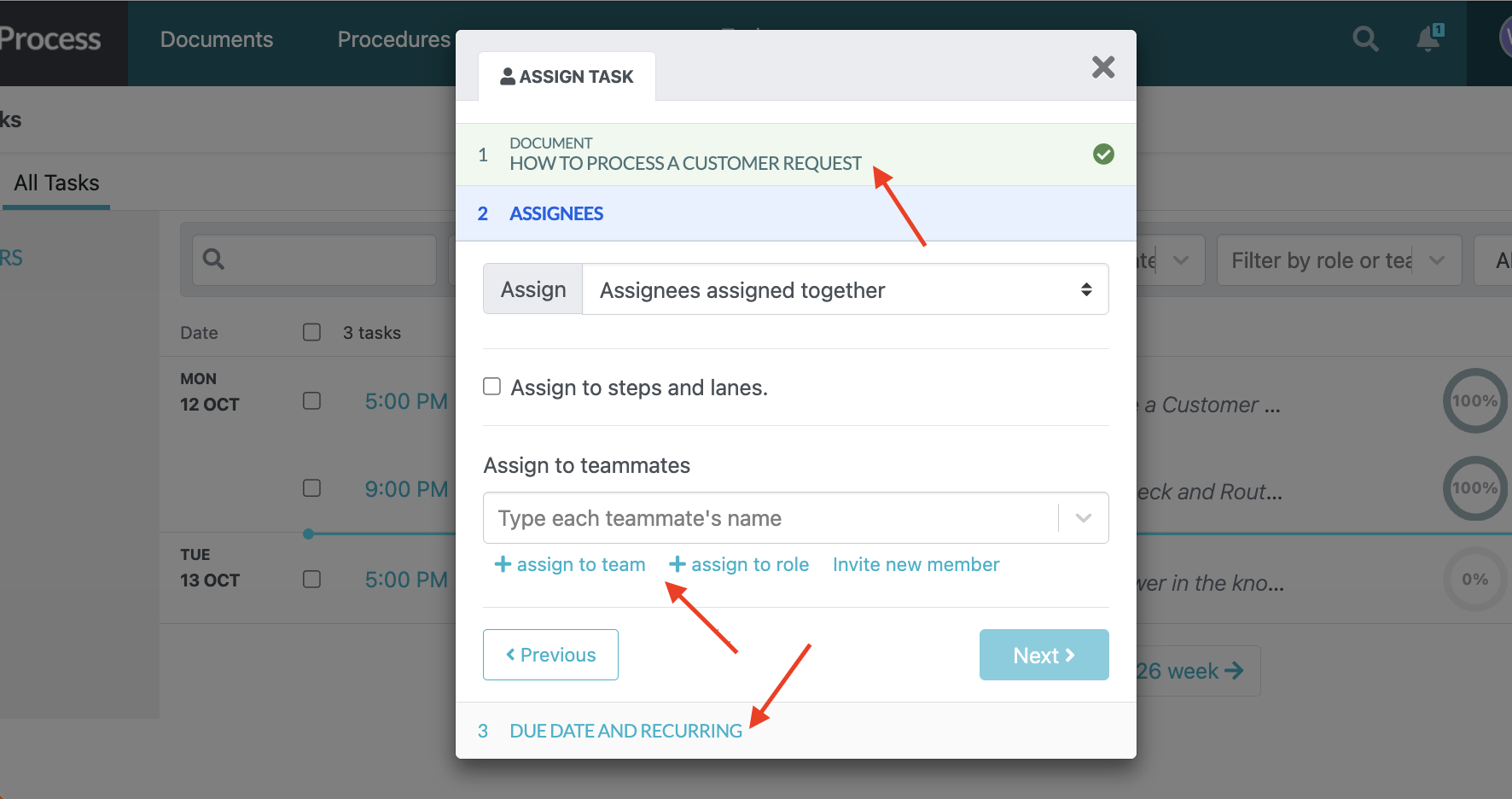
SweetProcess also makes it easy for you to track recurring work. Assigning a procedure as a task gives the assignee the relevant instructions and creates a work record; it does not guarantee correct execution.
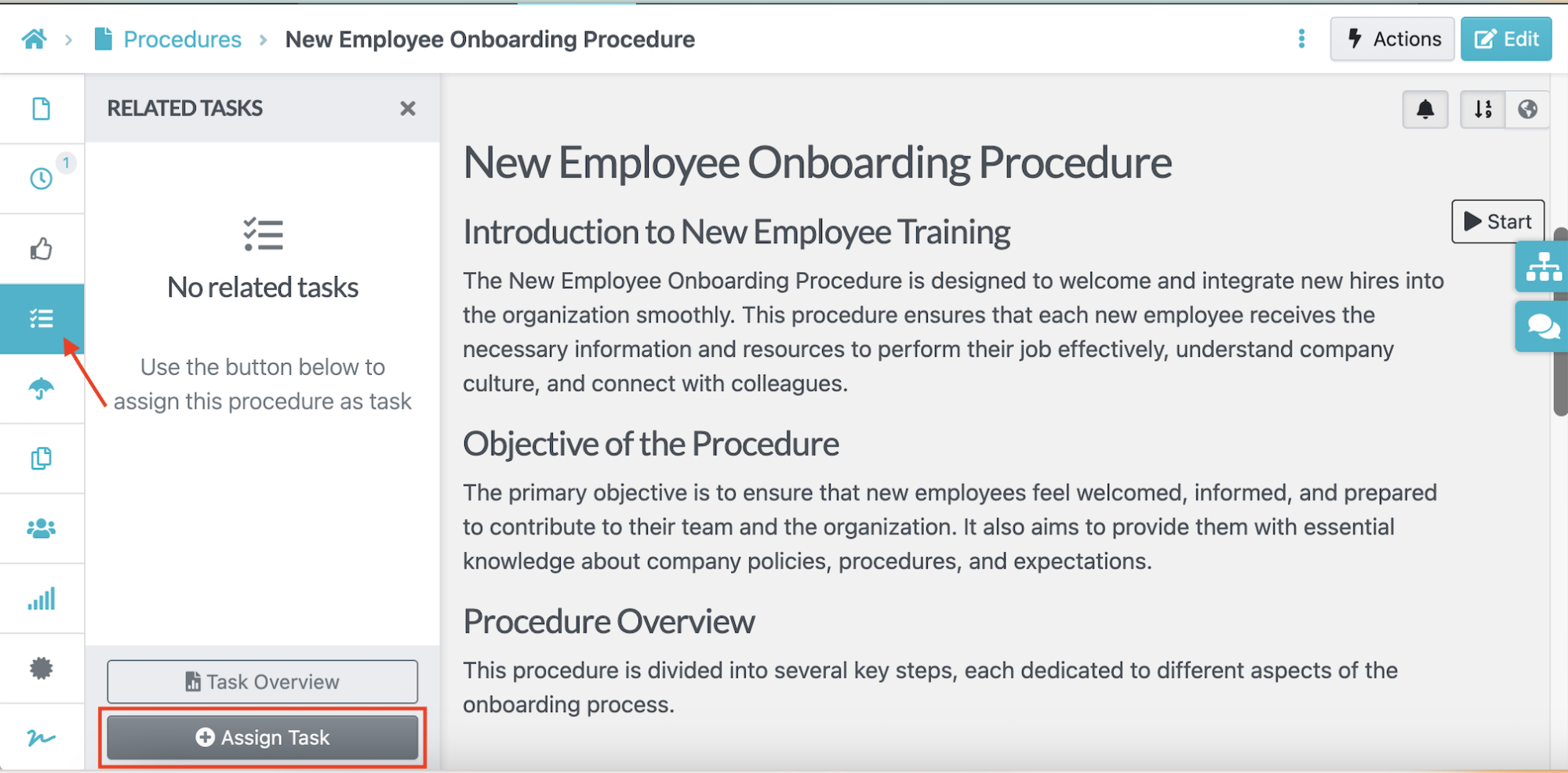
You can select the specific team member or add a department that needs to follow up on the task. Configure the due date and, when needed, the Repeat setting. Check the saved schedule before relying on a recurring assignment.
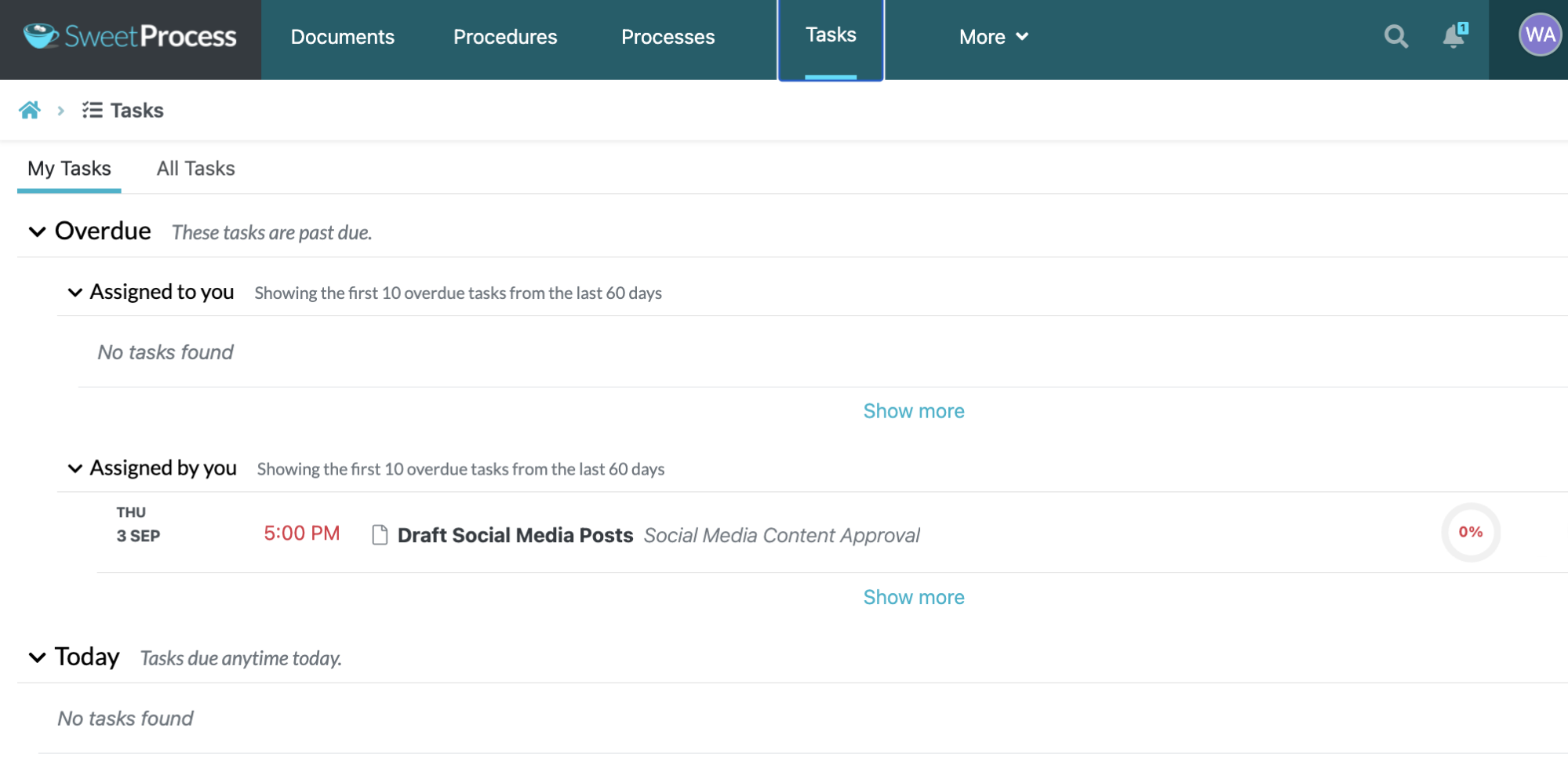
SweetProcess can send task reminders. The example below shows an overdue task. Use the “Tasks” menu to inspect the status of your assignments and follow up on overdue work.
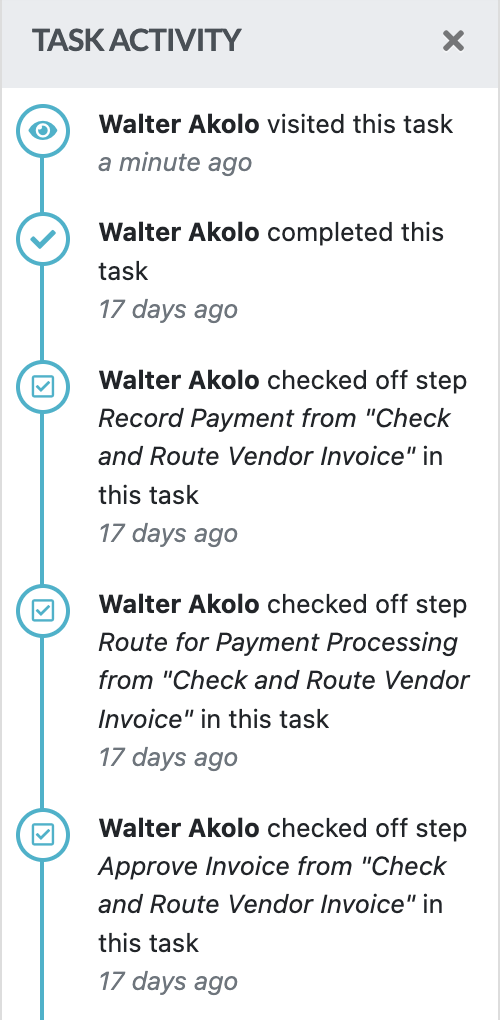
An existing invoice-checking task illustrates the recorded activity available for assigned work. Its task page showed five steps at 100% and a Repeat setting of Once. The activity log below records the task being marked complete and individual invoice steps being checked off, with the captured entries labeled “17 days ago.” Evaluate recurring schedules separately and verify any real payment in your accounting system.
To determine which is the better alternative when it comes to managing recurring work, test whether the setup supports your required schedule, procedure context, status visibility, exception handling, and completion records.
Confluence vs. SweetProcess: Search and Knowledge Access
Employees need to find the right instruction at the moment they need it. A well-written procedure has limited value if people cannot locate it, open it, or tell whether it is current.
Confluence provides search across its knowledge workspace, while spaces and pages help organize the material. You can use the search bars to look for the documents you need.
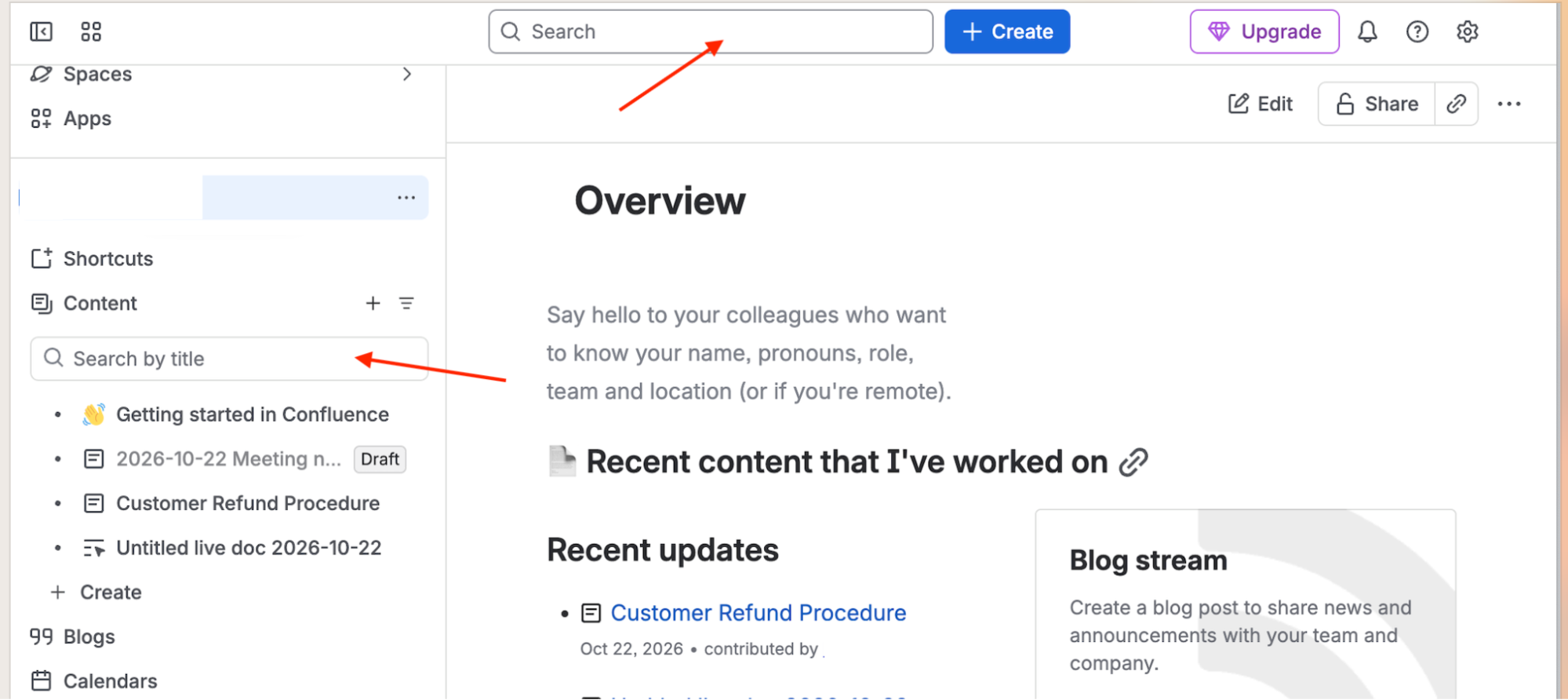
Links can connect an SOP to related project decisions, meeting notes, technical references, and other documentation. This is useful when a question requires more than a single set of instructions. An employee troubleshooting a product issue may need the procedure, a known-issues page, and the project decision that explains a particular configuration.
Confluence’s plan also affects access controls. The Free plan supports up to 10 users, but it lacks customizable permissions. Paid plans provide additional controls, including the ability to manage who can view, edit, and comment on content.
SweetProcess provides document search and knowledge-base access to help your team find operational instructions. As you create procedures or policies, you need to name them correctly to make it easy for an employee to locate them. For instance, if your team calls the same activity a “billing correction,” a “billing adjustment,” and a “payment update,” decide which term belongs in the title and use related terms naturally in the instructions.
With SweetProcess, you can search by name, tags, team, or use the filter button to refine the search.

Therefore, it’s important to use clear document titles and consistent terminology and avoid creating several nearly identical copies of the same instruction.
Confluence vs. SweetProcess: AI Assistance and Human Review
AI can help draft operational documentation much faster. The generated draft needs to be reviewed by team members who do the actual work before it can be approved as a standard SOP or policy. AI-generated text can omit exceptions, misinterpret a policy, or describe a screen that differs from your actual software.
Confluence uses Rovo for AI assistance. With Rovo AI, you can transform your visual charts and slides into content that’s easy to understand. It also comes in handy when you need to get answers from different sources. This feature is only available for users on paid plans.
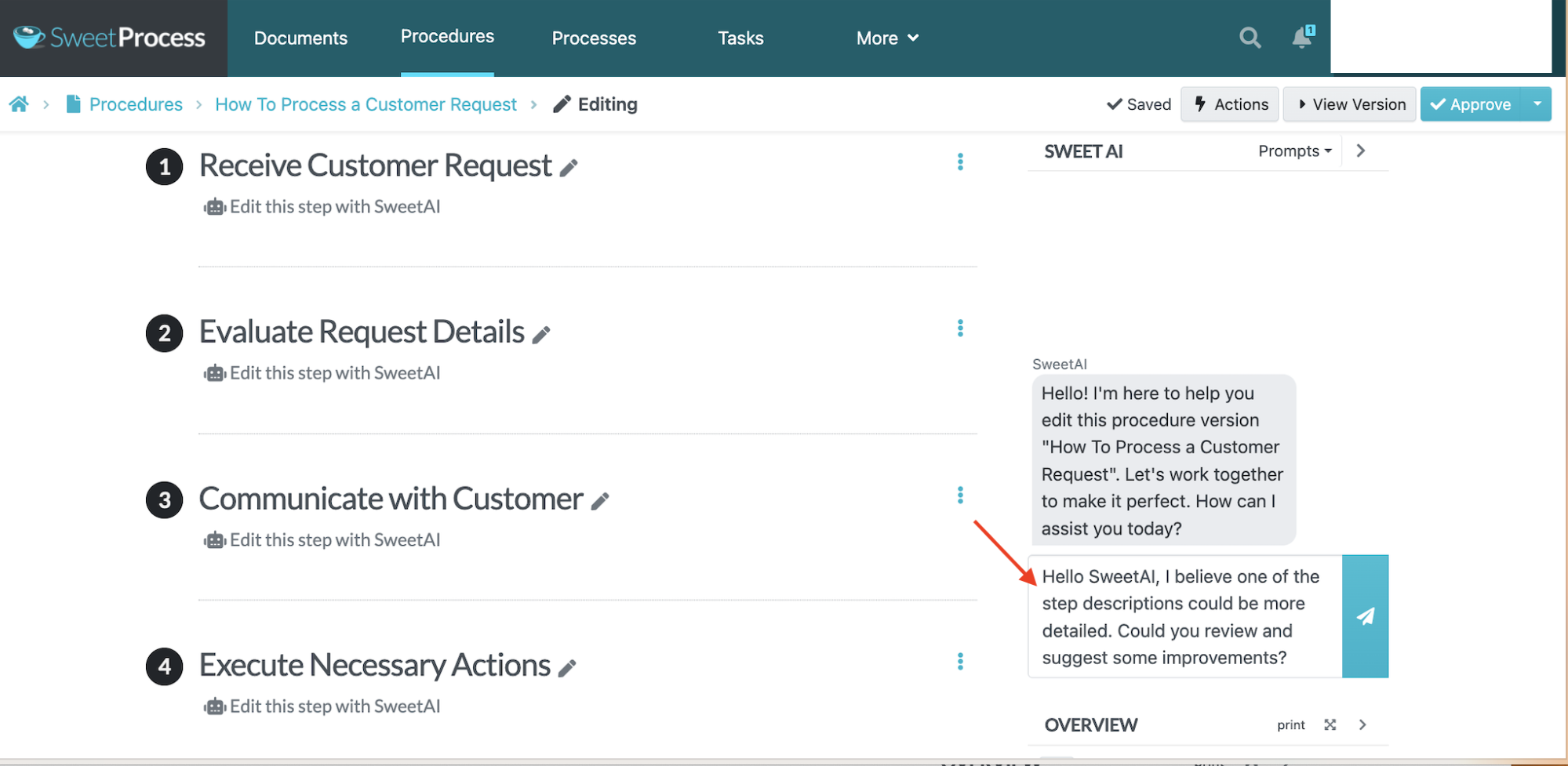
For SweetProcess, you can use SweetAI to draft procedures. You just need to add a title, and SweetAI produces a first draft of a procedure or policy.
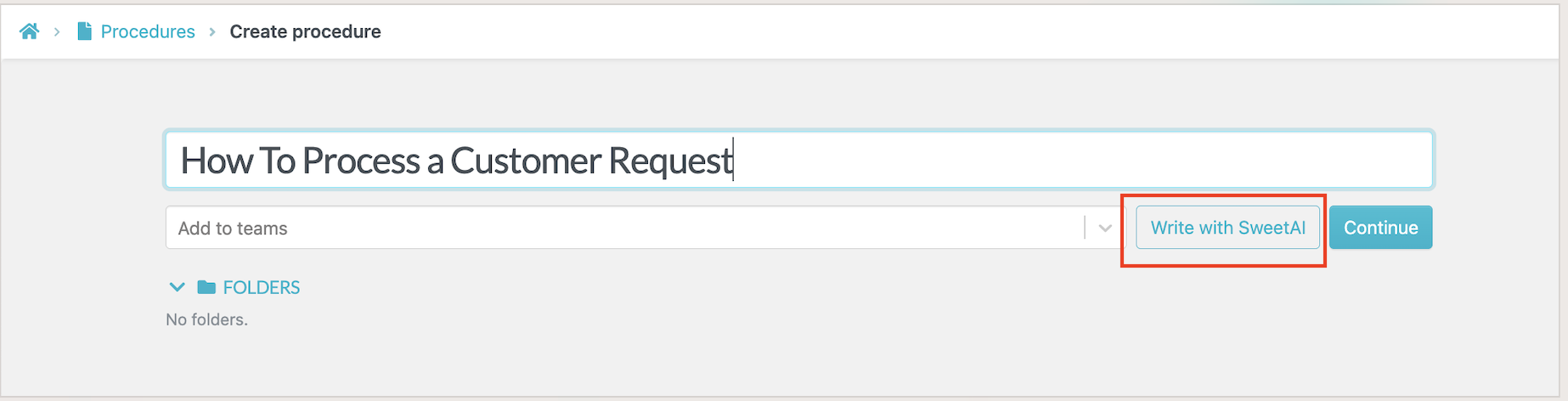
Review AI-generated instructions against the work and your organization’s policies before approving them. Add the details each step needs, submit any further edit request, and review the resulting text before using the procedure.
Confluence vs. SweetProcess: Integrations and Security Requirements
Confluence could be a good fit if your team already uses Jira and other Atlassian products. It can connect knowledge to project work, giving your team a centralized place to find decisions, reference material, and related documentation.
Apart from Atlassian tools, it also integrates with other key business apps, including Google Workspace, Teams, and Figma. Before choosing a plan, identify which integrations are already included and which requirements need an additional app, a particular subscription, or configuration work. Marketplace apps can extend functionality, but they may have their own costs and maintenance needs.
Once you’ve created your documentation on spaces and pages, you can choose who can view or edit the information. Confluence offers this feature to protect your knowledge in case you’re dealing with sensitive information. On paid plans, you also get free guest access and public links in case you have external collaborators.
Security is also prioritized on all plans to protect your business, thanks to encryption.
SweetProcess connects to 1,000+ other apps through Zapier and its API. If your work depends on a certain tool, you can integrate it to centralize your operations.
You can also restrict access when sharing knowledge bases or procedures. You can share the documentation with specific teams or departments, straight from the dashboard. Single sign-on and SCIM are also available for identity and account administration; assess their configuration against your organization’s requirements.
Confluence vs. SweetProcess Pricing
SweetProcess offers flat-tier pricing, which allows all users to access every feature on the platform. As a new user, you can start with the free 14-day trial to test out the tool. After this period, the standard plan starts at $99 per month or $990 per year for 10 users. If you want to add new employees, it will cost you $5 per month for every new user on the monthly payment plan and $50 per year on the annual option.
If your organization has a smaller team of five users, SweetProcess offers an alternative plan at $495 per year. Each additional user is charged $50 per year. SweetProcess advertises a 30-day money-back guarantee if you do not see a measurable improvement, plus a free one-hour consultation. Billing counts users added to the account, including invited users who have not logged in.
Confluence Cloud offers Free, Standard, Premium, and Enterprise plans. The Free plan caters to 10 users and includes pages, spaces, up to 2GB of storage, and three active whiteboards per user.
Standard adds Rovo features, advanced permissions, and 250 GB of storage. Use the current calculator for your actual team size and billing cadence. A displayed per-user figure is not a universal rate or a complete annual commitment.
Premium adds unlimited storage and whiteboards, expanded administration, and 24/7 support for critical issues. Enterprise is billed annually. Compare an exact plan estimate with the cost of any required Guard, Jira, or Marketplace subscription; include only extras your workflow actually needs.
How Real Businesses Have Used SweetProcess To Manage SOPs
All Residential Real Estate illustrates why a checklist and a usable operating instruction are not the same thing. In its published customer story, managing director Perry Beebe described paper checklists that became hard to maintain as the business changed. Staff could tick off an action without having enough information to carry it out consistently.
The company moved toward cloud-based procedures so people could find the instructions they needed. Its story also describes using embedded videos to explain individual steps during onboarding. That is the relevant lesson for this comparison: Storing a document is only the beginning. The person doing the work needs enough context to act, and the organization needs a practical way to maintain that context.
This is a historical customer account about replacing insufficient paper-based instructions, not evidence of a migration from Confluence. It does not establish a percentage improvement or guarantee the same result for another business.
Use the example to shape your pilot. Choose one instruction employees regularly ask about, include the explanation or demonstration they need, and assign an owner to review it. Then check whether a test user can find the current version and follow the intended handoff without relying on undocumented knowledge.
Pilot and Migration Checklist
If you are considering switching between SweetProcess and Confluence, you can test each of the tools to see if it’s a good fit.
Export One Procedure
You can select a detailed procedure that includes text, visuals, and work that your team does. This allows you to determine if you need to move all your documentation. Both tools have capabilities that allow you to export your documents either to Word or PDF.
Prepare the Documents
Before migrating any SOPs, gather any linked material, screenshots, tables, attachments, and supporting policies needed to understand the procedure. You can record the related tasks and document owners to make it easier to rebuild your content.
Import and Review the Content
Once you have imported the documentation, review the imported result. If you are importing to SweetProcess, you can check the attachments and formatting to correct anything that’s difficult for your team to follow.
Rebuild The Structure
During the import, you might lose important information such as task records and approval history. You need to set up permissions in the new platform to make it part of your operational workflow.
Run The Evaluation on The Platform
Whether you’re switching to SweetProcess or Confluence, you need to assign your SOP to a team, add a review schedule, request acknowledgments, and check the version history if the features are available. Use the results to assess whether the setup meets your requirements; a small pilot does not prove organization-wide outcomes.
Compare Access
You can also test the procedure using the roles your organization actually needs. A normal employee should have the access necessary to perform the work, while confidential information should remain restricted to authorized people. Check who can edit or review the documents.
Check Costs
While both tools list actual prices on the website, you need to compare how these costs fit in with the size of your team and the features you require.
Choose the SOP Tool Your Team Needs
Confluence and SweetProcess both support documentation, collaboration, and operational knowledge. The best choice depends on what happens after an instruction is written. Confluence works best for teams that need a broad collaborative wiki or already work within the Atlassian ecosystem.
SweetProcess is the go-to platform if you want to manage and organize your procedures, policies, and knowledge bases on the same platform. You can capture your SOPs using the Chrome extension or use SweetAI to generate a first draft for your team to refine. You can assign a procedure or process as a task, review your documents regularly, and request document sign-offs from your team.
If you want to see how SweetProcess fits your team’s work, start a free 14-day trial. Create one real procedure, review it, and assign it to a test user. That gives you a practical basis for deciding whether SweetProcess belongs in your operational workflow.
Try SweetProcess for free. No credit card needed.
FAQs
Is SweetProcess better than Confluence for SOPs?
It depends on the job. SweetProcess fits when you want procedures tied to review, sign-off, and assigned work, because those pieces live in one product with defined types for Procedures, Policies, and Processes. Confluence is a strong choice when SOPs are one part of a larger collaborative knowledge workspace. It has templates, real-time collaboration, version history, action items, and page approvals on qualifying plans. If you need acknowledgment records and repeatable assigned work, test both products with one real procedure before you decide.
Can Confluence handle approvals and recurring work?
Confluence has native page approvals on Premium and Enterprise plans for pages. It also has action items you can assign with due dates. Those cover many needs, but they don’t automatically reproduce every SweetProcess task behavior, such as assigning a procedure itself as a task. Test the full workflow you need, including how completion is recorded, and note whether a Jira project or Marketplace app is required.
How do Confluence and SweetProcess pricing compare?
SweetProcess Standard plan starts at $99 per month or $990 per year for up to 10 users, with additional users at $5 per month or $50 per year. Small Team plan is $495 per year for up to five users. All features are included. Confluence has a Free plan limited to 10 users and 2 GB. The paid plans depend on users, billing cadence, and extras. Use the current Confluence calculator for the selected plan, team size, currency, and billing cadence, and include any required add-ons before comparing totals.
Can I migrate Confluence content to SweetProcess?
You can run a pilot. Export a representative Confluence page, prepare a supported DOCX, and import it into SweetProcess. Then review formatting, images, tables, links, and attachments. Teams, permissions, document relationships, review rules, and tasks need to be rebuilt deliberately. Macros, space hierarchy, Jira relationships, version history, approval history, and task records don’t transfer automatically.
Should I keep Confluence if my team uses Jira?
Consider what you already have. If Confluence is already your team’s collaborative knowledge workspace, it may make sense to keep using it for project context, meeting notes, technical documentation, and information connected to Jira. You can evaluate SweetProcess alongside it for operational procedures that need structured maintenance, acknowledgment, and assigned work. Decide which system owns each instruction, how employees find the authoritative version, and how updates are communicated.