Last Updated on October 27, 2026 by Owen McGab Enaohwo

TL;DR: SweetProcess, Scribe, Dubble, Uphint, iorad, Flowster Capture, Gyde, Guidde, and Stepsy are alternatives to the Tango Chrome extension. The right choice depends on whether you need screenshot-based instructions, narrated videos, interactive tutorials, or procedures your team can maintain and assign. Compare the output, free-plan limits, and pricing below, then follow a SweetProcess capture from browser activity to a reviewed procedure.
Start your free 14-day trial of SweetProcess.
No credit card needed. Cancel anytime.
If you are looking for Tango Chrome extension alternatives, the first question should be what you need to produce when the recording is finished. A browser capture can give you screenshots and instructions, but your team may need something more, such as an editable SOP, a narrated video, an interactive tutorial, or a procedure that someone can review, approve, assign, and update later.
These nine alternatives cover different jobs. Some focus on browser capture; others add a separate desktop app. We compared vendors’ published capture features, output formats, sharing controls, and pricing. Use those differences to choose a tool, then test it with a harmless sample of your own workflow.
Key Takeaways
- Select a Tango Chrome extension alternative based on the output you need. Tools like Scribe and Dubble are suited to browser-based step-by-step guides, while Guidde is a video-first option.
- Check capture scope, privacy, and the full team cost. A browser extension does not automatically capture desktop apps, and a free plan may limit creators, outputs, or private sharing.
- Treat the capture as a first draft. Review the instructions, add decisions and exceptions, and check how your team will find the current version when the work changes.
- SweetProcess gives you a place to edit, review, approve, share, and assign the captured procedure.
Table of Contents
Tango Chrome Extension Alternatives at a Glance
Tool |
Best-Fit Output |
Capture Scope |
Free Plan |
Next Paid Step |
One Limit to Know |
|---|---|---|---|---|---|
SweetProcess |
Editable procedures you can approve and assign |
Browser Chrome extension |
No permanent free plan; 14-day trial |
$99 per month for up to 10 users; Small Team: $495/year for up to five users, plus $50/year per additional user |
Captures browser screenshots, not video or desktop apps |
Scribe |
Screenshot and text guides |
Browser on Basic; desktop and mobile on Pro |
Basic plan is free |
Pro Personal: starts at $25 per seat per month, billed annually |
Manual screenshot redaction and branding: Pro; automatic PII/PHI redaction: Enterprise |
Dubble |
Screenshot guides; video and audio on Pro |
Browser; Mac desktop recording in Pro beta |
Free plan with unlimited guides and private viewers |
Pro at $18 per month billed annually for 3 creators |
Video and audio recording need the Pro plan |
Uphint |
Screenshot guides with editable text |
Browser and desktop |
Free allowance not verified |
Contact Uphint for current pricing |
Pricing is by contact |
iorad |
Interactive tutorials |
Browser and desktop apps |
Free public tutorials |
Individual plan starts at $200 per month for one creator |
To access privacy controls and custom branding, you have to upgrade to a paid plan |
Flowster Capture |
Screenshot instructions that export to the Flowster app |
Browser |
Capture allowance: confirm with Flowster; app trial: seven days |
Flowster app Startup: $24/month billed annually for two users |
Workflow tools belong to the app, not the extension |
Gyde |
Screenshot and video guides |
Browser capture |
Free allowance not verified |
Contact Gyde for current pricing |
You have to contact the team for a quote |
Guidde |
Narrated how-to videos |
Browser; desktop on Business |
Free plan with up to 25 how-to videos |
Pro starts at $19 per creator per month, billed annually |
Blur features and desktop capture available on paid plans |
Stepsy |
Lightweight screenshot guides |
Browser capture |
Free plan |
Paid Personal and Team plans; confirm currency and current total |
Masking and duplicate removal require paid plans |
Competitor details and pricing checked October 12, 2026. Confirm Scribe Pro Team’s current price, Dubble’s monthly-billed terms, Stepsy’s currency, and Flowster Capture’s allowance before buying; those details remain unresolved.
What is Tango Chrome Extension?
The Tango Chrome extension is a tool designed to help you create SOPs and step-by-step how-to guides in seconds.
It’s a free extension you add to your Chrome browser, allowing you to document any process on a website or web application.
Here’s what you can do with the Tango Chrome extension:
- Capture actions: The extension captures actions like clicking buttons, typing in text fields, completing multiple-choice surveys, and navigating between pages.
- Create guides: As you click through your steps, Tango formats screenshots, writes descriptions, and creates a shareable link to your new guide.
- On-screen guidance: Pro supports sending guidance to workspace members. Enterprise adds Pins, Guide Me, and Automations.
- Find relevant guides: Pro and Enterprise let you discover team workflows in the extension.
The key difference between the extension and the app is where and how they operate. While the Tango Chrome extension focuses on web-based applications and sites within your Chrome browser, the Tango desktop application expands its reach.
With the desktop version, you can capture and document native apps on your PC or laptop. However, to access this broader functionality, you have to upgrade to the Pro plans. This alternative is ideal if your team needs to document desktop software and other non-web processes.
Here’s how the Tango Chrome extension compares to the SweetProcess extension.
9 Tango Chrome Extension Alternatives
Here are the nine options to consider, their key features, and how they work.
SweetProcess Chrome Extension
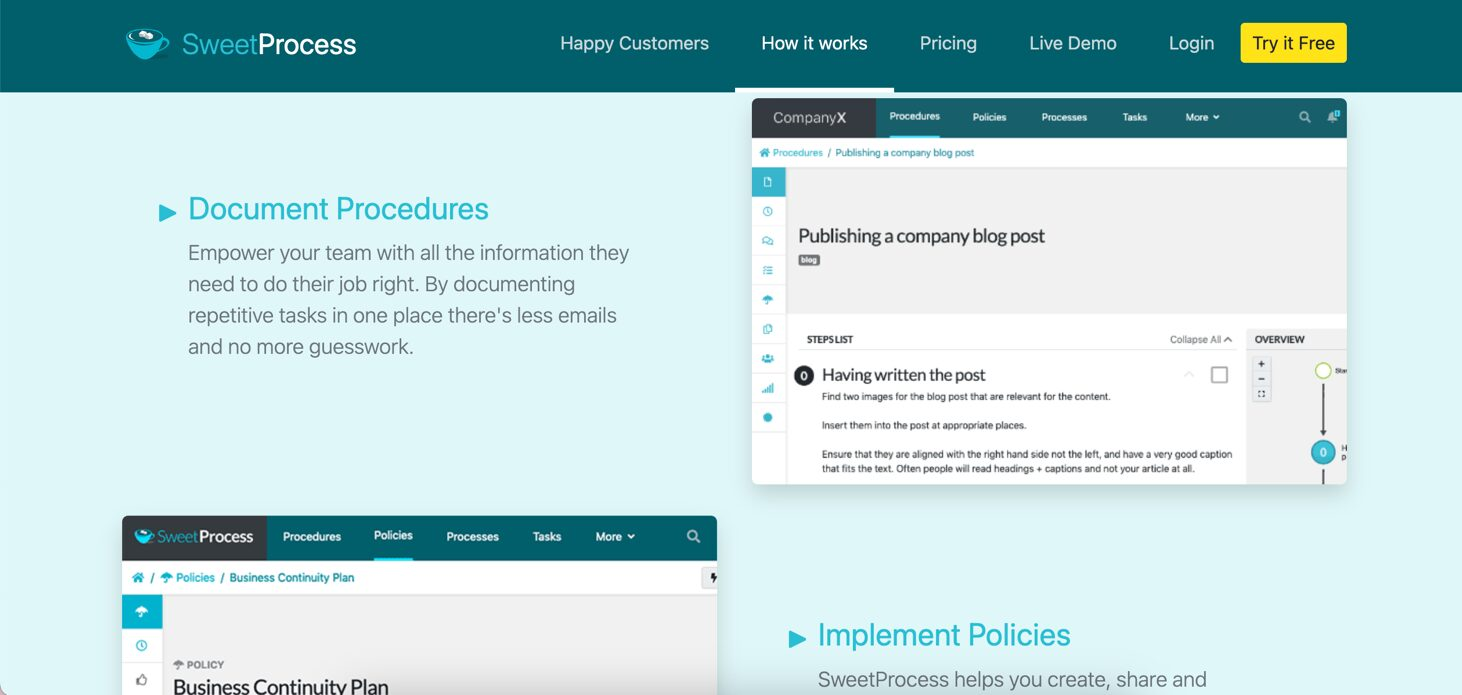
SweetProcess lets you document procedures, build processes, and assign work. Its Chrome extension captures browser actions as screenshots and editable instructions that you can save to your account.
The Chrome extension connects browser capture with the procedure editor in SweetProcess.
The SweetProcess Chrome extension allows you to create standard operating procedures (SOPs) based on your activity in the browser. It can record your online activities to simplify the SOP documentation process.
At first, both the SweetProcess and Tango Chrome extensions might seem to offer similar functionalities. However, they cater to slightly different documentation needs. Both capture browser steps. SweetProcess saves screenshots and editable instructions into procedures that you can review, approve, and assign. Review the capture and add any missing context.
How The SweetProcess Chrome Extension Works
Recording a procedure with the SweetProcess Chrome Extension is straightforward.
The extension captures browser actions as screenshots and step text. After recording, review the sequence and add the context your team needs to carry out the procedure.
Here’s a step-by-step breakdown of how the extension operates after installation:
- Initiate the process: Click on “Capture Procedure” within the extension.
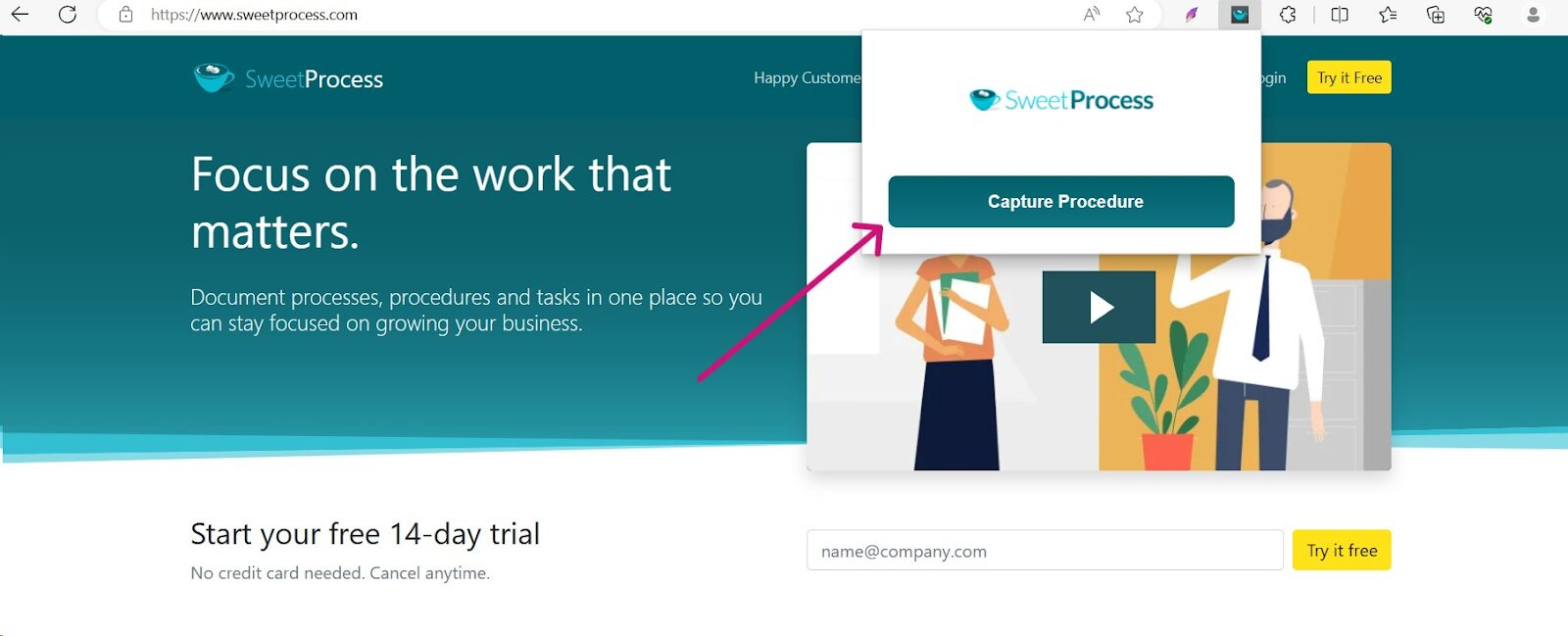
- Automatic captures: The extension creates screenshots and instructions from browser actions. Review the result for missing steps and context.
- Draft instructions: The captured screenshots and step text form a procedure draft for you to review.
- Export and refine: Once satisfied with the recording, click “Stop Capture.”
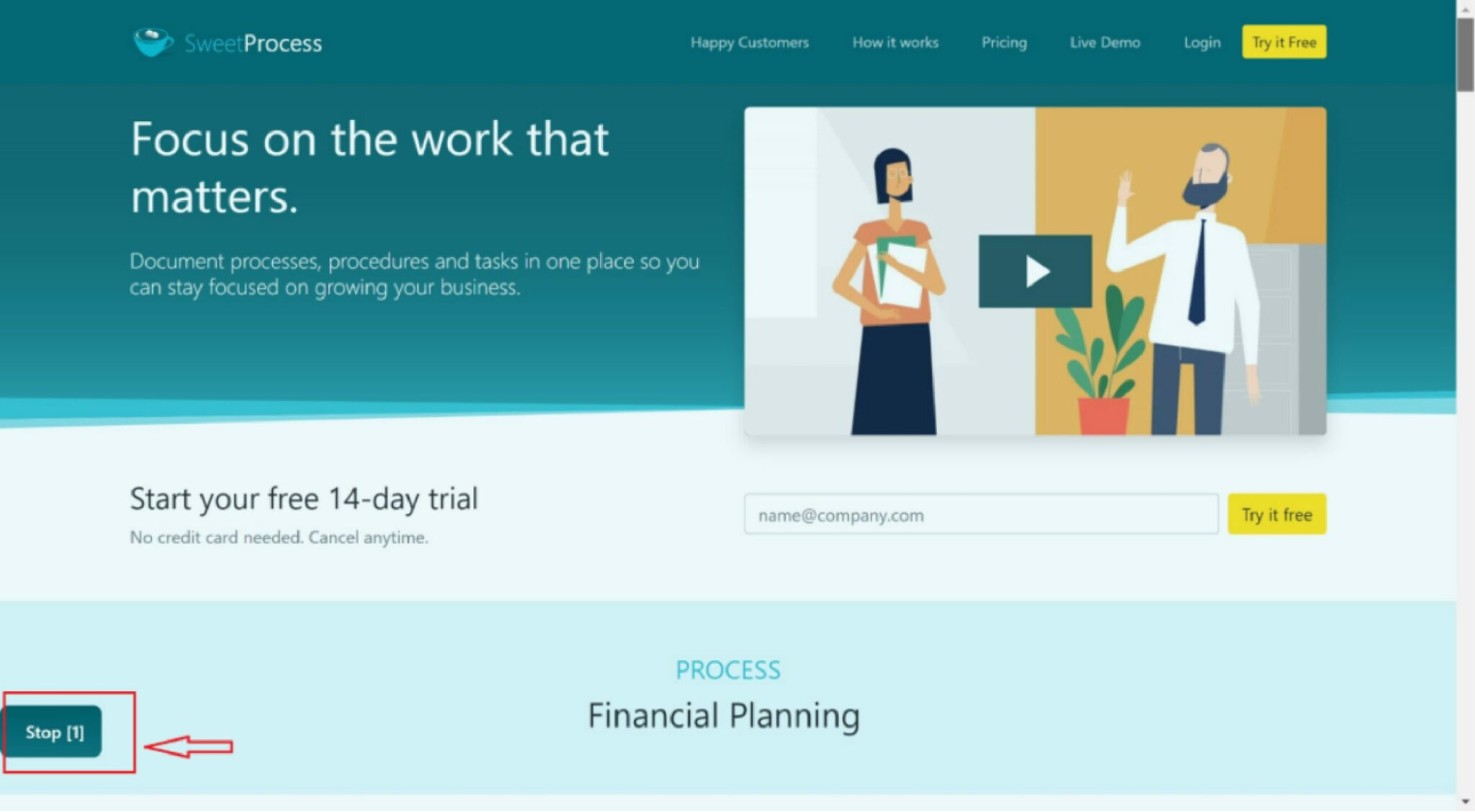
- Export the recordings to your sweetprocess.com account.
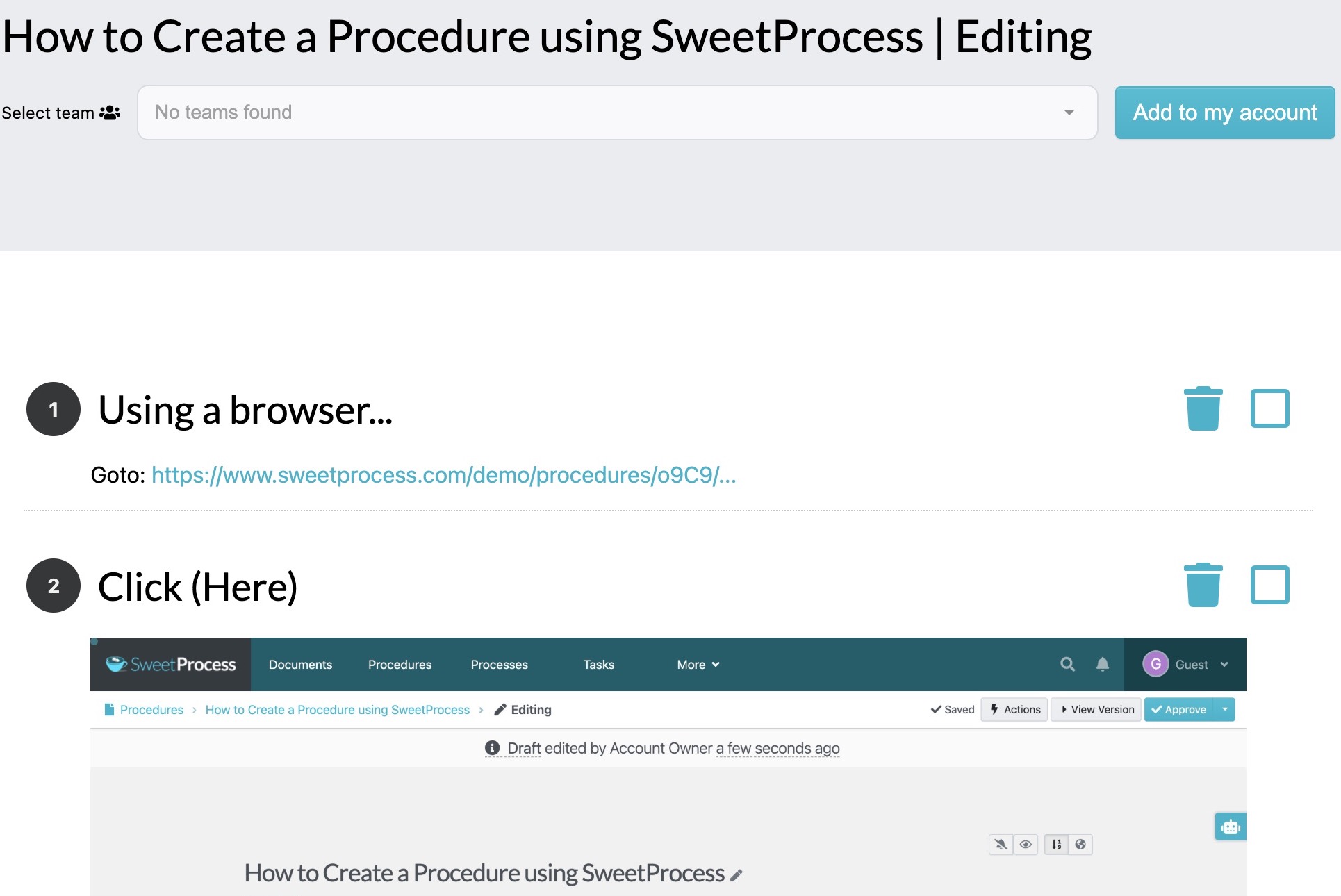
- Finalize your SOP: In your SweetProcess account, you can make any necessary adjustments, refining your recording into a polished standard operating procedure.
- Share with Your Team: Give the people who need the procedure access to the reviewed version.
Core Features
The extension handles capture; the SweetProcess app provides editing, review, and maintenance.
- Capture procedures: Record browser actions as screenshots and editable instructions, then check the steps for completeness.
- Capture across pages: Record a workflow that moves between browser pages, then check that the captured sequence contains the steps you need.
- App integration: SweetProcess connects with over 1,000 apps via Zapier. This makes it useful for documenting procedures involving different online tools or platforms.
- Image editor: You can adjust your screenshots. You can make them bigger or smaller and even hide parts of the image if needed in the SweetProcess editor.
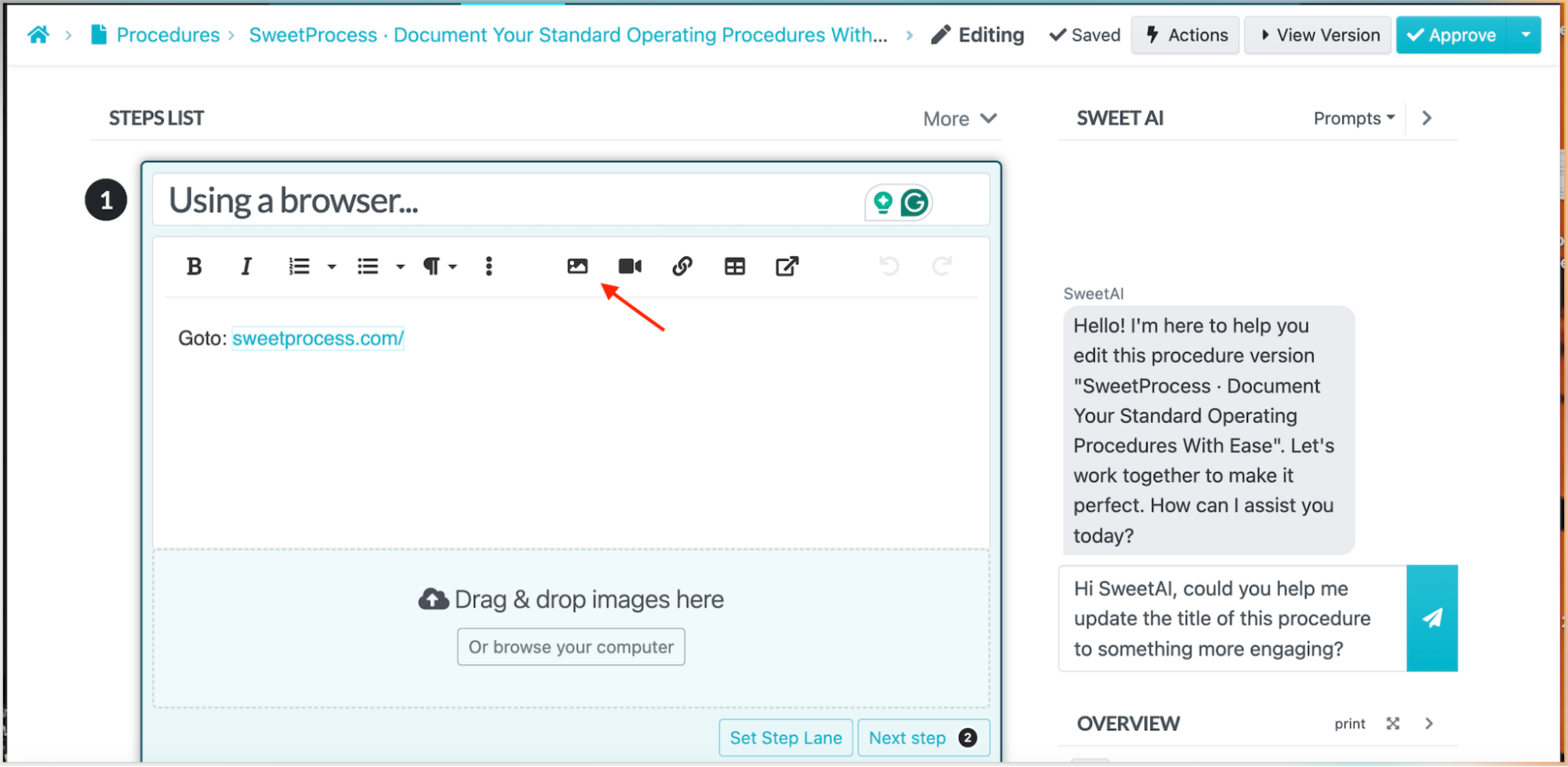
- Review together: Team members can contribute feedback and help maintain the procedure. Agree who will review changes before approval.
Review the capture before your team relies on it.
SweetProcess Pricing
SweetProcess offers flat-tier pricing. If you have 10 users, you’ll be charged $99 per month and $5 for every additional user. If you prefer annual billing, SweetProcess costs $990 and $50 per year for each new user. The annual-only Small Team plan costs $495 per year for up to five users, plus $50 per year for each additional user. All these plans give you access to all features and a 30-day money-back guarantee.
Choose SweetProcess If: Your goal extends beyond creating a quick browser guide. After you capture the browser-based guide, you can edit the steps, manage the procedures, review and approve documentation, and assign them as tasks on the same platform.
Scribe Chrome Extension
Like Tango, Scribe's Chrome extension records the steps of a task and turns them into a guide with text and screenshots. As you perform the task, Scribe captures the steps you clicked; you can then share these instructions with your team.
Core Features
- Custom branding: Pro lets you add your logo and company colors to guides.
- Shareable links & PDF export: Once your guide is polished and ready, sharing it is easy. You can send a direct link or export it as a PDF.
- Redaction: Automatic PII and PHI redaction are available on the Enterprise plan to help you remove sensitive information.
Scribe Pricing
Scribe Basic is free for browser capture, text and step editing, and link sharing. Pro Personal costs $35 per seat per month with monthly billing or $25 per seat per month billed annually. Pro Team starts at five seats; confirm its current price before buying because the official page displays conflicting amounts. Enterprise pricing is by quote. Pro adds screenshot editing, manual redaction, branding, and export; automatic PII/PHI redaction is Enterprise.
Choose Scribe if: You primarily want to capture workflows and turn them into editable step-by-step guides, and you are open to paying for desktop or mobile capture.
Dubble Chrome Extension
Dubble is a browser documentation tool that turns your activity into guides. Its free plan includes unlimited guides and private viewers, making it useful if you want to create and share browser documentation without immediately paying for a creator seat. Dubble's paid workflow adds video and audio capabilities, and you can replace a screenshot with a recording.
You can use it to create a guide for a repetitive web task and share that guide with people who need to follow the same process.
Core Features
- Swift edits: Whether amending descriptions, marking pivotal sections, redacting specific details, or choosing a new screenshot from a previous screencast, you can do it all quickly and effortlessly.
- Collaborative sharing: You can share your Dubbles with anyone with a single click or invite your team to edit and record guides together.
Dubble Pricing
Dubble’s free plan includes unlimited guides, image editing and redaction, and private viewers. Pro costs $18 per month billed annually for three creators, plus $6 per month per additional creator on that billing option. Confirm monthly-billed pricing separately. Pro adds video and audio recording, watermark removal, and Mac desktop recording in beta.
You can also contact the sales team if you prefer the Enterprise option.
Choose Dubble If: You want lightweight browser documentation and private sharing, with the option to add video and audio when you move to a paid plan.
Uphint Chrome Extension
Uphint creates visual documentation from your work and supports both browser and desktop capture. It includes voice-to-text explanations, screenshot editing, multilingual manuals, and sharing or export capabilities. This tool can be useful when you need to document both browser and desktop workflows and want more explanation around the captured steps.
Additionally, it allows you to edit the capture at any time and share it with your team as a PDF, HTML, or web page, making it ideal for training and onboarding.
Core Features
- Voice-to-text explanations: This feature can help when a screenshot alone does not communicate enough context.
- Auto-generate: Uphint’s Chrome extension offers an intuitive auto-generation feature. As soon as you complete a task or process, Uphint immediately crafts a detailed guide, complete with screenshots and clear explanations of each step.
- Guided workflows: With Uphint, the extension provides structured workflows that lead you through the documentation process.
Uphint Pricing
Uphint doesn’t publicly list its pricing on the website. You’ll need to contact the team for a quote.
Choose Uphint if: Browser and desktop capture, voice explanations, screenshot editing, and export are all relevant to your documentation workflow.
iorad Chrome Extension
iorad Chrome extension is an interactive tutorial builder that lets you create and share workflows easily. It’s an ideal Tango Chrome extension alternative if you are looking for a platform to generate tutorials rather than a static sequence of screenshots.
These features make it useful for training scenarios where the learner needs more than a document to read. The product also supports unlimited learners, which can matter when many people need access to training content.
Core Features
- Audio narration: Use the voice-overs to make your capture more detailed, especially if you are recording important information for your team.
- Auto-generate step text: iorad transforms your actions into detailed step-by-step instructions, eliminating the need for manual input.
- Learning-platform integrations: iorad supports integrations for sharing tutorials in learning platforms. Check the destination and required plan before subscribing.
iorad Pricing
iorad’s free tutorials are public. Individual costs $200 per month for one creator. Team costs $500 per month with one creator seat included, plus $50 per month for each additional creator. Enterprise pricing is by quote. Confirm annual payment terms and any education pricing directly with iorad.
Choose iorad if: Interactive learning is the primary output you want.
Flowster Chrome Extension
Flowster Capture creates screenshot-based instructions from browser actions. You can edit the steps and share the result as a link, download a PDF, embed it, or export it to the Flowster app.
These individual screen grabs allow for easy modifications. You can quickly remove, add, or reorder images to illustrate the process better. It also comes with a comprehensive documentation solution to help you integrate your captures with the Flowster app. This allows you to store and organize your captures and transform them into fully fleshed-out templates and SOPs.
Core Features
- Editing: Add explanatory text and annotations, edit screenshots, and remove confidential information before sharing.
- Sharing and export: Send a link, download a PDF, embed instructions, or export the capture to the Flowster app.
- Wider-app workflows: Workflow execution and conditional logic belong to the Flowster app. Conditional logic is listed on Growth and Enterprise, not as a Capture extension feature.
Flowster Pricing
The Flowster app’s Startup plan costs $28 per month with monthly billing or $24 per month billed annually, for two users and up to 20 templates. Growth costs $129 per month with monthly billing or $89 per month billed annually, for up to five users. Enterprise costs $299 per month with monthly billing or $199 per month billed annually, for up to 10 users. The seven-day trial applies to the app. Confirm Capture’s allowance separately.
Choose Flowster Capture if: You want browser screenshot documentation and expect to use the wider Flowster application for workflow management.
Gyde Chrome Extension
Gyde’s how-to generator captures browser workflows as screenshots or video. You can edit the instructions and blur sensitive details before sharing them with your team.
Core Features
- Screenshot and video capture: Record a browser workflow to create step-by-step instructions or a video.
- Editing and blur: Review the instructions, edit the capture, and conceal sensitive information before sharing.
- Sharing and export: Share guides by link or export screenshots as a PDF and video as an MP4.
Gyde Pricing
Gyde does not list its pricing publicly. You’ll have to consult the team for the actual quote.
Guidde Chrome Extension
Guidde is the video-first platform. It supports a Chrome extension, voiceovers, and video creation, while desktop capture is available on the paid Business plan. These features make Guidde useful when the output you want is a narrated how-to video rather than a maintained written procedure.
This tool is a good fit if your business is looking for a tool to demonstrate scenarios and where showing the workflow as a video makes more sense than documenting it as a sequence of screenshots.
Core Features
- How-to video capture: Guidde’s Chrome extension lets you capture browser workflows and turn them into how-to videos, making it easier to demonstrate software processes step by step.
- AI-powered voiceovers: Add voiceovers to captured workflows to create narrated tutorials that provide context beyond what is visible on the screen.
- Step-by-step instructions: Guidde combines captured actions with instructions to create structured how-to content that users can follow as they complete a task.
- Easy sharing: Share completed how-to guides with others so they can access the instructions and follow the documented workflow.
Guidde Pricing
Guidde’s free plan includes up to 25 how-to videos. Pro costs $29 per creator per month with monthly billing or $19 per creator per month billed annually. Business costs $59 per creator per month with monthly billing or $39 per creator per month billed annually and adds desktop capture. Viewers do not use paid seats. Enterprise pricing is by quote.
Choose Guidde if: You prefer narrated videos that you can share with your team or clients.
Stepsy Chrome Extension
Stepsy creates screenshot-based instructions from browser clicks. You can edit the images and export the result to Google Docs, save it locally as HTML, or embed it in another system.
Once you’ve captured your process, Stepsy transforms your series of screenshots into a well-organized Google Docs document. It’ll even add auto-generated descriptions for each step, making your guide thorough and user-friendly.
Core Features
- Click-based screenshot capture: Stepsy captures a screenshot and generates a description every time you click while recording a browser workflow, turning your actions into a step-by-step guide.
- AI-tuned step descriptions: Stepsy automatically generates text descriptions for captured steps, reducing the need to write instructions manually.
- Built-in image editing: Stepsy lets you edit captured screenshots with tools for adding arrows, lines, rectangles, text boxes, and blur effects to highlight or conceal information.
- Export capabilities: Stepsy lets you publish guides to Google Docs through Google Drive, save them locally as HTML, and embed guides in other online systems.
Stepsy Pricing
Stepsy offers a free plan for click capture, image editing, Google Docs export, local HTML, and embedding. Paid Personal adds masking, duplicate removal, and removal of Stepsy branding. Team includes three users and charges for additional users. Confirm the billing currency and current total before purchasing.
Choose Stepsy if: You want lightweight browser capture, editing, and export without immediately adopting a larger documentation system.
After you capture your guide, what happens next? You need a platform to manage the procedure, review it, and assign it to your team as a task. SweetProcess helps you achieve this. Try it here!
How Much Do Tango Chrome Extension Alternatives Cost?
While some tools publish pricing, you’ll need to consult the sales team to get a quote for others. Additionally, with some of these platforms, the per-creator price is not the same as the user price. Some tools charge for people who create content while allowing viewers to access that content without a paid seat.
Here’s a breakdown:
Tool |
Billing Unit |
Monthly Billing |
Annual Billing |
Minimum or Included |
|---|---|---|---|---|
SweetProcess |
Group of users |
$99 per month |
$990/year for up to 10 users; Small Team: $495/year for up to five |
Standard extras: $5/month or $50/year each; Small Team extras: $50/year each |
Scribe Pro Team |
Per seat |
Confirm current monthly price |
Confirm current annual price |
Five seats |
Dubble Pro |
Group of creators |
Confirm monthly-billed terms |
$18/month, billed annually |
Three creators; +$6/month each on annual billing |
Iorad Individual |
Per creator |
$200 per month |
Confirm annual payment terms and total |
One creator |
Flowster Startup |
Group of users |
$28 per month |
$24/month, billed annually |
Two users |
Guidde Pro |
Per creator |
$29/creator/month |
$19/creator/month, billed annually |
Viewers do not use paid seats |
Stepsy Team |
Group of users |
Confirm currency and total |
Confirm currency and total |
Three users included; additional users cost extra |
Gyde and Uphint don’t provide prices for individual tiers.
How to Create SOPs and How-to Guides Using the SweetProcess Chrome Extension
The SweetProcess Chrome extension captures browser actions as screenshots and editable step text. That capture is a starting point: review the sequence and add the purpose, decisions, and expected result before another person relies on it.
Step 1: Install the Extension and Choose a Safe Workflow
Install the SweetProcess Chrome extension, open the page you want to document, and select “Capture Procedure.” Work through the browser steps, stop the capture, and review the result before adding it to your account. Use a test workflow without customer information.
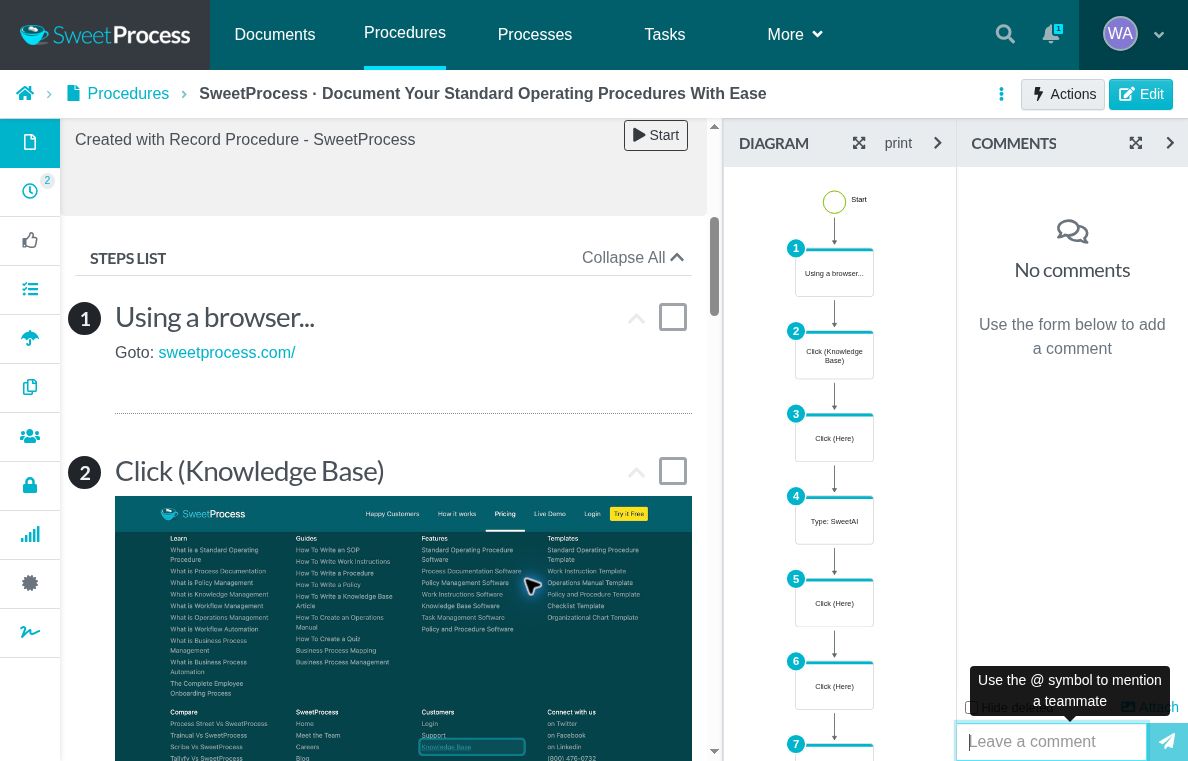
The example below starts with an existing procedure made by the Record Procedure tool. It opens the SweetProcess website, visits the public Knowledge Base, searches for “SweetAI,” and opens the article about creating a procedure with SweetAI. We duplicated that recording to review it without changing the original.
Step 2: Review the Recorded Steps
The original procedure has a “Created with Record Procedure – SweetProcess” label and screenshots of the browser actions. Some generated titles, such as “Click (Here),” do not explain why a person should take the step. The captured image supplies context, but the instruction still needs an author’s review.
Step 3: Keep the Useful Path and Remove the Detour
In the copy, we renamed the six recorded steps: open the SweetProcess website, open the public Knowledge Base, select the search field, enter “SweetAI,” run the search, and open the relevant article. The original recording continued into a contact form. We removed those three detour steps from the copy because they were unnecessary for this lookup.
Before using a captured procedure, check its starting point, required access, and expected result. For this example, the reader needs a browser and a question about creating a procedure with SweetAI. A successful lookup identifies a relevant article and the point that answers the question. If the article does not answer it, the reader needs a clear next step rather than another unexplained click.
How to Edit and Manage Your Captured SOPs on SweetProcess
A reviewed capture needs more than clearer step titles. Add the decision that determines what happens next, review the resulting flowchart, and approve the version your team should use.
Add the Decision the Capture Cannot Explain
Opening an article does not establish that the lookup was successful. In the reviewed copy, we added the decision “Does the article answer your question?” The saved “Yes – answer found” branch leads to “Record the useful answer and finish.” The “No – more detail needed” branch leads to “Note the unanswered question for follow-up.” Both paths end the procedure.
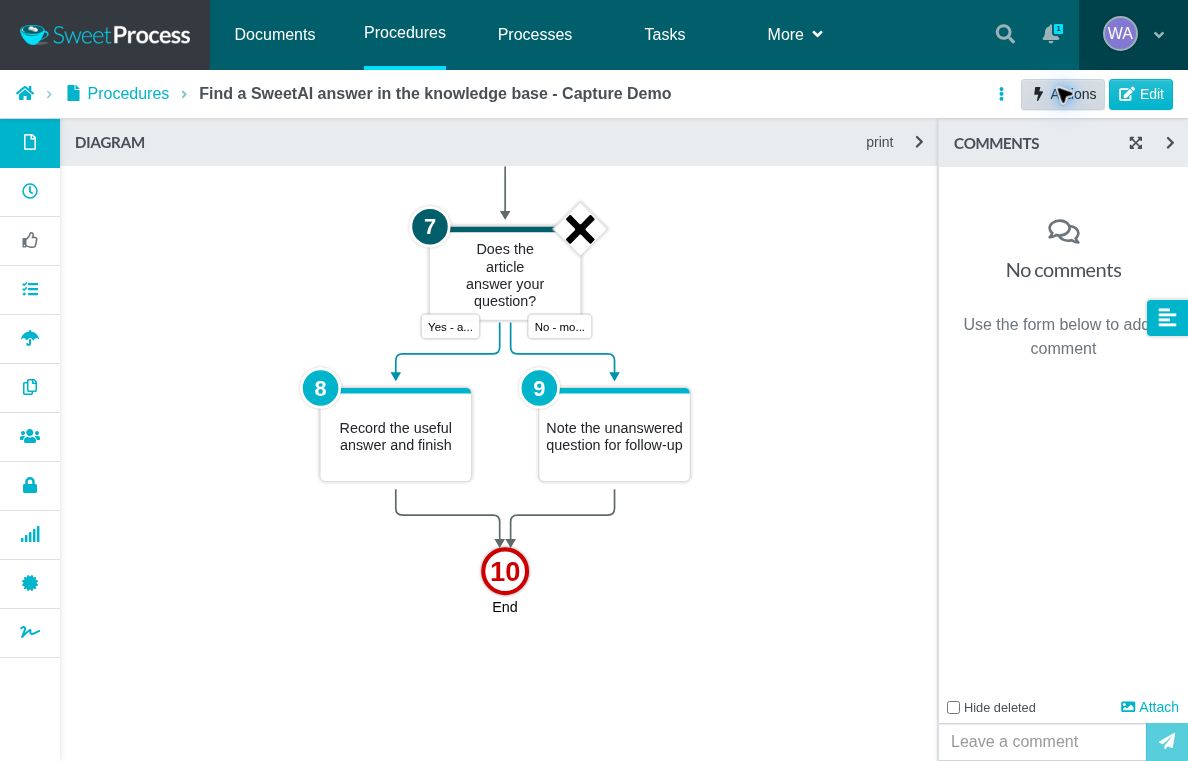
The flowchart makes the two possible outcomes visible. It helps the reviewer check where each branch leads, but it does not establish that the decision or instructions are correct. Read the step text as well as the diagram.
Write an Expected Result for Each Outcome
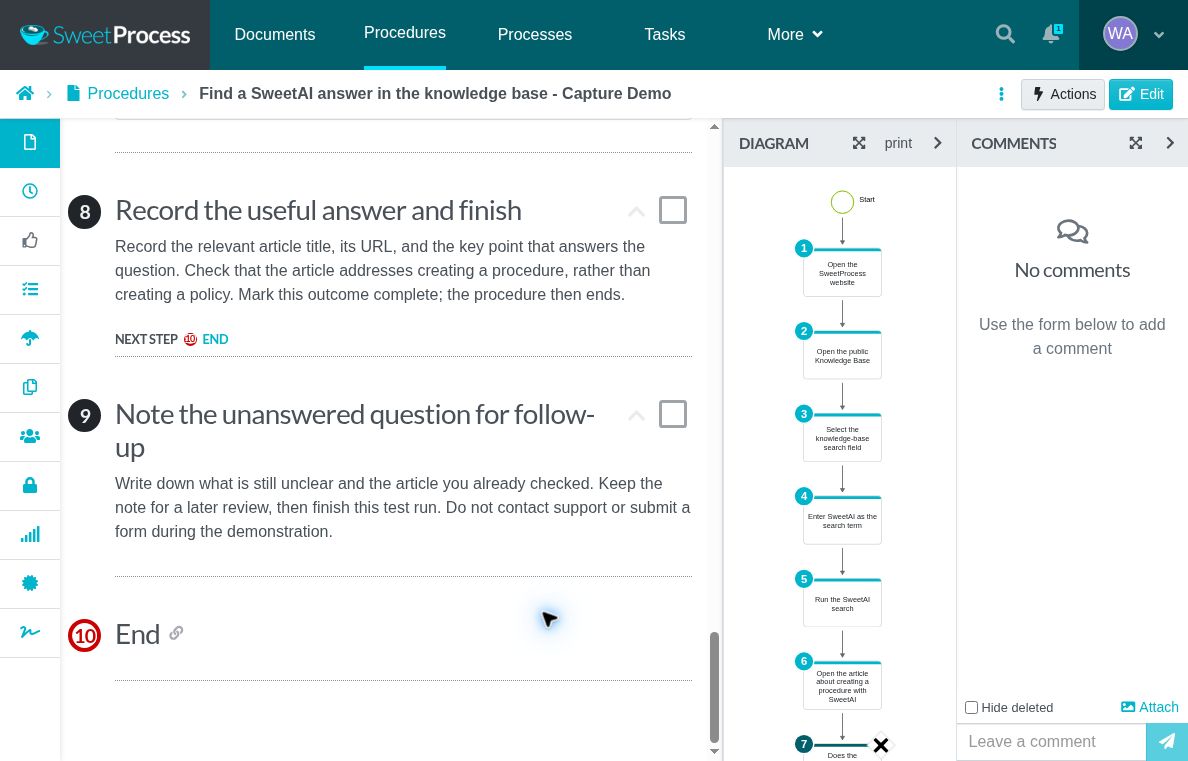
For a useful answer, the reviewed procedure tells the reader to record the article title, URL, and relevant point, then check that the article covers creating a procedure rather than a policy. For an unanswered question, it tells the reader to note what remains unclear and which article was checked. The test procedure explicitly says not to contact support or submit a form.
Approve the Procedure and Verify a Later Revision
We approved the reviewed copy, then revised its successful-outcome step to include the article URL and the check for procedure-versus-policy scope. After that revision was approved, the newer version became live and the earlier approved version remained in the same procedure’s history.
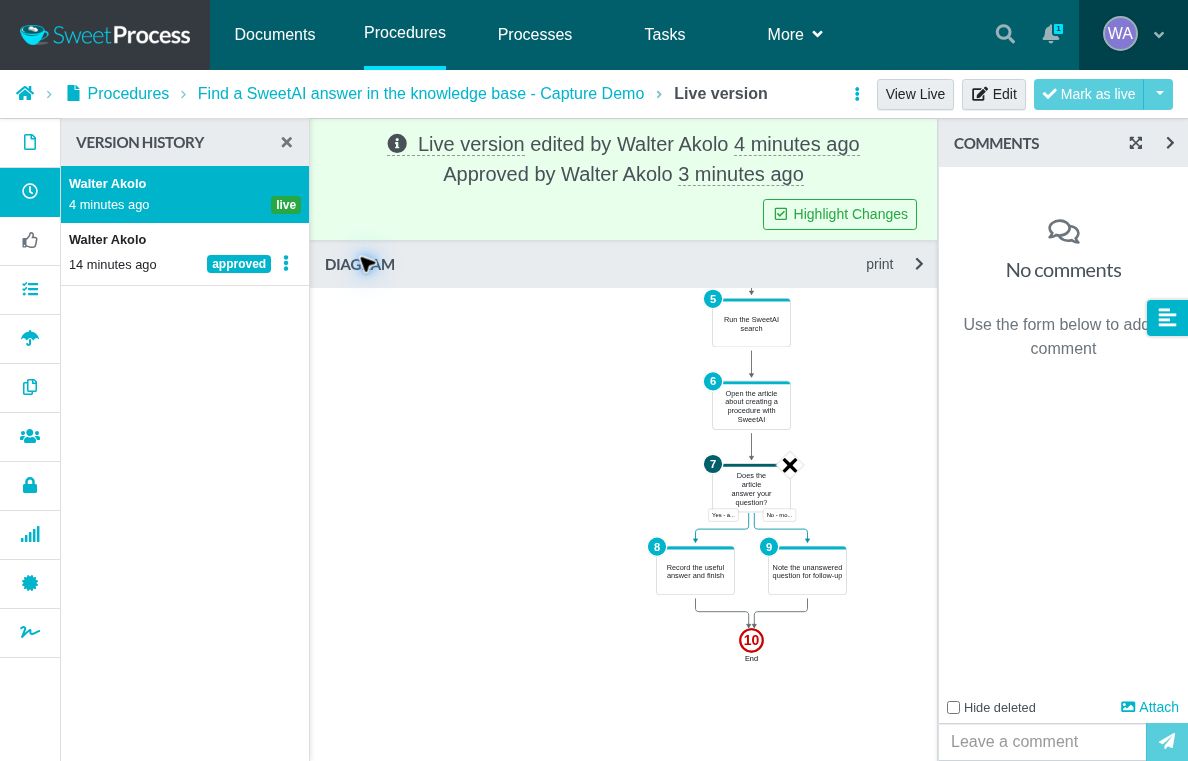
Approval makes the reviewed draft live. It does not guarantee that every instruction is correct. When the work changes, edit the affected step, ask a reviewer to check it, and approve the new version. A separate sign-off records who acknowledged a document, which version, and when.
Share the Procedure and Assign Work Separately
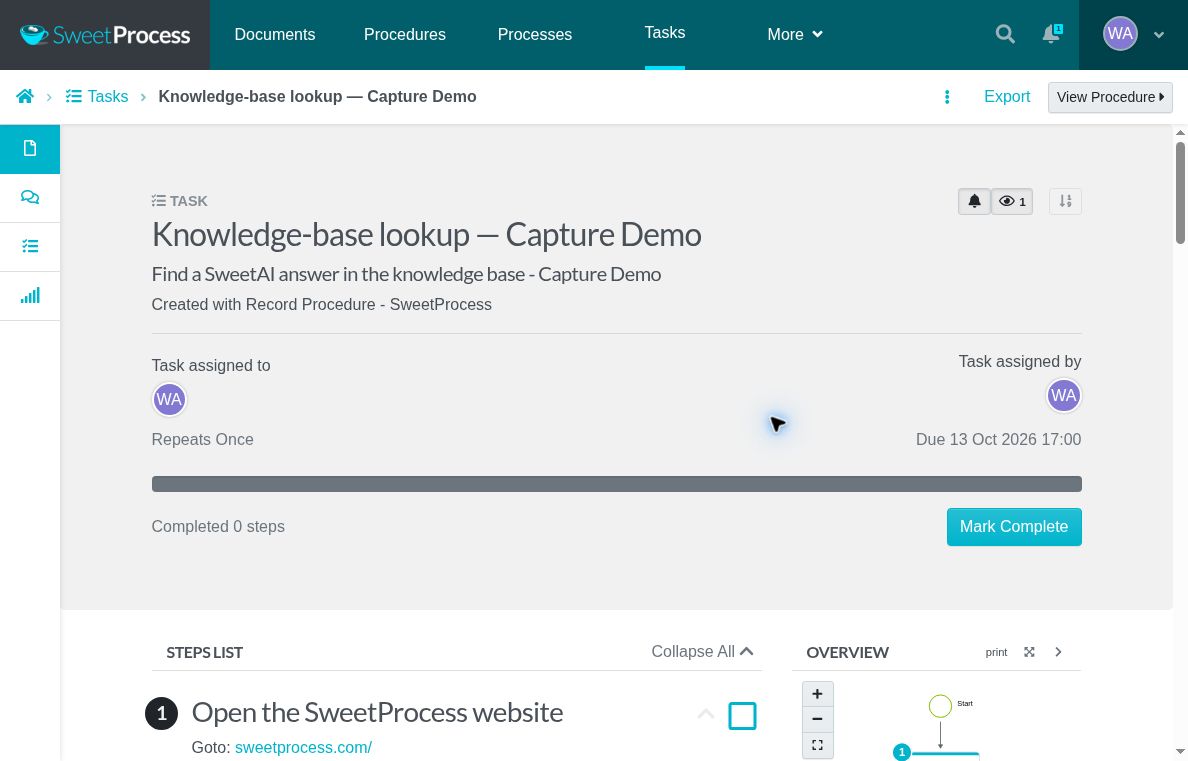
Sharing gives someone access to a procedure. Assigning it as a task creates a record of work to do. From an approved Procedure, choose Actions → Assign as Task, select the assignee, give the task a clear name, and set a due date. Check the resulting task record for its assignee, due date, and status. These are separate steps from editing or approving the document.
To finish this example, we assigned the same reviewed knowledge-base procedure as a one-time task. The resulting record shows the assignee, due date, and zero completed steps. It demonstrates assignment of the approved procedure; the work has not been recorded as complete.
How Belvidere Community School District 100 Uses SweetProcess to Streamline Their SOPs
Sarah Brenner, the director of quality assurance at Belvidere Community Unit School District 100, faced a challenge when she stepped into her role.
The mandate? Streamline operations and make crucial information easily accessible to all stakeholders, notably the parents and guardians of the students. The goal was to implement a system for the effective creation, storage, and distribution of standard operating procedures.
Belvidere School District had several documented procedures. But there was a catch: they were scattered across Google Docs, isolated within individual employee accounts. As a result, these crucial SOPs were largely ignored, and many team members were unaware of their existence.
Sarah’s quest for a user-friendly software application suited for users with even the most basic tech knowledge led her to SweetProcess. The platform promised a centralized knowledge base tool, ensuring searchability and effective documentation of business processes.
At the time of the published case study, Sarah and her team had used SweetProcess for two years to centralize procedures and support onboarding.
- Centralized Knowledge Base: With SweetProcess, all procedures are stored centrally, making them easily accessible.
- Effective Business Process Documentation: Instead of a chaotic mix of documents, there’s now a structured and streamlined set of SOPs, making operations smoother and more efficient.
- Searchability of Information: Team members no longer have to hunt for SOPs. A simple search on SweetProcess pulls up the needed procedure.
- Streamlined Employee Onboarding: New hires can now be brought up to speed quickly, thanks to a comprehensive and accessible collection of SOPs. Training has become more efficient.
Belvidere’s story illustrates the value of a searchable procedure library for staff and new hires.
How to Choose a Tango Chrome Extension Alternative
If you’re considering switching from the Tango Chrome extension, here are the key things to consider:
Capture Coverage
Does the tool capture every step you take and what you need? For instance, if your workflow includes desktop apps, confirm whether the platform caters to this before subscribing.
Cleanup Needed
After capture, check whether you need to rewrite instructions, edit screenshots, or add context that was not visible during recording.
Private Sharing
Can you restrict the guide to the people who need it? Check whether private sharing requires a paid plan and whether viewers need paid seats before uploading internal procedures.
Ability to Update Guide
You need to check if the software allows you to change a step or replace a screenshot and how easy it is for your team to see the current version. This test indicates whether you can use the tool for the long term without worrying about losing your older versions.
Total Cost
Calculate the number of employees who will create documentation separately from the team who only needs to read it. These costs vary based on role type. You could be billed based on the number of users or creators in your team. Compare the plans to ensure that you pay for one that covers your workflow.
SweetProcess is a process documentation software that allows you to capture your guides and manage them on the same platform. Sign up for a 14-day free trial here!
Which Tango Chrome Extension Alternative Should You Choose?
Your choice comes down to the type of documentation you need to create and maintain. Scribe and Dubble are strong options for turning browser activity into step-by-step guides. iorad is a better fit when you want interactive tutorials, while Guidde takes a video-first approach with narrated how-to content. Uphint, Gyde, and Flowster Capture offer other ways to capture and explain workflows, with differences in desktop support, editing, sharing, and pricing.
If you want more than a captured walkthrough, SweetProcess connects Chrome-based screenshot capture with a broader system for creating, reviewing, assigning, and maintaining procedures. You can capture the steps, turn them into a procedure, have someone review and approve it, and update the procedure when the workflow changes.
Start your free 14-day trial, capture one procedure, and review it with a teammate. No credit card is required.
FAQs
What are the best Tango Chrome extension alternatives?
It depends on the output you need. Scribe and Stepsy suit screenshot guides. Dubble and Guidde add narrated video. iorad builds interactive tutorials. SweetProcess suits captured procedures you manage in one account, with approval, version history, and assigned tasks.
Are there free alternatives to Tango?
Yes, but check the limits. Scribe Basic includes browser capture and text or step editing; screenshot editing, manual redaction, branding, and export need Pro. Dubble offers unlimited free guides and private viewers, while video and audio need Pro. iorad’s free tutorials are public. Guidde’s free plan allows up to 25 how-to videos, and Stepsy has a free capture and export plan. SweetProcess offers a 14-day trial.
Does the SweetProcess Chrome extension record screenshots?
Yes. It records your browser activity as screenshots with step text. After you stop, you can review the steps, remove any you do not need, and save them to your account, where you edit the procedure.
Can a Chrome extension document desktop software?
A browser extension captures work done in the browser. Some vendors offer a separate desktop app on specific plans: Tango on Pro, Scribe on Pro, and Guidde on Business. iorad and Uphint also describe desktop capture. Check the exact plan before buying if desktop documentation is important to your workflow.
Is Scribe or Tango better for my team?
Both capture browser steps as guides. Tango Free allows five shared workflows. Pro adds desktop capture and workspace guidance; Enterprise adds Pins, Guide Me, and Automations. Scribe Basic supports browser capture and text or step editing. Scribe Pro adds desktop capture, screenshot editing, manual redaction, and export. Choose based on the output and paid features you need.
How Do I Turn a Screen Capture into an SOP?
Add the purpose, prerequisites, decision points, expected results, and a reviewer. In SweetProcess, review and approve the procedure, share it with the appropriate people, and update it when the work changes.