Last Updated on October 1, 2026 by Owen McGab Enaohwo
Tango and Loom both promise to save you time documenting how your team gets work done. On paper, these browser extensions look similar; they both help turn information on your screen into a shareable piece. However, if you have a specific job in mind, such as onboarding new hires or clients or documenting tribal knowledge before a seasoned employee leaves, you need to know where each of them shines.
Tango turns the clicks in a workflow into steps your team can follow, while Loom records the screen and explanation together. The better fit depends on how people will use those instructions and how often the process changes. Capture, editing, upkeep, and pricing reveal where each tool helps, and where SweetProcess fits when you need to manage procedures beyond the initial recording.
Key Takeaways
- Tango is the workflow capture tool that turns browser clicks into a screenshot guide.
- Loom is a video messaging and screen recording tool that lets you capture your screen, voice, and camera to explain processes and demonstrate tasks.
- While Tango is ideal for teams that want to create a useful guide or walkthrough that can be skimmed easily, Loom works better when the reasoning behind a step matters more.
- Neither tool assigns a procedure to a person, tracks who has actually read it, or keeps a dated version history once the guide or video is published. If your team needs that layer, start your free 14-day SweetProcess trial, no credit card required.
Table of Contents
- What is Tango?
- Who Is Tango For?
- What Is Loom?
- Who Is Loom For?
- Which One For Process Documentation?
- Tango Vs Loom: How They Differ
- Tango Vs. Loom vs. SweetProcess Pricing
- Tango Vs Loom: Use Cases
- What Happens To Your Documentation Twelve Months Later?
- Cons of Tango
- Cons of Loom
- What Neither Tango nor Loom Does
- SweetProcess: The Tango and Loom Alternative for Documenting and Managing Your Company’s Processes
- Loom Vs Tango: Which Is Better for Capturing Processes?
- FAQ
What is Tango?
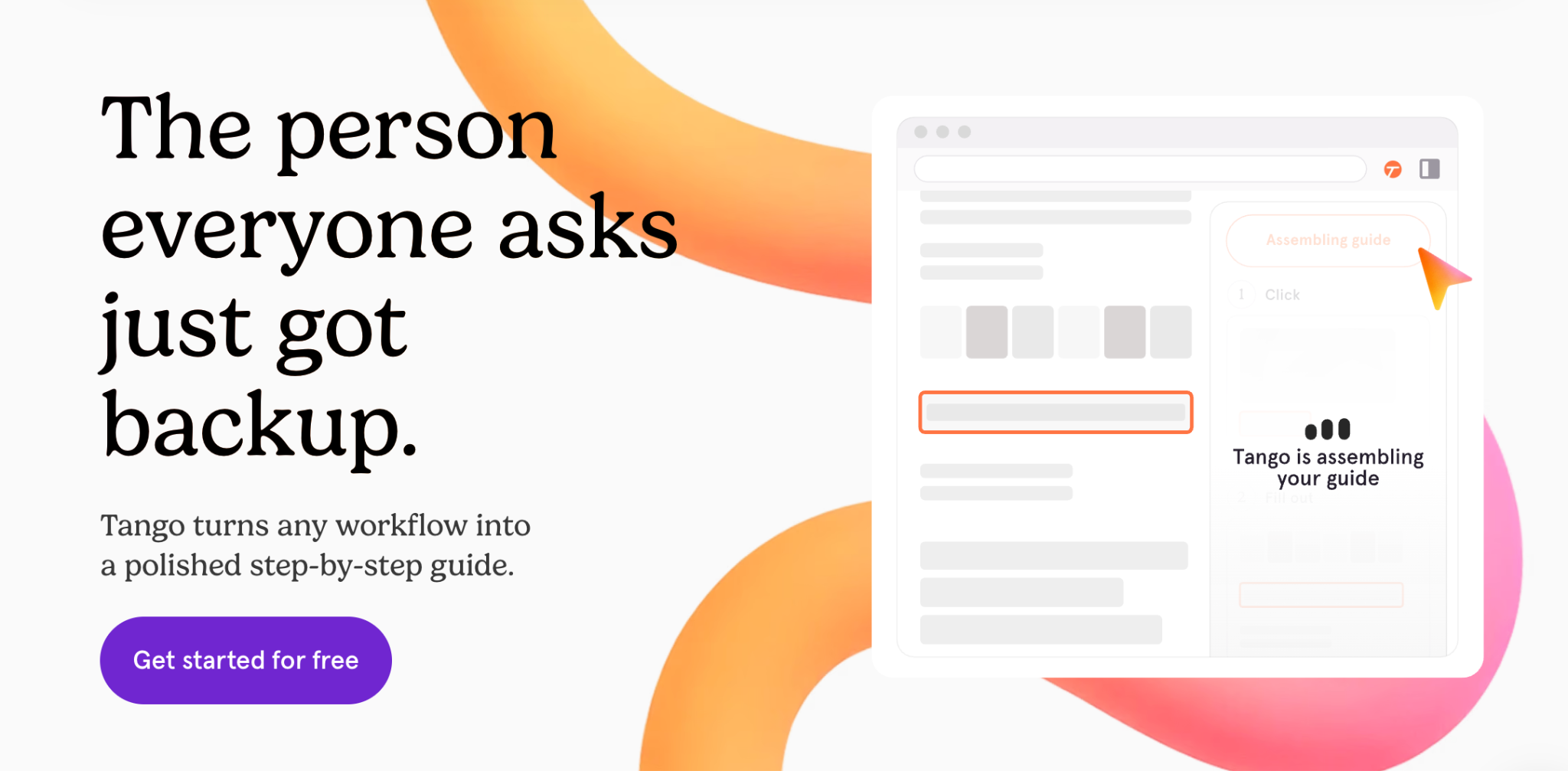
Image source: Tango
Tango is a workflow capture tool that turns the clicks you make while working through an app into a step-by-step screenshot guide. As you click through a process, Tango captures the actions and creates a guide with descriptions that you can edit and share with employees or clients to get the work done.
Who Is Tango For?
Tango is a perfect tool for technical and operations teams at companies of any size who need to get people up to speed on software fast. It’s ideal for tasks such as onboarding a new hire on your customer relationship management (CRM), training a client on a custom-built tool, training new employees, or documenting how to use an internal system before the one person who knows it leaves.
Its strength is in capturing visual workflows, making it ideal for documenting a process that happens inside an app.
What Is Loom?
Image source: Loom
Loom is a screen recording tool that lets you capture both video and audio at the same time. You can record via the Chrome extension or the mobile or desktop app. Instead of a sequence of screenshots like in Tango, you can share a video with your team so they can watch the walkthrough.
Who Is Loom For?
Loom is a great fit for teams that would rather record a two-minute video than schedule a long meeting. Managers use Loom to train employees on responsibilities and company culture during onboarding. Sales teams use it to walk prospects through an idea, while support teams use it to answer customer questions with a recording instead of sending a paragraph of text.
This tool works well if the person watching the recording needs to hear your explanation rather than simply follow a sequence of clicks. You can talk through a decision, demonstrate a feature, explain a problem, or give feedback while recording your screen.
Which One For Process Documentation?
For documenting a process someone will follow step by step inside software, Tango is the better tool. A written guide can be skimmed in seconds, searched by keyword, and resumed at the exact step someone got stuck on.
Loom is the better tool when the reasoning behind a step matters more than the step itself. If a process involves a judgment call, such as deciding which of three templates to use depending on the client, explaining why a workaround exists, or walking through an edge case, that context is easier to say out loud than to capture in a screenshot with a caption underneath it.
However, the difference becomes obvious when your team needs to use this documentation six months after you create it. A screenshot guide and a video both go stale the moment the software changes. Neither Tango nor Loom tells you when that has happened, assigns someone to check the document, or keeps a record of who signed off on the last review.
This work is best done by a process management system that adds this extra layer to keep company documentation accurate. This is a key factor to consider before picking either of these tools for your business.
Whichever format you pick today, someone still has to own it six months from now. SweetProcess adds the ownership, review, and sign-off that neither Tango nor Loom includes. Try it here!
Tango Vs Loom: How They Differ
Although Tango and Loom are both categorized as screen-capturing tools, they have different use cases, and one of them can be preferred over the other depending on the purpose.
Tango vs. Loom vs. SweetProcess: At a Glance
| Feature | Tango | Loom | SweetProcess |
| Format | Screenshot guide | Video | Text, screenshots, and video, all in one procedure |
| Screenshot capturing and editing | Yes | Limited, individual screenshots only | Yes |
| Video and screen recording | No | Yes | Embed and attach |
| AI Capabilities | Yes, generates step descriptions | Yes, transcription, summaries, and editing | Yes. Generates full procedures with SweetAI |
| Search functionality | Yes | Yes | Yes |
| Chrome extension | Yes, free plan included | Yes, limited on the free plan | Yes |
| Tracking and analytics | Yes. Viewer and step-level analytics | Yes, viewer and engagement insights | Yes. Task completion and read receipts |
| Team collaboration | Yes, shared workspace | Yes, shared workspace | Yes, task assignment and manager approvals |
| Version history and sign-off | 14 to 365 days, depending on plan | No | Yes |
| Desktop apps | Paid plans only | Free and paid plans | Web-based |
| Mobile apps | No | Yes | Yes |
| Pricing (As of September 4, 2026) | Free plan for up to ten users. Pro plan starts at $15 per user per month, billed annually for three or more seats. | Free Starter plan. Paid plans start at $18 per month | Flat-tier pricing at $99 per month or $990 annually for up to 10 users. |
You can also read our in-depth comparison of Tango and Scribe.
The differences between Tango and Loom are explained in detail below.
Screenshot Capturing and Editing
Tango automatically takes screenshots of your screen with every click of the mouse in real time. After capturing your processes, which include screenshots, Tango allows you to edit different elements of your workflow.
Screenshot capturing is not a helpful feature in Loom. You can only take individual screenshots with the Loom desktop app, and they will be saved in your Loom workspace or shared with a shareable link.
To take screenshots on Loom, you can either use the pre-recording menu or use the keyboard shortcuts. You can share your Loom screenshots as a link or download them on your device to share them in other forms.
Video and Screen Recording
Tango does not have a screen recording feature. The screen capturing feature allows you to create, edit, and share the workflows with visual screenshots. It is easy to edit already created workflows to remove the errors or include more details.
Loom has well-optimized audio, video, and screen recording that allows you to explain things to your audience. Users can record with the Loom extension, desktop app, web page, and Android app.
Presentations, screen-only recording, custom-sized screen capturing, and different screen recording preferences are possible with Loom. However, you may have to discard a lot of Looms if you make mistakes until you get the perfect one.
AI Capabilities
Tango automatically writes descriptions for each of your steps based on your clicks with the help of AI. It also has features that use AI to generate questions and answers based on your captured workflow.
The “Generate FAQ” feature uses AI technology to gather context on your Tango. It auto-generates questions that a user might have about your process and then provides answers to them.
Loom’s AI suite, on the other hand, allows you to transcribe your audio, remove filler words, and translate your transcripts into different languages. Other features offered by Loom’s AI suite include auto titles, auto summaries, auto chapters, auto tasks, and silence removal. As of September 4 2026, Loom folds AI into its own paid tier, Business + AI.
Search Functionality
The search functionality in Tango and Loom works similarly.
You can use the search box on the left-hand menu of your Tango dashboard to open the Tango search functionality. You can also search for saved workflows by keyword.
Loom also has a search feature where you can search for people, tags, spaces, folders, and Looms.
Chrome Extension
Tango offers a Chrome extension for free users. With the Tango Chrome extension, you can capture your workflows and have them saved to your workspace. If you’re working within Chromium browsers, you can explore virtually all of Tango’s features with the Chrome extension, albeit for a limited number of workflows.
The Loom Chrome extension has limited features. It becomes necessary to have a desktop app to enjoy all the features. Whether on a free or paid plan, you cannot take screenshots or record your camera bubble on PDF documents with the Chrome extension.
Compare other Tango Chrome extension alternatives.
Tracking and Analytics
Tango has an analytics feature for any Tango you create. On the free plan, you can see who viewed it, when, how many steps users completed, and where they dropped off.
Pro admins and creators can also see a detailed view of all users who viewed their workflow and how they accessed it.
Loom’s tracking and analytics feature provides viewer and engagement insights for your recorded videos. The viewer insight counts the number of views whenever someone watches the video for at least five seconds or 75% of the total duration, or if they view till the end of the video.
Engagement insight is another metric that measures how viewers interact with your videos. It measures the completion rate (on average, how many video viewers with a tracked session watched) and call-to-action conversion rates (the percentage of viewers with a tracked session that clicked on your call-to-action).
Viewer insights are available to free and paid users, while engagement insights are available to users on business and enterprise plans.
If you view your workflows yourself, Tango counts this as a view, but Loom does not. Loom does not indicate the view source or the steps completed by the viewers, as seen in Tango analytics.
Team Collaboration
If you want to collaborate with team members on Tango, you need to invite them to your workspace so they can always access your created workflows. Tango’s free plan allows you to collaborate with up to ten users in your workspace.
Loom also allows you to invite team members to your shared workspace and assign them different roles. Loom’s free plan allows you to have up to 50 Creator Lite members, including one admin. For the paid plans, you can have 50 Creator Lite members and unlimited admins and creators.
The videos in your Loom workspace are only available to be viewed in your shared workspaces once you share or give permission.
For Tango, the guides are made public by default unless you set them to private.
Desktop and Mobile Apps
In addition to the Google Chrome extension, Tango has a desktop app to capture activities outside the Chrome browser extension. Meanwhile, this desktop app can only be used if you are on a paid plan. Tango currently does not have a mobile app.
Loom has a desktop app and a mobile app, both of which can be used for free, in addition to the Google Chrome extension. The desktop app can be used to capture screen recordings that are not on the Chrome browser, in addition to other specialized features.
Data Security
If you’re not comfortable showing sensitive information in your screenshots, Tango allows you to use the secure blur option if you are on the paid plan. The secure blur option will automatically blur all personal identifiable information (PII) like names, phone numbers, email addresses, credit card numbers, Social Security numbers, and so on, based on your preference.
Similarly, you can blur sensitive information on Loom before or during your recording. The blur feature is only available to creators and admins on a Business or Enterprise plan. The blur feature can only be used on websites via Loom’s Chrome extension. You cannot use the blur tool on the desktop app at this time.
Integrations
Tango’s browser extension integrates with thousands of tools, including CRM apps, email, and marketing automation tools. Loom integrates with tools like Gmail, GitHub, Slack, and other Atlassian apps, such as Jira. You need the Enterprise plan to access integrations with Salesforce and Zoom Import.
Both Tango and Loom offer an extensive feature set. However, if you are looking for a comprehensive process documentation system that your team can use to review your procedures, sign up for a 14-day free trial of SweetProcess today!
Tango Vs. Loom vs. SweetProcess Pricing
Here’s how these three tools compare in terms of pricing.
Tango Pricing
As of September 4, 2026, Tango’s Free plan gives you five shared workflows and browser-only capture for up to 10 users per workspace, at no cost. Once you upgrade to the Pro Team plan, pricing starts at $15 per user per month if you bill annually for a team of three or more, or $22 per user per month annually for one or two seats with Pro Personal. Enterprise pricing is custom, based on a platform fee tied to the number of users.
Loom Pricing
Loom has four pricing tiers. As of September 4, 2026, the Starter plan is free with 25 videos and five-minute screen recordings. The Business plan costs $18 per creator per month and removes the video and length limits, plus Loom branding. The Business + AI option adds Loom’s AI suite on top of everything in Business and costs $24 per creator per month. You can contact the sales team for the Enterprise plan.
SweetProcess Pricing
SweetProcess takes a different route by offering flat-tier pricing. All users can access every feature as soon as they sign up for a free trial or pay for the software. SweetProcess costs $99 per month, or $990 per year, for up to 10 users. Additional users cost $5 per month or $50 per year each.
There is also a Small Team plan at $495 per year for up to five users, billed annually only. Paying annually saves about 16.7 percent over paying monthly. Every plan includes a 14-day free trial with no credit card required, a 30-day money-back guarantee, and a free one-hour consultation call.
If you want to test out whether SweetProcess is a good fit for your business, try it out here for free for the first 14 days. No credit card is required!
Tango Vs Loom: Use Cases
Tango and Loom vary in their use cases. Choose the best option for you and your team by reviewing the use-case differences below.
Process Capturing
Process capturing in Tango is done by taking screenshots of each step as you click through your screen. It then automatically writes a description for each step with its AI feature. All the steps constitute a workflow in Tango and can serve as an SOP for your procedures.
Loom process capturing is done by taking a recording of your screen, including video and audio. This will capture all the required explanations, and the video can be enriched with additional features like subtitles, transcripts, and translations.
If you plan to create actionable SOPs that can be documented in your process documents, Tango will be your preferred tool for process capturing.
Marketing
You can use the Tango workflows to communicate with your audience on how to find their way around the tools and apps you’re trying to sell to them. Tango has limitations in this regard because the Guidance feature is only available to users who are invited or already in your workspace.
You can, however, leverage Loom to create high-impact videos perfect for every step of your customer’s journey. You can achieve this by embedding your Looms into your emails, blog posts, and other resources for prospects and customers. For people who relate to videos more than text, this will better convince them and increase the marketing ROI.
You can also add customizable CTAs to Loom videos to give viewers an easy path to important links and resources.
Customer Success
The Tango Guidance feature is a great solution for training clients on custom-built CRMs and complex platforms with many processes. Your customers can access the Guidance by giving them view-only guest invites to the specific workflows they’ll need.
The downside is that Guidance will not work on publicly shared Tango links except for users who have been invited or are in the workspace where Tango has been shared. Guidance mostly applies to internal knowledge sharing and to users who have access to your workspace.
With Loom, you can show customers how to get the most out of your product by creating informative videos highlighting new features. Loom makes it easy to welcome new customers and guide them through the steps they need to get started with easy-to-follow videos.
New Hire Onboarding
To get your new hires on board with how to handle their tasks, Tango can be used to build documentation, help articles, and explain anything to anyone. It does not require screen sharing, meetings, or videos.
You can also facilitate new hire onboarding using Loom videos. Create welcome videos and guide them through the steps they need to start with easy-to-follow videos.
Product Management
If you want to communicate within the product management team, you can create Tangos to show step-by-step guidance regarding a particular step or procedure.
Meanwhile, Loom will help you make better product decisions with async video by increasing team transparency and delivering clearer feedback. It is easy to get your team on the same page as you dive into research, review objectives, and align your product’s big picture with video feedback.
You can also record and share walkthroughs of product specifications and timelines so everyone knows how you’ll bring your product to life.
Whichever use case matches your team, the guide or the video is only step one. Try SweetProcess free for 14 days to see how assigning, tracking, and approving that documentation works once it exists.
What Happens To Your Documentation Twelve Months Later?
A screenshot guide and a video can both become outdated, but the cost of fixing them is different. If you draft a guide with Tango and something changes in the company, you can correct it by replacing the image or editing the affected step. At the same time, a video from Loom may require you to record the explanation again from beginning to end.
An outdated screenshot guide will just cost your business less. For instance, if you have new menus or a button moves in your software, a team member can swap the image in a few minutes without changing anything else on the guide.
However, for a Loom video, you can add a note to do a new take with a new script to cover the updates. Failing to make these changes can cost your business time and money, especially if the new hire follows the old process format.
Creating documentation is only the first step. You also need a way to review it, update it, and make sure employees can find the current version.
Cons of Tango
After testing out the tool and going through Tango user reviews, the following are some downsides of creating workflows with Tango.
Cumbersome Editing Process
Tango only generates a few-word description from the screenshots. You have to practically manually add your step descriptions and edit your screenshots if you want to create a meaningful workflow.
Lacks Advanced Process Documentation Features
Tango does not have the features that are obtainable in most other process documentation tools. It is not possible to give feedback on the process captured, request edits, access different versions, or recover previous versions and similar features. There is no way to personalize themes such as font style, size, and color.
A similar tool that does all of these and more is SweetProcess Capture. You can easily collaborate on your captured processes, access version histories, attach external files, and assign the workflow as a task to your team members.
Does Not Support Automatically Writing The Text You Typed
Tango does not automatically capture the text you type on the screen beyond taking screenshots. Team members who need to know or copy exactly what is being typed for a particular step may not be clear.
Restricted Access to Tango Guidance
Tango has the Guidance feature that holds you by the hand to execute the steps in the workflow. This feature is only accessible to Tango users invited to a shared workspace. There currently is no way to white-label Guidance into your product as a means of providing walkthroughs outside of Tango.
Does Not Allow You to Assign Workflows
Other than creating a Tango and sharing it with team members to view, Tango does not allow you to assign a captured workflow as a task to your team members. You can only refer them to follow a workflow by sharing the workflow link with them anytime you want them to follow a particular workflow.
SweetProcess capture automatically saves your captured workflow as a procedure. This procedure can be assigned to appropriate team members to follow as a guide, and the progress of the assigned task can be monitored.
Desktop Capture Not Accessible On The Free Version
If you’re using Tango for free, you can only use the Chrome extension to capture your workflows. This means apps and processes outside the Chromium browsers cannot be captured with Tango unless you upgrade to a paid plan. This differs from SweetProcess, where you can access all its features even while on the free trial plan.
There are also Tango alternatives worth a look if this tool doesn’t fit your team.
Cons of Loom
Here are the cons of using Loom for your workflow creation and management.
Recording Limit On The Free Tier
The Loom free trial comes with a recording limit of five minutes per video and 25 videos overall. It becomes impossible if you want to record even a few videos with longer durations, say a single 30-minute video, unless you upgrade to the paid version.
If you’re looking to guide your employees on your company processes without limitation, you may be considering tools like SweetProcess.
Although it’s not a video recording and communication tool, SweetProcess allows you to document processes in step-by-step workflows and helps employees perform their duties without additional help. There is no limit to any feature you’re using on SweetProcess, even during your free trial.
Insufficient Video Marketing Capabilities
Loom is challenging to use as a video marketing tool because of its limited capabilities. You cannot insert tags or notes on the video. There is no way to set personalized timing for displaying CTA buttons or use different CTAs. You can only have the CTA displayed throughout your video or at the end.
Not Suitable for Complex Video Editing Tasks
Editing and downloading videos is not a smooth process with Loom. Video editing features are limited, and it’s not easy to make the most of your videos. Many Loom users regard it as a basic tool in terms of video editing capabilities.
What Neither Tango nor Loom Does
Both Tango and Loom capture what happens on a screen, but they don’t handle what happens off it.
For instance, if you have a payroll approval that hinges on a judgment call, you have to make a decision based on a conversation with a manager or information that’s not visible in the payroll software.
The same applies to a client onboarding conversation, a site visit, or a customer escalation that can’t be recorded by pointing a tool at a browser tab. Those are also the exact processes that fall apart when the one person who knows them leaves.
Neither Tango nor Loom assigns a procedure to a specific person, tracks whether it was actually read, or keeps a version history showing who approved the last update. They can be part of that workflow, but their primary jobs are different.
For this, you need process documentation software that handles the entire lifecycle, including:
- Setting review dates
- Tracking whether employees completed the task
- Maintaining versions when the process changes
- Keeping policies and procedures together
- Giving different employees access to different information
- Building a searchable knowledge base
- Turning a procedure into an actionable task
Tango and Loom are good at what they were built for: screenshots for one, video for the other. However, if you’re looking for documentation software that goes beyond the creation stage, SweetProcess is the go-to. Start your free trial today!
SweetProcess: The Tango and Loom Alternative for Documenting and Managing Your Company’s Processes
If you find yourself at a crossroads and are considering what will work best for your team’s productivity between Tango and Loom, you’ve come to the right place. Considering the setbacks of both Tango and Loom, why not check out SweetProcess to get better and more robust features compared to the other two?
To help your decision-making process, we have highlighted some of the features that make SweetProcess the number one process documentation tool for your business.
Document a Process Using SweetProcess
At one point, Manny Cosme of CFO Services Group was faced with the challenge of offering standard customized services to cater to the specific needs of their clients. SweetProcess came in handy as the perfect operations manual. They were able to harmonize their operations, easily get all team members up to speed, manage all their tasks, and effectively enhance the documentation of information.
Generate Procedures Automatically Using SweetAI
If you don’t have time to write all your procedures or policies from scratch, SweetProcess is what you need. With SweetAI, you can automatically generate procedures that you can edit to suit your company’s needs. This AI feature will only require you to input the procedure title to serve as the prompt. It generates the step-by-step process in a few seconds, which can be edited or used as is.
Manage Existing Processes on SweetProcess
If you have an existing procedure, you can keep using it in SweetProcess without delays. Whether the existing procedures are in one place or all over the place, SweetProcess allows you to import them over and start managing your tasks with them.
Chris Dunning and Mark O’Dell adopted SweetProcess at TechQuarters when the many moving pieces in their operations pointed to a need for a systemization tool. Before SweetProcess, their employees had to look in different places to check the procedures for every task, which was tiring. It was more convenient for them to do things their own way, so they abandoned the documents, and the outcomes weren’t always the best.
SweetProcess’s flexibility allowed them to bring several scattered items together for better operations. According to Matt, “It allowed us to bring different types of media and different bits and pieces into the system. It wasn’t just a simple checklist thing. It allowed us to nest inside it. This task needs to be done, and now you can build a down button and here’s how to do it in a procedural way, which could then include further questioning or further information.”
Create Public and Private Knowledge Base
While Manny Cosme of CFO Services Group was overseeing 16 employees, it became unproductive to answer each employee’s question effectively. Moreover, some of them would come forth with many similar questions to be answered over and over again. SweetProcess was Manny’s game changer. He was able to create a private knowledge base for his team members to answer all their frequently asked questions. He ended up with more time to oversee the company’s operations because his team members could find the information they needed to work efficiently.
Capture Workflows With the SweetProcess Chrome Extension
If you don’t want to start creating your process with text and prefer to show screenshots of what to click right on your screen, SweetCapture comes in handy.
The SweetProcess Chrome extension works with your Chrome browser to help create quick how-to guides. You can add more detail by editing and turning steps into procedures in your free SweetProcess account.
Onboard New and Existing Employees With Easy-to-Follow Policies and Documentation
According to Don Houk of Next7 IT, SweetProcess brings a new feel to employee training and onboarding. Its rich features help reduce onboarding and training time. Instead of spending days or weeks bringing new hires up to speed, you can do it in a few hours by giving them access to documented procedures and processes.
SweetProcess’s documentation features make it a perfect tool for creating comprehensive how-to guides. These guides make up the procedures and processes for self-learning. Sometimes, showing teammates what to do with pictures and process maps beats telling them in text, and SweetProcess makes that happen.
Loom Vs Tango: Which Is Better for Capturing Processes?
Tango is a do-as-I-do tool, built for creating how-to guides from screenshots and short descriptions. Loom is a do-as-I-say tool, built around the audiovisual explanation of what is happening on screen.
If your goal is to document a repetitive task, assign it to a teammate, track whether they completed it, and train new people on new tools without starting from zero each time, that is a job SweetProcess handles that neither Tango nor Loom does. Take advantage of SweetProcess’s features for free for 14 days to see it for yourself. No credit card is required.
FAQ
Is Tango a screen recorder?
No. Tango takes a screenshot with every click and turns those screenshots into a written guide. If you want to record your screen, voice, or camera as a video, Loom is the better fit.
Which is better for SOPs, Tango or Loom?
Tango is ideal for SOPs that describe repeatable software actions. It creates a guide that’s easy to search, making it easy for teams to follow steps. Loom is better suited to the parts of an SOP that need explaining. Neither tool alone replaces a broader SOP management system if you also need ownership, assignments, reviews, version history, or task tracking.
Does Tango record video?
No. Tango’s capture is entirely screenshot-based. What looks like a “video walkthrough” in Tango is a sequence of screenshots with AI-written descriptions, played back like a slideshow.
What does each one cost?
As of September 4, 2026, Tango’s Pro plan starts at $15 per user per month, billed annually for three or more seats. Loom’s Business plan starts at $18 per creator per month. SweetProcess offers uniform pricing for access to all features at $99 per month for up to 10 users.
Can you use Tango and Loom together?
Yes. You can use Tango for software walkthroughs that people need to follow exactly, and then Loom for explanations that need a human voice behind them. Using both makes sense when you need both context and precise instructions. If you also need to assign, manage, and maintain those procedures, consider adding a process documentation system such as SweetProcess.