Last Updated on October 3, 2026 by Owen McGab Enaohwo
Click through a task once. Give your whole team a procedure they can follow.
The Tango Chrome extension and SweetProcess Chrome extension both turn browser activity into step-by-step instructions with screenshots. That can save you from explaining the same task each time someone needs help.
With SweetProcess, the capture becomes an editable procedure your team can find, follow, approve, and keep up to date in one account. Below, you’ll see how both extensions work, what their plans include, and which one fits the way you manage your team’s work.
Key Takeaways
- Tango and SweetProcess Chrome extensions both capture browser activity and turn it into step-by-step documentation with screenshots.
- Tango’s free plan covers five shared workflows, browser capture, and up to 10 users per workspace. The Pro plan includes desktop capture, exports, and screenshot blurring.
- Once you capture a recording on SweetProcess, it becomes an editable procedure in your account, with version history, assignment, approvals, sign-off, review dates, and search. The same account centralizes all the work that happens off-screen.
- The Tango Pro Team plan starts at $15 per user per month billed annually for three or more users. SweetProcess costs $99 per month, or $990 if you pay annually for up to 10 users. Start your free 14-day SweetProcess trial to test it out here!
Product details and pricing were checked on October 2, 2026.
Table of Contents
At a Glance Comparison: Tango vs SweetProcess Chrome Extension
SweetProcess | Tango | |
|---|---|---|
What it Records | Every click, keystroke, and a screenshot at each step in Chrome | Your clicks, turned into a step-by-step guide with cropped, annotated screenshots |
Where it runs | Chrome on a desktop or laptop | Chrome and Microsoft Edge. To capture desktop workflows, you need the Tango Desktop app on Pro or Enterprise. |
What you get when you click Stop | An editable Procedure saved in your SweetProcess account that you can assign to your team | A guide you share by link or embed. On the Pro plans, you can export to PDF, HTML, or Markdown |
What the rest of the product does with it | You get version history, can assign procedures to teams, add approvals, sign-off, and review dates. | Guide Me walkthroughs, subject to access requirements. Pins and automations on Enterprise |
Work outside a browser | Documented in the same account. Write the steps manually, or use SweetAI for a draft. It does not know your business, so someone who does the work must review it. | Desktop captures installed software on Pro and Enterprise |
Free to use | Extension free to install. 14-day free trial | Free plan with five shared workflows, browser capture, up to 10 users per workspace |
Price | Flat-tier pricing at $99 per month, or $990 if billed annually for up to 10 users. Small teams of up to five users are charged $495 per year | Pro Team starts at $15 per user per month billed annually (three or more users). Pro Personal starts at $22 per user per month billed annually for one or two users. |
Version history | Available for all users | 14 days on the Pro plan. 365 days plus audit logs on Enterprise |
Security | SweetProcess says captured procedures are encrypted and securely transmitted to your account | Tango says it is SOC 2 Type 2 compliant. Automatic detection and redaction of personal information on Enterprise |
What Is Tango Chrome Extension?
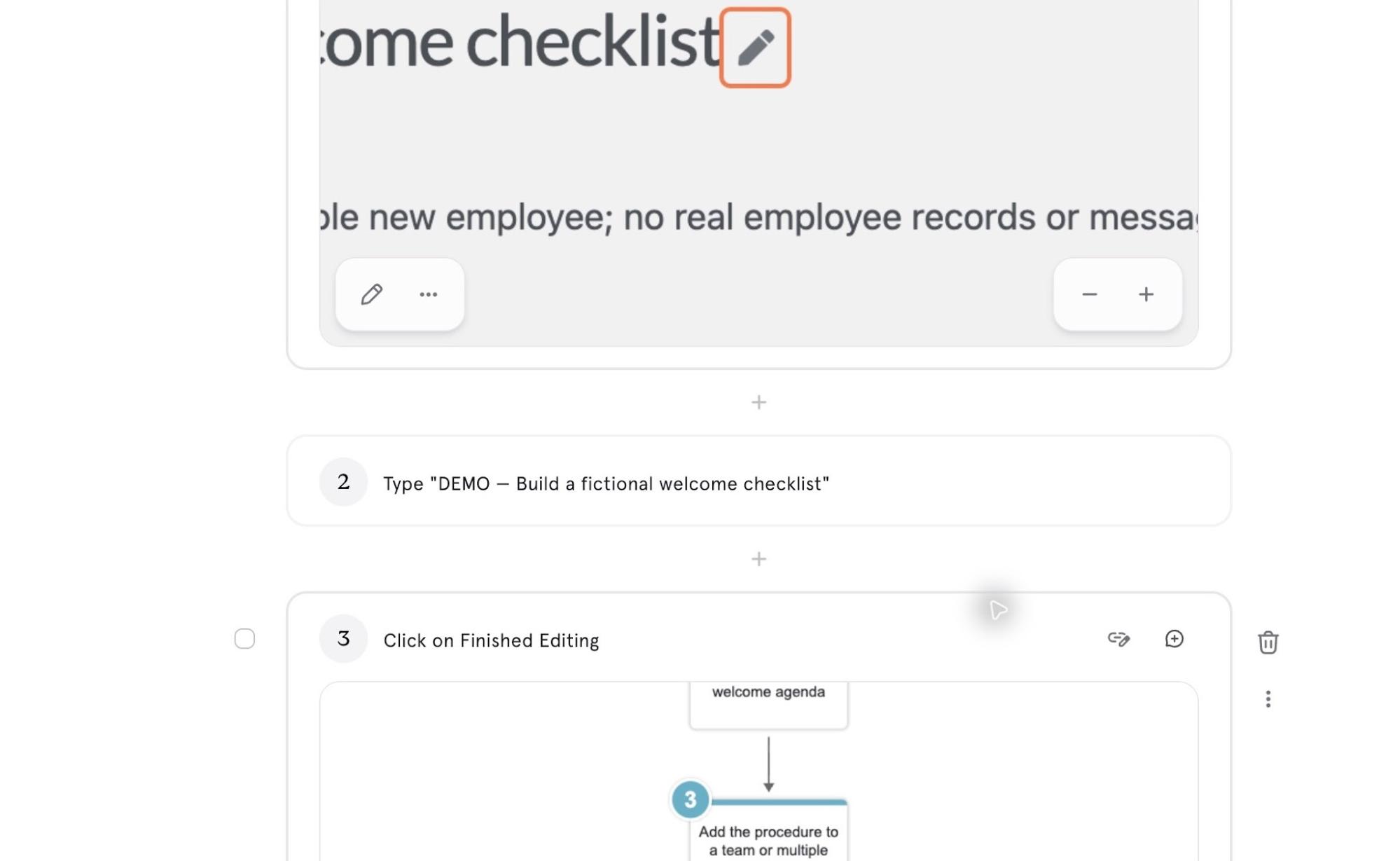
Tango guide with captured step text and an annotated screenshot.
Tango is a Chrome extension that turns your clicks into step-by-step instructions with annotated screenshots. The Tango screen recorder produces a guide you can share by link. It is a tool created for users who want to create and manage standard operating procedures (SOPs) straight from the browser.
You can easily capture processes, create step-by-step guides, and share SOPs with the extension without switching between applications. With the free plan, you get up to five shared workflows and can share links or embed the processes with your team.
Tango Chrome Extension also runs on Microsoft Edge. However, to capture desktop workflows, you’ll need to upgrade to the Pro or Enterprise plans. This extension has limitations, such as Chrome Settings, the Chrome Web Store, or the contents of a Google Doc or Sheet.
Screenshot annotation and blurring require Pro or Enterprise. Automatic detection and redaction of personal information require Enterprise.
What Is SweetProcess Chrome Extension?
The SweetProcess Chrome extension is a specialized tool for teams that want to create, edit, and manage their standard operating procedures (SOPs) directly in Google Chrome. The SweetProcess Chrome extension records every click, every keystroke, and a screenshot at each step while you complete an online workflow procedure. This SOP Chrome extension saves the capture as an editable Procedure in your account.
Users can save procedures captured in the browser directly to the platform and then manage and edit them as needed. Each step is saved with its screenshot, and you can reorder steps, edit their text, or remove a screenshot you do not need.
A simple installation of the SweetProcess Chrome extension makes it available, and users can activate it at any time. You can use this extension to document tasks such as updating a customer record, processing an order, submitting a report, or completing onboarding.
It is free to install from the Chrome Web Store and works in Chrome on a desktop or laptop.
How to Use the Tango Chrome Extension
Here’s a step-by-step guide on using the Tango Chrome extension for creating visual SOPs or aids:
Step 1: Installation
Visit the Chrome Web Store and search for the “Tango Chrome Extension.” Click “Add to Chrome” to install the extension.
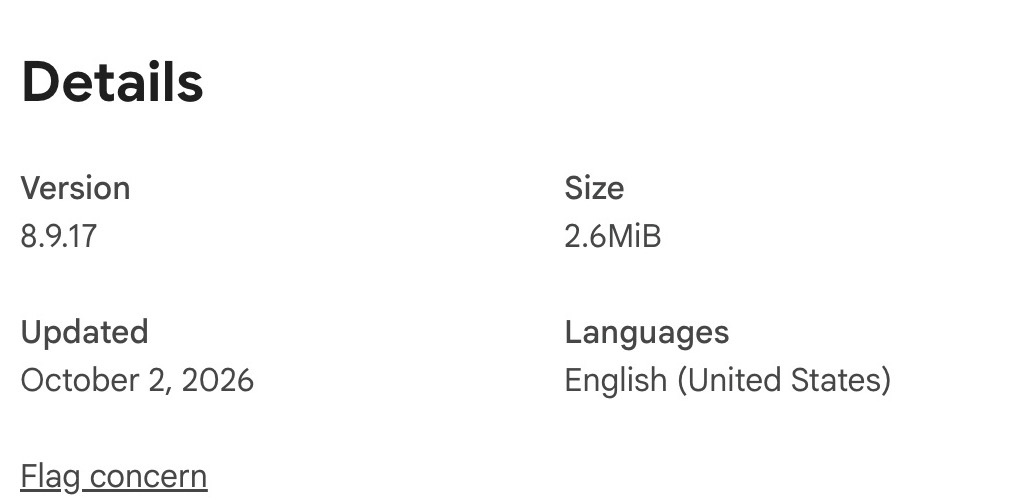
Tango Chrome Web Store listing.
Step 2: Accessing the Extension
Click the Tango icon in Chrome’s toolbar. Sign in to your existing account, or follow the sign-up prompts if you’re new. The signed-in panel shows Start Capture.
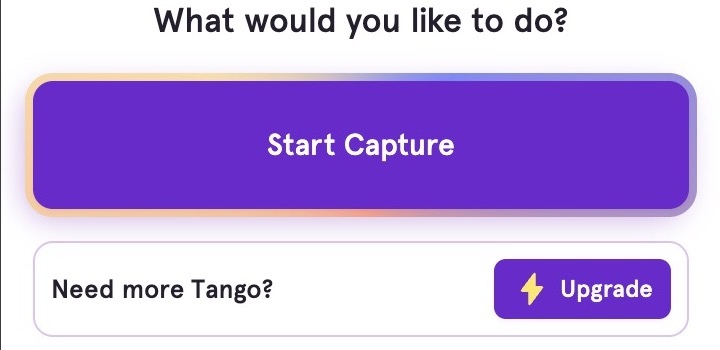
The signed-in Tango extension, ready to start a browser capture.
Step 3: Starting a New Workflow
Open the webpage where the task starts, then choose Start Capture in the extension. Perform the task as you normally would; Tango collects the actions in its capture panel.
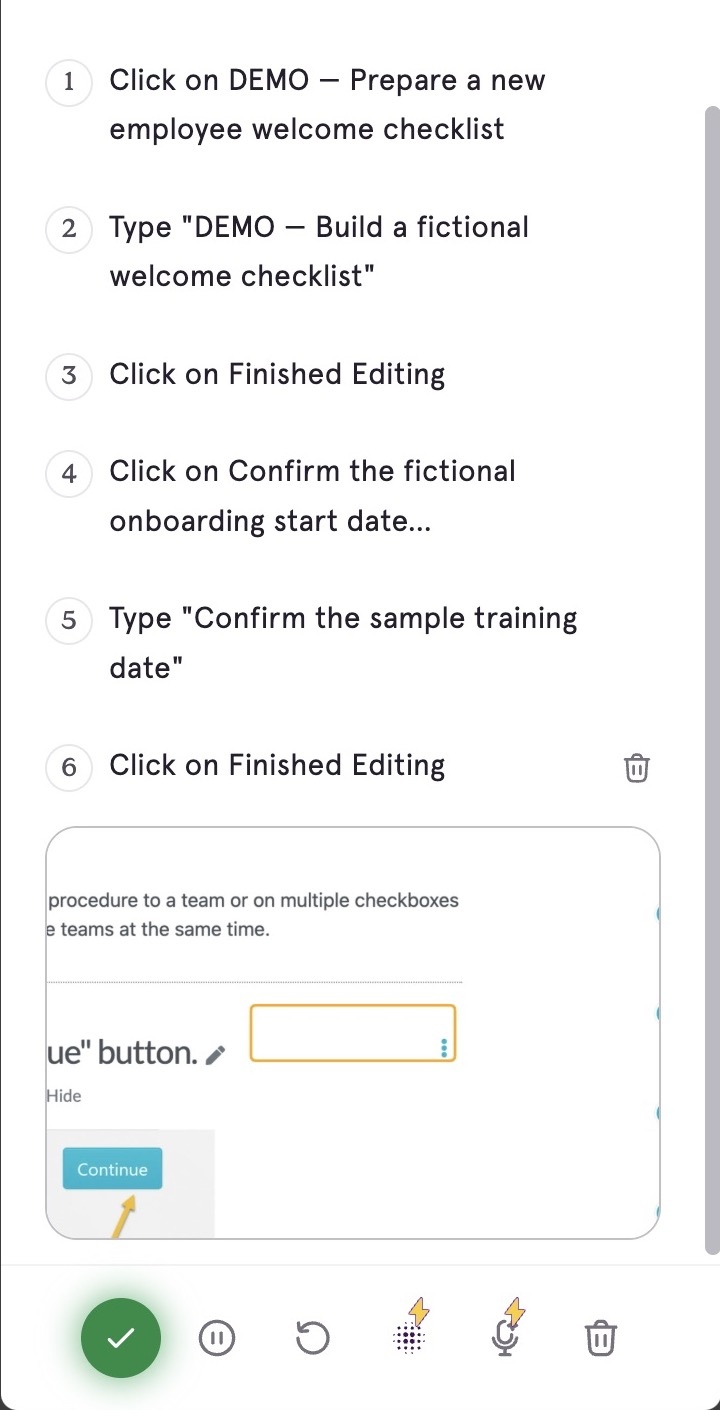
Six recorded actions in Tango’s capture panel, with the green Complete control at the bottom.
In this example, we edited a sample welcome checklist. Six actions appeared in the panel, including click targets and typed text.
Use Pause if you need to stop briefly, or Restart to begin again. Review the listed actions before completing the capture.
Step 4: Stopping and Editing Steps
Click the green checkmark labeled Complete to finish recording. Tango opens a guide with a generated title and the captured steps.

Generated title for the sample welcome-checklist guide after completing the Tango capture.
Review the generated instructions in the editor. Correct the step text where needed; the screenshot controls include Edit Screenshot and zoom.
Captured step text and screenshot-editing controls in the current Tango guide editor.
Step 5: Finalizing the Guide
Check the guide title, descriptions, and steps before sharing. Open Share & export when you’re ready. If Tango asks to move the guide to the Team Library, review who has access before continuing.
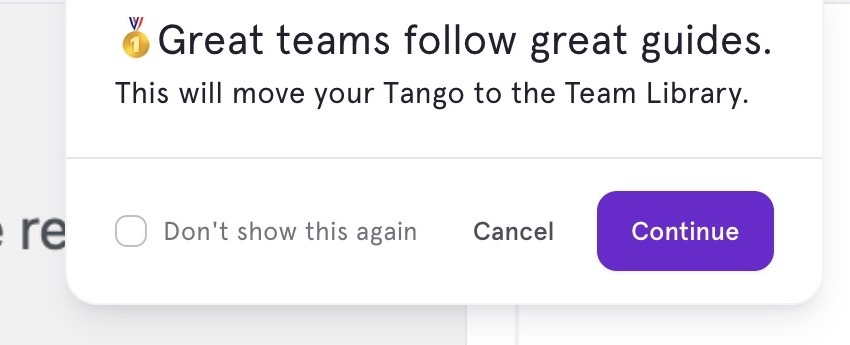
Tango asks to move this private guide to the Team Library before opening sharing options.
This Chrome extension can be used for creating the following:
- Procedural guides
- Study guides
- Product updates
- Software rollouts & upgrades
- Standard operating procedures (SOPs)
- Knowledge management
- Software training tutorials
In the Free workspace used for this walkthrough, Export was marked “Upgrade to Pro.” Pro includes PDF, HTML, and Markdown export.
How to Use the SweetProcess Chrome Extension
Here’s a detailed description that you can follow to use the SweetProcess Chrome extension:
Step 1: Installing the Extension
Open the Chrome Web Store and search for the “SweetProcess Chrome Extension.” Click on “Add to Chrome” and confirm the installation.
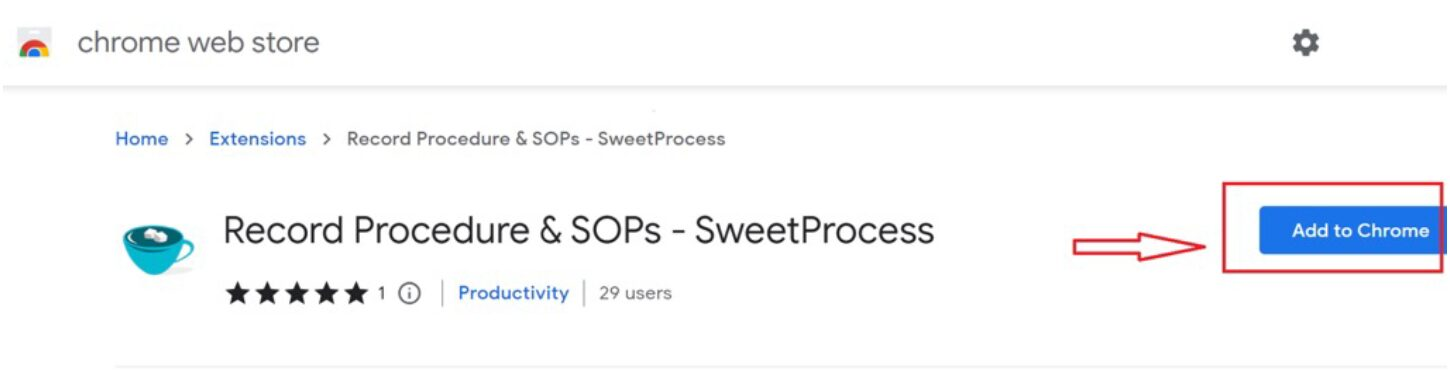
SweetProcess Chrome Web Store listing with the Add to Chrome button.
Step 2: Logging In or Signing Up
Once installed, click on the SweetProcess icon in your browser’s toolbar.
Note: You need to log in to your existing SweetProcess account or sign up for a new one before using the extension. You can sign up using the 14-day free trial option.
Once logged in, you can initiate the capture process by clicking the “Capture Procedure” button.
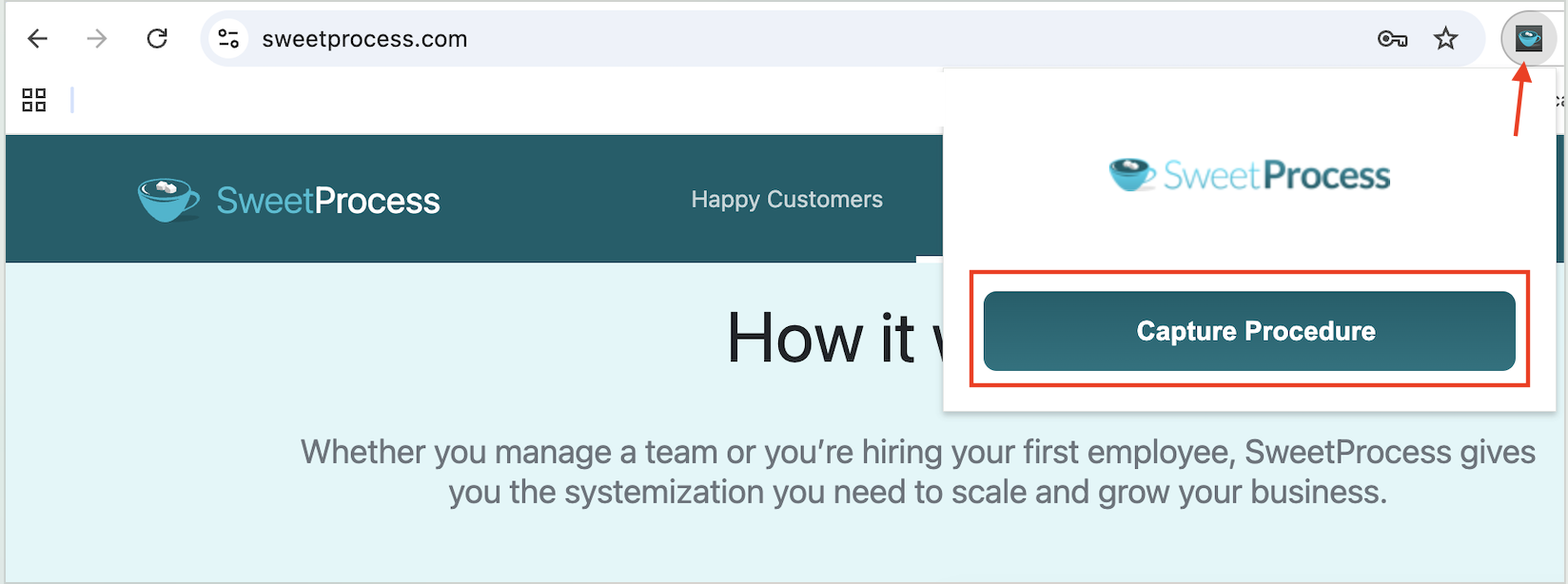
Capture Procedure button in the SweetProcess Chrome extension.
The extension works as step recorder software, recording every click and keystroke and taking a screenshot at each step.
Step 3: Initiating the Documentation Process
Navigate to the website or web application where you wish to document a process. As you perform tasks, the extension records your clicks and screen activity.
Step 4: Stop and Review the Captured Steps
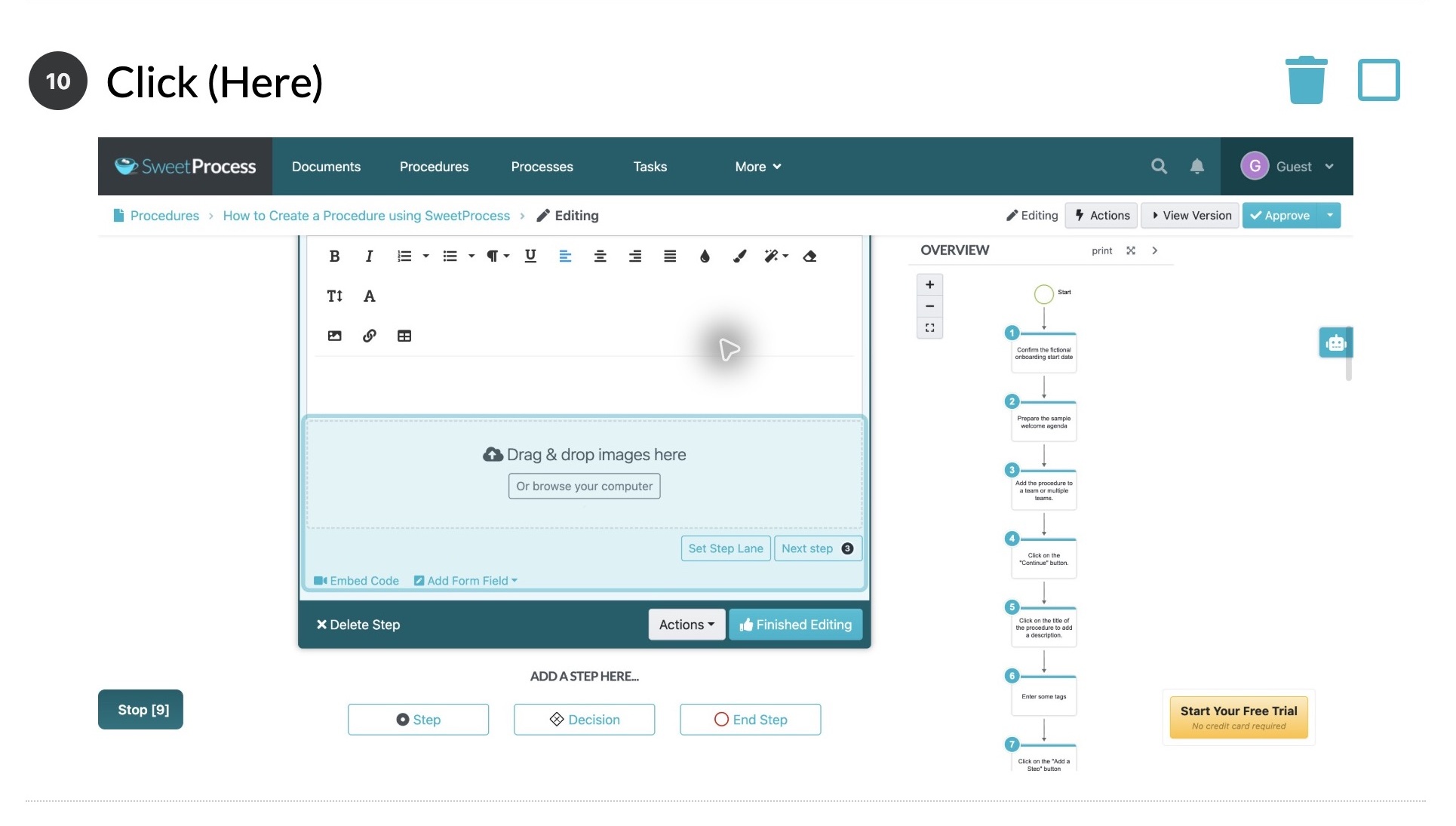
After recording, click the “Stop” button at the bottom left of the screen.
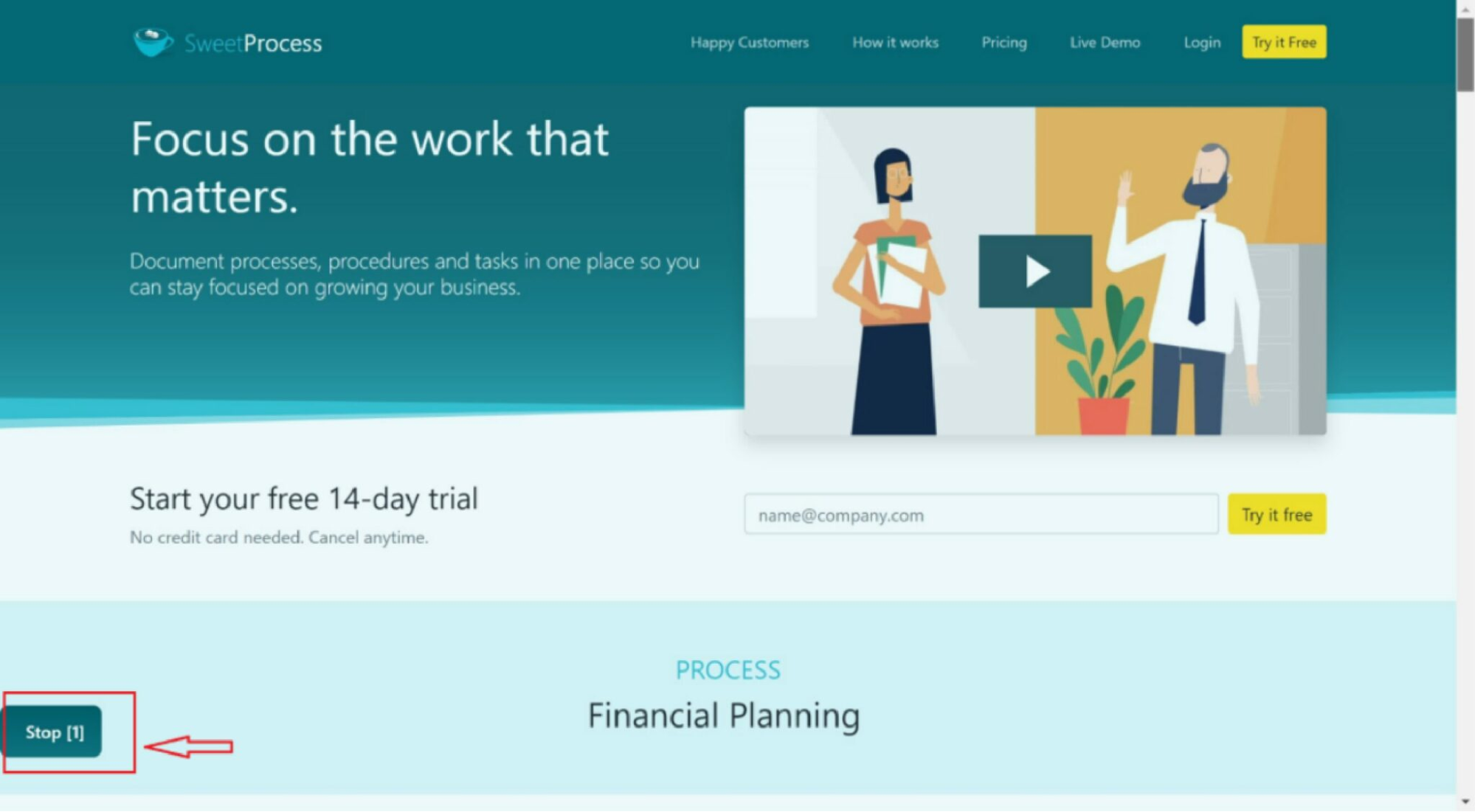
Stop button at the bottom left during a SweetProcess procedure capture.
Click “Add to my account” to save the captured procedure in SweetProcess.
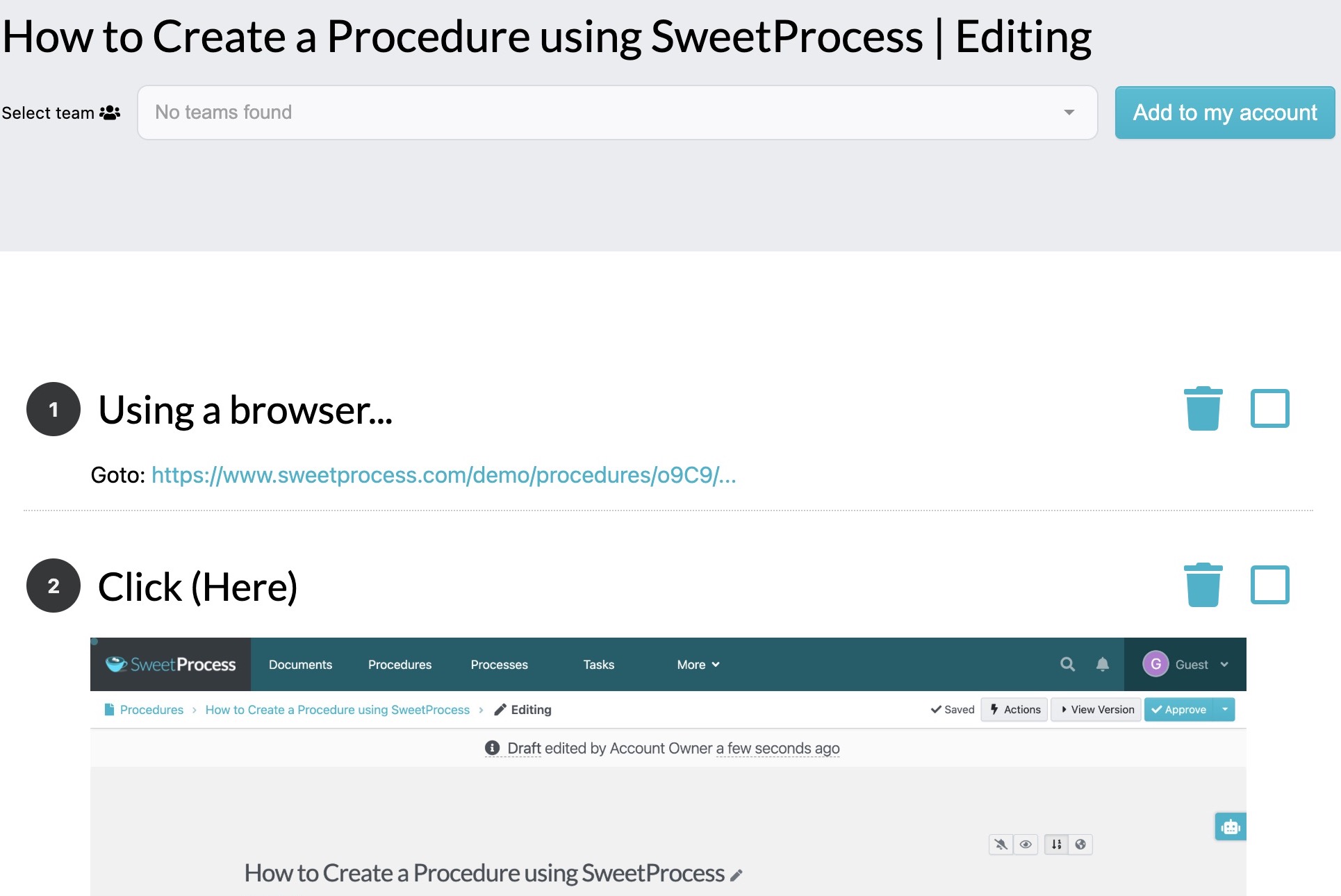
Capture preview for a sample welcome-checklist task, with the Add to my account button above the recorded Procedure steps.
Step 5: Edit the Saved Procedure
Next, edit the procedure to align with what you need to share with your team on the same platform.
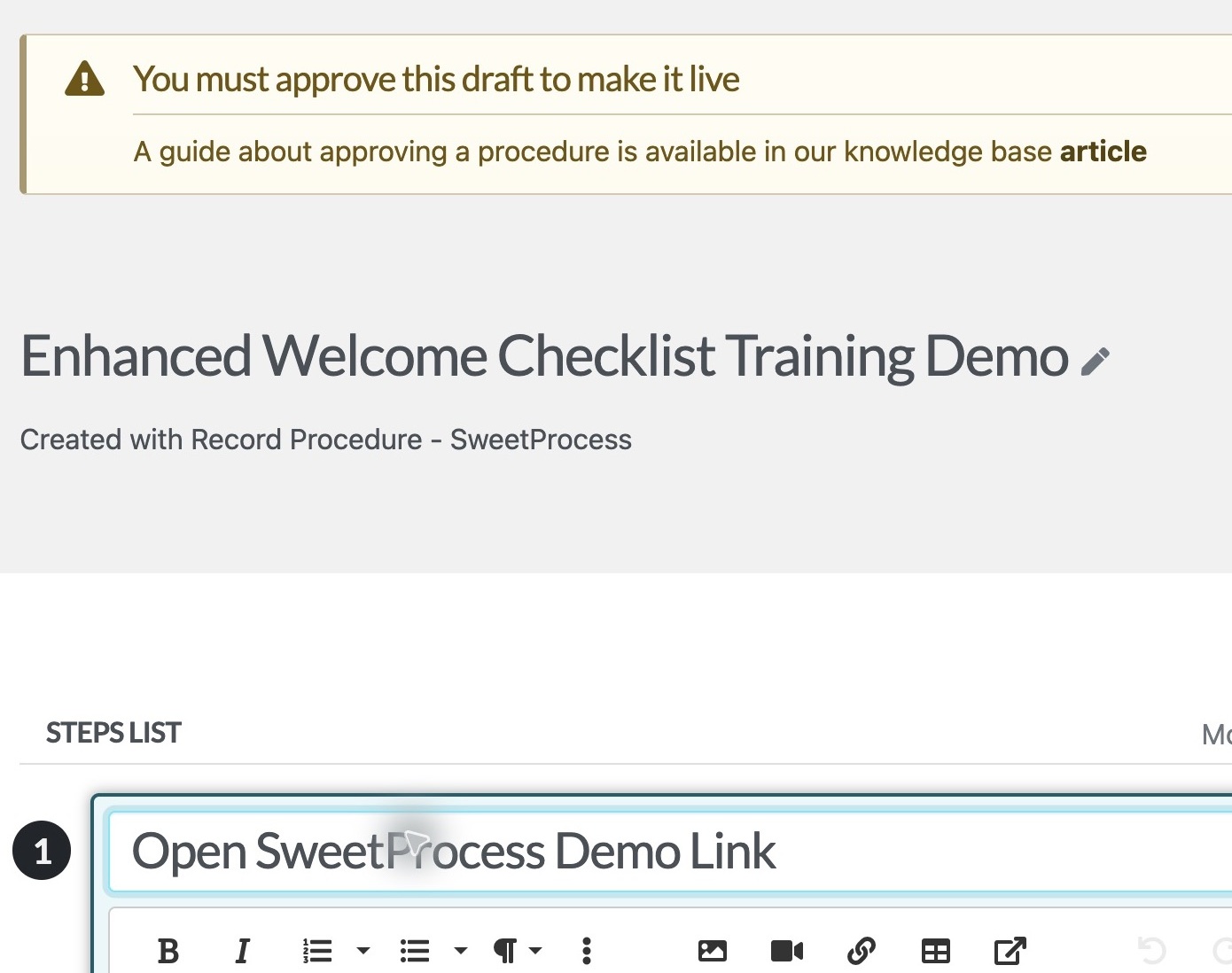
The recorded Procedure saved as an editable draft, with a captured step title open for revision.
As you edit, you can change the title and use the editor to add more text or visuals such as images and videos that explain the procedure more clearly.
Ready to streamline your SOP management with precision? Take advantage of the 14-day free trial and discover the power of SweetProcess. Take it for a spin to see how it can transform the way your team creates, accesses, and collaborates on procedures seamlessly.
Tango Chrome Extension Vs. SweetProcess Chrome Extension: Key Differences
While both the Tango and SweetProcess Chrome extensions serve to enhance productivity and process documentation, the main difference is what each product gives you after the capture is complete.
Tango Chrome Extension vs. SweetProcess Chrome Extension: Which Is Better for Capturing and Editing Screenshots?
The screen capture feature for both extensions works well and delivers clear screenshots that depict the workflow. Tango captures clicks and produces cropped, annotated screenshots as part of its generated guide.
SweetProcess captures your clicks and keystrokes with a screenshot for each step. You can edit the instructions, reorder or remove steps, and add details your team needs. Assign the procedure or process as a task to give teammates a checklist they can follow while you track their progress.
While both platforms approach screenshot capture similarly, the editing experience depends on what you want to do with the finished guide. If you need a visual guide that is ready to share, Tango’s workflow handles this efficiently. Screenshot blurring is available on Pro and Enterprise.
In SweetProcess, you edit the captured steps inside your account and use the same editor you use for every other procedure. These capabilities enable you to assign and track the steps alongside the rest of your documentation.
Tango Chrome Extension vs. SweetProcess Chrome Extension: Which Is Better for Documenting and Managing SOPs?
A capture is the first version of your SOP. You need to edit it to meet your needs and then share it with the team.
With Tango, you can share your capture by link or embed if you are on the free plan. With the Pro plan, you can export it to PDF, HTML, and Markdown, while Enterprise adds Pins, automations, and longer version history. Guide Me provides on-screen walkthroughs, subject to access requirements.
Set the guide’s access permissions in “Share & export,” then share it with the intended recipients.
Team Library confirmation shown when sharing a private Tango guide.
SweetProcess, on the other hand, allows you to share the created procedure with existing team members as a group.
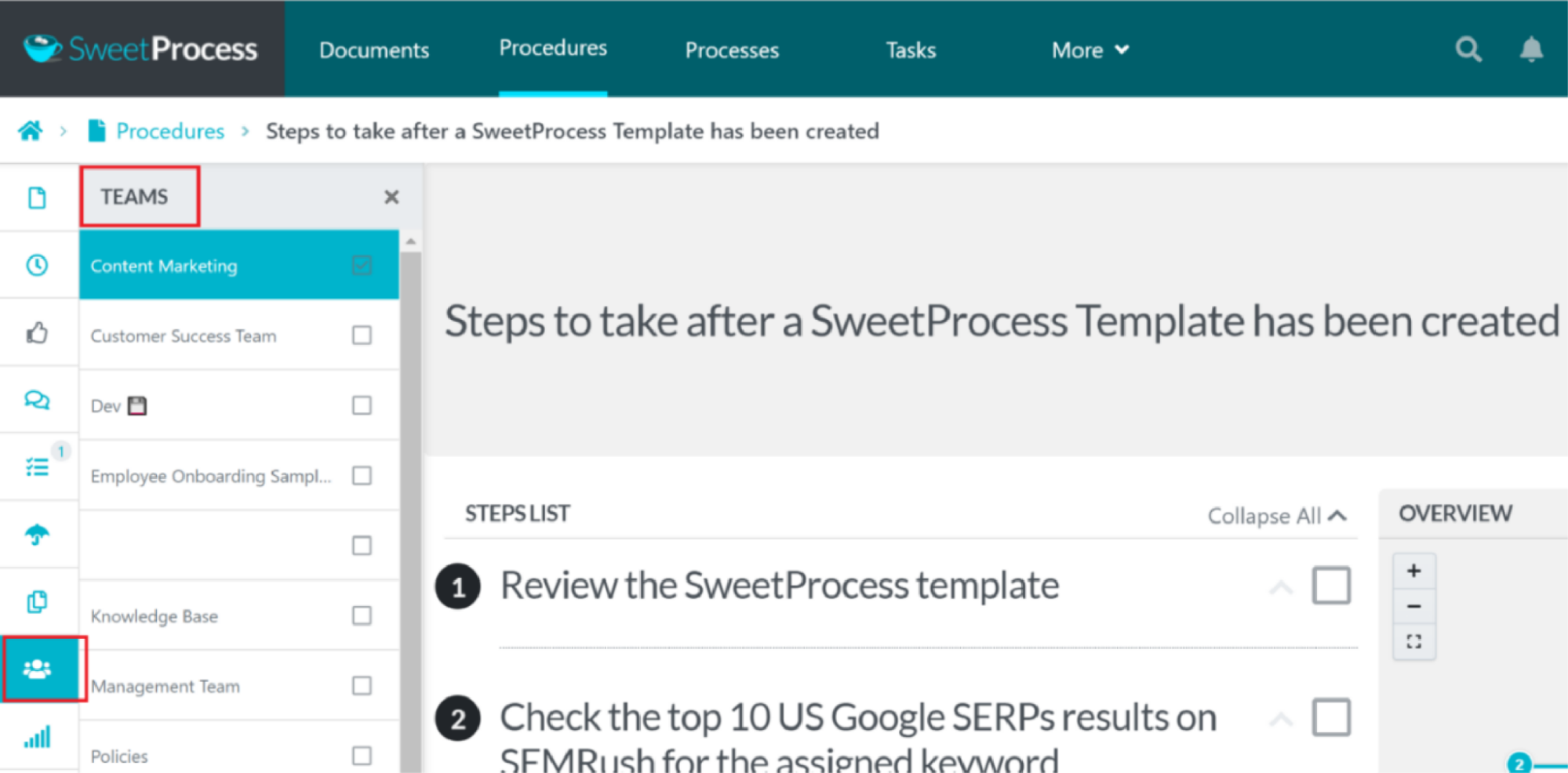
Teams panel used to share a SweetProcess Procedure with a department.
The captured procedure remains editable in the same account. You can change the steps as the work changes, and version history records who made changes and when, with an option to revert to the previous version.
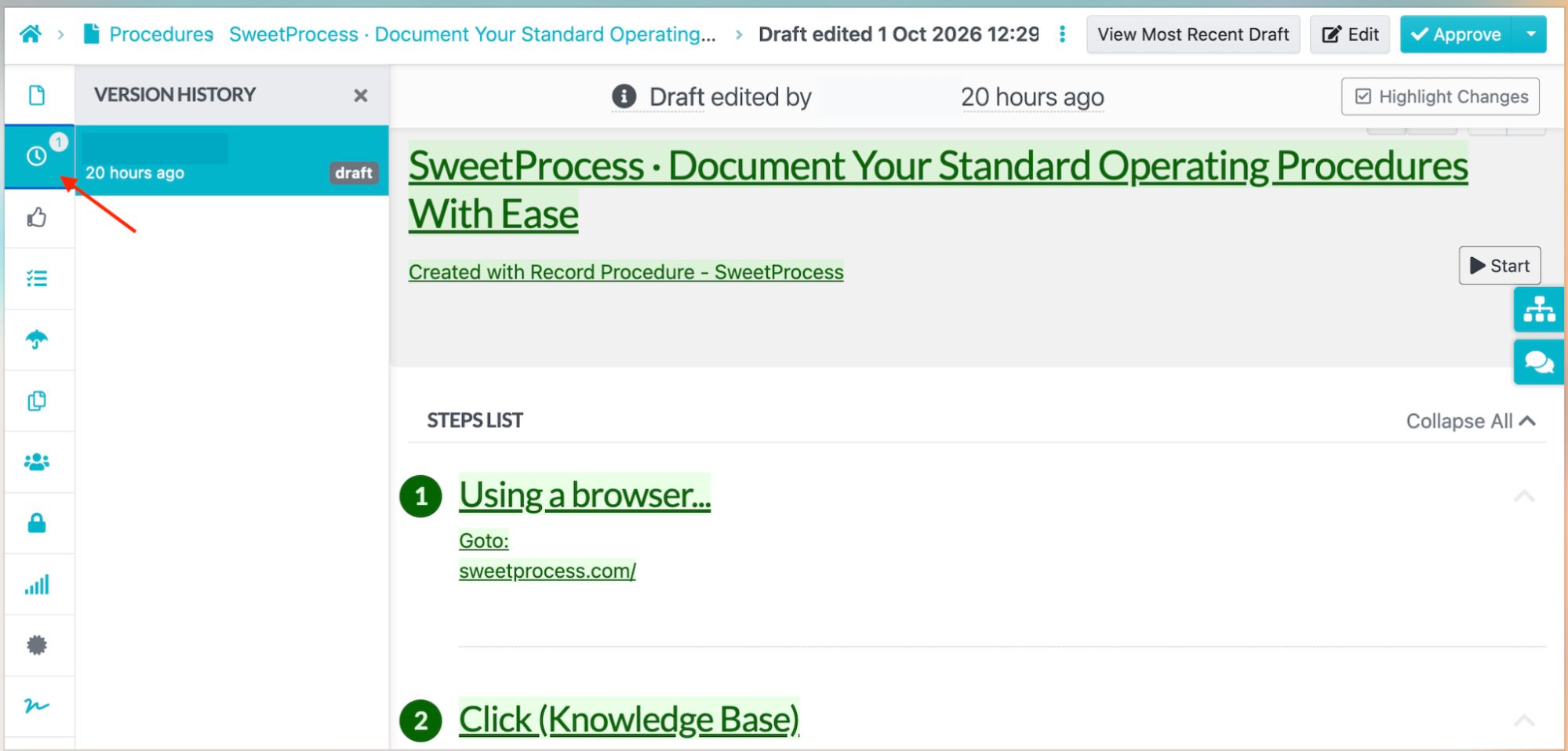
Version history panel showing changes to a SweetProcess Procedure.
You can also assign the procedure to the team responsible for the work, request approval, collect sign-offs, and set a review date.
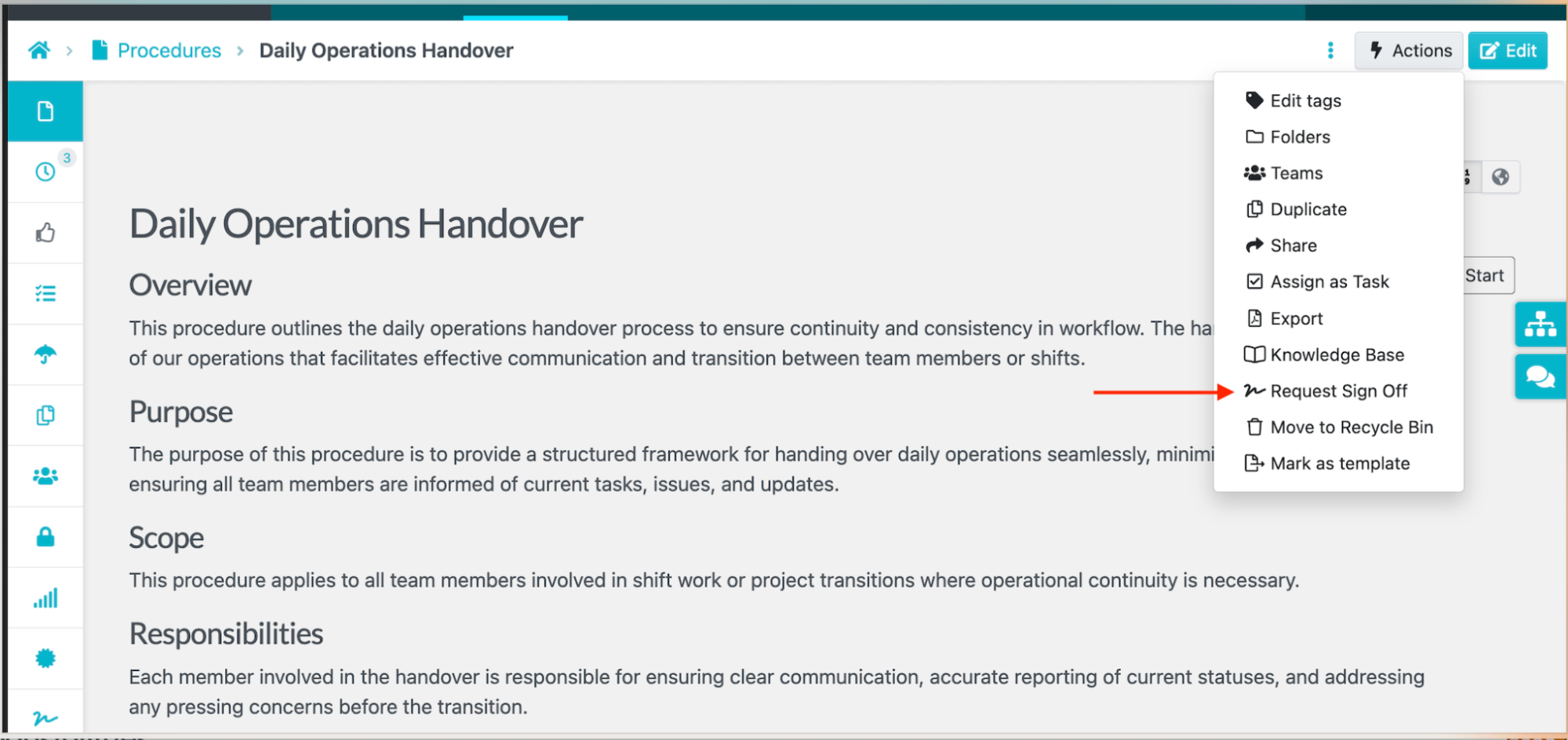
Request Sign Off option for a SweetProcess Procedure.
SweetProcess also creates a visual flowchart from your procedure, giving your team a clear guide.
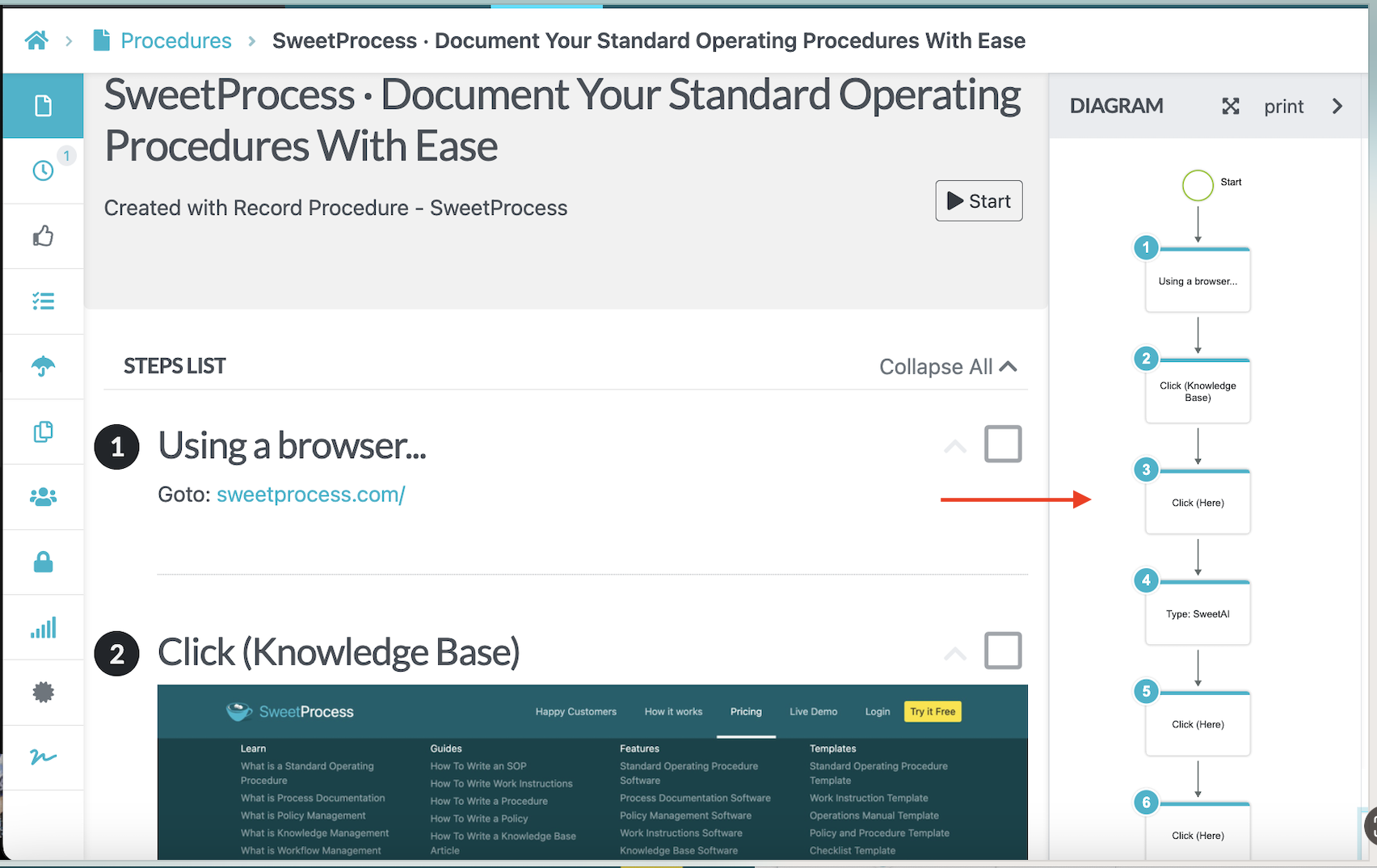
SweetProcess Procedure with its automatically generated linear flowchart.
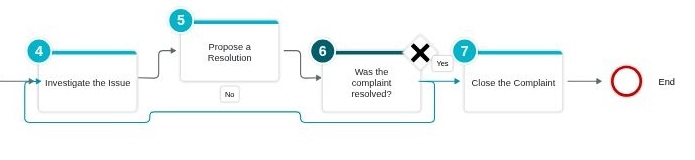
Customer-complaint procedure with Yes/No decision paths.
Tango Chrome Extension vs. SweetProcess Chrome Extension: Which Makes Team Collaboration Seamless?
Tango works through shared workspaces. You can share a guide by link or embed it on every plan. The free plan includes up to 10 users, making it easy to collaborate on a small team. Once you upgrade to the Pro plan, you can access viewer insights, which show how a guide is being used.
On Pro and Enterprise, you can send on-screen guidance to workspace members and use comments and viewer insights. Pinning guided walkthroughs for licensed internal users requires Enterprise.
With SweetProcess, you can add an entire department or team to a procedure at once.
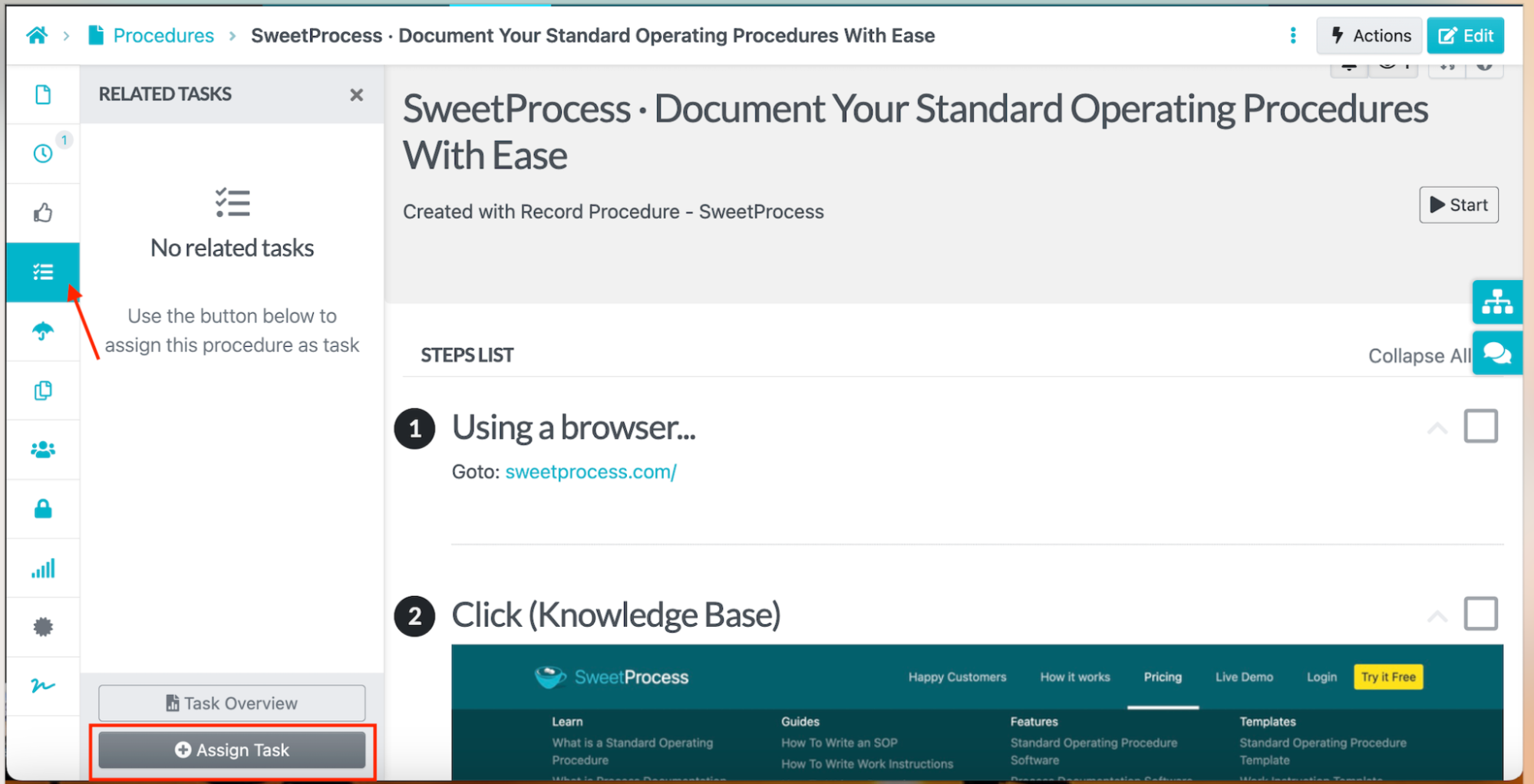
Assign Task button for a captured SweetProcess Procedure.
This way, you can route documentation to the people who do the work or need to approve it.
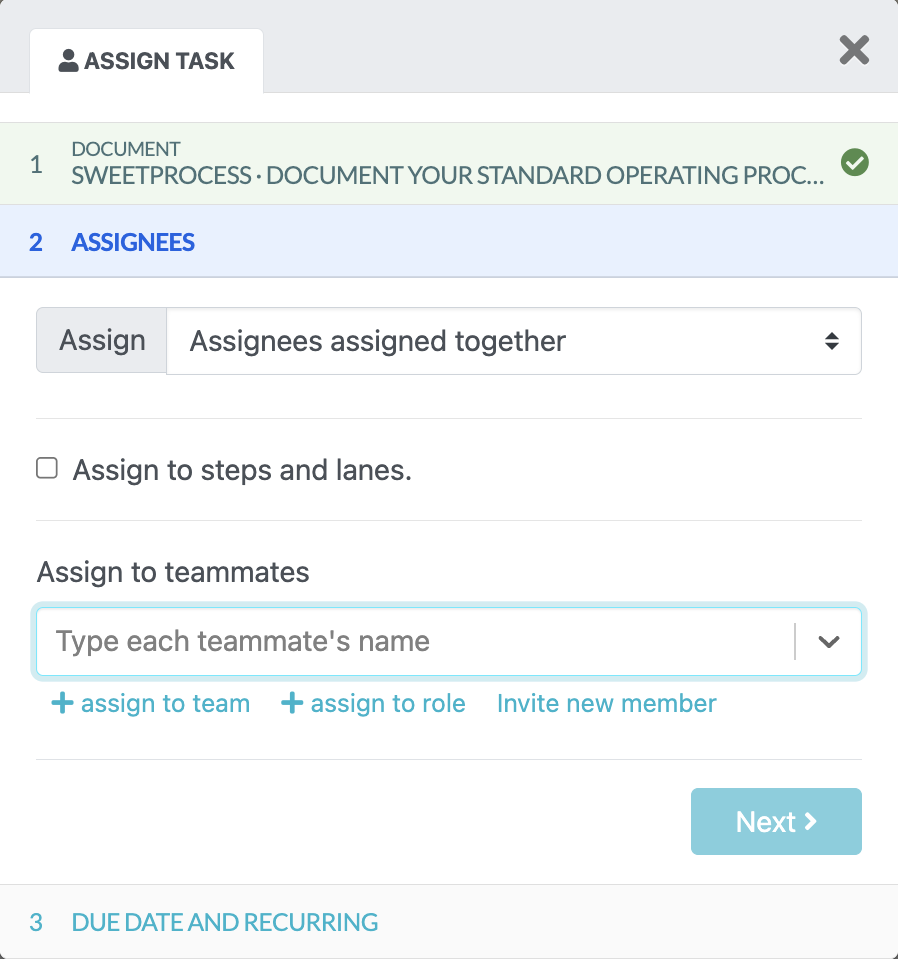
SweetProcess task assignment dialog with teammate, team, and role options.
If your priority is creating and distributing a guide, Tango gives you several ways to get it in front of people. If your procedure needs assignment, approval, sign-off, and scheduled review, SweetProcess makes it easy to do that.
Tango Chrome Extension vs. SweetProcess Chrome Extension: Which Has Better AI Capabilities?
To use Tango’s AI generation features, you’ll have to pay for the Pro or Enterprise plans. These capabilities enable you to edit and create content for your procedure much faster. Pro and Enterprise also include voice and video embeds. Browser automations require Enterprise.
For SweetProcess, you can write your procedures using AI thanks to the SweetAI feature. As you edit the captured procedure, you can add a prompt in the SweetAI panel and have it edit or improve your steps.
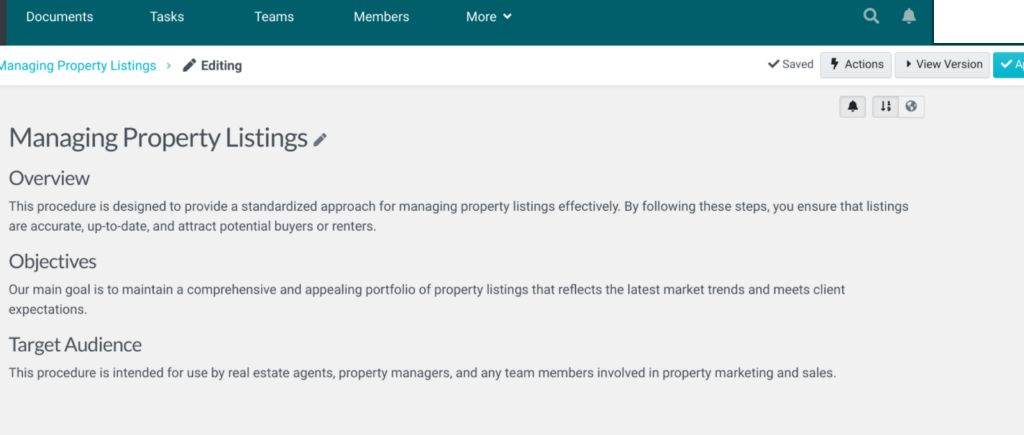
SweetAI-generated procedure draft.
SweetAI does not know your business, so team members who do the work need to review its draft and suggestions before anyone follows them.
Tango Chrome Extension vs. SweetProcess Chrome Extension: Which Is More Secure?
Tango says it is SOC 2 Type 2 compliant. Its Chrome Web Store listing discloses that the extension handles personally identifiable information, authentication information, location, web history, user activity, and website content. Tango’s security page describes encryption at rest and in transit, vulnerability scans, annual audits and penetration tests, and disaster recovery arrangements.
SweetProcess says procedures captured with its Chrome extension are encrypted and securely transmitted to your account. Its Chrome Web Store listing discloses handling user activity and website content, and the developer declares that it does not sell this data outside approved use cases.
Before installing an extension, review the current privacy information, especially if your workflows contain sensitive information.
Tango Chrome Extension vs. SweetProcess Chrome Extension: Which Is Easier to Use?
Both extensions let you start capturing with a browser action and stop when the task is finished.
Once you install the Tango Chrome extension, you can record and then review the guide before sharing it. The first capture is therefore straightforward. To follow a workflow with Guide Me, recipients need a Tango account, the extension, and access to the workflow.
The SweetProcess Chrome extension is designed with non-technical teams in mind. It’s easy to navigate and automates the process of creating or documenting procedures with the click of a button. Once the capture stops, SweetProcess asks you to add the procedure to your account, where you can edit and manage it further.
Tango Chrome Extension vs. SweetProcess Chrome Extension: How Much Do They Cost?
SweetProcess pricing covers a team of up to 10 users, while Tango pricing charges for each Pro user. Compare both the number of users and the features you need.
Tango has a free plan that includes five shared workflows, browser capture, link and embed sharing, and up to 10 users per workspace. Tango Pro is priced per user. For one or two users, Pro Personal starts at $22 per user per month when billed annually and $26 per user per month with monthly billing.
For three or more users, Pro Team starts at $15 per user per month when billed annually or $20 per user per month when billed monthly. Each additional Pro workspace user requires a paid seat. To access the Enterprise plan, which includes automatic redaction, advanced security, team onboarding, and multi-path workflows, you’ll need to schedule a demo with the team for a custom quote.
While installing the Tango Chrome extension is free, you’ll need an account to edit or share it. You can use the free plan to test out the tool.
SweetProcess includes the same full feature set in its standard and Small Team plans. If you pay monthly, this software costs $99 for 10 users and $5 per month for each additional employee. For annual payments, SweetProcess costs $990 and $50 per year for each new member.
There is also a Small Team plan at $495 per year for up to five users, with annual billing only. Every SweetProcess plan includes the full feature set.
The SweetProcess Chrome extension is free to install. Saving a captured procedure requires a SweetProcess account; new users can start a 14-day trial without a credit card. SweetProcess also offers a 30-day money-back guarantee. If you are considering leaving, a free one-hour consultation is available to help you implement the software before you leave.
Where Tango Is the Better Fit
Tango is a good fit if:
- You need to show one person how to do one thing in a web app today and send them a link. Tango’s Free plan gives you browser capture and sharing without a subscription.
- You need to capture installed desktop software as well as the browser. Tango Pro’s desktop app records programs such as Excel on Mac and on Windows 10 and 11.
- You need someone to follow a process on their own screen while they work. Tango’s Guide Me feature provides on-screen guidance, subject to access requirements.
- Your team works in Microsoft Edge. Tango has an Edge extension.
On the other hand, SweetProcess is a good fit if your captured procedure needs an owner, approval, sign-off, scheduled review, version history, and a place where the team can find it later. The same account can also hold procedures for work that never happens in a browser. Try it here!
Which Chrome Extension Should You Choose for SOP Documentation and Management?
Choosing the right Chrome extension for SOP documentation and management comes down to understanding the specific needs of your business and the features that will best enhance your team’s productivity.
If your goal is to quickly capture a web-based task and send someone a polished guide, Tango offers a direct capture-to-guide workflow. Its free plan includes five shared workflows. Pro adds desktop capture, exports, screenshot editing, and version history; Enterprise adds Pins and automations. Guide Me provides on-screen guidance under its access requirements.
SweetProcess Chrome extension, on the other hand, offers a simple approach to SOP documentation. With a straightforward pricing structure, it’s designed for ease of use and scalability as you grow. It’s a good choice if your goal is to create an SOP that needs ongoing ownership and maintenance after the capture.
SweetProcess saves the recording as an editable procedure and makes it easy to link this information to other processes that happen outside a browser.
If you are also weighing another capture tool, see our Scribe Chrome extension vs. SweetProcess Chrome extension comparison.
Take the first step toward streamlined SOP documentation and management by signing up for the 14-day free trial of SweetProcess to experience firsthand how our tool can simplify your procedures and elevate your team’s productivity.
FAQs
What is the Tango Chrome extension?
It is a browser extension from Tango that records your clicks and turns them into a step-by-step guide with annotated screenshots, which you can then share with your team to use for task execution.
Is the Tango Chrome extension free?
Yes, with a limit. The Free plan covers five shared workflows and browser capture for up to 10 users per workspace. To access desktop capture, exports, and screenshot blurring, you’ll need to upgrade to the Pro plan.
How much does Tango cost per month?
Tango Pro Team starts at $15 per user per month billed annually, or $20 with monthly billing, for three or more users. Pro Personal for one or two users costs $22 per user per month billed annually, or $26 with monthly billing. Enterprise uses a custom quote.
Is the Tango extension safe?
Tango says it is SOC 2 Type 2 compliant. Its Chrome Web Store listing also discloses the categories of data the extension handles. Review the current vendor security information and Chrome Web Store privacy disclosure before installing the extension for workflows containing sensitive information.
Is Tango still available?
Yes, Tango is still available at tango.ai. Its Chrome Web Store listing shows version 8.9.17.
Is the SweetProcess Chrome extension free?
Yes, the SweetProcess Chrome extension is free to install. However, to save your capture, you’ll need an account, which you can access using the 14-day free trial.
What is a Chrome extension like Tango?
The SweetProcess Chrome extension records browser activity in a similar way, then saves the capture as an editable procedure. For more options, see these Tango Chrome extension alternatives.